
Choosing the right mouse for video editing can make long sessions faster, more accurate, and far less tiring. The best options balance comfort, programmable controls, and reliable tracking across your editing setup.
Below, we’ve rounded up 10 strong picks for editors who want better scrolling, multi-device convenience, and all-day ergonomics without sacrificing precision.
Best 10 Mouse for Video Editing Picks for 2026
Ultra-Smooth Productivity Pick
Logitech MX Master 3S Wireless Mouse Standard Edition

- 8K DPI sensor tracks on glass and other surfaces
- MagSpeed scrolling is fast, precise, and quiet
- Quiet Clicks and 3-device Bluetooth support
Best For: Editors who want comfort, fast scrolling, and multi-device control
Precision Wired Control Pick
Logitech G502 Hero High Performance Wired Gaming Mouse

- 25,600 DPI Hero sensor for precise tracking
- 11 programmable buttons for editing shortcuts
- Adjustable weights and hyper-fast scroll wheel
Best For: Editors who want wired precision and lots of customizable buttons
Ergonomic Wrist-Relief Pick
Logitech MX Vertical Wireless Mouse

- 57° vertical shape supports a natural handshake grip
- 4000 DPI sensor reduces hand movement
- Wireless design helps keep editing desks clean
Best For: Editors looking to reduce wrist strain during long sessions
Mac Workflow Power Pick
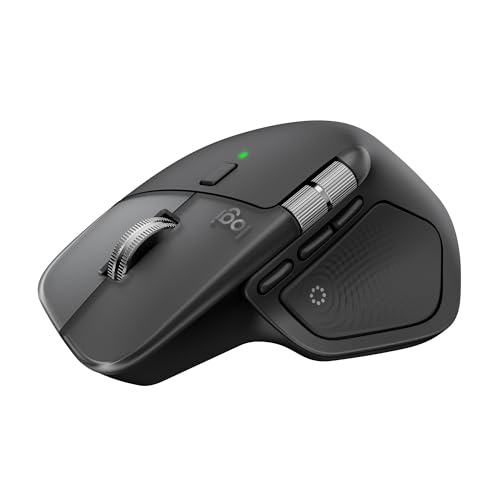
- Haptic Sense Panel adds customizable feedback
- Actions Ring and MagSpeed wheel speed up workflows
- Quiet Clicks and ergonomic shape support long edits
Best For: Mac editors who want premium workflow tools and comfort
Premium Editing Powerhouse

- Fast MagSpeed scrolling
- Custom haptics and shortcut tools
- Ergonomic, quiet-click design
Best For: power users who want a premium editing mouse
Thumb-Control Budget Ergonomics
Nulea M501 Wireless Trackball Mouse

- Thumb trackball reduces arm movement
- Connects to 3 devices
- Rechargeable with back/forward buttons
Best For: editors who want simple ergonomic trackball control
Ergonomic Multi-Device Pick

- Ergonomic right-handed shape
- Bluetooth for up to 3 devices
- Hyper-fast scrolling for fast navigation
Best For: Editors who switch between multiple computers
Vertical Comfort Choice

- Vertical design may reduce wrist strain
- Pairs with up to 3 devices
- Quiet clicks and adjustable DPI
Best For: Small to medium hands needing ergonomic comfort
Premium Editing Workhorse

- 8K DPI tracking with any-surface support
- MagSpeed scrolling and quiet clicks
- Bluetooth connection for up to 3 devices
Best For: Professional editors wanting precision and customization
Ultra-Smooth Productivity Pick – Logitech MX Master 3S Wireless Mouse Standard Edition
If you want a mouse for video editing that keeps up with fast timelines, the Logitech MX Master 3S is built around speed, precision, and quiet control. Its 8K DPI sensor works on nearly any surface, the MagSpeed wheel makes long timeline jumps feel effortless, and the quiet clicks help keep your workspace calm during long editing sessions.
Best For: Editors who want a comfortable wireless mouse with fast scrolling and cross-device workflow tools.
Pros:
- 8K DPI tracking works on glass and other surfaces.
- MagSpeed scrolling is fast, precise, and ultra quiet.
- Quiet Clicks reduce click noise by 90%.
- Can connect to up to 3 devices via Bluetooth.
Cons:
- Standard Edition includes the Logi Bolt receiver, but the notes also say the receiver is not included in the package contents detail.
- Right-hand focused shape may not suit left-handed users.
For editors who spend hours moving between clips, bins, and apps, this model leans hard into comfort and workflow efficiency. The combination of high-precision tracking, ultra-fast scrolling, and multi-device support makes it a strong all-around choice for editing desks.
Precision Wired Control Pick – Logitech G502 Hero High Performance Wired Gaming Mouse
The Logitech G502 Hero is a strong mouse for video editing if you want a wired option with highly customizable control. Its Hero sensor delivers up to 25,600 DPI, the scroll wheel offers dual-mode fast scrolling, and the 11 programmable buttons can be set up for editing shortcuts and repetitive commands.
Best For: Editors who prefer a wired mouse with lots of buttons and very fine pointer precision.
Pros:
- Hero sensor offers up to 25,600 DPI with zero smoothing or acceleration.
- 11 programmable buttons support shortcut-heavy workflows.
- Adjustable weights let you tune balance and feel.
- Dual-mode hyper-fast scroll wheel helps with long projects.
Cons:
- Wired design limits desk flexibility compared with wireless models.
- Gaming styling and RGB may be more than some editing setups need.
This model makes sense if your editing workflow benefits from a heavily customizable mouse and you do not want to think about charging. It is less about ergonomic luxury and more about speed, button mapping, and exact pointer control.
Ergonomic Wrist-Relief Pick – Logitech MX Vertical Wireless Mouse
If comfort is your top priority in a mouse for video editing, the Logitech MX Vertical is designed to reduce strain during long sessions. Its 57° vertical angle supports a more natural handshake grip, the 4000 DPI sensor reduces hand movement, and the wireless design keeps the desk cleaner while you work through timelines.
Best For: Editors who want a more ergonomic mouse to help reduce wrist and hand fatigue.
Pros:
- 57° vertical angle is designed to improve wrist posture.
- Natural handshake position reduces muscular activity by 10 percent.
- 4000 DPI sensor helps reduce hand movement and fatigue.
- Works with Windows, macOS, Linux, Chrome OS, iPadOS, and Android.
Cons:
- Only 4 buttons, so it offers less shortcut control than button-heavy mice.
- Vertical shape has a learning curve if you are used to traditional mice.
This is the best fit when comfort matters more than maximum customization. For editors who spend long hours in an app and want to reduce wrist pressure, the MX Vertical offers a clear ergonomic advantage.
Mac Workflow Power Pick – Logitech MX Master 4 for Mac
For Mac users looking for a mouse for video editing, the Logitech MX Master 4 for Mac focuses on workflow speed and tactile control. It adds customizable haptic feedback, the Actions Ring for app-specific tools, and a MagSpeed wheel that can scroll 1,000 lines per second, making it a strong fit for dense timelines and frequent tool switching.
Best For: Mac-based editors who want advanced workflow features, quiet clicks, and premium comfort.
Pros:
- Haptic Sense Panel adds customizable feedback on actions and shortcuts.
- Actions Ring puts favorite tools and edits at your cursor.
- MagSpeed wheel is fast, quiet, and precise.
- Quiet Clicks reduce click noise by 90%.
Cons:
- USB-C charging cable is not included.
- Best experience is tied to Logi Options+ and Mac-focused features.
This is the most feature-rich option in the group for Apple users who want to move quickly through editing apps. If you value customizable controls and a polished ergonomic shape, it is built for productive post-production work.
Trackball Comfort Pick – Nulea Wireless Ergonomic Trackball Mouse
If you want a mouse for video editing that reduces wrist movement, this wireless ergonomic trackball is a practical choice. The 44mm index-finger trackball keeps cursor control in one spot, which can be helpful during long timeline work on a cramped desk or laptop setup.
Best For: Editors who want trackball comfort, compact desk use, and flexible multi-device switching.
Pros:
- 44mm index-finger trackball helps minimize arm and wrist movement.
- 5 adjustable DPI modes give you more control for precise cursor work.
- Connects to up to 3 devices via Bluetooth or USB receiver.
- Rechargeable battery is rated for long use between charges.
Cons:
- Trackball operation can feel unfamiliar at first.
- Best suited to users willing to adapt to a different navigation style.
For editing workflows in tight spaces, this model stands out for comfort and steady control rather than traditional mouse movement. If you can get past the learning curve, it offers a low-strain way to work through long sessions.
Premium Editing Powerhouse – Logitech MX Master 4
For a mouse for video editing with speed and customization, the MX Master 4 is built around productivity features. Its MagSpeed scroll wheel, programmable workflow tools, and haptic feedback can help you move through timelines, panels, and shortcuts more efficiently.
Best For: Video editors who want a premium, highly responsive mouse with strong scrolling and customizable controls.
Pros:
- MagSpeed scroll wheel is designed for fast, precise scrolling.
- Haptic Sense Panel and Actions Ring add customizable workflow shortcuts.
- Ergonomic shape with thumb scroll wheel helps reduce hand stress.
- Quiet clicks keep distractions down during focused work.
Cons:
- Premium feature set may be more than casual users need.
- Right-hand ergonomic design limits universal fit.
If your editing routine benefits from fast scrolling and lots of shortcut access, this is the most workflow-focused option in the group. It is especially appealing for editors who spend long hours navigating complex projects.
Thumb-Control Budget Ergonomics – Nulea M501 Wireless Trackball Mouse
If you want a mouse for video editing that keeps your hand in place, the Nulea M501 offers thumb-controlled trackball navigation with a comfortable ergonomic shape. It is a sensible pick for compact desks and editing setups where reducing wrist and arm movement matters.
Best For: Editors who prefer thumb trackball control, multi-device switching, and a simple ergonomic layout.
Pros:
- Thumb trackball helps reduce wrist and arm movement.
- Supports up to 3 devices via Bluetooth or USB dongle.
- Rechargeable design avoids disposable batteries.
- Includes back and forward buttons for easier navigation.
Cons:
- Buttons are not programmable.
- Trackball control may take some adjustment.
This model is a straightforward ergonomic option for editors who want comfort without a complicated feature set. It makes the most sense if you value low-strain cursor control and quick device switching more than advanced customization.
Ergonomic Multi-Device Pick – Logitech MX Master 2S
If you want a mouse for video editing that balances comfort, multi-device switching, and smooth navigation, the Logitech MX Master 2S is a strong all-rounder. Its ergonomic shape, hyper-fast scrolling, and ability to connect to up to three computers make it well suited to timeline-heavy workflows and moving between a laptop and desktop.
Best For: Editors who work across multiple computers and want an ergonomic productivity mouse.
Pros:
- Ergonomic right-handed design for more comfortable long sessions.
- Connects to up to 3 Mac or PC computers over Bluetooth.
- Hyper-fast scrolling helps move quickly through long timelines and documents.
- Rechargeable battery with a long rated life of up to 1680 hours.
Cons:
- Only designed for right-handed users.
- Uses Bluetooth rather than a USB receiver in this version.
- Not built around ultra-high DPI tracking like newer pro models.
Overall, the MX Master 2S is a practical editing mouse if comfort and workflow speed matter more than gaming-style specs. It suits creators who jump between devices and want reliable scrolling for frequent timeline work.
Vertical Comfort Choice – ProtoArc EM11 NL
If wrist comfort is a priority, this mouse for video editing takes a vertical ergonomic approach that can help during long desktop sessions. The ProtoArc EM11 NL supports Bluetooth and 2.4GHz connectivity, can pair with up to three devices, and includes quiet left/right clicks for a less distracting workspace.
Best For: Editors with small to medium hands who want a vertical mouse to reduce wrist strain.
Pros:
- Vertical ergonomic design encourages a more natural wrist and forearm position.
- Connects to up to 3 devices via Bluetooth and 2.4G USB-A.
- Quiet clicking helps keep the workspace calmer during editing.
- Adjustable 1000/1600/2400 DPI levels for precise optical tracking.
Cons:
- There is a learning curve if you are new to vertical mice.
- Forward/back buttons are not compatible with Mac OS systems.
- Best suited to hand lengths under 7.5 inches, so fit matters.
For editors who feel strain from standard mouse shapes, this model is more about comfort and control than speed. Its multi-device support and quiet operation make it a sensible pick for focused editing setups.
Premium Editing Workhorse – Logitech MX Master 3S
The Logitech MX Master 3S is a premium mouse for video editing built around speed, precision, and quiet use. With 8K DPI tracking, MagSpeed scrolling, and the ability to work on any surface including glass, it is aimed at demanding workflows where quick navigation and detailed control both matter.
Best For: Professional editors who want a quiet, highly customizable productivity mouse.
Pros:
- 8000 DPI sensor and any-surface tracking, including glass.
- MagSpeed scrolling is fast, precise, and very quiet.
- Quiet Clicks reduce button noise by 90% compared with standard clicking.
- Supports up to 3 devices over Bluetooth and offers app-specific customization.
Cons:
- This Bluetooth-only version does not include a USB receiver or charging cable.
- Right-handed design only.
- Premium feature set may be more than casual users need.
For editing work that benefits from rapid scrolling, accurate pointer movement, and low noise, this is the most capable option in the group. It is especially appealing if you work across multiple computers and want a mouse that can be tuned to your workflow.
How We Picked the Best Mouse for Video Editing
We prioritized features that matter in real editing workflows: comfortable shapes for long sessions, smooth and precise cursor control, fast scrolling for timeline navigation, and extra buttons or software support for common shortcuts. We also considered wireless reliability, battery life, and multi-device switching for editors who work across laptops, desktops, and tablets.
Quick Comparison
In a Mouse for Video Editing, the best choice depends on how you work. Ergonomic productivity mice tend to be the strongest all-around option for most editors, while trackball models suit cramped desks or users who want less wrist movement. Gaming mice can be a smart pick for editors who want high responsiveness and lots of programmable buttons, though they may be less comfortable for all-day office-style use.
Key Buying Factors for a Mouse for Video Editing
Comfort and Grip
Video editing often means hours of repetitive clicking, dragging, and scrubbing. Look for a shape that supports your hand naturally, especially if you edit daily. Vertical mice and sculpted ergonomic designs can reduce strain, while traditional mice may feel more familiar and easier to adapt to.
Scroll Wheel and Shortcut Control
A quality scroll wheel is one of the biggest productivity boosts. Free-spin or hyper-fast scrolling helps move quickly through long timelines, while programmable buttons can be mapped to cut, undo, zoom, or switching tools in your editing software.
Precision and Surface Tracking
For frame-accurate work, consistent tracking matters more than extreme sensitivity numbers. A good Mouse for Video Editing should feel stable on your desk and track well on common surfaces, especially if you work from different locations.
Connectivity and Multi-Device Use
Bluetooth is convenient for laptops and travel setups, while USB receivers can offer a steadier connection on busy desks. Multi-device pairing is especially useful if you edit on both a desktop and a secondary machine.
Who Should Buy Which Mouse for Video Editing?
If you want the best all-around productivity setup, choose a sculpted ergonomic mouse with fast scrolling and customizable buttons. If wrist comfort is your top concern, consider a vertical or trackball model. If you prefer a more button-heavy, highly responsive feel, a gaming mouse can work well for shortcut-heavy editing. And if you regularly switch between devices, prioritize multi-device connectivity and easy pairing above all else.
For most editors, the ideal Mouse for Video Editing is the one that reduces friction in your workflow every day: comfortable enough to use for hours, fast enough to navigate timelines, and flexible enough to match your editing software and workspace.