
Choosing the right mouse for CAD design can make a real difference in speed, precision, and long-session comfort. The best option depends on your grip style, workspace, and whether you prefer a traditional mouse, trackball, or vertical ergonomic shape.
Below, we’ve selected 10 strong picks for 2026 to help you narrow down the best fit for drafting, modeling, and everyday design work.
Best 10 Mouse for CAD Design Picks for 2026
CAD Pro Ergonomics
3Dconnexion CadMouse Pro Wired
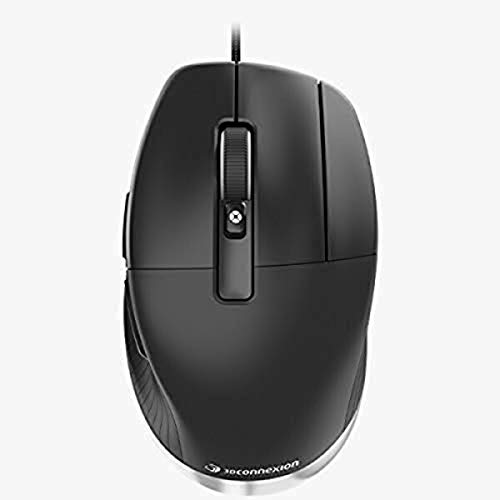
- Dedicated middle button for CAD tasks
- Angled shape and thumb rest reduce strain
- Wired 7-button design for steady control
Best For: CAD professionals who want a purpose-built wired mouse
Premium Multi-Device
Logitech MX Master 3S Graphite

- 8K DPI tracking with glass support
- Quiet clicks and MagSpeed scrolling
- Connects to up to 3 devices
Best For: CAD users who want a premium all-purpose productivity mouse
Compact CAD Wireless
3Dconnexion CadMouse Compact Wireless

- Compact wireless design reduces desk clutter
- Natural hand fit for longer sessions
- 7 buttons with Bluetooth connectivity
Best For: CAD users who want a smaller wireless ergonomic mouse
Ergo Trackball Control

- Thumb trackball reduces arm movement
- 20-degree tilt supports better posture
- 6 programmable buttons for shortcuts
Best For: CAD users who prefer a stable ergonomic trackball
Precision Trackball
ELECOM HUGE Wireless Trackball for CAD

- Large 52mm ball for accurate cursor control
- 8 buttons with horizontal scroll support
- DPI switches between 500, 1000, and 1500
Best For: Designers who want a stationary, precise pointing tool for long sessions
Budget Office Mouse
Acer Wireless Mouse with Adjustable DPI

- 3 DPI settings up to 1600 for flexible sensitivity
- Forward and backward buttons for faster navigation
- 2.4GHz plug-and-play wireless connection
Best For: Users who want an affordable cordless mouse for light design work
Ergonomic Trackball

- Thumb control reduces hand movement
- Ergonomic shape certified for all-day comfort
- Bluetooth or USB receiver with 18-month battery life
Best For: CAD users who want a comfortable, space-saving trackball
Ergonomic Vertical Pick
ProtoArc EM11 NL Bluetooth Vertical Mouse

- Vertical design helps reduce wrist strain
- 3-device Bluetooth and 2.4G connectivity
- Rechargeable with 1000/1600/2400 DPI
Best For: Small-to-medium hands and comfort-first CAD workflows
Thumb-Control Precision
Nulea M501 Wireless Trackball Mouse

- Thumb trackball reduces wrist and arm movement
- Adjustable DPI for precise cursor control
- Connects to 3 devices and recharges
Best For: CAD work on compact desks with a focus on accuracy
CAD Pro Ergonomics – 3Dconnexion CadMouse Pro Wired
If you want a mouse for CAD design that feels purpose-built, the 3Dconnexion CadMouse Pro focuses on the details professionals actually use. Its middle mouse button is designed for CAD functions, and the angled shape with thumb rest is meant to reduce strain during long sessions.
Best For: CAD users who want a wired, ergonomically shaped mouse with a dedicated middle button and easy access to side controls.
Pros:
- Dedicated middle mouse button designed specifically for CAD workflows
- Angled body and thumb rest promote a more natural hand posture
- Wired connection avoids battery management
- 7-button layout gives quick access to common functions
Cons:
- Wired design may feel less flexible on crowded desks
- Built around right-hand ergonomics rather than a fully ambidextrous shape in practice
The CadMouse Pro is the most CAD-focused option here, and its ergonomics and middle-button design make it a strong pick for long drafting sessions. If your priority is precision workflow support over general-purpose extras, it stands out immediately.
Premium Multi-Device – Logitech MX Master 3S Graphite
The Logitech MX Master 3S is a strong mouse for CAD design if you also need a versatile everyday workstation mouse. It offers 8K DPI tracking, quiet clicks, and MagSpeed scrolling, plus the ability to connect to multiple devices across several operating systems.
Best For: CAD users who split time between design work and general productivity across multiple computers.
Pros:
- 8K DPI sensor with tracking on glass for flexible desk use
- Quiet clicks and MagSpeed scrolling for a smoother office environment
- Connects to up to 3 devices via Bluetooth
- FLOW support helps move text, images, and files between computers
Cons:
- Not CAD-specific like a dedicated 3Dconnexion model
- Logi Bolt receiver is not included with all connection setups
For users who want one mouse that can handle CAD work and everyday multitasking, the MX Master 3S brings a very polished feature set. It is less specialized than the CadMouse line, but it is highly capable as an all-around productivity mouse.
Compact CAD Wireless – 3Dconnexion CadMouse Compact Wireless
If you need a mouse for CAD design in a smaller wireless form, the 3Dconnexion CadMouse Compact Wireless keeps the CAD-friendly focus while cutting down desk clutter. It is designed to fit the hand naturally, uses Bluetooth connectivity, and includes seven buttons for more control.
Best For: CAD users who want a compact wireless mouse with ergonomic shaping and a familiar multi-button layout.
Pros:
- Compact wireless design is easier to carry and keeps the workspace uncluttered
- Natural hand fit is intended to avoid painful positions during long use
- 7 buttons support more efficient control
- Bluetooth connection offers cable-free convenience
Cons:
- Smaller shape may not suit users who prefer a larger mouse
- Battery-based design requires periodic charging
This is a practical pick if you want CadMouse styling without a wired setup. It stays focused on comfort and control, but in a more portable package than the Pro model.
Ergo Trackball Control – Logitech MX Ergo S Graphite
The Logitech MX Ergo S is a mouse for CAD design users who prefer thumb-driven control with less arm movement. Its trackball design, 20-degree tilt, and customizable buttons are built to improve comfort while still giving you precise control.
Best For: CAD users who want an ergonomic trackball that minimizes movement and supports long work sessions.
Pros:
- Thumb-operated trackball reduces the amount of hand and arm movement needed
- 20-degree tilt is designed to improve forearm posture
- 6 programmable buttons can speed up common tasks
- Bluetooth and Logi Bolt support flexible wireless connectivity
Cons:
- Trackball control has a learning curve if you are used to standard mice
- Lower 2048 DPI maximum sensitivity is less aggressive than some conventional mice
For users who value comfort and precision over traditional mouse movement, the MX Ergo S is a compelling alternative. It is especially appealing if you want to reduce repetitive motion during longer CAD sessions.
Precision Trackball – ELECOM HUGE Wireless Trackball for CAD
If you want a mouse for CAD design that reduces wrist movement while still giving you fine cursor control, the ELECOM HUGE trackball is built for that style of work. Its large 52mm ball, optical tracking, and adjustable DPI make it easy to move precisely across drawings without constantly repositioning your hand.
Best For: Designers who want a stationary, highly controllable pointing device for long drafting sessions.
Pros:
- Large 52mm ball with optical tracking for precise cursor movement.
- 8 buttons, including scrollwheel tilting for horizontal scrolling.
- Switchable DPI settings: 500, 1000, and 1500.
- Easy to maintain, with removable ball access and smooth ruby bearings.
Cons:
- Trackball layout has a learning curve if you are used to a standard mouse.
- Right-hand design only.
- Wireless use depends on battery power.
For CAD users who value controlled movement over speed, this model offers a practical mix of precision, customization, and comfort. The palm rest and stationary design can also help reduce repetitive hand motion during detailed work.
Budget Office Mouse – Acer Wireless Mouse with Adjustable DPI
This acer wireless mouse is a straightforward option for a mouse for CAD design when you want a simple, responsive setup without extra software. It offers 3 adjustable DPI levels, forward/back buttons, and a stable 2.4GHz connection, which can be useful for everyday drafting, file navigation, and general office work.
Best For: Users who want an affordable cordless mouse with adjustable sensitivity for light design tasks.
Pros:
- 3 DPI settings: 800, 1200, and 1600 for adjustable sensitivity.
- Forward and backward buttons help move through files and pages faster.
- 2.4GHz plug-and-play connection with no drivers needed.
- Lightweight 3 oz design suited to medium and large hands.
Cons:
- Side buttons do not work on Mac.
- AAA batteries are not included.
- Less specialized for precision work than a trackball or higher-end ergonomic mouse.
If you need a basic wireless mouse that can handle everyday design software navigation, this Acer model covers the essentials well. It is most appealing as a low-fuss, budget-friendly pick rather than a dedicated pro-grade CAD tool.
Ergonomic Trackball – Logitech ERGO M575S for CAD
The Logitech ERGO M575S is a strong mouse for CAD design if you want to keep your hand still and rely on thumb control for precise pointing. Its sculpted ergonomic shape, customizable buttons, and smooth tracking are aimed at long workdays where comfort and control matter more than rapid hand movement.
Best For: CAD users who want an ergonomic trackball for comfortable, space-saving control.
Pros:
- Thumb-controlled trackball helps reduce hand movement.
- Ergonomic shape is certified by ergonomists for all-day comfort.
- 3 customizable buttons with support for Logi Options+ shortcuts.
- Bluetooth or Logi Bolt receiver connectivity with up to 18 months of battery life.
Cons:
- Only 2 buttons are listed in the hardware details, so customization is limited versus some multi-button models.
- Trackball control may take time to get used to.
- Best fit for right-handed users only.
For detailed CAD work in a compact setup, this model stands out for comfort and reduced forearm strain. The combination of thumb control, long battery life, and flexible connectivity makes it a practical everyday workstation choice.
Ergonomic Vertical Pick – ProtoArc EM11 NL Bluetooth Vertical Mouse
If you want a mouse for CAD design that puts comfort first, the ProtoArc EM11 NL is a vertical option built to reduce wrist strain during long sessions. Its 1000/1600/2400 DPI settings give you more control than a basic office mouse, while the multi-device Bluetooth and 2.4G setup can help streamline a busy workstation.
Best For: CAD users with small to medium hands who want a vertical, rechargeable mouse for everyday design work and multi-device switching.
Pros:
- Vertical ergonomic shape encourages a more natural wrist and forearm position
- Connects up to 3 devices through Bluetooth and included USB-A receiver
- Rechargeable battery with included Type-C charging cable
- 1000/1600/2400 DPI levels support more precise pointer control
Cons:
- There is a learning curve when switching to the vertical shape
- Forward/back buttons are not compatible with Mac OS
- Not all buttons are programmable
For CAD design, this model makes sense if comfort is your priority and you can adapt to the vertical grip. It is especially appealing for smaller hands, but the lack of programmable controls may limit users who want deeper workflow customization.
Thumb-Control Precision – Nulea M501 Wireless Trackball Mouse
A trackball can be a smart mouse for CAD design when you want precise cursor control without constant wrist and arm movement. The Nulea M501 uses smooth thumb control, adjustable DPI, and support for up to 3 devices, making it a practical fit for compact desks and long work sessions.
Best For: CAD users who want precise thumb-based cursor control and a comfortable, space-saving wireless trackball.
Pros:
- Thumb-operated trackball reduces wrist and arm movement
- Adjustable DPI supports precise cursor movement
- Connects up to 3 devices via Bluetooth or USB receiver
- Rechargeable battery avoids disposable battery swaps
Cons:
- Trackball design may take time to get used to
- All buttons are not programmable
- USB receiver is stored on the bottom, so it is easy to misplace if removed
This is a strong choice if your CAD workflow benefits from stable pointer control and a relaxed hand position. It is less about speed and more about accuracy, especially when working in tight spaces or on a crowded desk.
Adjustable Trackball Comfort – ProtoArc EM01 NL Wireless Trackball
If you need a mouse for CAD design that combines precision with a more relaxed hand position, the ProtoArc EM01 NL is built around a thumb trackball and adjustable angle. Its 0-20° hinge helps you tune the grip, while the 5 DPI levels and dual wireless modes make it flexible for different tasks and devices.
Best For: CAD users who want an adjustable trackball mouse with quiet clicks and multi-device wireless convenience.
Pros:
- 0-20° adjustable angle supports a more natural grip
- Thumb trackball offers precise navigation without moving the whole arm
- Connects up to 3 devices using Bluetooth and 2.4G wireless
- 200/400/800/1200/1600 DPI settings adapt to different tasks
Cons:
- Scroll wheel and side buttons are not silent
- Trackball requires periodic cleaning to keep movement smooth
- Trackball control may not suit users who prefer a standard mouse shape
For CAD design, this model stands out if you want to reduce repetitive motion while keeping cursor movement accurate. The adjustable angle is a useful touch for long sessions, though trackball maintenance is part of the ownership experience.
How We Picked These Mouse for CAD Design Options
We focused on factors that matter most in CAD workflows: pointer accuracy, consistent tracking, programmable controls, ergonomic support, and connectivity that won’t interrupt work. We also considered whether each model suits long hours at a desk, frequent shortcut use, or portable setup needs.
Quick Comparison
If you want fast navigation and lots of programmable controls, a premium productivity mouse is often the easiest transition from a standard office mouse. If precision with minimal hand movement matters more, a trackball can be a strong choice. For users who deal with wrist strain, a vertical or ergonomic mouse may be the better long-term fit.
Key Buying Factors for Mouse for CAD Design
Precision and Sensor Performance
CAD work benefits from smooth, predictable cursor movement. Look for a mouse with reliable tracking on your typical surface and enough sensitivity adjustment to support both broad movement and fine selection.
Programmable Buttons and Shortcut Access
Extra buttons can save time by putting common commands, zoom, pan, undo, and application shortcuts within easy reach. For frequent design work, these controls often matter as much as raw DPI.
Ergonomics and Session Comfort
A Mouse for CAD Design should support your hand during long modeling sessions. Consider palm support, grip angle, thumb placement, and whether a trackball or vertical design reduces strain for you.
Connectivity and Workflow Reliability
Wired, wireless, Bluetooth, and dongle-based options each have trade-offs. Wired models avoid charging concerns, while wireless models offer cleaner desks and greater flexibility. If you switch between devices, multi-device pairing can be a major advantage.
Who Should Buy Which Mouse for CAD Design?
Choose a premium productivity mouse if you want a familiar shape, fast scrolling, and broad everyday usefulness. Pick a trackball if you want to reduce arm movement and keep the cursor controlled from one position. Go with a vertical ergonomic model if comfort and wrist relief are your top priorities. If you travel often or need a budget-friendly backup, a simpler wireless mouse can still handle light CAD tasks well, though it may lack the shortcut efficiency of more specialized options.
For most buyers, the best Mouse for CAD Design is the one that matches both your software habits and your hand comfort. Prioritize the control style you’ll use for hours, not just the specs on the box.