
If you need more screen space, the right adapter can turn a single Thunderbolt port into a serious multitasking setup. The best options support multiple external displays, stable charging, and the right mix of HDMI, DisplayPort, and USB-C outputs.
This guide focuses on the features that matter most for real-world use, so you can pick a Thunderbolt display adapter for multiple monitors that fits your laptop, monitor layout, and workflow.
Best 10 Thunderbolt Display Adapter for Multiple Monitors Picks for 2026
Windows MST Triple Display
Cable Matters 3x DisplayPort Hub

- Windows-only triple DisplayPort adapter
- Three DP 1.4 outputs with HDR support
- Up to 100W pass-through charging
Best For: Windows users needing a compact triple-DisplayPort setup
Quad Screen Power Hub
TobenONE 4 Monitor 20-in-1 Dock

- Quad 4K@60Hz external display support
- 20 ports with USB, Ethernet, and card readers
- 150W adapter with up to 100W laptop charging
Best For: Power users building a four-monitor workstation
Triple HDMI Productivity Dock

- Triple HDMI display expansion
- Up to 85W Power Delivery
- USB-A and USB-C ports for peripherals
Best For: Remote work and hot-desk triple-monitor setups
Quad-Display Workstation Adapter
StarTech USB-C to Quad DisplayPort Dock

- Supports four 4K 60Hz DisplayPort monitors
- 140W passthrough charging with USB-A peripheral port
- DisplayLink setup for most Windows and ChromeOS systems
Best For: Users who need a compact quad-monitor dock with charging
Triple-Screen USB-C Hub
Selore Dual Monitor Docking Station

- 2 HDMI ports plus 1 DisplayPort for flexible monitor hookups
- Windows support for dual and triple display setups
- Gigabit Ethernet and up to 100W PD charging
Best For: Windows users wanting a compact multiport dock with monitor support
Mac-Friendly Triple Display Dock
WAVLINK 4K@60Hz 3 Monitor Dock

- Triple-monitor support at 4K@60Hz
- 6 USB ports, Ethernet, and audio included
- Up to 100W charging with DisplayLink video
Best For: Mac and Windows users who want a versatile triple-display dock
Triple 4K HDMI Adapter

- Three HDMI 2.0 outputs support up to 4K@60Hz on compatible devices.
- Includes 100W PD charging and a USB 3.0 port.
- macOS mirrors displays; Windows MST enables extended layouts.
Best For: Users who want a simple three-HDMI dock for a compact workstation.
Dual HDMI + DP Display Dock
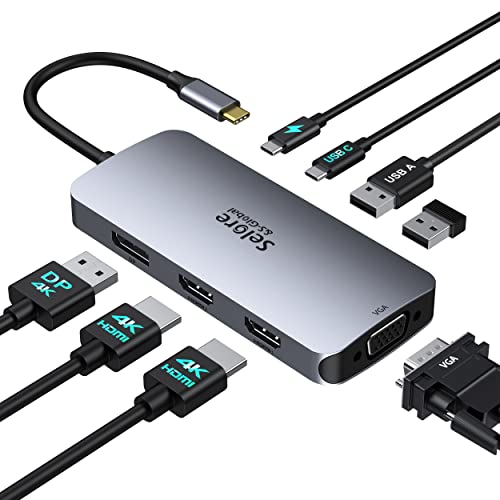
- Offers dual HDMI, DisplayPort, and VGA for flexible monitor hookups.
- Supports up to 100W PD charging while in use.
- Mac systems mirror displays; Windows is the stronger fit.
Best For: People who need a flexible multi-display dock with legacy display support.
Triple/Quad 4K Flex Workstation – TobenONE 3 Monitor Docking Station
If you want a Thunderbolt display adapter for multiple monitors that can handle a serious desk setup, this TobenONE DisplayLink dock is built for flexible triple- or quad-screen use. It connects over a single USB-C cable and adds a large mix of display, USB, Ethernet, and charging options for Mac, Windows, Chrome OS, Android, and Ubuntu systems that support the required driver.
Best For: Remote workers, traders, and creators who need triple- or quad-monitor expansion from one USB-C connection.
Pros:
- Supports triple/quad 4K@60Hz display combinations with 3x HDMI and 3x DP outputs.
- Includes 18 total ports, plus 4x USB 3.1/3.2 and 2x USB-C data ports for peripherals.
- Comes with a 120W power adapter and can deliver up to 100W laptop charging.
- Works with Thunderbolt 5/4/3, USB4, and full-featured USB-C laptops with DisplayLink driver support.
Cons:
- Requires a compatible DisplayLink driver before use.
- macOS is limited to 3 external monitors, while Windows can support up to 4 in supported setups.
- Does not support Netflix/paid streaming services due to screen recording limitations.
This is a strong all-in-one option if your priority is expanding a laptop into a serious productivity station with lots of monitor and peripheral support. It makes the most sense when you value display flexibility and port count over simple plug-and-play use.
Windows MST Triple Display – Cable Matters 3x DisplayPort Hub
For buyers looking for a Thunderbolt display adapter for multiple monitors on Windows, this Cable Matters USB-C hub focuses on high-bandwidth DisplayPort expansion. It turns a compatible USB-C or Thunderbolt 4/USB4 system into a triple-monitor workstation with DisplayPort 1.4 support, HDR, and pass-through charging.
Best For: Windows users who want a compact triple-DisplayPort adapter for high-resolution office or trading setups.
Pros:
- Three DisplayPort 1.4 outputs support triple-monitor expansion from one USB-C connection.
- Can drive up to three 4K@60Hz monitors, or higher-end modes on supported hardware.
- Pass-through Power Delivery supports up to 100W host charging.
- Includes a magnetic mounting system and a flexible cable tail for easier desk placement.
Cons:
- Windows-only compatibility limits its use with Mac and other platforms.
- Requires DP Alt Mode/MST support from the host device.
- Uses DisplayPort outputs only, so it is not ideal if you need HDMI connections.
This hub is best when you want a focused, no-frills triple-monitor solution for a Windows workstation. Its value comes from high-resolution DisplayPort output and strong charging support rather than broad cross-platform compatibility.
Quad Screen Power Hub – TobenONE 4 Monitor 20-in-1 Dock
If you need a Thunderbolt display adapter for multiple monitors with maximum expansion, this TobenONE DisplayLink dock is designed for full workstation builds. It supports up to four external displays, includes a wide mix of video and peripheral ports, and is made for Windows, Mac, Chrome OS, Android, and USB-C/Thunderbolt laptops that can use DisplayLink.
Best For: Power users who want four-monitor support plus a large port selection in one dock.
Pros:
- Supports up to 4 external 4K@60Hz displays with 4 HDMI and 4 DP outputs.
- Offers 20 total ports, including USB, Ethernet, SD/microSD, and audio.
- Includes a 150W power adapter and can provide up to 100W laptop charging.
- Compatible with Thunderbolt 5/4/3, USB4, and USB-C systems with DisplayLink driver support.
Cons:
- Requires DisplayLink driver installation before use.
- macOS support is limited to 3 external monitors on M1 chip MacBooks.
- HDCP is not supported.
This dock stands out for shoppers who want the most expansive multi-monitor layout along with plenty of hub functionality. It is especially appealing for users replacing several adapters with one centralized dock.
Triple HDMI Productivity Dock – OREI SplitXtend USB-C Dock
The OREI SplitXtend is a practical Thunderbolt display adapter for multiple monitors when your goal is a simple triple-HDMI workstation. It focuses on extended display support over a single USB-C connection, with Power Delivery, USB data ports, and a driver-based setup for everyday office and remote-work tasks.
Best For: Remote workers and hot-desk users who want three HDMI displays from a compact USB-C dock.
Pros:
- Connects up to 3 external displays through HDMI for a triple-monitor setup.
- Supports Power Delivery up to 85W with a required 100W charger.
- Includes USB-A 3.0 and USB-C ports for extra peripherals and file transfers.
- Designed for remote work, travel, and hot-desking use cases.
Cons:
- Requires SiliconMotion driver installation for extended displays.
- Not recommended for gaming or design work.
- Does not support HDCP-protected streaming content like Netflix or Hulu.
This dock is a good fit if you want a straightforward triple-monitor expansion path without a lot of complexity. It makes the most sense for productivity-focused setups where HDMI outputs and basic docking features are the priority.
Quad-Display Workstation Adapter – StarTech USB-C to Quad DisplayPort Dock
If you need a Thunderbolt display adapter for multiple monitors that can turn one USB-C connection into a serious desktop setup, this StarTech dock is built for that job. It supports four DisplayPort monitors, includes 140W power delivery passthrough, and adds a USB-A port for a keyboard, mouse, or wireless dongle.
Best For: Windows or ChromeOS users who want a compact quad-monitor workstation dock with charging passthrough.
Pros:
- Drives up to four 4K 60Hz DisplayPort monitors through one USB-C connection
- 140W PD passthrough helps charge the laptop while the dock is in use
- USB-A passthrough supports a mouse, keyboard, or wireless receiver
- DisplayLink support simplifies deployment on most Windows and ChromeOS systems
Cons:
- macOS requires manual driver installation
- Uses DisplayPort outputs only, so HDMI users will need adapters
- Best fit is desktop-style setups rather than simple travel use
This is a strong pick if your priority is density: four external displays, charging, and a little peripheral support from one adapter. For supported systems, it offers a focused workstation experience with enterprise-friendly design.
Triple-Screen USB-C Hub – Selore Dual Monitor Docking Station
This Thunderbolt display adapter for multiple monitors is a practical choice if you want a lot of ports in a compact hub. It combines dual HDMI, a DisplayPort, Ethernet, USB ports, and up to 100W PD charging, with triple-display support on Windows systems.
Best For: Windows laptop users who want a value-focused dock with dual HDMI, Ethernet, and charging.
Pros:
- Offers 2 HDMI ports plus 1 DisplayPort for flexible monitor connections
- Supports dual and triple monitor setups on Windows
- Includes Gigabit Ethernet for a wired network connection
- Provides up to 100W PD charging, with 85W output noted for safety
Cons:
- On macOS, it only mirrors displays rather than extending them
- Triple-monitor expansion is not available for Mac users
- Best performance depends on a full-featured USB-C, Thunderbolt, or USB4 port
If you want broad connectivity without jumping to a larger workstation dock, this Selore model covers the essentials well. It is especially appealing for Windows users who need monitor expansion plus networking and everyday USB ports.
Mac-Friendly Triple Display Dock – WAVLINK 4K@60Hz 3 Monitor Dock
For buyers comparing a Thunderbolt display adapter for multiple monitors, this WAVLINK dock stands out for triple-monitor support at 4K 60Hz and broad platform compatibility. It pairs DisplayLink-based video output with 6 USB ports, Gigabit Ethernet, audio, and up to 100W charging over the host USB-C connection.
Best For: Mac and Windows users who want a feature-rich triple-monitor dock with strong charging and port expansion.
Pros:
- Supports triple monitors at 4K@60Hz
- Includes 6 USB Gen2 ports, Gigabit Ethernet, and an audio jack
- Delivers up to 100W charging from the host connection
- Wide compatibility with Windows, macOS, Chrome OS, Ubuntu, Android, and Harmony OS
Cons:
- Requires DisplayLink driver installation before use
- Some video outputs depend on the laptop’s Type-C video support
- Not supported with Unix systems, Linux, or iPad OS
This dock is a good fit when you want more than just extra displays. The added USB, networking, and audio connections make it feel closer to a full desktop replacement for supported laptops.
Quad-Monitor USB-C Hub for Windows – Triple/Quad Display Dock with 2 HDMI
If you need a Thunderbolt display adapter for multiple monitors with a lot of flexibility, this Selore dock is built around Windows multi-screen productivity. It can drive up to three independent displays in Windows using 2 HDMI ports plus DisplayPort, and it also adds VGA for legacy screens or projectors. For Mac users, the display behavior is mirror mode only, so it’s better suited to Windows workstations than mixed-platform extended-display setups.
Best For: Windows users who want a compact dock for triple displays, extra ports, and wired networking.
Pros:
- Supports dual HDMI plus DP for triple independent display output on Windows.
- Includes VGA, Gigabit Ethernet, USB-A, USB-C data ports, and 100W PD input.
- Offers a dedicated monitor control button for switching modes and powering displays.
- Aluminum chassis helps with heat dissipation during extended use.
Cons:
- macOS only supports mirrored external displays, not extended multi-monitor output.
- Triple/quad display features depend on host port compatibility and monitor support.
- Legacy VGA resolution is lower than the HDMI and DP outputs.
This is a practical pick if you want one USB-C dock to cover multiple monitor configurations, wired internet, and everyday peripherals in a Windows setup. It leans more toward workstation flexibility than simple portability.
Triple 4K HDMI Adapter – 3-Monitor USB-C Dock
This Thunderbolt display adapter for multiple monitors is designed for users who want a straightforward three-screen HDMI setup from a single USB-C port. With three HDMI 2.0 outputs, 100W PD charging, and a USB 3.0 port, it covers the essentials for a compact multi-monitor desk. Just make sure your laptop supports DisplayPort Alt Mode and DisplayPort 1.4, since older systems may only handle two external monitors.
Best For: Laptop users who want a plug-and-play triple HDMI workstation with charging support.
Pros:
- Three HDMI 2.0 ports support up to 4K@60Hz output on compatible systems.
- USB 3.0 port adds convenient high-speed peripheral connectivity.
- 100W USB-C PD input supports charging while using the dock.
- Aluminum housing and shielded cable are built for stable, extended use.
Cons:
- Triple-display extended mode requires DisplayPort Alt Mode and DP 1.4 support.
- macOS is limited to SST mode, so external monitors mirror the same content.
- Power adapter is not included.
For the right laptop, this is a clean way to build a three-monitor HDMI workspace without a lot of extra clutter. Its main strength is keeping the setup simple while still offering charging and reliable display output.
Dual HDMI + DP Display Dock – 4-Screen USB-C Hub
If you’re shopping for a Thunderbolt display adapter for multiple monitors and need more output options, this Selore dock is aimed at flexible Windows workspaces. It combines dual HDMI, DisplayPort, and VGA in one compact hub, with support for up to four connected displays depending on your setup. Mac users can still connect, but the external screens will mirror rather than extend.
Best For: Users who want a versatile dock with multiple video outputs and basic USB expansion.
Pros:
- Dual HDMI, DP, and VGA provide a wide range of monitor and projector options.
- Supports 100W PD charging alongside display output.
- Includes USB 2.0 and USB-C ports for keyboard, mouse, and storage accessories.
- Compact aluminum build keeps the dock portable and practical.
Cons:
- MacBooks are limited to mirrored screen mode.
- VGA can reduce overall resolution on Mac setups.
- USB ports are USB 2.0 speeds, not high-speed data ports.
This dock makes sense if you want maximum display flexibility from a single USB-C connection and don’t mind slower USB data ports. It’s especially useful when you need compatibility with older displays or a projector.
How We Picked the Best Thunderbolt Display Adapter for Multiple Monitors
We prioritized adapters and docks that clearly support multi-monitor output, offer enough power delivery for modern laptops, and use current connection standards like Thunderbolt 4, Thunderbolt 5, USB4, and DisplayLink where needed. We also looked for practical port layouts, because the best Thunderbolt Display Adapter for Multiple Monitors is the one that actually matches your displays and workspace.
Quick Comparison
Start by matching the dock to your monitor setup: dual, triple, or quad display; HDMI versus DisplayPort; and the resolution and refresh rate you want to run. If you use a Mac, check for OS-specific display limits, especially on base-model M-series chips. Windows users generally have more flexibility, while DisplayLink-based docks can unlock additional displays on both platforms when native output limits become a problem.
Key Buying Factors for a Thunderbolt Display Adapter for Multiple Monitors
Display Count and Output Type
Confirm the adapter supports the exact number of monitors you plan to use. Also check whether it uses HDMI, DisplayPort, or both, since that determines how easily you can connect existing cables and monitors.
Resolution and Refresh Rate
Not every multi-display dock runs all outputs at the same quality. If you want 4K at 60Hz or better, read the spec carefully. High-refresh support can be useful for content creators and heavy spreadsheet users who value smoother motion and sharper text.
System Compatibility
Compatibility matters more than raw port count. Some models are Windows-only, some are optimized for Mac, and some rely on DisplayLink software for extended display support. Make sure your operating system, chip generation, and laptop port support line up before you buy.
Power Delivery and Hub Functionality
A good dock should charge your laptop while powering peripherals, Ethernet, and storage devices. Look at wattage, because a Thunderbolt Display Adapter for Multiple Monitors may support your screens but still undercharge a power-hungry laptop if the PD rating is too low.
Who Should Buy Which Thunderbolt Display Adapter for Multiple Monitors?
If you want the simplest setup, choose a dock that matches your monitor inputs and offers enough charging in one cable. If you need three or four displays, prioritize a dock with explicit multi-monitor support and broad OS compatibility. If you are on Mac and need more than the built-in display limit allows, a DisplayLink-based model is often the most practical choice. For Windows workstation users, a high-bandwidth USB-C or Thunderbolt dock with DisplayPort or quad output can be the cleanest, most future-proof option.