
Looking for a cleaner way to run two computers from one desk setup? A Thunderbolt KVM switch can simplify your workflow by sharing monitors, keyboard, mouse, and sometimes charging through a single connection.
The best options vary a lot by display count, resolution support, laptop compatibility, and power delivery, so this roundup focuses on the features that matter most for real-world use.
Best 10 Thunderbolt KVM Switch Picks for 2026
Triple-Display Docking KVM

- Switches 3 monitors between 2 laptops
- Supports extended displays on M1–M5 Macs
- Includes USB, SD/TF, and Gigabit Ethernet
Best For: Laptop users building a triple-monitor docking setup
Universal Thunderbolt Display Hub
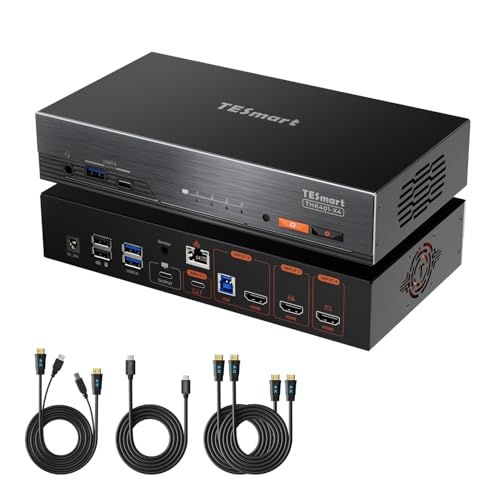
- Shares one Thunderbolt display across 4 computers
- Provides 60W PD, LAN, USB 3.2, and audio
- Supports hotkeys, IR remote, and EDID emulation
Best For: Single-monitor desks with mixed Thunderbolt and HDMI devices
Triple-Monitor DisplayLink Switch
2 Laptops, 3 Monitors, 4K@60Hz

- Switches 3 monitors between 2 laptops
- Supports extended display on M1–M4 Macs
- Includes USB sharing, SD/TF, and Ethernet
Best For: Mac and Windows laptop setups needing triple-monitor switching
Dual-Monitor Laptop KVM

- Supports 2x 4K@60Hz for two laptops
- Includes RF remote and front-button control
- Shares 4 USB 3.0 peripherals
Best For: USB-C laptop users wanting simple dual-monitor switching
Three-Computer USB4 Switch

- Shares one USB-C/TB4 monitor or dock with 3 PCs
- Up to 140W PD for the active computer
- RF remote included; no software required
Best For: Three-computer setups using a compatible USB-C or Thunderbolt 4 monitor/dock
Two-PC USB4 Switch

- Shares one USB-C/TB4 monitor or dock with 2 PCs
- Up to 140W PD pass-through on the active computer
- Supports 8K@30Hz Windows and 4K@60Hz macOS
Best For: Two-computer setups centered on a compatible USB-C or Thunderbolt 4 display/dock
Triple-Display Thunderbolt Workstation
3 Monitors KVM Dock for Thunderbolt 3 Laptops

- Shares three monitors between two computers
- DP up to 4K@120Hz and HDMI up to 4K@60Hz
- Includes USB, Ethernet, SD slots, and up to 100W charging
Best For: triple-monitor Thunderbolt laptop setups that need a dock and KVM in one
Fast USB4 Sharing Hub
20Gbps Thunderbolt 4 KVM Switch

- Shares one USB-C or Thunderbolt 4 monitor or dock between 2 computers
- Supports up to 8K@30Hz and 140W PD pass-through
- Includes RF remote and requires the included USB4 cables
Best For: dual-laptop users sharing a USB-C/TB4 monitor or detachable-cable dock
Dual-Laptop Desktop Switcher
HDMI Thunderbolt 5/4 USB-C KVM

- Shares one 4K@60Hz HDMI monitor between 2 laptops
- Includes 10Gbps USB-C and USB-A peripheral ports
- Provides RF remote switching and up to 100W charging
Best For: single-monitor dual-laptop desks that need fast USB sharing and charging
Triple-Display Docking KVM – 3 Monitors for 2 Laptops
If you want a Thunderbolt KVM switch that doubles as a dock, this DisplayLink-based model is built around triple-monitor sharing between two laptops. It supports extended displays on Macs with M1 through M5 chips, handles up to 4K@60Hz on three screens, and bundles USB, SD/TF, and Ethernet into one switching setup. Just note that it relies on the DisplayLink driver and is aimed at laptop users rather than full Thunderbolt passthrough workflows.
Best For: Mac and Windows laptop users who need a triple-monitor desk setup with shared peripherals and easy button-based switching.
Pros:
- Supports 3-monitor switching for 2 laptops with up to 4K@60Hz output
- Enables extended display on M1–M5 Macs using DisplayLink
- Includes USB-C/A ports, SD/TF reading, and Gigabit Ethernet
- Comes with Thunderbolt 4 cables, wired remote, and power adapter
Cons:
- Requires DisplayLink driver installation to work properly
- Hotkeys are not supported; switching is via button or wired remote
- Not compatible with Linux/Unix
Overall, this is a practical Thunderbolt KVM switch if your priority is a full laptop docking station with triple-monitor support and broad macOS compatibility. It is less about raw Thunderbolt features and more about consolidating a productive multi-display workstation.
Universal Thunderbolt Display Hub – 4 Computers, 1 Monitor
This Thunderbolt KVM switch is designed for people who want to feed a Thunderbolt display from a mix of devices, including Thunderbolt laptops, HDMI PCs, and even game consoles. With Thunderbolt 4 input/output, HDMI inputs, 60W PD, USB 3.2 ports, and Gigabit Ethernet, it works more like a universal desk hub than a simple switch. It also supports hotkeys, EDID emulation, and several ways to swap between sources.
Best For: Users who want one monitor shared across multiple computers and value flexible switching plus Thunderbolt display support.
Pros:
- Supports 4 computers on 1 monitor with Thunderbolt 4 and HDMI inputs
- Up to 6K@60Hz on Apple Studio Display and 4K@60Hz on other inputs
- Includes 60W PD, Gigabit Ethernet, USB 3.2 ports, and audio
- Offers front buttons, IR remote, mouse-wheel, and hotkey switching
Cons:
- Only one monitor is supported
- EDID emulation is not available on input 1
- Requires a power adapter and is more complex than basic laptop-only switches
For a mixed-device workspace, this model stands out because it bridges Thunderbolt displays and HDMI-based systems in one box. If you need a flexible single-monitor hub with strong connectivity, it is a compelling Thunderbolt KVM switch option.
Triple-Monitor DisplayLink Switch – 2 Laptops, 3 Monitors, 4K@60Hz
If you need a Thunderbolt KVM switch for a dual-laptop workstation with three monitors, this DisplayLink model focuses on broad compatibility and high-resolution output. It supports extended display modes on Mac M1 through M4 systems, shares USB peripherals and Ethernet, and is built to switch a full triple-monitor setup between two laptops. Like similar DisplayLink solutions, it depends on driver installation and is best suited to laptop-centric desk setups.
Best For: Laptop users who need a triple-monitor switch with DisplayLink support for Mac and Windows.
Pros:
- Handles 3 monitors between 2 laptops at up to 4K@60Hz
- Supports extended displays on Mac M1/M2/M3/M4 systems
- Includes USB sharing, SD/TF reading, and Gigabit Ethernet
- Comes with Thunderbolt 4 cables, remote, adapter, and driver disk
Cons:
- Requires DisplayLink driver installation
- Hotkeys are not supported
- Does not support EDID emulation
This is a strong pick when your priority is triple-monitor compatibility over Thunderbolt-specific passthrough features. It gives you a tidy, high-resolution workstation switch with the expected DisplayLink tradeoffs.
Dual-Monitor Laptop KVM – RF Remote Dual 4K Switch
This Thunderbolt KVM switch is a straightforward dual-monitor solution for two laptops that support DisplayPort Alt Mode over USB-C. It delivers up to dual 4K@60Hz displays for compatible Windows and Linux laptops, while MacBook users should expect mirrored dual screens rather than two independent extended displays. With RF remote switching and four USB 3.0 ports, it is aimed at clean, laptop-based workstations.
Best For: Two-laptop setups that need dual 4K displays, USB peripheral sharing, and simple remote switching.
Pros:
- Supports up to 2x 4K@60Hz for compatible Windows and Linux laptops
- Includes RF remote plus front-button switching
- Provides 4 USB 3.0 ports for peripherals like keyboards, mice, and webcams
- Designed for USB-C laptops with DisplayPort Alt Mode and Thunderbolt 3/4/5 compatibility
Cons:
- No laptop charging support
- No EDID emulation
- Not compatible with desktops, Chromebooks, or HDMI/DP-only sources
This is a focused option if you want a reliable dual-monitor switch without extra docking features. It is best viewed as a practical USB-C laptop KVM rather than a broad compatibility hub.
Three-Computer USB4 Switch – 3-in-1 Thunderbolt KVM
If you need a Thunderbolt KVM switch that can share one USB-C or Thunderbolt 4 monitor or dock across three computers, this Cable Matters model is built for that job. It focuses on USB4 20 Gbps switching, supports up to 8K@30Hz on Windows, and can turn a compatible dock into a shared workstation hub.
Best For: Users who want to share one USB-C/TB4 display or dock between three laptops, especially on Windows setups.
Pros:
- Shares one USB-C or Thunderbolt 4 monitor or docking station with three computers
- Up to 140W Power Delivery to charge the active device
- Includes an RF remote for easy switching without software
- Supports 8K@30Hz on Windows and 4K@60Hz on macOS with a single display
Cons:
- Must use the included USB4 20 Gbps cables; Thunderbolt 3/4/5 cables are not recommended
- 20 Gbps bandwidth can limit display stability or resolution compared with a direct 40 Gbps connection
- Not a fit for USB-C docks with built-in pigtail/captive cables
This is a specialized Thunderbolt KVM switch for people who already have a compatible detachable-cable dock or monitor and want simple three-way sharing. It is strongest in single-monitor productivity setups where convenience matters more than maximum dock bandwidth.
Dual-Monitor Dock Switch – 2-PC 8K Dual Monitor KVM
This Thunderbolt KVM switch is aimed at users who want a full docking station and dual-monitor control in one box. It supports two computers, high refresh rates, built-in networking, and a broad set of ports, making it a strong fit for a desk that needs both display switching and hub-style expansion.
Best For: Windows and Linux users who want dual-monitor switching, fast charging, and built-in Ethernet in one dock.
Pros:
- Supports dual 8K@60Hz or 4K@165Hz on desktops
- Includes Gigabit Ethernet that stays active for both connected computers
- Offers 100W USB-C charging plus multiple USB, audio, and SD ports
- Comes with a wired remote and no-drivers setup
Cons:
- macOS does not support extended dual displays, only mirror mode
- MacBooks needing extended dual screens must use a different AV Access model
- It supports two computers only, so it is not a multi-PC switch
For a dual-monitor productivity or gaming setup, this model offers a lot of desk consolidation. Its network passthrough and high-refresh display support make it especially practical for users who want a central Thunderbolt KVM switch with more than just video switching.
Two-PC USB4 Switch – 2-PC Thunderbolt KVM
If you want a compact Thunderbolt KVM switch for two computers, this Cable Matters model is built around USB4 sharing and 140W pass-through charging. It is designed to switch a single USB-C or Thunderbolt 4 monitor, or a compatible dock, while keeping the setup simple and focused on high-bandwidth everyday use.
Best For: Two-laptop users who want to share one USB-C/TB4 monitor or dock with strong charging support.
Pros:
- Shares one USB-C or Thunderbolt 4 monitor or dock between two computers
- Supports up to 8K@30Hz on Windows and 4K@60Hz on macOS
- Up to 140W Power Delivery pass-through for the active device
- Compatible with many detachable-cable TB4 docks and USB-C/TB4 monitors
Cons:
- Use only the included USB4 20 Gbps cables; Thunderbolt 3/4/5 cables should not be substituted
- 20 Gbps bandwidth may limit displays or refresh rates versus a direct dock connection
- Not intended for USB-C docks with attached pigtail cables
This is a practical Thunderbolt KVM switch for a two-computer workstation, especially when you already own a compatible monitor or dock. It is a good fit if you want straightforward switching plus laptop charging, but you should be comfortable with the product’s bandwidth and cable compatibility limits.
Triple-Display Thunderbolt Workstation – 3 Monitors KVM Dock for Thunderbolt 3 Laptops
If you want a Thunderbolt KVM switch that can handle a serious multi-monitor desk, this model is built around sharing three displays between two computers. It supports two DisplayPort monitors plus one HDMI monitor, with mirror and extended modes available, making it a strong fit for Thunderbolt 3/4/5 laptops paired with a desktop.
Best For: Users who need a 3-monitor Thunderbolt KVM switch with docking features, USB expansion, and laptop charging in one unit.
Pros:
- Supports 3 monitors across 2 computers, including dual DP and one HDMI output
- DP output reaches up to 4K@120Hz, with HDMI up to 4K@60Hz
- Includes USB-A, USB-C, SD/Micro SD, and 1000Mbps Ethernet ports
- Provides up to 100W laptop charging plus a separate 65W phone charging port
Cons:
- Requires a Thunderbolt 3 or newer laptop USB-C port to work properly
- Mac OS is limited to mirrored mode and cannot extend to three different screens
- Power adapter connection is required for the unit to operate
This is a feature-heavy Thunderbolt KVM switch for users who prioritize display expansion and docking convenience over simplicity. If your devices meet the compatibility requirements, it combines monitor sharing, peripheral access, and charging in one workspace hub.
Fast USB4 Sharing Hub – 20Gbps Thunderbolt 4 KVM Switch
This Thunderbolt KVM switch is aimed at users who want to share a USB-C or Thunderbolt 4 monitor, or even a compatible dock, between two computers without extra software. It uses the included USB4 20Gbps cables and supports high-resolution output, while also acting as a clean two-PC switch for a streamlined desk.
Best For: People who want a fast USB4/TB4 switch for one monitor or a detachable-cable dock between two laptops.
Pros:
- Supports up to 8K@30Hz, or 4K@144Hz on Windows and 4K@60Hz on macOS
- Works with USB-C monitors and compatible Thunderbolt 4 docks with detachable host cables
- Includes RF remote control for easy switching without drivers
- Offers up to 140W power delivery pass-through to the active computer
Cons:
- Must use the included USB4 20Gbps cables; Thunderbolt 3/4/5 cables are not to be substituted
- Not suitable for docks with attached host cables
- 20Gbps bandwidth can limit display output compared with a direct 40Gbps connection
As a Thunderbolt KVM switch, this one makes the most sense when you need dependable sharing rather than maximum dock bandwidth. It is especially practical for single-monitor or dock-sharing setups where remote switching and strong charging support matter.
Dual-Laptop Desktop Switcher – HDMI Thunderbolt 5/4 USB-C KVM
If you need a Thunderbolt KVM switch for two USB-C laptops and a single HDMI display, this Cable Matters model focuses on practical office sharing. It supports 4K@60Hz HDMI video, high-speed peripheral ports, and flexible switching, making it a solid choice for a clean two-laptop workstation.
Best For: Dual-laptop setups that need HDMI display sharing, 10Gbps USB ports, and charging from one KVM.
Pros:
- Supports two USB-C/Thunderbolt laptops sharing one HDMI monitor at up to 4K@60Hz
- Includes 2 USB-C and 2 USB-A 10Gbps ports for faster peripherals
- Can deliver up to 100W to one computer or up to 85W each when both are connected
- Offers button, RF remote, and optional hotkey/mouse switching
Cons:
- Not for HDMI-output PCs or USB-C portable monitors
- Hotkey and mouse switching require downloading the included software
- Best suited to single-monitor HDMI setups rather than multi-display workstations
This is a straightforward Thunderbolt KVM switch for users who want fast peripheral sharing and dependable laptop charging without extra complexity. It is especially useful if your desk is centered around one HDMI monitor and two USB-C laptops.
How We Picked the Best Thunderbolt KVM Switch Options
We focused on models that match common workstation needs: stable USB-C or Thunderbolt connectivity, clear monitor-sharing support, useful power delivery, and compatibility across Windows and macOS. We also prioritized products that serve realistic desk setups, from single-monitor laptop switching to dual- and triple-display workflows.
Because many buyers use these devices as both a switch and a dock, we gave extra weight to ports, charging wattage, and display standards such as 4K60, 8K, and high-refresh support where applicable.
Quick Comparison: What Matters Most
If you need the simplest setup, a compact dual-computer model with one or two shared displays is usually enough. If you run multiple monitors or want fewer cables, a Thunderbolt KVM Switch with docking features can reduce clutter and make hot-desking much easier. For laptop users, power delivery is especially important so you can switch without unplugging your charger.
Key Buying Factors for a Thunderbolt KVM Switch
Display Count and Resolution
Match the switch to your actual monitor setup first. Some units are built for one 4K display, while others support two or three monitors. Check not only the number of outputs, but also whether the resolution and refresh rate fit your workflow.
Compatibility with Your Computers
Not every Thunderbolt KVM Switch behaves the same on Windows, macOS, or mixed-device setups. If you use a Mac with Apple silicon or a laptop without native multi-display support, look closely at the manufacturer’s compatibility notes before buying.
Charging and Dock Features
Power delivery can be a major convenience. Higher-wattage charging is helpful if you want one cable to handle both display switching and laptop power. Extra USB ports, Ethernet, and audio connections can also replace a separate dock.
Connection Types
Some models rely on USB-C/Thunderbolt links, while others use HDMI and DisplayPort for the display side. Choose the format that best matches your monitor inputs and laptop ports to avoid adapter chains and performance compromises.
Who Should Buy Which Thunderbolt KVM Switch?
Choose a dual-monitor model if you want the broadest balance of price, simplicity, and productivity. Go for a triple-monitor Thunderbolt KVM Switch if you already built a multi-display workstation and want to preserve that setup across two laptops or a laptop-desktop mix. If charging and cable reduction matter most, pick a KVM with strong USB-C power delivery and dock-style expansion. For mixed Windows and Mac use, prioritize compatibility over headline specs, since that is where the biggest day-to-day differences usually appear.
In short, the best choice is the one that matches your monitor count, device ports, and power needs without forcing workarounds. That is what makes a Thunderbolt KVM Switch genuinely useful instead of just feature-rich on paper.