
If your compact PC needs more USB, SATA, or storage expansion, the right low profile PCIe expansion card can add major flexibility without sacrificing space.
This roundup focuses on practical, buyer-friendly options for small-form-factor desktops, from high-speed USB-C upgrades to SATA and M.2 add-in cards.
Best 10 Low Profile PCIe Expansion Card Picks for 2026
High-Speed USB Upgrade
StarTech 2-Port 10Gbps USB PCIe Card

- 2x USB-A ports at 10Gbps each
- Full-height and low-profile brackets included
- SATA power header for extra device power
Best For: compact systems needing fast USB 3.2 Gen 2 expansion
Compact NVMe Storage Add-On
Sonnet M.2 2x4 Low-Profile PCIe Card

- Holds one or two M.2 NVMe SSDs
- Low-profile and full-height brackets included
- Built to reduce thermal throttling
Best For: space-limited PCs that need fast NVMe storage
Four-Port USB Expansion
FebSmart Self-Powered USB 3.0 PCIe Card

- Adds four 5Gbps USB 3.0 ports
- No extra power cable needed
- Low-profile bracket included for slim cases
Best For: systems that need multiple USB ports with simple power setup
Storage Expansion Pick
StarTech 4-Port SATA III PCIe Card
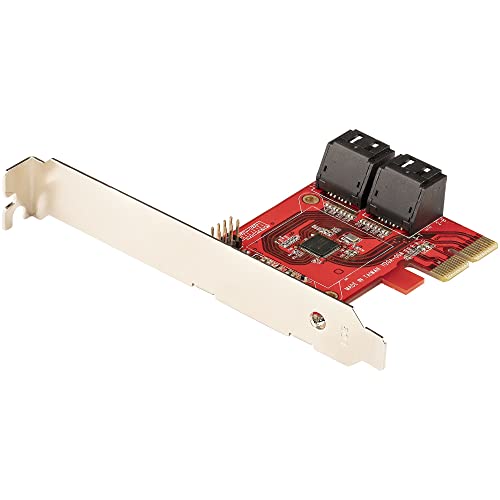
- Adds four SATA III 6Gbps ports
- Low-profile bracket included
- Non-RAID design with broad OS support
Best For: adding SATA drives to a desktop or server with limited space
USB Expansion Pick
Chenyang 4-Port PCIe USB 3.0 Card

- Adds 4 external USB 3.0 ports
- Includes low-profile and standard brackets
- Needs USB 3.0 driver installation
Best For: Desktop users needing simple USB port expansion
Storage Upgrade Pick
4-Port SATA PCIe Controller Card

- Adds 4 SATA III ports at 6Gbps
- Includes low-profile bracket and 4 cables
- Supports booting from attached drives
Best For: Desktop and workstation storage expansion
Compact USB Upgrade

- Adds 2x USB-C and 2x USB-A ports
- Includes Type-E and 19-pin internal headers
- Comes with standard and short brackets
Best For: Desktop builds needing flexible USB port expansion
Fast-Charging Desktop Add-On

- Adds 2 USB-A ports and 1 USB-C port
- Supports up to 18W charging per port
- Includes standard and low-profile brackets
Best For: Compact desktops that need USB ports plus device charging
High-Speed USB-C Expansion

- Adds four USB-C ports from one card
- Supports up to 10Gbps data transfer
- Includes optional SATA power input
Best For: Fast USB-C expansion for storage and backup use
High-Speed USB Upgrade – StarTech 2-Port 10Gbps USB PCIe Card
If you need a low profile PCIe expansion card for fast external storage or peripherals, this StarTech USB add-in card is a strong fit. It uses a PCIe 3.0 x4 ASMedia ASM3142 controller to provide two USB-A ports rated up to 10Gbps each, and it supports UASP for better performance with SSDs, HDDs, NVMe enclosures, and flash drives.
Best For: desktops or servers that need a compact USB 3.2 Gen 2 upgrade with full/low-profile flexibility.
Pros:
- Two USB 3.2 Gen 2 Type-A ports with up to 10Gbps per port
- Includes full-height and low-profile bracket for broader case compatibility
- SATA power header helps supply extra power to connected USB devices
- Supports Windows, Linux, and macOS with auto drivers on Windows 8 and later
Cons:
- Requires a PCIe 3.0 x4 slot or larger for best use
- Supplemental SATA power may be needed if motherboard power is insufficient
Overall, this is a practical choice when you want high-speed USB expansion without giving up low-profile compatibility. It is especially appealing for users connecting storage devices or mixed USB peripherals that benefit from a bandwidth-focused card.
Compact NVMe Storage Add-On – Sonnet M.2 2×4 Low-Profile PCIe Card
This low profile PCIe expansion card is aimed at adding fast NVMe storage in a compact form factor. It mounts one or two M.2 NVMe SSDs in an x8 PCIe slot and is designed for strong sustained performance, with support for up to 3400 MB/s on a single SSD and up to 6600 MB/s in RAID 0.
Best For: small-card-space builds that need high-speed M.2 NVMe storage without thermal throttling.
Pros:
- Supports one or two M.2 NVMe SSDs for up to 16TB total capacity
- Includes both full-height and low-profile PCIe brackets
- PCIe 3.0 x8 interface feeds four lanes to each installed SSD
- Card design helps prevent thermal throttling during large transfers
Cons:
- Requires an x8 PCIe slot
- NVMe SSDs are sold separately
This card makes sense when the priority is dense, high-speed storage rather than extra ports. The low-profile bracket and thermal-focused design make it a practical option for constrained cases that still need serious SSD performance.
Four-Port USB Expansion – FebSmart Self-Powered USB 3.0 PCIe Card
For buyers looking for a low profile PCIe expansion card that adds multiple USB ports, this FebSmart model is built around four 5Gbps USB 3.0 Type-A connections. It uses a PCIe x1 interface, supports a wide range of desktop and server systems, and is designed to handle higher-power USB devices without needing an additional PSU cable.
Best For: desktops, workstations, or NAS setups that need four USB 3.0 ports and simple power handling.
Pros:
- Four USB 3.0 ports with 5Gbps shared bandwidth
- Self-powered design, so no extra power cable is required
- Includes a low-profile bracket in the box for slim PCs
- Supports Windows and most Linux kernels; plug and play on newer Windows versions
Cons:
- Does not support macOS
- Windows 7 and older systems require driver installation
- Users of slim cases must swap to the low-profile bracket manually
This is a straightforward upgrade if you want more USB-A connectivity in a compact system. The self-powered design is the standout, especially if you plan to use peripherals that draw more power than a basic expansion card can comfortably supply.
Storage Expansion Pick – StarTech 4-Port SATA III PCIe Card
If your build needs storage expansion from a low profile PCIe expansion card, this StarTech SATA controller is a practical non-RAID option. It adds four SATA III 6Gbps ports through a PCIe x2 slot and uses a single-chip ASM1164 design aimed at broad compatibility and straightforward drive attachment.
Best For: desktops or servers that need extra SATA ports for HDDs, SSDs, or optical drives without built-in RAID.
Pros:
- Adds four SATA III 6Gbps ports from a PCIe x2 slot
- Includes both full-height and low-profile brackets
- Supports NCQ and port multiplier features
- Compatible with Windows, macOS, and Linux
Cons:
- Non-RAID design may not suit users wanting onboard RAID
- SATA cables are sold separately
- Needs a PCIe x2 slot or larger
For basic multi-drive expansion, this card keeps things simple and compatible. It is a solid pick when you want a low-profile SATA adapter that works with common operating systems and doesn’t add RAID complexity.
USB Expansion Pick – Chenyang 4-Port PCIe USB 3.0 Card
If you need a low profile PCIe expansion card to add more USB ports to a desktop, this Chenyang adapter is a straightforward option. It uses a single-lane PCI Express Gen2 connection and adds four external USB 3.0 ports with support for USB 1.1, 2.0, and 3.0 devices.
Best For: Desktop users who want four extra USB 3.0 ports and a bracket that fits both standard and low-profile cases.
Pros:
- Four external USB 3.0 ports for extra connectivity
- Includes both low-profile and standard brackets
- Supports SATA or IDE power input
- Compatible with USB 1.1/2.0/3.0 devices
Cons:
- Requires USB 3.0 driver installation first
- Runs on a single-lane PCIe Gen2 interface
- Each port is rated at 900mA output
Overall, this is a practical pick for adding basic USB expansion without sacrificing small-form-factor compatibility. The included bracket options and simple four-port layout make it easy to slot into a range of desktop builds.
Storage Upgrade Pick – 4-Port SATA PCIe Controller Card
This low profile PCIe expansion card is built for adding storage, not USB, and it focuses on four SATA 3.0 ports with 6Gbps support. It uses a Marvell 88SE9215 chipset, includes four SATA cables, and is designed for desktops and workstations that need extra drives.
Best For: Users who want to add four SATA SSDs or HDDs with a low-profile bracket and included cables.
Pros:
- Adds 4 SATA III 6Gbps ports via PCIe x1
- Includes 4 SATA data cables and low-profile bracket
- Supports booting from connected drives
- Fanless design for quiet operation
Cons:
- Non-RAID design only
- Focused on SATA storage, not general I/O expansion
- Best performance depends on system and OS compatibility
As a storage-focused controller, this card is a sensible choice when you need more SATA ports and want an easy physical fit in compact cases. The included accessories and boot-drive support make it especially convenient for straightforward upgrades.
USB-C Performance Pick – LDLrui Dual USB-C 10Gbps Card
If your goal is a low profile PCIe expansion card for faster USB-C connectivity, this LDLrui model focuses on high-speed data rather than charging or video. It adds two USB 3.2 Gen 2 Type-C ports and uses a PCIe 3.0 x4 interface to support up to 10Gbps bandwidth.
Best For: Desktop users who need dual USB-C ports for fast storage transfers and general data devices.
Pros:
- Two USB-C ports with USB 3.2 Gen 2 support
- Up to 10Gbps throughput on a single-port use case
- Includes low-profile bracket for smaller cases
- Backup SATA power connector helps support higher-power devices
Cons:
- Data only, not listed as a charging-focused card
- Not compatible with PCIe x1 or x2 slots
- Best performance depends on PCIe 3.0 or newer systems
This is a strong fit if you want a compact USB-C upgrade with modern transfer speeds and extra power safeguards. The included low-profile bracket and plug-and-play support on Windows 8 and above make it practical for many desktop upgrades.
Compact USB Upgrade – 6-Port USB-C/A PCIe Expansion
If you need a low profile PCIe expansion card that adds a lot of front- and rear-panel USB flexibility, this YEELIYA option is built for practical desktop upgrades. It installs in a PCIe x1 slot and adds 2 USB-C, 2 USB-A, plus internal Type-E and 19-pin connections for cases that need more accessible ports.
Best For: Desktop users who want a compact, low-profile-friendly USB expansion card with both rear ports and internal front-panel support.
Pros:
- Adds 2x USB-C and 2x USB-A ports from a single PCIe x1 slot.
- Includes internal Type-E and 19-pin connectors for front-panel expansion.
- Covers standard and small-tower installs with both 12 cm and 8 cm brackets.
- No extra power adapter required; power draws directly from the PCIe slot.
Cons:
- USB-C ports do not support Thunderbolt protocol.
- Windows XP/Vista/7/Server need driver installation.
- Mac is not supported.
Overall, this is a versatile USB expansion choice if your priority is adding more everyday ports without extra power wiring. Its mix of rear I/O and internal headers makes it especially useful for organized desktop builds.
Fast-Charging Desktop Add-On – 3-Port USB PCIe Card
This low profile PCIe expansion card is aimed at users who want both extra USB ports and stronger charging support in a desktop PC. It installs in a PCIe x1 slot and adds 2 USB-A ports plus 1 USB-C port, with 18W fast-charging support on all three ports for compatible devices.
Best For: Desktop or mini-tower users who want a low-profile USB card with fast-charging support for phones and tablets.
Pros:
- Adds 3 ports total: 2x USB-A and 1x USB-C.
- Supports 5Gbps data transfer for files, photos, and audio.
- Each port supports up to 18W charging with BC1.2, QC, AFC, PPS, and PD protocols.
- Includes both standard and low-profile brackets for different case sizes.
Cons:
- Thunderbolt and DisplayPort protocols are not supported.
- Windows XP/Vista/7/Server require a driver installation.
- Fast charging depends on your device supporting the listed protocols.
This is a practical pick if you want a small expansion card that does more than basic data transfer. The charging support makes it stand out for everyday desktop use, especially when desk space is tight.
High-Speed USB-C Expansion – 4-Port 10Gbps PCIe Card
For buyers looking for a low profile PCIe expansion card with faster USB-C connectivity, this model focuses on speed and simple installation. It adds four USB-C ports through a PCIe x4 interface and supports up to 10Gbps transfer bandwidth for demanding storage and backup workflows.
Best For: Users who need a low-profile USB-C expansion card for fast external storage and general desktop expansion.
Pros:
- Provides 4 USB-C ports from a PCIe x4 card.
- Supports up to 10Gbps bandwidth for quicker data transfers.
- Includes an optional 15-pin SATA power input for extra power stability.
- Built-in fuse protection helps guard against over-current and short circuits.
Cons:
- Data transfer only; no video output support.
- Does not support USB Power Delivery or Thunderbolt.
- Windows Vista/XP/7 require driver installation.
This card makes the most sense when USB-C speed matters more than broad port variety. Its 10Gbps rating and optional SATA power make it a strong fit for external drives and backup-heavy setups.
How We Picked the Best Low Profile PCIe Expansion Card
We looked for cards that fit small cases, offer clear lane and port value, and match common upgrade goals like faster external drives, extra SATA connections, or additional USB-C and USB-A ports. Compatibility with standard desktop PCIe slots, bracket options, and power requirements also mattered.
Quick Comparison
The main decision is function: choose USB cards if you need more fast peripherals, SATA cards if you are adding drives, and M.2 expansion if you want to increase internal storage. Within each category, compare speed ratings, lane width, and whether the card includes a low-profile bracket for slim cases.
Key Buying Factors for a Low Profile PCIe Expansion Card
Port Type and Use Case
Start with the device you want to add. A Low Profile PCIe Expansion Card for USB may be ideal for docks, SSD enclosures, and modern peripherals, while SATA cards are better for hard drives and SSDs. M.2 cards are best when you need internal NVMe expansion and have the lane support to use it properly.
PCIe Lane and Generation Support
Match the card to your motherboard slot. Higher-speed USB 10Gbps cards and some storage adapters may perform best in a PCIe 3.0 x4 slot, while many lower-bandwidth options work well in x1 slots. Using the wrong slot can limit performance.
Power and Header Requirements
Some cards draw extra power through SATA or a dedicated connector, and many USB models need internal headers for front-panel support or Type-E connections. Check your case and motherboard headers before buying.
Bracket Height and Case Clearance
Not every expansion card ships with the bracket you need. If your case only accepts half-height cards, confirm that the included bracket matches your build or can be swapped easily.
Driver and OS Compatibility
Windows support is usually straightforward, but older systems, boot support, and RAID/non-RAID behavior can vary. If you want to boot from attached drives, verify that the card explicitly supports it.
Who Should Buy Which Low Profile PCIe Expansion Card?
Choose a USB-focused card if you are upgrading a compact workstation, media PC, or desktop that needs more fast ports for peripherals and external storage. Pick a SATA adapter if your goal is adding 2.5-inch or 3.5-inch drives to an older system. Go with an M.2 expansion card only if your motherboard can supply the lanes needed for solid performance. For most small builds, the best Low Profile PCIe Expansion Card is the one that solves one specific bottleneck cleanly rather than trying to do everything at once.