
If your desktop needs more fast USB-C connections, a PCIe card with multiple USB-C ports can be the cleanest upgrade. It adds rear or internal expansion without relying on a hub.
This roundup focuses on port count, speed class, compatibility, and practical install details so you can choose the right card for storage, peripherals, and everyday desktop use.
Best 10 PCIe Card with Multiple USB-C Ports Picks for 2026
Mixed Port High-Speed Pick
4x USB-C + 4x USB-A PCIe Expansion Card

- Adds 8 total USB ports in one card
- USB 3.2/3.1 Gen 2 speeds up to 10Gbps
- Data-only design for desktops, workstations, and NAS
Best For: Desktop users who want both USB-C and USB-A expansion with fast storage support
Simple 4-Port USB-C Choice
4-Port USB-C PCIe Card, 5Gbps, No Extra Power

- Adds 4 USB-C ports to a desktop or workstation
- Smart power distribution can avoid extra power cables
- Includes low-profile and full-height brackets
Best For: Users who want easy USB-C expansion with minimal setup
Premium Dual-Port Option
2-Port USB-C 10Gbps PCIe Card with UASP

- Adds two USB-C ports at up to 10Gbps
- Supports UASP for better storage performance
- Works with Windows, Linux, and macOS
Best For: Users who want a compact, professional-grade USB-C storage expansion card
Self-Powered 4-Port Pick
4x USB-C PCIe Card, 5Gbps, Self-Powered

- Adds four USB-C ports to a desktop PC
- Self-powered design avoids extra PSU cabling
- Supports many Windows versions and Linux kernels
Best For: Users who need four USB-C ports and simple power handling
High-Speed Dual USB-C Pick
2-Port 10Gb PCIe USB-C Card for X1 Slots

- 2 USB-C ports at USB 3.2 Gen 2 speeds
- Fits a free PCIe x1 slot, preserving larger slots
- Supports up to 5V/2A per port with included brackets
Best For: Users who want two fast USB-C ports from a PCIe x1 slot
Legacy-Ready Dual USB-C Option
2-Port 5Gbps PCIe USB-C Expansion Card

- Adds 2 USB-C ports at 5Gbps over PCIe x1
- Self-powered design needs no extra PSU cable
- Works on Windows and most Linux, but not macOS
Best For: Windows-focused users who want easy dual USB-C expansion
Most Versatile Port Mix
8-Port PCIe Card with 2 USB-C and 6 USB-A

- 2 USB-C and 6 USB-A ports on one PCIe x1 card
- 3-group 5V/3A power management for higher-demand devices
- Supports Windows and most Linux; not for macOS
Best For: Users who want a mix of USB-C and USB-A from one card
7-Port Mixed USB Expansion
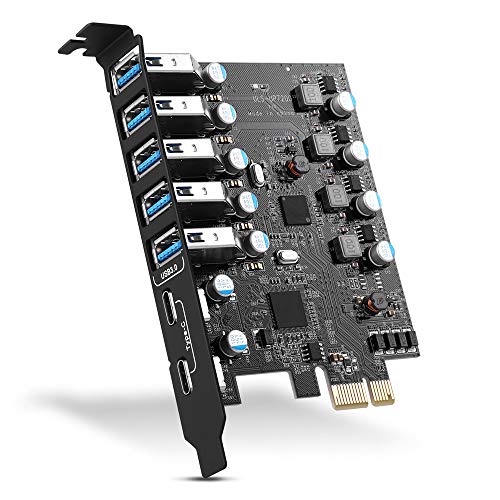
- 7 total USB 3.0 ports with 2 USB-C
- Up to 5Gbps for general peripherals
- Fits x1, x4, x8, and x16 PCIe slots
Best For: Users needing lots of mixed USB ports on one card
Premium 10Gbps USB-C and USB-A

- 10Gbps external USB 3.2 Gen 2 design
- 1 USB-C, 2 USB-A, plus 2 internal headers
- Low-profile bracket included with optional SATA power
Best For: Users wanting a premium mixed USB expansion card
Mixed Port High-Speed Pick – 4x USB-C + 4x USB-A PCIe Expansion Card
If you want a PCIe card with multiple USB-C ports and a few USB-A ports to match, this YEELIYA model is built for broad desktop expansion. It adds eight total data-only USB ports at up to 10Gbps, making it a practical fit for backups, external drives, and other high-speed peripherals on supported PCs and Linux systems.
Best For: Users who need a mixed USB-A and USB-C expansion card for fast data transfer on a desktop, workstation, or NAS.
Pros:
- Provides 4 USB-C and 4 USB-A ports on one PCIe card.
- Supports up to 10Gbps for fast file transfers and storage devices.
- Works with PCIe x4, x8, or x16 slots.
- Includes mounting screws, CD driver, and 2-year product care.
Cons:
- Data transfer only; no video output or Thunderbolt support.
- Older Windows versions may require driver installation.
- Not intended for monitor connectivity.
This is a strong choice if you need more USB-C ports without giving up USB-A connectivity. Its value is in straightforward, high-speed port expansion rather than advanced charging or display features.
Simple 4-Port USB-C Choice – 4-Port USB-C PCIe Card, 5Gbps, No Extra Power
This PCIe card with multiple USB-C ports is aimed at users who want simple desktop expansion without extra power cabling. The LinksTek PCIE-U304C adds four USB-C ports at 5Gbps, uses a PCIe x1 design, and is built for easy installation in both slim and standard cases.
Best For: Users who want a straightforward 4-port USB-C expansion card with plug-and-play convenience on modern Windows systems.
Pros:
- Adds 4 USB-C ports with 5Gbps max bandwidth.
- Built-in smart power distribution means no extra power cable on many systems.
- Includes both low-profile and full-height brackets.
- Supports a wide range of Windows versions and Windows Server editions.
Cons:
- Total bandwidth is shared across all four ports.
- Some older motherboards may still need SATA power support.
- Windows XP, Vista, 7, and older Server versions require drivers.
This card is a sensible pick if you mainly need more USB-C connections and prefer a low-hassle install. It focuses on compatibility and power management rather than top-tier throughput.
Premium Dual-Port Option – 2-Port USB-C 10Gbps PCIe Card with UASP
If you need a PCIe card with multiple USB-C ports and care more about quality than port count, this StarTech option keeps things focused. It adds two USB-C ports with 10Gbps speeds, UASP support, and broad OS compatibility for desktop and server builds.
Best For: Users who want a compact, data-only dual USB-C expansion card for fast storage and professional desktop or server use.
Pros:
- Two USB-C ports with up to 10Gbps transfer speeds.
- Supports UASP for improved USB performance.
- Includes full-height and low-profile bracket support.
- Compatible with Windows, Linux, and macOS.
Cons:
- Only two ports, so it is not ideal for heavy port expansion needs.
- Data transfer only; no video output, USB PD, or Thunderbolt.
- Lower performance if installed in PCIe 2.0 slots.
This is the most focused option in the group: fewer ports, but strong speed and excellent platform support. It makes sense when you want dependable USB-C storage connectivity rather than a larger hub-style card.
Self-Powered 4-Port Pick – 4x USB-C PCIe Card, 5Gbps, Self-Powered
For buyers looking specifically for a PCIe card with multiple USB-C ports, this FebSmart model is built around four USB-C connections and easy power handling. It delivers 5Gbps shared bandwidth, supports a wide range of Windows systems and Linux kernels, and is designed for desktop PCs and NAS-style use cases.
Best For: Desktop users who need four USB-C ports for peripherals, storage, or connected devices without adding extra power cables.
Pros:
- Adds 4 USB-C ports at up to 5Gbps shared bandwidth.
- Self-powered design avoids extra PSU cables.
- Each port can supply up to 5V/3A according to the product notes.
- Compatible with many Windows versions and most Linux kernels.
Cons:
- Does not support macOS.
- Not suitable for slim PCs or low-profile brackets.
- Windows 7 and earlier need driver installation.
This card stands out for combining four USB-C ports with a self-powered approach, which can simplify installation. It is a practical fit when you want broad device support and reliable desktop expansion rather than maximum speed.
High-Speed Dual USB-C Pick – 2-Port 10Gb PCIe USB-C Card for X1 Slots
If you want a PCIe card with multiple USB-C ports for a compact build, this dual-port adapter is a straightforward way to add two 10Gbps USB-C connections through a free PCIe x1 slot. It is aimed at users who need faster external storage, cameras, VR gear, or other power-hungry USB-C peripherals without giving up larger expansion slots.
Best For: PC, server, or Mac users who want two USB-C ports from a PCIe x1 slot and need up to 5V/2A per port.
Pros:
- Two USB-C ports with USB 3.2 Gen 2 speeds up to 10Gbps
- Uses a PCIe x1 slot, so it does not consume x4, x8, or x16 slots
- Separate power management supports up to 5V/2A per port
- Includes regular and low-profile brackets for flexible installation
Cons:
- Windows 7 requires a driver install
- Shared upstream bandwidth is limited by the PCIe x1 design
- Not the highest-port-count option if you need more than two USB-C ports
This is a practical choice if your priority is two fast USB-C ports in a low-slot-footprint card. It balances speed, power delivery, and compatibility well for modern systems.
Legacy-Ready Dual USB-C Option – 2-Port 5Gbps PCIe USB-C Expansion Card
This PCIe card with multiple USB-C ports is a good fit if you need a simple way to add two 5Gbps USB-C connections to a desktop, workstation, or NAS-style setup. It focuses on broad Windows compatibility, built-in self-powered operation, and enough output for common USB-C accessories and some higher-demand devices.
Best For: Windows-centric desktop users who want two USB-C ports without needing an extra power cable.
Pros:
- Two USB-C ports with 5Gbps throughput
- Built-in self-powered technology means no additional PSU cable is required
- Supports a wide range of devices, from flash drives to docks and cameras
- Includes full-height and low-profile bracket support
Cons:
- Does not support macOS
- Windows 7 and earlier systems need a driver
- Not designed for fast charging
For mixed-use desktops and older Windows environments, this card offers dependable USB-C expansion with minimal setup friction. It is less about maximum speed and more about practical compatibility and power handling.
Most Versatile Port Mix – 8-Port PCIe Card with 2 USB-C and 6 USB-A
If your goal is a PCIe card with multiple USB-C ports plus extra USB-A connectivity, this 8-port board is built for broader expansion rather than raw USB-C count alone. It adds two USB-C ports and six USB-A ports over a PCIe x1 slot, making it a strong fit for systems that need to connect a mix of peripherals.
Best For: PC, server, or NAS users who need both USB-C and USB-A ports from one expansion card.
Pros:
- Offers 2 USB-C ports plus 6 USB-A ports in one card
- PCIe x1 installation keeps larger expansion slots free
- 3-group 5V/3A power management supports higher-power devices
- Compatible with Windows and most Linux systems
Cons:
- Not compatible with macOS
- Uses shared PCIe 2.0 x1 bandwidth for all ports
- Standard-profile bracket may not suit slim cases
This is the best choice here if you care about total port count and mixed-device flexibility. The two USB-C ports are useful, but the bigger advantage is having a compact expansion card that covers both modern and legacy USB accessories.
Dual 10Gbps USB-C Expansion – LDLrui USB C PCIe Card
If you want a PCIe card with multiple USB-C ports for a desktop upgrade, this LDLrui option focuses on fast data connections rather than charging or video output. It adds two USB 3.2 Gen 2 Type-C ports, with up to 10Gbps available on a single active port and 5Gbps per port when both are in use.
Best For: Desktop users who need dual USB-C data ports for fast external storage, accessories, or general expansion.
Pros:
- Two USB-C ports with USB 3.2 Gen 2 support
- ASM3142 controller and PCIe 3.0 x4 interface for up to 10Gbps bandwidth
- Includes full-height and low-profile brackets for different cases
- Backup SATA power connector helps with higher-draw peripherals
Cons:
- Data only, so it does not add charging or display output features
- Needs an appropriate PCIe slot; not compatible with x1 or x2 slots
- On PCIe 2.0 systems, throughput may be lower than on PCIe 3.0 or newer
This is a practical pick if your priority is simple, high-speed USB-C expansion with straightforward installation and dependable power support. It is especially useful for SSD enclosures, VR gear, and other devices that benefit from stable 10Gbps-class transfers.
7-Port Mixed USB Expansion – YEELIYA 7-Port PCIe USB Card
If you need a PCIe card with multiple USB-C ports and lots of extra USB-A connections, this YEELIYA card is built for broad desktop expansion. It provides 7 total USB 3.0 ports, including 2 USB-C ports and 5 Type-A ports, with up to 5Gbps transfer speeds.
Best For: Users who want the most ports possible for everyday peripherals, storage devices, and mixed USB accessories.
Pros:
- Seven total USB ports, including 2 USB-C ports
- Supports up to 5Gbps transfer speeds
- Compatible with PCIe x1, x4, x8, and x16 slots
- Works with Windows, Mac OS, and Linux according to the listing
Cons:
- USB 3.0 speeds are lower than USB 3.2 Gen 2 cards
- Some older systems require driver installation
- Best suited to standard tower cases rather than compact builds
This card makes sense when port count matters more than top-tier USB-C speed. It is a flexible upgrade for people connecting several peripherals at once and who want a mix of USB-C and USB-A on one expansion card.
Premium 10Gbps USB-C and USB-A – StarTech 5-Port USB PCIe Card
For buyers comparing a PCIe card with multiple USB-C ports, this StarTech model is a more premium, carefully specified option. It offers one external USB-C port, two external USB-A ports, and two internal USB 5Gbps IDC header ports, all built around a USB 3.2 Gen 2 design with 10Gbps external bandwidth.
Best For: Desktop or server users who want a branded, high-speed expansion card with both external and internal USB connectivity.
Pros:
- USB 3.2 Gen 2 support with 10Gbps external bandwidth
- Includes one USB-C port plus two USB-A ports externally
- Two internal 5Gbps IDC header ports add extra flexibility
- Low-profile bracket included, and SATA power is optional
Cons:
- Only one external USB-C port, not multiple USB-C ports
- Best performance requires a PCIe 3.0 x4 slot
- Higher price positioning is implied by the branded, feature-rich design
This is the strongest pick if you value a well-rounded layout rather than just raw port count. It stands out for mixed external and internal expansion, making it useful in systems that need more than a basic USB add-in card.
How We Picked the Best PCIe Card with Multiple USB-C Ports
We looked for cards that offer a useful mix of USB-C port count, transfer speed, host interface, and platform support. We also favored models with clear controller specs, sensible power handling, and broad desktop compatibility where possible.
Because not every PCIe Card with Multiple USB-C Ports is built for the same job, we separated higher-speed 10Gbps options from simpler 5Gbps multi-port cards. That helps you match the card to your actual workflow instead of buying more speed than you need.
Quick Comparison
In general, 10Gbps cards are better for fast SSD enclosures, docks, and other bandwidth-heavy devices. 5Gbps cards are often a better value if you mainly need extra USB-C ports for accessories, controllers, adapters, or moderate-speed peripherals.
Also check whether the card is data-only, whether it needs auxiliary power, and whether its port layout works with your case. A card with more total ports is not always the best choice if your motherboard lane layout or case clearance is limited.
Key Buying Factors for a PCIe Card with Multiple USB-C Ports
Speed Rating
Match the USB version to your devices. USB 3.2 Gen 2 / 10Gbps is ideal for faster external drives and high-performance peripherals. USB 3.2 Gen 1 / 5Gbps is usually enough for keyboards, audio gear, webcams, and many general accessories.
PCIe Lane and Slot Requirements
Check whether the card needs PCIe x1, x4, or a larger slot. Even a fast card can underperform if your system does not provide the expected lane bandwidth or if the slot placement causes installation issues.
Power Delivery and Stability
Some multi-port cards include extra power input or smart power management to keep multiple devices stable. This matters more when you connect bus-powered SSDs, capture devices, or several peripherals at once.
Compatibility
Driver support varies by operating system. If you use Windows, Linux, or macOS, confirm support before buying. Some cards are Windows-focused, while others are explicitly data-only or not Mac compatible.
Port Mix and Use Case
Look at whether the card is all USB-C or a mix of USB-C and USB-A. A mixed layout can be more flexible, while an all-USB-C card is cleaner for modern setups.
Who Should Buy Which PCIe Card with Multiple USB-C Ports?
If you need fast storage transfers or work with SSD enclosures, choose a 10Gbps PCIe Card with Multiple USB-C Ports. If you mainly need extra connections for accessories and general desktop expansion, a 5Gbps model is often the smarter value.
Choose a high-port-count card if you want to consolidate several devices into one expansion slot. Choose a simpler dual-port model if you care more about speed, driver simplicity, and clean rear I/O than maximum port count.