
If you want to control multiple computers with one keyboard, mouse, and monitor setup, the right KVM switch can make your desk far more efficient.
Below, we focus on practical options for everyday work, gaming, and multi-PC workflows, with picks that balance video quality, USB expansion, and ease of use.
Best 10 Kvm Switches Picks for 2026
8K Flexibility for Two PCs
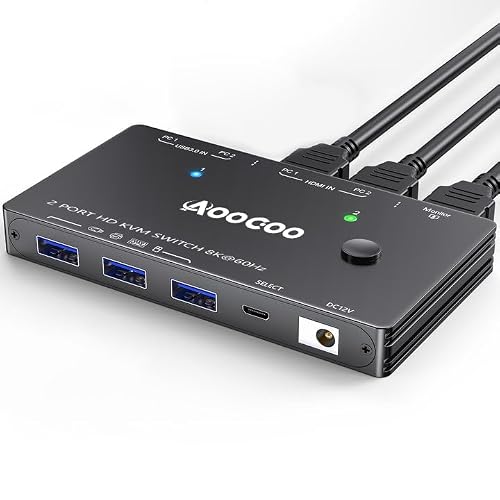
- Supports up to 8K@60Hz and 4K@120Hz
- Shares 3 USB 3.0 peripherals across 2 PCs
- Switches by button or desktop controller
Best For: Two-PC HDMI users who want 8K support and USB 3.0 sharing
Laptop-and-Desktop Simplicity

- 4K@60Hz HDMI with 5 USB 3.0 ports
- Includes charging via 100W PD-IN and up to 85W max PD
- Built for one laptop and one desktop
Best For: Mixed laptop/desktop setups that need charging and USB sharing
Four-Computer Control Center

- Connects 4 PCs to one monitor
- Includes 4 USB 3.0 ports at up to 5Gbps
- Supports 4K@60Hz with remote or button switching
Best For: Shared workspaces that need control over four computers
Single-Monitor HDMI KVM
Hearvo USB 3.0 HDMI KVM Switch for 2 Computers

- 2 PCs share 1 monitor and USB devices
- 4K@60Hz with HDCP 2.2 support
- 4 USB 3.0 ports, including USB-C
Best For: Simple single-monitor setups with fast USB sharing
Dual-Monitor DisplayPort KVM
4K@144Hz DisplayPort KVM for 2 PCs and 2 Monitors

- Shares 2 monitors and 4 USB devices
- Supports up to 4K@144Hz and 8K@60Hz
- Includes desktop controller and power adapter
Best For: Dual-monitor setups needing high refresh support
Budget HDMI KVM
HDMI KVM Switch for 2 Computers and 1 Monitor

- Two PCs share one HDMI monitor
- 4K@60Hz with plug-and-play setup
- Wired controller and compact design
Best For: Budget-friendly single-monitor sharing
Two-PC Simple Switch
HDMI KVM Switch 1 Monitor 2 Computers 4K@60HZ 2 Port KVM Switcher
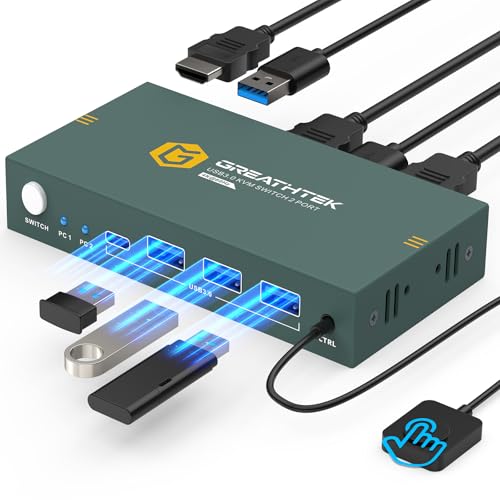
- 2 computers share 1 monitor
- 3 USB 3.0 ports for peripherals
- 4K@60Hz with wired remote
Best For: Simple 2-PC shared-monitor setups
Four-Computer Workstation Switch
USB3.0 KVM Switch HDMI 4K@60Hz for 4 Computers Share 1 Monitor

- 4 computers share 1 monitor
- 3 USB 3.0 ports plus 1 USB-C port
- Button and wired-remote switching
Best For: Users managing four PCs from one shared display
8K Flexibility for Two PCs – 2-PC HDMI KVM with USB 3.0
If you’re comparing kvm switches for a two-computer, one-monitor setup, this HDMI model focuses on high resolution and easy sharing. It lets you control 2 PCs with one keyboard and mouse set while also sharing USB 3.0 peripherals, making it a practical fit for desks that need both performance and simplicity.
Best For: Users who want an 8K-capable HDMI KVM for two PCs and one monitor.
Pros:
- Supports up to 8K@60Hz, with backward compatibility to 4K@120Hz and 4K@60Hz.
- Includes 3 USB 3.0 ports for sharing devices like keyboards, mice, printers, scanners, and USB drives.
- Offers two switching methods: one-button switching or the included desktop controller.
- Comes with USB cables, a wired remote controller, and a power adapter in the box.
Cons:
- Limited to 2 computers and 1 monitor.
- Designed for HDMI setups, so it won’t suit DisplayPort-only workflows.
Overall, this is a strong pick if you want a straightforward HDMI KVM switch with unusually high resolution support and enough USB bandwidth for common desktop accessories.
Laptop-and-Desktop Simplicity – Anker 4K HDMI KVM Hub
Among kvm switches aimed at mixed-device desks, this Anker model is built around a laptop-and-desktop workflow. It combines 4K@60Hz HDMI output, multiple USB 3.0 ports, and laptop charging, so you can manage your core peripherals without constantly re-plugging cables.
Best For: People who want one switch for a laptop and a desktop with charging support.
Pros:
- Supports HDMI at 4K@60Hz for sharp video output.
- Includes 5 USB 3.0 ports for faster data transfer and accessory sharing.
- Offers 100W PD-IN and is rated for up to 85W max PD output.
- Uses a two-way switch for easy laptop/desktop management without re-plugging.
Cons:
- Not compatible with two USB-C laptops.
- Requires a laptop USB-C port with DP Alt Mode and Power Delivery support.
This is a well-rounded option if your setup centers on one laptop and one desktop, especially when charging and desk organization matter as much as display performance.
Four-Computer Control Center – 4-Port HDMI KVM for 1 Monitor
If you need kvm switches for a busier workspace, this 4-port HDMI model is built to let four computers share one monitor and four USB 3.0 devices. It keeps switching simple with either the included remote control or the panel buttons, making it a practical fit for offices, classrooms, or shared stations.
Best For: Users who need to manage four PCs from one monitor and one set of peripherals.
Pros:
- Shares one display across 4 computers.
- Provides 4 USB 3.0 ports with up to 5Gbps transfer speed.
- Supports up to 4K@60Hz resolution for clearer image quality.
- Includes remote-control and pushbutton switching, with plug-and-play setup.
Cons:
- Hotkey switching is not supported.
- To reach maximum resolution, cables and source gear must also support 4K@60Hz.
For users who need to consolidate multiple systems, this KVM offers a straightforward way to keep four computers and common USB devices under one control point.
Dual-Display Power for Two PCs – DisplayPort Dual-Monitor KVM
For dual-monitor desks, this DisplayPort option stands out among kvm switches because it is designed to share two monitors between two PCs while also handling USB peripherals. It supports both extended and copy display modes, so it works well when you want either a larger workspace or a mirrored setup.
Best For: Two-PC users who need a dual-monitor KVM with high-resolution DisplayPort support.
Pros:
- Supports 2 computers sharing 2 monitors in extended or copy mode.
- Offers up to 8K@60Hz or 4K@240Hz resolution support.
- Includes 4 USB 3.0 ports for keyboards, mice, printers, scanners, and other devices.
- Provides two switching methods: panel button and wired controller.
Cons:
- Requires HDMI + DP connections per computer.
- Needs compatible discrete graphics output for dual-monitor use.
- Maximum resolution depends on using suitable 8K DP cables and shorter cable runs.
This is a strong fit when you need a dual-display KVM with serious resolution headroom, but it does ask for the right cabling and graphics-output setup.
Single-Monitor HDMI KVM – Hearvo USB 3.0 HDMI KVM Switch for 2 Computers
If you want simple kvm switches for two computers and one monitor, this Hearvo model keeps the setup straightforward. It combines HDMI video switching and USB peripheral sharing, supports 4K at 60Hz, and adds USB 3.0 ports for everyday desk devices.
Best For: Users who need a plug-and-play HDMI KVM switch for one monitor, two PCs, and a few high-speed USB peripherals.
Pros:
- Supports 2 computers sharing 1 monitor with keyboard and mouse control
- Includes 4 USB 3.0 ports, including 3 USB-A and 1 USB-C
- Handles up to 4K@60Hz and is HDCP 2.2 compliant
- Offers button switching plus a wired remote for easier desk placement
Cons:
- Only works with one monitor, not a dual-display setup
- No driver-free hotkey switching mentioned
- Needs compatible HDMI connections on the attached devices
Overall, this is a practical choice if your priority is clean desktop sharing rather than advanced multi-monitor flexibility. The built-in USB 3.0 ports and dual switching methods make it a handy everyday KVM switch for a single-screen workstation.
Dual-Monitor DisplayPort KVM – 4K@144Hz DisplayPort KVM for 2 PCs and 2 Monitors
Among kvm switches for demanding desks, this DisplayPort model stands out for dual-monitor sharing and very high refresh support. It is built for two computers, two monitors, and up to four USB devices, with extended and mirror display modes for multitasking or presentations.
Best For: Dual-monitor users who want a DisplayPort KVM switch with strong refresh-rate support and external power for stable operation.
Pros:
- Supports 2 computers sharing 2 monitors and 4 USB devices
- Handles up to 4K@144Hz and 8K@60Hz with Extended and Mirror modes
- Includes a desktop controller and a remote-switch extension cable
- Comes with a 12V power adapter for stable USB device operation
Cons:
- Requires 2 DP cables and 1 USB-A cable per computer
- DP cables are not included
- Hotkey switching is not supported
This is a strong fit if you already use DisplayPort on both computers and want smoother dual-screen switching. The powered design and high refresh-rate support make it better suited to performance-focused workstations than basic office setups.
Budget HDMI KVM – HDMI KVM Switch for 2 Computers and 1 Monitor
If you need one of the more basic kvm switches for a simple shared desk, this HDMI model covers the essentials. It lets two computers share one monitor, keyboard, and mouse, while supporting 4K@60Hz and a wired desktop controller for convenient switching.
Best For: Users who want an affordable, compact HDMI KVM switch for two PCs and one monitor without extra setup complexity.
Pros:
- Shares one HDMI monitor, keyboard, and mouse between 2 PCs
- Supports up to 4K@60Hz with backward compatibility
- Includes a wired desktop controller plus a button on the unit
- Plug-and-play design with no external power supply required
Cons:
- Uses USB 2.0 ports rather than faster USB 3.0
- No hotkey switching support
- Not recommended for Mac devices according to the notes
For a straightforward single-monitor setup, this is a practical low-friction option. It is best viewed as a compact sharing tool for everyday use, not a feature-heavy KVM for advanced workflows or multi-display needs.
Two-PC Simple Switch – HDMI KVM Switch 1 Monitor 2 Computers 4K@60HZ 2 Port KVM Switcher
If you want a straightforward of kvm switches for two computers and one monitor, this 2-port HDMI model keeps the setup simple. It supports 4K at 60Hz, shares three USB 3.0 ports for peripherals, and offers wired remote plus front-button control for quick source changes.
Best For: Users who need a simple 2-computer, 1-monitor switch with 4K60 support and USB peripheral sharing.
Pros:
- Supports 2 computers on 1 monitor at up to 3840×2160@60Hz
- Three USB 3.0 ports for keyboards, mice, scanners, printers, and other USB devices
- Wired remote and button switching for quick manual control
- Plug-and-play design with adaptive EDID and no driver required
Cons:
- No hotkey switching support
- Requires the user to supply the three HDMI cables
- Best suited to 2-source setups, not larger workstations
Overall, this is a practical pick if you want dependable two-PC switching without extra software or complicated controls. The included USB 3.0 cabling and broad compatibility help make it an easy fit for mixed home or office setups.
Clean Desk Two-PC Switch – USB 3.0 HDMI KVM Switch 1 Monitors 2 Computers 4K60Hz KVM Switches 2 Ports
Among kvm switches for a compact desk, this 2-port USB 3.0 HDMI model focuses on fast switching and tidy cable management. It lets two computers share one monitor and common USB devices, while the included desktop controller makes it easier to place the main unit out of sight.
Best For: Office or gaming users who want a tidy 2-computer switch with a desktop controller and USB 3.0 support.
Pros:
- Shares one monitor, keyboard, mouse, and peripherals between 2 computers
- Supports 4K@60Hz output for high-resolution displays
- Four USB 3.0 ports with up to 5Gbps transfer speed
- Includes a wired desktop controller and LED port indicators
Cons:
- No hotkey switching support
- To get the best 4K@60Hz result, connected devices and cables must also support it
- Only covers two computers, so it is not ideal for larger setups
This is a strong option if you value convenience and a cleaner desk layout. The included power adapter, controller, and USB cables make it a ready-to-use choice for everyday switching between two systems.
Four-Computer Workstation Switch – USB3.0 KVM Switch HDMI 4K@60Hz for 4 Computers Share 1 Monitor
If you need kvm switches for a busier multi-computer desk, this 4-port HDMI model is built to share one monitor across four PCs. It supports 4K at 60Hz, includes three USB 3.0 ports plus one USB-C port, and gives you both front-panel and wired-remote switching.
Best For: Multi-PC users who need a 4-computer switch with 4K60 output and shared USB connectivity.
Pros:
- Supports 4 computers on 1 monitor with keyboard and mouse sharing
- Up to 3840×2160@60Hz with adaptive EDID
- Three USB 3.0 ports plus one USB-C port for shared peripherals
- Front-panel buttons and numbered wired remote for direct switching
Cons:
- No hotkey switching support
- More complex than 2-port models if you only need a simple two-PC setup
- Uses an external power connection, so it is not a fully cable-free solution
This 4-port switch is the most flexible of the group when you need to manage several computers from one desk. The labeled remote, LED indicators, and included cables make it practical for organized workstations where fast manual switching matters.
How We Picked These Kvm Switches
We looked for Kvm Switches that solve real setup problems: stable switching, broad display compatibility, enough USB ports for peripherals, and support for modern resolutions and refresh rates. We also favored models with clear use-case fit, whether that means a basic two-computer switch or a dual-monitor unit for advanced desktops.
Quick Comparison
If you only need one monitor and two PCs, a compact 2-port HDMI model is usually the easiest choice. For content creators, traders, and power users, dual-monitor DisplayPort or HDMI options can be worth the extra cost. Four-computer switches are best when you want to share one desk across work, home, and test machines.
Key Buying Factors for Kvm Switches
Video Standard and Resolution
Match the switch to your monitor and GPU. HDMI is common and simple, while DisplayPort is often better for higher refresh rates and dual-monitor gaming or productivity rigs. Check for 4K@60Hz if you want a safe baseline, and look for 8K or 4K@120Hz/144Hz only if your whole chain supports it.
Number of Computers and Monitors
Choose based on your actual desk layout. A 2×1 switch is ideal for most home offices. A dual-monitor KVM is best if you use extended desktops, and 4-computer units are useful for labs, IT benches, or mixed personal/professional setups.
USB and Peripheral Support
Think beyond keyboard and mouse. Many Kvm Switches also share webcams, printers, headsets, storage devices, or other USB 3.0 accessories. If you rely on multiple peripherals, prioritize models with enough high-speed ports and reliable device compatibility.
Power, EDID, and Stability
External power can improve stability, especially with busier setups. EDID support helps PCs detect the display correctly when switching, reducing blank screens and window rearrangement issues. These details matter more as your setup becomes more complex.
Who Should Buy Which Kvm Switches?
Buy a basic 2-computer HDMI switch if you want a simple, low-cost way to share one monitor and a couple of USB devices. Choose a premium 4K/8K or high-refresh model if you game, edit video, or need sharper motion handling. Pick a dual-monitor switch if you depend on multitasking efficiency, and choose a 4-port model if you manage several systems from one desk.
In short, the best Kvm Switches are the ones that match your displays, ports, and workflow without adding unnecessary complexity.