
A powered docking station can turn a laptop into a more capable desktop workstation, adding monitor outputs, USB ports, networking, storage-card slots, and charging through one connection.
These 10 options cover compact hubs, dual- and triple-display docks, high-wattage charging, and business-ready connectivity. Use the guide below to narrow the choices by laptop compatibility, desk setup, and daily workload.
Best 10 Powered Docking Stations Picks for 2026
Best High-Power Choice
Anker Prime 14-in-1 Docking Station

- 160W total output with high-power USB-C charging
- 14 ports with 10Gbps data, Ethernet, and audio
- Dual HDMI display support for compatible laptops
Best For: High-power Windows or ChromeOS dual-monitor workstations
Best for Managed Workplaces
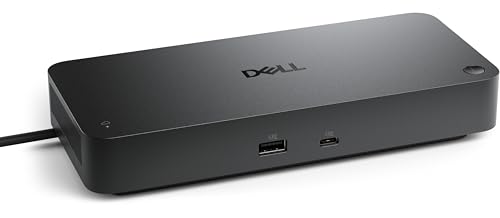
- 130W power delivery for compatible notebooks
- Remote management through Dell Device Management Console
- Supports up to four displays and secure WPA-3 communication
Best For: Enterprise offices and centrally managed Dell workstations
Best Expansion Value
HODO 18-in-1 Triple-Display Dock

- Includes a 120W adapter and 30W phone-charging port
- Triple-display output for compatible Windows laptops
- Adds 10Gbps USB, card readers, Ethernet, and audio
Best For: Windows users building a feature-rich triple-monitor setup
Best for Shared Workspaces

- 130W adapter with up to 96W laptop power delivery
- Dual-monitor support with HDMI and DisplayPort
- DisplayLink layout provisioning for hoteling desks
Best For: Managed offices and shared workstations
Best for Triple-Display Windows Setups

- 13 ports with HDMI, DisplayPort, Ethernet, audio, and card readers
- Up to three 1080p@60Hz displays on Windows and ChromeOS
- 85W laptop charging with a 135W adapter included
Best For: Windows multi-monitor workstations
Best for Dual 4K Value

- Dual 4K@30Hz or single 4K@60Hz display support
- 96W adapter with at least 65W laptop charging
- 12 ports plus SD/TF readers and 18W USB-C output
Best For: Cross-platform dual-monitor desks
Best for Managed Office Setups

- Up to 100W USB-C power delivery
- Supports up to four high-resolution displays
- Three-year limited hardware warranty
Best For: IT-managed offices and demanding multi-display workstations
Best Compact Dual-Display Hub

- Dual HDMI with up to 4K output
- Up to 85W pass-through charging
- Includes Ethernet and SD/microSD readers
Best For: Portable USB-C workstations and Windows dual-monitor setups
Best for Triple-Monitor Productivity

- Supports three displays on compatible Windows laptops
- Up to 100W charging with 110W adapter included
- Adds HDMI, DisplayPort, Ethernet, audio, and card readers
Best For: Windows triple-monitor workstations with demanding connectivity needs
Best High-Power Choice – Anker Prime 14-in-1 Docking Station
For users comparing powered docking stations, the Anker Prime stands out with 14 ports, up to 160W of total output, and dual HDMI display connectivity. It is designed for USB-C, USB4, and Thunderbolt laptops that support DisplayPort Alt Mode and Power Delivery.
Best For: Windows and ChromeOS users who need high charging capacity, fast data connections, and a dual-monitor workstation.
Pros:
- Provides 160W total output, with up to 100W available through each of three USB-C ports.
- Offers 14-in-1 connectivity, including 10Gbps data ports, Ethernet, audio, and dual HDMI.
- Supports two external displays at up to 2K@60Hz with a DP 1.4 laptop.
Cons:
- Not compatible with Linux.
- On macOS, both external displays show identical content.
- Does not support a 5120×1440 monitor.
The Anker Prime is a strong fit when charging capacity and broad connectivity matter most. Check your laptop’s operating system and display requirements before buying, especially if you use macOS or an ultrawide 5120×1440 monitor.
Best for Managed Workplaces – Dell Pro Smart Dock SD25
The Dell Pro Smart Dock SD25 is one of the more workplace-focused powered docking stations, combining 130W power delivery with remote administration features. Its configurable USB-C cable and support for up to four displays suit managed office environments.
Best For: Businesses and IT teams that need centrally managed docks with secure wireless communication and scheduled maintenance.
Pros:
- Supports 130W power delivery for compatible notebooks.
- Can be remotely configured, deployed, and updated through the Dell Device Management Console.
- Supports up to four displays and includes HDMI, DisplayPort, Ethernet, USB, and USB-C connectivity.
- Uses WPA-3 192-bit encryption and hardware-based tamper-resistant encryption.
Cons:
- Has six total USB ports, fewer than several expansion-focused docks.
- Its smart management features are most relevant to organizations using Dell’s management ecosystem.
The SD25 is less about maximizing port count and more about simplifying fleet deployment, security, and maintenance. It is a sensible powered docking station for business users whose IT department needs visibility and control over connected docks.
Best Expansion Value – HODO 18-in-1 Triple-Display Dock
This HODO model is a feature-heavy option among powered docking stations, pairing an included 120W adapter with 18 ports, triple-display outputs, card readers, networking, and phone charging. It is intended for USB-C or Thunderbolt laptops with DisplayPort support.
Best For: Windows laptop users who want extensive connectivity, three-screen productivity, and simultaneous laptop-and-phone charging.
Pros:
- Includes a 120W power adapter and a separate 30W USB-C port for phone or tablet charging.
- Supports two HDMI outputs plus DisplayPort for triple-display setups on Windows laptops.
- Offers 10Gbps USB ports, SD/TF card readers, Gigabit Ethernet, audio, and an on/off screen button.
- Supports a single 8K display with compatible equipment.
Cons:
- macOS and iPadOS are limited to mirrored displays rather than extended multi-stream output.
- Requires the included 120W adapter to be connected before using key docking functions.
- Compatibility depends on a laptop’s USB-C or Thunderbolt port supporting DisplayPort.
Choose this dock when port variety and multi-screen Windows productivity take priority. Its broad feature set is appealing, but users should verify host-port capabilities and the operating-system display limitations before purchase.
Best Compact Dual-Display Dock – Brydge Stone CORE 10-Port
The Brydge Stone CORE is a compact powered docking station with 100W power delivery and ten practical ports. It combines HDMI 2.1, DisplayPort 1.4, Gigabit Ethernet, USB connectivity, and an SD 4.0 reader for everyday desktop expansion.
Best For: Windows and Mac users who want a portable dock for dual 4K displays, wired networking, and faster file transfers.
Pros:
- Delivers 100W total power delivery for demanding laptop workflows.
- Supports dual 3840×2160 displays at 60Hz on Windows.
- Includes HDMI 2.1 with up to 8K@30Hz support and DisplayPort 1.4 with 4K@60Hz support.
- Provides SD 4.0 transfers up to 2.4Gbps along with Gigabit Ethernet.
Cons:
- Has ten ports, fewer than the 14-in-1 and 18-in-1 alternatives in this roundup.
- The listed dual-display capability is specifically stated for Windows.
- Its enclosure is plastic rather than metal.
The Stone CORE balances useful expansion with a portable design. It is a good middle-ground powered docking station for users who need dual-display support and fast card transfers without choosing a larger, more port-dense dock.
Best for Shared Workspaces – Dell Universal Dock UD22
The Dell Universal Dock UD22 is one of the more workplace-focused powered docking stations, pairing a 130W adapter with up to 96W laptop power delivery. Its DisplayLink features can simplify shared-desk setups, while HDMI, DisplayPort, and 10 total ports support a flexible dual-monitor workstation.
Best For: Hoteling environments, shared offices, and users who want a streamlined dual-display setup with substantial power delivery.
Pros:
- Includes a 130W power adapter and supports up to 96W power delivery.
- Supports dual monitors through HDMI and DisplayPort.
- DisplayLink layout provisioning can automatically apply a preconfigured display layout.
- DP Alt Mode support can allow quick setup even without the DisplayLink driver installed.
Cons:
- Only one HDMI port is listed, so display connections may require a DisplayPort-equipped monitor or adapter.
- The feature set is particularly oriented toward managed or shared workspaces rather than basic home use.
Choose the UD22 when deployment convenience and consistent desk configurations matter as much as connectivity. Its three-year manufacturer warranty is another practical advantage for longer-term office use.
Best for Triple-Display Windows Setups – Anker 13-in-1 Laptop Dock
The Anker 13-in-1 Laptop Dock is a versatile powered docking station for Windows users who need many connections from one cable. It includes a 135W adapter, 85W host charging, triple-display support at 1080p@60Hz, fast USB ports, Ethernet, audio, and SD/microSD readers in a compact vertical design.
Best For: Windows 10/11 or ChromeOS users building a multi-monitor workstation with storage, networking, and fast peripheral connectivity.
Pros:
- Offers 13 ports, including two HDMI ports, DisplayPort, Ethernet, audio, and card readers.
- Supports up to three 1080p@60Hz external monitors on Windows and ChromeOS.
- Provides 85W laptop charging and includes a 135W power adapter.
- Includes 10Gbps USB-C data and 5Gbps USB-A connectivity.
Cons:
- On macOS, external displays are limited to mirror mode rather than extended displays.
- Triple-display operation depends on a compatible full-function USB-C, USB4, or Thunderbolt connection and supported operating system.
This dock is a strong fit for a Windows-centered desk where three screens and broad peripheral support are priorities. Mac users can still use its charging and data functions, but should not buy it expecting extended multi-monitor capability.
Best for Dual 4K Value – NewQ 12-in-1 USB-C Dock
The NewQ 12-in-1 USB-C Dock is a practical powered docking station for users who want dual-display connectivity and a broad selection of everyday ports. Its included 96W adapter can provide at least 65W laptop charging, while dual HDMI, USB, Ethernet, audio, and SD/TF connections cover common desk and creative-work needs.
Best For: Multi-platform laptop users who need dual 4K display support, card readers, wired networking, and an extra USB-C charging output.
Pros:
- Supports dual 4K displays at 30Hz or a single 4K display at 60Hz.
- Includes a 96W adapter, at least 65W laptop charging, and an 18W USB-C PD output.
- Provides 12 ports, including dual HDMI, Ethernet, audio, USB-A, and SD/TF readers.
- Works across Windows, macOS, Chrome OS, iPadOS, Android, Unix, and Linux without requiring drivers.
Cons:
- Dual 4K output is limited to 30Hz.
- macOS does not support triple extended displays, though this dock is designed around dual-display output.
- Its 1.5-pound weight is less travel-friendly than some compact docks.
The NewQ is a sensible option when port variety and broad operating-system compatibility matter more than high-refresh-rate 4K output. It is especially useful for a desk setup that combines two monitors with wired networking and removable storage.
Best for Managed Office Setups – Dell Pro WD25 Docking Station
The Dell Pro WD25 is one of the more enterprise-focused powered docking stations, combining up to 100W of USB-C power delivery with broad Windows, Ubuntu, Red Hat Enterprise Linux, and ChromeOS compatibility. It is designed for organized workspaces that need reliable connectivity, flexible management, and support for multiple high-resolution displays.
Best For: Office users and IT-managed workstations that need strong compatibility, quad-display support, and a generous power-delivery rating.
Pros:
- Delivers up to 100W of power to compatible laptops.
- Supports up to four high-resolution displays, with HDMI and DisplayPort connectivity.
- Includes six USB ports, Ethernet, USB-C, and USB-A connectivity.
- Backed by a three-year limited hardware warranty with advanced exchange.
Cons:
- Its advanced manageability features may be more than home users need.
- Quad-display performance depends on the host computer and display setup.
The WD25 is a practical choice when a dock needs to serve as a long-term office hub rather than just a portable adapter. Its power capacity, display expansion, operating-system support, and business-oriented warranty make it particularly appealing for professional environments.
Best Compact Dual-Display Hub – Anker PowerExpand 8-in-1 Dock
The Anker PowerExpand 8-in-1 is a compact powered docking station for USB-C laptops that need extra displays, storage-card readers, networking, and pass-through charging. It can connect one display at 4K at 60Hz or two displays at 4K at 30Hz, while accepting up to 85W of USB-C power delivery from a compatible charger.
Best For: USB-C laptop users who want a lightweight dual-monitor hub with Ethernet, HDMI, and SD or microSD card access.
Pros:
- Provides two HDMI ports, Ethernet, two USB-A data ports, and SD/microSD readers.
- Supports up to 85W of pass-through charging with a compatible 100W charger and USB-C cable.
- Works with USB-C, USB4, and Thunderbolt connections on supported systems.
- Compact 3.2-ounce design is easy to carry between workspaces.
Cons:
- The required wall charger and USB-C cable are not included.
- macOS mirrors the image across both external monitors rather than extending separate desktops.
- It is not compatible with Linux.
This Anker hub is a strong travel-friendly option when portability and everyday expansion matter more than maximum display bandwidth. Confirm that your laptop supports DisplayPort Alt Mode and Power Delivery before buying, especially if you plan to use two monitors.
Best for Triple-Monitor Productivity – Acer 13-in-1 Docking Station
The Acer 13-in-1 is a full-size powered docking station built for expansive desk setups. It includes two HDMI outputs, DisplayPort, multiple USB ports, Gigabit Ethernet, audio, SD and TF readers, and a 110W adapter that can deliver up to 100W to the connected laptop.
Best For: Windows users building a triple-monitor workstation who also need storage-card readers, wired networking, audio, and high-power laptop charging.
Pros:
- Supports three independent displays on compatible Windows laptops through two HDMI ports and DisplayPort.
- Can support triple 4K at 30Hz when the host laptop and GPU support DSC.
- Includes a 110W power adapter and provides up to 100W of USB-C PD power.
- Offers 13-in-1 connectivity, including Gigabit Ethernet, audio, USB ports, and simultaneous SD/TF reading.
Cons:
- macOS supports mirroring across multiple displays, not extended desktop mode.
- Triple 4K output requires a compatible Windows host with DSC support.
- The included adapter makes it less travel-oriented than a compact hub.
The Acer dock is aimed at users who want to consolidate a broad range of desktop connections into one workstation accessory. Its included power supply and triple-display capability are compelling, but compatibility requirements should be checked carefully before purchase.
How We Picked the Best Powered Docking Stations
We evaluated this lineup around the features that matter most in a real desk setup: host-connection compatibility, power-delivery capacity, display support, port selection, operating-system requirements, and practical value. We also considered whether a dock suits everyday office work, creative tasks, travel, or a multi-monitor workstation.
Power ratings require careful interpretation. A dock may include a large external power adapter while delivering a lower wattage to the laptop, and some computers accept less power than the dock can provide. Always compare the dock’s output with your laptop’s charging requirement.
Quick Comparison
| Setup | What to prioritize | Best fit |
|---|---|---|
| Single external display | Compact design, USB-C charging, HDMI or DisplayPort | Students, travelers, and simple home offices |
| Dual monitors | Two compatible video outputs and adequate bandwidth | Productivity and business users |
| Triple displays | DisplayLink or supported native video architecture | Advanced multitasking |
| High-power laptops | 100W-class charging and a suitable adapter | Workstations and demanding mobile PCs |
| Peripheral-heavy desks | Several USB ports, Ethernet, audio, and card readers | Creators and fixed desktop setups |
Key Buying Factors for Powered Docking Stations
Power Delivery and Included Adapter
Check both the dock’s stated laptop output and whether a power adapter is included. A 100W-class dock is useful for many productivity laptops, but gaming and workstation models may need more power or their original charger.
Display Compatibility
Count the monitors you plan to use and verify resolution and refresh-rate support. HDMI and DisplayPort combinations are convenient, but dual-display behavior can vary by Windows, macOS, ChromeOS, and the laptop’s USB-C or Thunderbolt capabilities. Some multi-display docks require software drivers.
Ports and Bandwidth
Choose ports based on your equipment rather than the headline count. USB-A helps with legacy accessories, USB-C can support faster storage, and Gigabit Ethernet provides steadier networking than Wi-Fi. SD and microSD readers are valuable for cameras and content workflows.
Compatibility and Desk Placement
Confirm that your laptop supports video over USB-C if the dock relies on USB-C DisplayPort Alt Mode. Thunderbolt docks may offer greater bandwidth but are not automatically interchangeable with every USB-C computer. A longer host cable, sturdy enclosure, and sensible port placement also improve daily usability.
Who Should Buy Which Powered Docking Stations?
Choose a compact 8-in-1 or 13-in-1 model if you need one monitor, charging, and common peripherals without filling your desk. A dual-monitor dock is the better choice for spreadsheets, research, coding, and office multitasking. Triple-display models suit users who keep several applications visible and have a laptop that supports the required display technology.
Look to the higher-power Dell or Anker options when dependable charging, business connectivity, and multiple displays are priorities. A dock with many USB ports and card readers makes more sense for photographers, video editors, and home-office users with several permanent accessories. Before ordering, verify your computer model, monitor inputs, operating system, and required charging wattage.