
Adding three external displays can transform a laptop into a capable desktop workstation, but the right dock depends on your computer’s ports, operating system, display outputs, and bandwidth.
These 10 docking stations with triple monitor support cover practical setups ranging from everyday office multitasking to high-resolution productivity, with attention to charging, connectivity, compatibility, and ease of use.
Best 10 Docking Stations with Triple Monitor Support Picks for 2026
Deployment-Ready DisplayLink Dock
Plugable 13-in-1 Triple Monitor Station

- Three extended HDMI displays via DisplayLink
- 100W laptop and 20W accessory charging
- Includes power adapter and lifetime support
Best For: Office and multi-platform deployments
Simple Windows Triple-HDMI Dock
Selore 13-in-1 Triple HDMI Hub

- Three HDMI outputs with Windows triple 4K extension
- 10Gbps USB, Ethernet, card readers, and 100W PD
- Plug-and-play operation with screen-control button
Best For: Windows users wanting a simple three-HDMI workstation hub
Best for Maximum Display Flexibility
Plugable UD-ULTC4K Triple 4K Dock
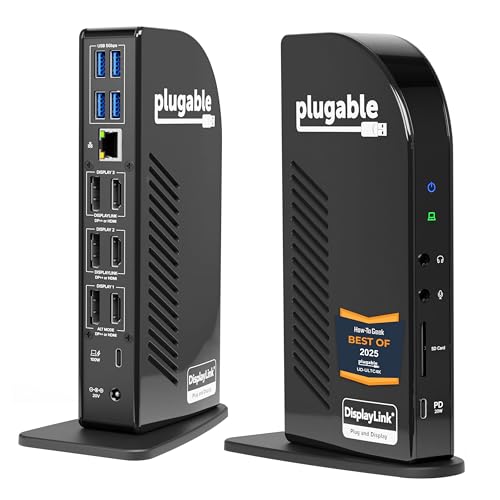
- Drives up to three 4K 60Hz monitors
- Offers six HDMI/DisplayPort outputs
- Adds 100W charging and 13 total ports
Best For: High-resolution office and multi-display workstations
Best Windows Triple-Display Value
Acer 13-in-1 Triple Display Dock

- Uses two HDMI and one DisplayPort output
- Supports triple 4K at 30Hz with compatible DSC systems
- Includes a 110W adapter and 100W laptop charging
Best For: Windows productivity setups needing broad connectivity
Best Driverless Windows Option
Plugable 15-in-1 Triple HDMI Dock

- Supports one 4K60 and two 1080p60 displays
- Uses driverless MST on Windows and ChromeOS
- Adds 2.5Gbps Ethernet and 100W charging
Best For: Windows or ChromeOS desks with three HDMI monitors
Best All-in-One Connectivity

- Three HDMI outputs for flexible triple-display setups
- 10Gbps USB ports, card readers, and Gigabit Ethernet
- Up to 85W laptop output with 100W USB-C PD input
Best For: Windows users building a three-monitor workstation with extensive peripheral and networking needs
Best for Mixed Fleets
Plugable USB-C Triple Display Dock

- Supports three extended HDMI displays
- Works with Windows, macOS, and ChromeOS systems
- Includes 100W PD, Ethernet, USB peripherals, and audio
Best For: Hybrid teams and IT departments managing varied USB-C laptop fleets
Best Port Selection
TobenONE 18-in-1 Triple 4K Dock
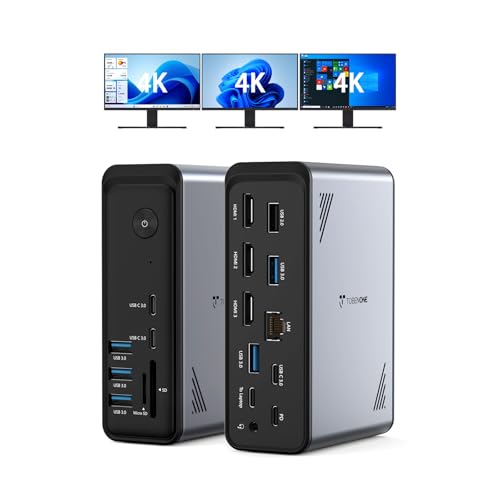
- Three HDMI outputs advertise triple 4K at 60Hz support
- 18 ports include nine USB connections and card readers
- 100W PD supports continuous laptop charging
Best For: Windows and ChromeOS users with many peripherals and high-resolution displays
Feature-Rich Triple Display Hub – Selore 17-in-1 Triple Monitor Dock
For Windows users comparing docking stations with triple monitor support, this Selore model combines three HDMI ports, two DisplayPort outputs, fast USB connectivity, card readers, Ethernet, and laptop charging in a vertical workstation dock. It can run three extended displays through supported MST port combinations, with two displays at up to 4K@60Hz and the third at up to 4K@30Hz.
Best For: Windows multitaskers, creative professionals, and data-heavy workstations that need extensive connectivity.
Pros:
- Supports three extended monitors on compatible Windows laptops.
- Offers 17-in-1 connectivity, including three HDMI, two DisplayPort, 10Gbps USB, Ethernet, and SD/microSD readers.
- Provides up to 85W laptop charging with a suitable 87W-or-higher charger.
- Includes a smart display and double-press privacy mode for convenient control.
Cons:
- Requires a separate power adapter.
- macOS is limited to mirrored or single extended display modes rather than three independent screens.
- The third display is limited to 4K@30Hz in the specified triple-display configurations.
This is a strong choice when port variety and Windows triple-display expansion matter more than macOS flexibility. Check your laptop’s USB-C or Thunderbolt capabilities and plan for a compatible power adapter.
Deployment-Ready DisplayLink Dock – Plugable 13-in-1 Triple Monitor Station
This Plugable dock is a practical option among docking stations with triple monitor support, especially for offices standardizing Windows or Mac workstations. DisplayLink enables three extended HDMI displays, with the primary output reaching 4K@30Hz and the other two supporting up to 1920×1200@60Hz.
Best For: Business, education, government, and home-office setups that need broad system compatibility and included power accessories.
Pros:
- Supports three extended HDMI monitors through DisplayLink.
- Works with Windows, macOS, and ChromeOS systems with compatible USB-C, USB4, or Thunderbolt ports.
- Includes 100W laptop charging and 20W charging for connected devices.
- Comes with a power adapter, AC cord, host cable, and lifetime support.
Cons:
- macOS requires DisplayLink Manager installation for multiple displays.
- It does not support HDCP-protected playback such as Netflix or Hulu.
- Two HDMI outputs are limited to 1920×1200@60Hz.
Plugable’s emphasis on deployment support and included accessories makes this a sensible standardized-desk solution. DisplayLink adds flexibility for Macs, but the driver requirement and protected-content limitation should be considered before purchase.
High-Power DisplayLink Workstation – Anker Prime DL7400 Triple 4K Dock
For Windows users seeking docking stations with triple monitor support and high-power charging, the Anker Prime DL7400 offers three 4K displays through two HDMI ports and one DisplayPort. Its 14-port design also includes 2.5Gbps Ethernet, 10Gbps USB-C, card readers, audio, and a smart status display.
Best For: Windows professionals who want triple 4K output, high-speed networking, and substantial charging capacity.
Pros:
- Supports triple 4K@60Hz displays on compatible Windows laptops.
- Provides up to 140W through the upstream USB-C port.
- Includes 2.5Gbps Ethernet, multiple 10Gbps USB-C ports, and SD/TF card slots.
- Smart display, built-in fan, and ActiveShield 3.0 help monitor and manage operation.
Cons:
- Requires the latest DisplayLink driver.
- DRM-protected streaming may show a black screen.
- It is specified for USB-C Windows laptops, and front USB-C ports do not support USB-C monitor output.
This dock is aimed at demanding Windows desks where display resolution, charging headroom, and networking speed are priorities. Its DisplayLink and DRM limitations make compatibility checks essential for media-focused workflows.
Simple Windows Triple-HDMI Dock – Selore 13-in-1 Triple HDMI Hub
This Selore hub is a straightforward choice among docking stations with triple monitor support for Windows laptops whose USB-C ports support DisplayPort Alt Mode or Thunderbolt 3/4. Its three HDMI outputs can drive three extended 4K displays on supported Windows systems, while 10Gbps USB, card readers, Gigabit Ethernet, and 100W PD add useful desk connectivity.
Best For: Windows laptop users who want three HDMI outputs, plug-and-play operation, and a compact collection of everyday ports.
Pros:
- Supports triple 4K extended displays on compatible Windows laptops.
- Provides three HDMI ports plus 10Gbps USB-A and USB-C ports.
- Includes Gigabit Ethernet, SD/microSD readers, and up to 100W PD pass-through charging.
- Offers plug-and-play operation with a one-touch screen-control button.
Cons:
- Triple-display functionality depends on USB-C DisplayPort Alt Mode or Thunderbolt support.
- macOS does not support three independent extended displays.
- Two USB-A ports are USB 2.0.
With three matching HDMI outputs and no-driver Windows operation, this dock keeps a triple-screen setup relatively simple. Confirm the laptop’s video-output support first, particularly if you plan to use it with a Mac.
Best for Maximum Display Flexibility – Plugable UD-ULTC4K Triple 4K Dock
If you need docking stations with triple monitor support for a demanding workstation, the Plugable UD-ULTC4K is built around serious display expansion. Its six video outputs can drive up to three 4K 60Hz monitors while also providing laptop charging, networking, USB accessories, audio, and card readers through one USB-C connection.
Best For: Windows, macOS, or ChromeOS users building a high-screen-count office, development, financial analysis, or IT deployment workstation.
Pros:
- Supports up to three 4K 60Hz displays through three HDMI and three DisplayPort outputs.
- Provides up to 100W laptop charging and 20W accessory charging.
- Includes 13 ports, wired Ethernet, audio, SD card support, and lifetime North American support.
Cons:
- DisplayLink drivers and Screen Recording permission are required for external displays on macOS.
- HDCP is not supported, so protected streaming content may not play on connected displays.
- Triple-display operation requires a compatible full-featured USB-C, USB4, or Thunderbolt system.
This is the most flexible option of the group for mixed display connections and high-resolution multitasking. Check your laptop’s USB-C capabilities and operating-system requirements before buying, especially if you plan to use macOS.
Best Windows Triple-Display Value – Acer 13-in-1 Triple Display Dock
The Acer 13-in-1 is a practical choice among docking stations with triple monitor support for Windows laptops. It combines two HDMI ports and one DisplayPort with 100W USB-C power delivery, storage-card readers, Ethernet, audio, and a broad selection of USB ports in an aluminum enclosure.
Best For: Windows users who want a complete desk setup with three external displays, substantial laptop power, and built-in connectivity.
Pros:
- Supports three independent displays through two HDMI ports and one DisplayPort using MST.
- Can reach triple 4K at 30Hz on compatible Windows systems with DSC support.
- Includes a 110W power adapter, delivering up to 100W to the laptop.
- Provides Ethernet, audio, SD/TF readers, USB expansion, and a security slot.
Cons:
- macOS supports mirroring rather than extended desktop mode across multiple displays.
- Triple 4K output requires a Windows laptop and GPU that support Display Stream Compression.
- Performance depends on the host laptop, graphics hardware, and included power setup.
The Acer dock offers strong all-in-one connectivity and a generous power adapter, but its triple-monitor capabilities are most compelling for compatible Windows hardware. Mac users should choose it only if display mirroring meets their needs.
Best Driverless Windows Option – Plugable 15-in-1 Triple HDMI Dock
For Windows and ChromeOS users who prioritize simple setup, this Plugable dock is one of the more straightforward docking stations with triple monitor support. It uses driverless MST connectivity for three HDMI displays and adds 100W laptop charging, 2.5Gbps Ethernet, six USB ports, card readers, and audio.
Best For: Windows 11 or compatible ChromeOS laptops needing a driverless triple-HDMI workstation with fast networking and extensive peripheral support.
Pros:
- Supports a native dual 4K 60Hz setup or one 4K 60Hz plus two 1080p 60Hz displays.
- Offers three HDMI outputs without requiring display drivers on supported Windows and ChromeOS systems.
- Includes 100W host charging, a dedicated 30W USB-C charging port, and 2.5Gbps Ethernet.
- Provides six USB ports, SD and microSD readers, audio, and horizontal or vertical placement.
Cons:
- It is not recommended for Mac computers or ARM-based systems.
- Triple-display resolution is limited to one 4K display plus two 1080p displays.
- Requires a compatible USB-C video-enabled, USB4, or Thunderbolt laptop.
This model is a focused choice for compatible Windows 11 and ChromeOS systems, particularly when three HDMI connections and driverless setup matter more than triple 4K output. Its 2.5Gbps Ethernet and 30W accessory charging also suit busy desk environments.
Best All-in-One Connectivity – Acer 13-in-1 Triple HDMI Dock
For shoppers comparing docking stations with triple monitor support, the Acer 13-in-1 model combines three HDMI outputs with fast USB connectivity, wired networking, memory-card readers, and USB-C power delivery. It can drive one display at up to 4K at 60Hz, two at 4K at 60Hz, or a typical triple-display mix of 4K, 4K, and 1080p at 60Hz, depending on the laptop and monitors.
Best For: Windows users who want one compact dock for three monitors, peripherals, Ethernet, storage cards, and laptop charging.
Pros:
- Three HDMI ports support flexible single-, dual-, and triple-display setups.
- Includes 10Gbps USB-C and USB-A ports plus SD and microSD readers.
- Offers Gigabit Ethernet and up to 85W laptop output from 100W USB-C PD input.
Cons:
- Triple-display resolution depends on total bandwidth and each monitor’s capabilities.
- macOS mirrors the same content across external monitors.
- A 100W or higher USB-C charger and cable are required but not included.
This is a strong choice when connectivity matters as much as monitor expansion. Confirm that your laptop supports DisplayPort Alt Mode and that its HDMI capability is version 2.0 or higher before buying.
Best for Mixed Fleets – Plugable USB-C Triple Display Dock
The Plugable USB-C dock is designed for workplaces that need docking stations with triple monitor support across Windows, macOS, and ChromeOS systems. It supports three extended HDMI displays using one 4K monitor at 30Hz through Alt Mode and two 1080p monitors at 60Hz through DisplayLink, while also providing USB peripherals, Ethernet, audio, and 100W charging.
Best For: Hybrid teams and IT-managed workspaces supporting a mix of Windows laptops, Chromebooks, and newer Apple Silicon MacBooks.
Pros:
- Supports up to three extended HDMI displays with DisplayLink and native USB-C video.
- Compatible with USB-C, USB4, and Thunderbolt systems running supported Windows, macOS, or ChromeOS versions.
- Combines Gigabit Ethernet, six USB 3.0 peripherals, audio, and 100W Power Delivery.
Cons:
- DisplayLink requires driver installation on macOS.
- The triple-display arrangement is limited to one 4K 30Hz display and two 1080p 60Hz displays.
- Not compatible with Linux, and HDCP is not supported.
Its broad platform support and enterprise-oriented assistance make it practical for shared offices and managed deployments. Check operating-system requirements and DisplayLink installation needs before rollout.
Best Port Selection – TobenONE 18-in-1 Triple 4K Dock
The TobenONE 18-in-1 dock targets users who need docking stations with triple monitor support plus a large number of connections. It provides three HDMI outputs advertised for triple or dual 4K at 60Hz displays, nine USB ports, card readers, audio, Ethernet, and 100W PD for a consolidated desk setup.
Best For: Windows and ChromeOS users who connect several USB peripherals, external storage devices, and up to three high-resolution HDMI monitors.
Pros:
- Offers three HDMI outputs with advertised triple- or dual-display 4K at 60Hz support.
- Provides 18 total ports, including nine USB ports, SD and microSD, Ethernet, and 3.5mm audio.
- Supports 100W Power Delivery for continuous laptop charging.
Cons:
- Designed specifically for Windows and ChromeOS laptops rather than macOS systems.
- A power supply is not included; stable operation requires an additional supply rated above 65W.
- Triple-monitor performance requires a full-featured USB-C connection.
This dock is appealing when reducing adapters and cable clutter is a priority. Its large port count suits busy workstations, but verify your laptop’s USB-C capabilities and plan for a separate power supply.
How We Picked the Best Docking Stations with Triple Monitor Support
We focused on docks that clearly support three external displays and offer useful port selections for modern laptop setups. Our comparison considers advertised resolution and refresh-rate support, HDMI and DisplayPort availability, USB expansion, power delivery, host compatibility, and the technologies used to drive multiple screens.
We also separated broadly useful features from model-specific claims. Triple-display performance can vary by operating system, laptop graphics hardware, USB-C capabilities, and whether a dock relies on DisplayLink software, so buyers should verify the manufacturer’s compatibility list before ordering.
Quick Comparison
- Best for high-resolution setups: Look for models advertising triple 4K output, while confirming supported refresh rates.
- Best for charging: Choose a dock with 100W USB-C Power Delivery if your laptop accepts that level of input.
- Best for port variety: 13-in-1, 15-in-1, and 18-in-1 designs typically add more USB, card-reader, Ethernet, or audio connections.
- Best for flexible laptop compatibility: DisplayLink-based docks can support multiple monitors on computers with more limited native video output, but they require software and may not suit every protected-video or graphics-intensive workflow.
Key Buying Factors for Docking Stations with Triple Monitor Support
Check the Laptop Connection First
USB-C is not automatically capable of video output or laptop charging. Check whether the port supports DisplayPort Alt Mode, USB4, or Thunderbolt, and confirm the dock’s host-side requirements. Some systems may need DisplayLink drivers for the third display.
Match Outputs to Your Monitors
Count the exact connections you need. A dock with three HDMI ports is convenient for HDMI monitors, while HDMI-and-DisplayPort combinations may be better for mixed setups. Verify whether all three screens can run simultaneously at your desired resolution and refresh rate.
Consider Bandwidth and Software
Triple 4K support often involves trade-offs in refresh rate, USB speeds, or compression. DisplayLink can add flexibility, but it depends on an installed driver and uses system resources. Native video output is usually preferable for low-latency graphics work.
Evaluate Power and Everyday Ports
Power delivery should meet your laptop’s requirements, not just the dock’s maximum rating. Also check Ethernet speed, USB-A versus USB-C count, SD or microSD access, audio, and whether the included charger is powerful enough for your intended setup.
Who Should Buy Which Docking Stations with Triple Monitor Support?
Choose a compact 13-in-1 dock if you want a balanced home-office setup with three displays and essential peripherals. A 15-in-1 or 18-in-1 model makes more sense for users connecting storage, wired networking, card readers, webcams, and several USB devices at once.
Prioritize 100W charging for a performance laptop used as a desktop replacement. For office productivity across different laptops, a DisplayLink model may offer the greatest flexibility. For color-sensitive, gaming, or graphics-heavy work, compare native video support, refresh rates, and operating-system compatibility carefully before buying.