
If you need one desk setup that can handle two machines, the right dock can simplify everything from monitors to peripherals and charging. A good docking station for two computers should make switching seamless without sacrificing display quality or power.
In this roundup, we focus on practical options for dual-monitor workflows, mixed laptop compatibility, and the features that matter most for everyday productivity.
Best 10 Docking Station for Two Computers Picks for 2026
Universal USB Dock
Dell D6000S for Mixed Connections
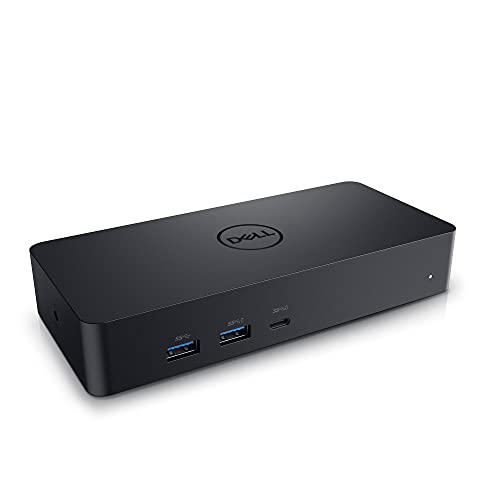
- USB-C and USB-A support
- Connects up to three 4K displays
- 65W dock with 1-year warranty
Best For: Mixed-connection office setups and universal dock use
Dual HDMI USB-C Hub
Anker 8-in-1 Dual Monitor Dock

- Dual HDMI for 2 displays
- 1 Gbps Ethernet and card readers
- Up to 85W pass-through charging
Best For: Compact dual-monitor USB-C desk setups
Thunderbolt 4 Smart Dock
Dell Pro SD25TB4 for Power Users

- Up to 4 4K displays supported
- 130W charging and Thunderbolt 4
- 2.5GbE plus Wi‑Fi management
Best For: High-performance business and creator workstations
KVM Dual-Monitor Productivity Dock
AV Access KVM Switch Dock for 2 Laptops

- Shares 2 HDMI monitors between 2 USB-C laptops
- Provides up to 60W charging for each PC
- Adds Ethernet, SD, audio, and USB ports
Best For: users who want one dock to switch between two laptops and two displays
Premium All-In-One Desk Dock
Anker Prime 14-Port Dual Display Dock

- 14-in-1 dock with dual HDMI and Ethernet
- Delivers up to 160W total charging output
- Supports dual 4K displays on compatible systems
Best For: buyers who want a powerful feature-packed dock for charging and dual displays
Business-Class USB-C Dock

- Up to 100W power delivery for compatible PCs
- Supports up to four high-resolution displays
- Includes 2.5GbE, DP 1.4, HDMI 2.1, and USB 3.2 Gen2
Best For: office and IT users who want a managed USB-C dock with strong display expansion
Detachable Desk-and-Travel Pick
Anker Nano 13-in-1 Laptop Docking Station

- Detachable 6-in-1 hub for travel use
- Triple-display support with 2 HDMI + 1 DP
- 100W charging with 13 total ports
Best For: Hybrid workers who want one dock for the desk and a portable hub for travel
Dell Workspace Upgrade
Dell WD19S 180W Docking Station

- USB-C dock with HDMI and dual DisplayPort
- 130W power delivery for docked charging
- Built for a clean single-laptop workspace
Best For: Dell and USB-C laptop users who want a simple, reliable office dock
Classic Dell Expansion Dock
Dell WD19 130W Docking Station
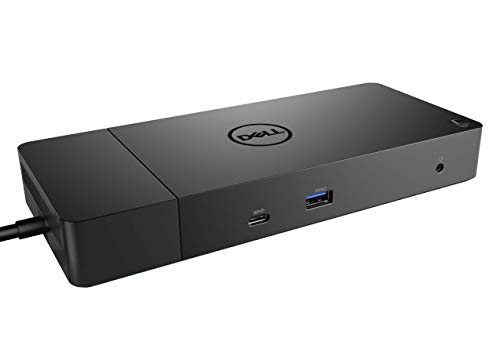
- HDMI 2.0b plus dual DisplayPort outputs
- Multiple USB-A, USB-C, Ethernet, and audio ports
- 90W power delivery from a 130W adapter
Best For: Dell notebook and tablet users building a straightforward wired desk setup
Dual-Monitor KVM Dock – AV Access for 2 Laptops
If you want a docking station for two computers that also handles dual displays, this AV Access unit is built for a streamlined home-office setup. It combines KVM switching, 2x HDMI outputs, Ethernet, USB expansion, and laptop charging so you can move between two USB-C laptops without rebuilding your desk each time.
Best For: Users who need one dock to share two monitors, peripherals, and wired network access between two laptops.
Pros:
- Supports 2 laptops and 2 monitors with dual HDMI outputs.
- Includes 11-in-1 expansion with USB 3.0, USB 2.0, USB-C, SD card, headset, and 1G Ethernet.
- Offers up to 100W charging per PC through USB-C charging ports.
- EDID emulation and wired remote help switching happen in about 2-3 seconds.
Cons:
- Mac OS only supports mirror mode.
- Some USB-C laptops may not support dual 4K output.
- Original laptop power adapter is still required for charging setup.
This is a strong pick if your main priority is shared desk convenience rather than a simple port expander. The combination of KVM control and dock features makes it especially practical for people balancing work and personal laptops.
Universal USB Dock – Dell D6000S for Mixed Connections
If you need a docking station for two computers or a flexible desk hub for one laptop, the Dell D6000S is a broad compatibility option that works with either USB-C or USB-A. It is designed to connect displays, keyboard and mouse, and audio devices in one place, making it useful for a straightforward office or home setup.
Best For: People who want a simple universal dock that can attach to USB-C or USB-A laptops with minimal fuss.
Pros:
- Works with both USB-C and USB-A laptops.
- Supports connecting up to three 4K displays.
- Includes 5 total USB ports and 6 ports overall.
- Compact design with a 1-year limited hardware warranty.
Cons:
- Only one HDMI port is listed in the product details.
- Power output is 65W, which may be modest for some laptops.
- Product details show compatibility with Dell devices.
For buyers who value compatibility over extra dock features, this is a practical choice. It keeps the focus on getting connected quickly, especially if you regularly move between different laptop connection types.
Dual HDMI USB-C Hub – Anker 8-in-1 Dual Monitor Dock
This Anker docking station for two computers is a compact USB-C hub built around dual HDMI output, Ethernet, charging, and card-reader convenience. It is a good fit if you want a portable desk dock that can add core productivity ports without taking over your workspace.
Best For: Users who want an 8-in-1 USB-C hub with dual displays and essential wired connectivity.
Pros:
- Dual HDMI ports support two external displays at 4K@30Hz on dual-monitor setups.
- Includes 1 Gbps Ethernet, 2 USB-A ports, and SD/microSD card readers.
- Provides up to 85W pass-through charging with compatible USB-C Power Delivery.
- Works with USB-C, USB4, and Thunderbolt laptops on supported systems.
Cons:
- Charger is not included.
- macOS shows identical content on both external monitors.
- Not compatible with Linux.
This is a practical everyday dock if you want a small footprint and the basics done well. It is less about advanced workstation features and more about adding the ports most people actually use.
Thunderbolt 4 Smart Dock – Dell Pro SD25TB4 for Power Users
If your search for a docking station for two computers is really about building a high-end shared workstation, this Dell Pro Thunderbolt 4 dock is the most feature-rich option here. It is aimed at demanding setups with up to four 4K displays, fast charging, Thunderbolt 4 connectivity, and business-grade remote management.
Best For: Power users and business environments that need a high-performance Thunderbolt dock with advanced display support.
Pros:
- Supports up to 4 4K monitors across HDMI 2.1, DP 1.4, USB-C, and Thunderbolt 4.
- Provides up to 130W charging for Dell laptops and 96W for others.
- Includes 2.5GbE, Wi-Fi management, and security features like WPA3 and PXE boot.
- Built with 65% recycled plastic and 100% recycled packaging.
Cons:
- Best suited to Thunderbolt 4 and USB-C ecosystems, so it is not as universal as simpler docks.
- More advanced than many home users will need.
- Requires a higher-end setup to take full advantage of the display support.
This dock stands out when performance, manageability, and multi-display flexibility matter more than price or simplicity. It is the kind of choice that makes sense for a serious office or creator workstation.
KVM Dual-Monitor Productivity Dock – AV Access KVM Switch Dock for 2 Laptops
If you want a docking station for two computers that also handles dual monitors, this AV Access KVM dock is built for a tidy two-laptop workspace. It combines a KVM switch and docking station so you can share two HDMI displays, peripherals, Ethernet, and storage without constantly unplugging cables.
Best For: Home office users, hybrid workers, and anyone switching between two USB-C laptops on a shared dual-monitor desk.
Pros:
- Supports 2 laptops and 2 HDMI monitors from one dock
- Includes 60W charging for each connected PC
- Offers 1G Ethernet, SD card, audio, and multiple USB ports
- Fast 2-3 second switching with EDID emulation and wake-up support
Cons:
- Mac OS does not support MST, so dual screens mirror instead of extend
- Requires DP alt mode and MST support for extended dual-display mode
- Not compatible with 5K monitors, including 5120×1440 ultrawides
For users who prioritize a clean desk and quick transitions between work and personal laptops, this is a highly capable all-in-one option. Its strongest appeal is the combination of dual-monitor sharing, laptop charging, and wired peripherals in a single switchable setup.
Premium All-In-One Desk Dock – Anker Prime 14-Port Dual Display Dock
This Anker Prime model is a strong docking station for two computers if you need broad port coverage, fast charging, and dual-display support in one desktop hub. It is designed to consolidate charging, data, and monitor connections, making it a practical fit for a shared or streamlined workstation.
Best For: Users who want a high-power, feature-rich dock for dual-display productivity and multiple connected devices.
Pros:
- 14-in-1 design with dual HDMI, audio, and Ethernet
- Up to 160W total output with charging for multiple devices
- 10Gbps data transfer across several ports
- Supports dual 4K displays on compatible laptops
Cons:
- On macOS, both external displays mirror the same image
- Not compatible with Linux
- Does not support 5120 x 1440 monitors
For buyers who value power and connectivity more than minimalist simplicity, this dock offers a lot in one package. It is especially appealing if you want a versatile desktop hub that can charge several devices while feeding a dual-monitor setup.
Business-Class USB-C Dock – Dell Pro Dock WD25
The Dell Pro Dock WD25 is a practical docking station for two computers if your priority is enterprise-style reliability, modern manageability, and broad display expansion. It is built around USB-C with DP Alt Mode and gives you the kind of connectivity that suits a clean, business-focused desk.
Best For: Office users and IT-managed workspaces that want a dependable USB-C dock with strong display and network connectivity.
Pros:
- Up to 100W power delivery for compatible PCs
- Native support for up to four high-resolution displays
- Includes 2x DisplayPort 1.4, HDMI 2.1, USB 3.2 Gen2, and 2.5GbE
- Designed for manageable commercial deployments with durable connector design
Cons:
- Requires USB-C with DP Alt Mode support
- Only one HDMI port is included
- Primarily positioned for business and IT environments rather than casual home use
If you want a dock that feels built for the workplace, the WD25 stands out for its management features and expansion options. It is a strong fit for teams or professionals who need a stable, well-equipped desk hub rather than a simple travel dock.
Detachable Desk-and-Travel Pick – Anker Nano 13-in-1 Laptop Docking Station
If you need a docking station for two computers? Not exactly—but if your goal is one dock that can handle a full desk setup and still travel well, this Anker Nano makes a strong case. Its detachable 6-in-1 hub lets you snap off the portable portion for mobile use, while the main 13-in-1 dock stays at your workstation with room for triple displays and a wide mix of peripherals.
Best For: Hybrid workers who want a desktop dock at home and a detachable hub for travel.
Pros:
- Detachable 2-in-1 design combines a desktop dock and portable hub
- Supports up to 3 external displays with 2 HDMI ports and 1 DisplayPort
- Includes 100W laptop charging plus a 140W power adapter for stable operation
- Offers 13 total functions, including Ethernet, SD/TF, audio, USB-C, and USB-A ports
Cons:
- macOS only supports mirrored mode on multiple external displays
- Requires a laptop connection to activate the dock and ports
For buyers comparing a docking station for two computers workflows, this model stands out more for flexibility than true dual-host switching. It is best when you want one powerful dock for a USB-C laptop setup, plus a detachable hub you can take on the go.
Dell Workspace Upgrade – Dell WD19S 180W Docking Station
Dell WD19S 180W Docking Station (130W Power Delivery) USB-C, HDMI, Dual DisplayPort, Black
Check Price On AmazonThe Dell WD19S is a straightforward USB-C docking station for two computers? No—it is designed as a single-host dock, but it is a solid pick for expanding one compatible laptop into a cleaner, more connected desk setup. With HDMI and dual DisplayPort outputs plus 130W power delivery, it is aimed at users who want a reliable workspace dock rather than a feature-heavy universal hub.
Best For: Dell users and USB-C laptop owners who want a simple office dock with external display support.
Pros:
- USB-C dock with HDMI and dual DisplayPort connectivity
- 130W power delivery supports charging while docked
- Designed to optimize a workstation with one cable connection
- Built by Dell for use with compatible Dell devices and USB-C laptops
Cons:
- Not positioned as a multi-computer switchable dock
- Product details are less expansive than some feature-rich all-in-one docks
If you want a dependable office dock and are not shopping for a docking station for two computers at once, the WD19S keeps the focus on stability and workspace simplicity. It is a practical choice for users who value a familiar Dell dock with strong display and power support.
Classic Dell Expansion Dock – Dell WD19 130W Docking Station
Dell WD19 130W Docking Station (with 90W Power Delivery) USB-C, HDMI, Dual DisplayPort, black
Check Price On AmazonThe Dell WD19 is a practical USB-C docking station for two computers? Not as a true dual-host dock, but it does give one Dell notebook or tablet a full set of desktop connections in one compact unit. It includes HDMI 2.0b, dual DisplayPort, Ethernet, audio, and multiple USB ports, making it a capable expansion dock for a single workstation.
Best For: Dell laptop and tablet users who want a wired desk dock with plenty of classic ports.
Pros:
- Offers HDMI 2.0b, dual DisplayPort, Ethernet, and audio connections
- Includes both USB-C and multiple USB-A ports for peripherals
- 130W power adapter with 90W power delivery for compatible devices
- Compact desktop footprint with a familiar Dell docking format
Cons:
- Compatible devices are listed specifically as Dell notebooks/tablet PCs
- Not designed as a two-computer switching dock
For buyers who want a stable single-device docking station rather than a shared docking station for two computers, the WD19 keeps things simple and wired. It is a good fit if you are building a Dell-focused desk setup and want dependable port expansion without extra complexity.
How We Picked the Best Docking Station for Two Computers
We focused on docks and KVM-style solutions that make a Docking Station for Two Computers genuinely useful at a shared workstation. Priority went to display support, charging output, port selection, video standards, network performance, and how well each unit fits common laptop setups.
We also looked for clear value differences between true dock-and-switch products and standard USB-C docks, since the best choice depends on whether you want simple peripheral expansion or fast switching between two systems.
Quick Comparison
If you need two computers on one desk, start by deciding whether you need one or two monitors, how much power each laptop requires, and whether both computers must stay connected at the same time. KVM-capable options are best for instant switching, while traditional docks are better when one primary computer does most of the work.
For multi-display users, check whether the dock supports MST, DisplayLink, or native Thunderbolt modes, and confirm your laptops’ USB-C, USB4, or Thunderbolt compatibility before buying.
Key Buying Factors for a Docking Station for Two Computers
Display Support
Match the dock to your monitor setup first. If you run dual 4K displays, verify refresh rate limits, the number of available video outputs, and whether both computers can drive both screens simultaneously.
Power Delivery
Charging matters as much as video. A Docking Station for Two Computers should provide enough wattage for each laptop if you plan to keep both connected regularly. Higher-power docks are especially important for larger business laptops and creator systems.
Switching Method
If you want to alternate between computers quickly, a KVM switch dock is the most efficient option. If you only need shared accessories and a single active host at a time, a standard dock can be simpler and more affordable.
Ports and Connectivity
Look for the ports you actually use: USB-A for legacy peripherals, USB-C for newer accessories, Ethernet for reliable networking, and audio if you use headsets or speakers at the desk. Fast data ports also help with external drives and card readers.
Compatibility
Not every dock works equally well with every laptop. Mac, Windows, and mixed-brand environments can have different display limitations, so it is worth checking compatibility notes before you commit.
Who Should Buy Which Docking Station for Two Computers?
Choose a KVM-style dock if you want one desk to fully support two laptops with minimal cable swapping. Choose a high-power universal dock if one main laptop handles most tasks and the second machine is occasional. Choose a compact USB-C hub if you mainly need portability and light dual-monitor support. For most buyers, the best setup is the one that balances monitor count, charging needs, and how often you switch between systems.