
If your laptop is doing double duty as a desktop, the right dock can turn a single USB-C or USB4 connection into a full workstation. The best options balance monitor support, charging, and everyday connectivity without adding clutter.
This roundup focuses on practical docking station choices for desktop replacement laptop setups, with an emphasis on display outputs, power delivery, and compatibility across Windows and Mac systems.
Best 10 Docking Station for Desktop Replacement Laptop Picks for 2026
Detachable 2-in-1 Dock
Anker Nano 13-in-1 Desktop Dock

- Detachable 6-in-1 hub for travel use
- Triple-display support with HDMI and DP
- Up to 100W charging with 140W adapter
Best For: Users who want one dock for desk and travel use
Enterprise Workstation Dock

- Up to 100W power delivery
- Native support for up to four displays
- 2.5GbE plus 6 USB ports
Best For: Business users building a managed desktop setup
High-Power Smart Dock
Anker Prime 14-Port Desktop Dock

- 160W total output with up to 100W on USB-C
- 14-in-1 design with smart interface
- Dual HDMI for two external displays
Best For: Power users who need strong charging and dual monitors
Driver-Based Budget Dock
Plugable UD-3900 Dual HDMI Dock

- Dual HDMI outputs up to 1920x1200 at 60Hz
- Broad Windows, macOS, and ChromeOS support
- Includes Ethernet, audio, and 6 USB ports
Best For: Users who want dual monitors and broad compatibility on a budget
Dual-Display Travel Dock

- Dual 4K@60Hz support on Windows
- Three 10 Gbps data ports
- Up to 85W laptop charging
Best For: Windows users building a compact dual-monitor workstation
Compact Dual-Monitor Dock
Anker PowerExpand 8-in-1 USB-C Hub

- Dual HDMI with up to 4K@60Hz single display
- 85W pass-through charging support
- Includes Ethernet and SD/microSD readers
Best For: Users wanting a compact, reliable dual-monitor hub for daily work
Heavy-Duty 18-Port Hub
TobenONE 18-in-1 Triple 4K Docking Station
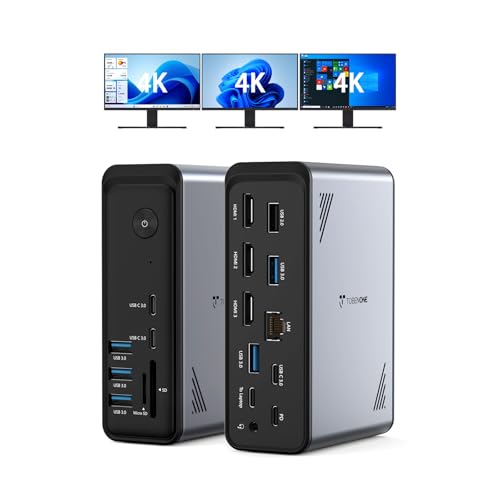
- 18 ports with 9 USB connections and wired Ethernet
- Dual or triple 4K@60Hz display support
- 100W PD charging for compatible Windows/ChromeOS laptops
Best For: Users who want a feature-packed desktop-replacement dock with triple displays
Balanced Dual-Monitor Dock
VVB 14-in-1 USB C Docking Station

- 14 ports including dual HDMI, DisplayPort, and Ethernet
- Up to 10Gbps data transfer on USB-A/C ports
- 100W PD input with up to 87W charging output
Best For: Windows laptop users who want a well-rounded dual-monitor desktop dock
Compact Dual-4K Dock
UGREEN Revodok Pro 7-in-1 Docking Station

- Dual 4K@60Hz HDMI outputs
- Four 10Gbps data ports for accessories and transfers
- 100W PD charging in a compact aluminum design
Best For: Users who want a smaller dual-monitor dock with fast ports and 4K output
Detachable 2-in-1 Dock – Anker Nano 13-in-1 Desktop Dock
If you want a docking station for desktop replacement laptop use but still need something portable, this Anker Nano is built around that exact workflow. It combines a full 13-in-1 desk dock with a detachable 6-in-1 hub, so you can leave the main setup at home and snap off the smaller piece for travel.
Best For: Laptop users who want one dock for a full home workstation and a smaller travel-ready hub.
Pros:
- Detachable 2-in-1 design gives you a desktop dock and portable hub in one package.
- Triple-display support with 2 HDMI ports and 1 DisplayPort for a multi-monitor setup.
- Includes 10Gbps USB-C data, 3 USB-A ports, Ethernet, SD/TF, and audio.
- Up to 100W laptop charging with a 140W adapter included for stable power.
Cons:
- macOS only supports mirrored mode on multiple external displays.
- Requires a laptop connection to function; ports do not activate on their own.
This is a strong pick if your priority is consolidating a desk setup without giving up portability. It is especially appealing for users who want a true replacement-style dock that can still travel when needed.
Enterprise Workstation Dock – Dell Pro Dock WD25
The Dell Pro Dock WD25 is aimed at people who want a docking station for desktop replacement laptop setups with business-grade power and manageability. It delivers up to 100W power, supports multiple high-resolution displays, and adds a strong mix of USB and network connectivity for a tidy office workstation.
Best For: Business users and IT-managed workspaces that need a reliable Dell-focused desktop dock.
Pros:
- Up to 100W power delivery for supported laptops.
- Native support for up to four high-resolution displays.
- Includes 2 DisplayPort 1.4 ports, HDMI 2.1, 6 USB ports, and 2.5GbE.
- Designed for manageability, durability, and lower standby power use.
Cons:
- Best fit is clearly the Windows and commercial device ecosystem.
- Uses a DP Alt Mode USB-C connection, so compatibility depends on the laptop.
If you want a desk dock that feels built for the office first, this model stands out for connectivity and IT-friendly design. It is less of a travel companion and more of a stable, always-connected workstation centerpiece.
High-Power Smart Dock – Anker Prime 14-Port Desktop Dock
For a docking station for desktop replacement laptop use, the Anker Prime focuses on power, speed, and visibility. It combines 14 ports, 160W total output, and a smart interface that helps you manage charging and data flow from a single desktop hub.
Best For: Power users who want a high-output dock with dual-display support and lots of charging headroom.
Pros:
- 160W total output with up to 100W from three USB-C ports.
- 14-in-1 layout covers charging, data, audio, and Ethernet in one unit.
- Dual HDMI support for two external displays up to 2K@60Hz or 1080p@60Hz depending on laptop support.
- Supports USB-C, USB4, and Thunderbolt connections.
Cons:
- Does not support a 5120×1440 monitor.
- Not compatible with Linux.
- On macOS, both external monitors mirror the same image.
This dock is best when raw output and multi-device charging matter more than minimalism. If your desktop replacement setup includes multiple peripherals and frequent power demands, it is one of the most capable options here.
Driver-Based Budget Dock – Plugable UD-3900 Dual HDMI Dock
If you need a docking station for desktop replacement laptop use on a tighter budget, the Plugable UD-3900 offers broad compatibility and simple dual-monitor expansion. It relies on a driver-based setup, but in return it gives you a straightforward way to add two HDMI displays, Ethernet, audio, and multiple USB ports through one connection.
Best For: Productivity users who want dual HDMI monitors and a wide compatibility range without needing laptop charging.
Pros:
- Dual HDMI outputs with support up to 1920×1200 at 60Hz.
- Works with Windows, macOS, and ChromeOS with the required driver setup.
- Includes Gigabit Ethernet, audio jacks, and 6 USB ports.
- Hybrid USB 3.0 and USB-C cable makes it flexible for different hosts.
Cons:
- Driver required for use.
- Does not support 4K output.
- Does not charge the host laptop.
This is a practical choice if your priority is adding monitors and peripherals rather than maximizing power delivery. It is less suited to premium desktop-replacement rigs, but it remains a useful all-around expansion dock for everyday work.
Dual-Display Travel Dock – Anker Nano 8-in-1 USB-C Dock
If you want a docking station for desktop replacement laptop use without adding a bulky setup, this Anker Nano dock covers the essentials in a compact 8-in-1 design. It supports dual 4K@60Hz displays on Windows, fast 10 Gbps data ports, SD/TF card access, and up to 85W pass-through charging when paired with a 100W PD charger.
Best For: Windows laptop users who want a compact dual-monitor dock with fast data ports and laptop charging.
Pros:
- Two HDMI ports support up to dual 4K@60Hz on compatible Windows laptops.
- Three 10 Gbps data ports help move files quickly across USB-C and USB-A devices.
- 85W max laptop charging with 100W PD input keeps a desktop-style setup powered.
- SD/TF card slots add convenient media access for everyday work.
Cons:
- macOS only mirrors the external displays instead of extending them.
- USB ports are for data only and do not support charging or video output.
- 100W PD charger and cable are required for full charging performance and are not included.
Overall, this is a strong pick if you want a portable dock that can help turn a compatible USB-C laptop into a simple dual-monitor workstation. Just make sure your laptop supports DP 1.4 with DSC if you want the highest dual-4K output.
Feature-Rich Quad Display Dock – Selore 10-in-1 Multiport Adapter
This docking station for desktop replacement laptop setups is built for users who want maximum display flexibility and wired connectivity. The Selore 10-in-1 dock combines dual HDMI, DisplayPort, VGA, Ethernet, multiple USB ports, and 100W PD input, making it a practical hub for a crowded desk or multi-screen workflow.
Best For: Windows users who need several display options, wired internet, and a one-button monitor control feature.
Pros:
- Supports up to triple 4K display output on Windows with 2 HDMI plus DisplayPort.
- Includes a Gigabit Ethernet port for stable wired networking.
- One-touch monitor control button can wake, sleep, or switch display modes on Windows.
- Offers both USB-A and USB-C data ports along with 100W PD input.
Cons:
- macOS only supports mirror mode across external displays.
- USB data speeds are limited to 5 Gbps, which is slower than some premium docks.
- Best multi-monitor features depend on a Windows system with DisplayPort 1.4 support.
If your priority is turning a USB-C laptop into a desktop-style command center, this dock offers more display outputs than most compact hubs. It is especially appealing for users who want both legacy compatibility and flexible monitor control in one unit.
Compact Dual-Monitor Dock – Anker PowerExpand 8-in-1 USB-C Hub
For a docking station for desktop replacement laptop use, this Anker 8-in-1 hub keeps the setup straightforward: dual HDMI, Ethernet, SD/microSD, USB-A, and 85W pass-through charging in a small aluminum body. It is a good fit when you want a clean desk and reliable core features rather than a long list of extra ports.
Best For: Users who want a compact Anker dock with dual HDMI support, Ethernet, and simple everyday expansion.
Pros:
- Dual HDMI output supports one display at 4K@60Hz or two displays at 4K@30Hz on Windows.
- 85W pass-through charging helps keep a compatible laptop powered during use.
- Includes Gigabit Ethernet plus SD and microSD card readers for work convenience.
- Compact aluminum design is easy to place on a desk or take on the go.
Cons:
- Dual external displays on macOS mirror the same content.
- Does not support Linux.
- Two-monitor output is limited to 4K@30Hz rather than 4K@60Hz.
This is a practical choice if you want a dependable hub for everyday laptop docking without overcomplicating the setup. It delivers the most useful desk-replacement basics, especially for Windows users who only need dual displays and wired networking.
Heavy-Duty 18-Port Hub – TobenONE 18-in-1 Triple 4K Docking Station
If you need a docking station for desktop replacement laptop use, this TobenONE model is built for turning a Windows or ChromeOS notebook into a full desk setup. With 18 total ports, triple-monitor support, and 100W charging, it aims to cover displays, peripherals, wired networking, and audio from a single connection.
Best For: Windows or ChromeOS users who want lots of ports and triple-monitor expansion for a laptop-first workstation.
Pros:
- 18-in-1 layout with 9 USB ports, HDMI, Ethernet, SD/microSD, and audio.
- Supports dual or triple 4K@60Hz display setups for multi-screen workflows.
- 100W PD charging helps keep a compatible laptop powered through the day.
- Designed for full-featured USB-C, USB4, Thunderbolt 3, and Thunderbolt 4 systems.
Cons:
- No power adapter is included, so you need an external supply over 65W for stable operation.
- It is not recommended for Mac users.
- Triple-display behavior depends on compatible Windows/ChromeOS hardware and monitor setup.
Overall, this is the most expansion-focused pick in the group and suits users who want a desk dock to replace a laptop’s limited built-in ports. It makes the most sense when you need broad connectivity and multi-monitor productivity more than compact size.
Balanced Dual-Monitor Dock – VVB 14-in-1 USB C Docking Station
This docking station for desktop replacement laptop setups is a practical middle-ground option if you want dual-monitor output, fast wired networking, and a healthy mix of data ports. It adds 14 connections from one USB-C port, making it useful for a tidy workstation without going all the way to a larger dock.
Best For: Dell, Lenovo, and HP users who want a dependable dual-monitor dock with Ethernet and mixed USB expansion.
Pros:
- 14-in-1 design includes dual HDMI, DisplayPort, Ethernet, SD/TF, and multiple USB ports.
- Supports dual and triple display modes on Windows systems.
- 100W PD input with up to 87W safe charging output.
- 10Gbps USB-A and USB-C data ports are useful for fast file transfers.
Cons:
- Charging cable and adapter are not included.
- Not all USB-C devices are compatible with the HDMI or DisplayPort functions.
- MacBook support is not the focus, and extended monitor behavior is more limited outside Windows.
For users who want a straightforward desk dock with solid display and data expansion, this VVB model covers the essentials well. It is especially sensible if your priority is wired reliability, multiple monitor support, and a compact dock footprint.
Compact Dual-4K Dock – UGREEN Revodok Pro 7-in-1 Docking Station
If you want a smaller docking station for desktop replacement laptop use, this UGREEN Revodok Pro keeps the focus on display quality and fast data ports. It delivers dual 4K@60Hz HDMI outputs, 10Gbps USB-A and USB-C ports, and 100W charging in a more compact 7-in-1 format.
Best For: Laptop users who want a compact dual-monitor dock with high-resolution output and fast USB data ports.
Pros:
- Two HDMI ports support dual 4K@60Hz displays on compatible Windows hardware.
- Two 10Gbps USB-A ports and two 10Gbps USB-C ports handle fast peripherals and transfers.
- 100W PD charging supports a powered desktop-style setup.
- Aluminum build and lightweight design keep the dock simple and portable.
Cons:
- macOS is limited to mirrored displays rather than distinct extended screens.
- To get full functionality, the laptop must have a full-function or Thunderbolt 3/4 USB-C port.
- Power adapter and charging cable are not included.
This is the cleanest pick for buyers who value dual 4K display support without a lot of extra bulk. It is best when you want a compact dock that still covers the key desktop-replacement basics.
How We Picked the Best Docking Station for Desktop Replacement Laptop
We prioritized docks that fit real desktop-replacement use: stable external display output, enough power delivery for high-performance laptops, fast data ports for accessories, and a sensible mix of HDMI, DisplayPort, Ethernet, and audio. We also favored models with clearer compatibility guidance, since not every dock works the same way on every laptop.
Quick Comparison
For a Docking Station for Desktop Replacement Laptop use, the biggest differences usually come down to monitor count, maximum resolution and refresh rate, charging wattage, and whether the dock needs drivers or firmware support. Dual-monitor users can usually get by with a simpler 7- to 8-port model, while multi-monitor users should look at higher-port-count docks with dedicated video outputs and stronger power delivery.
Key Buying Factors for a Docking Station for Desktop Replacement Laptop
Display Output
Check how many external displays the dock supports and whether it uses HDMI, DisplayPort, or a mix of both. Also confirm whether your laptop can handle the same display count over USB-C, since some systems limit multi-monitor output even if the dock itself supports more.
Power Delivery
Match the dock’s charging output to your laptop’s needs. Ultrabooks often do well with 65W to 85W, while larger work laptops may need up to 100W or more for reliable charging under load.
Ports and Expansion
Look for the ports you actually use every day: USB-A for legacy accessories, USB-C for newer devices, Ethernet for stable networking, and SD card slots if you move files often. A good dock should reduce adapters, not add them.
Compatibility and Setup
Some docks are plug-and-play, while others rely on drivers or specific display protocols. If you use macOS, Windows, or mixed-device environments, verify support before buying. This matters especially for a Docking Station for Desktop Replacement Laptop setups with multiple monitors.
Who Should Buy Which Docking Station for Desktop Replacement Laptop?
Choose a compact 7- or 8-in-1 dock if you want a clean single-monitor or dual-monitor desk with basic charging and data expansion. Pick a midrange dual-display dock if you need a dependable everyday workstation with Ethernet and faster ports. Go with a higher-port-count dock if your setup includes multiple peripherals, several displays, and a laptop that serves as your main desktop replacement.
If portability matters, choose a smaller dock with strong core features. If your laptop rarely leaves the desk, prioritize output flexibility, wattage, and expandability over size.