
If you want a cleaner desk without losing control over multiple computers, a KVM switch with EDID emulation is one of the most practical upgrades you can buy.
It helps your monitors keep a stable display signal when you switch between PCs or laptops, reducing blank screens, re-detection delays, and resolution glitches.
Best 10 KVM Switch with EDID Emulation Picks for 2026
Dual-Display Control for 3 PCs
HDMI KVM for 3 Computers and 2 Monitors

- Controls 3 PCs on 2 monitors
- EDID simulation helps keep display settings stable
- Includes USB 3.0 ports, remote, adapter, and cables
Best For: Users who want stable dual-monitor switching across three computers
Workstation-Ready Triple PC Switch

- Shares 2 monitors and 4 USB 3.0 devices
- EDID emulator helps prevent resolution loss and black screens
- Supports 4K@60Hz, 2K@144Hz, and wired-remote switching
Best For: Workstations that need stable dual-monitor control for three computers
Dock-and-Switch Hybrid
KVM Dock for 2 Laptops and 2 Monitors

- Works as both a KVM switch and docking station
- Shares 2 monitors, Ethernet, USB, and charging from one setup
- EDID emulation supports fast 2-3 second switching
Best For: Home office setups with two USB-C laptops and dual monitors
Compact Single-Monitor Switch
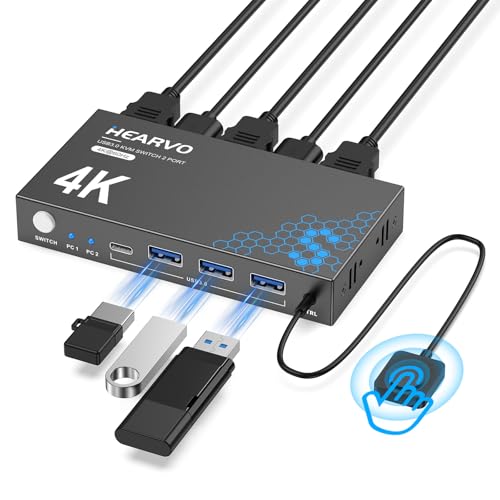
- Shares 1 monitor and 4 USB 3.0 ports
- Adaptive EDID helps keep images stable when switching
- Supports 4K@60Hz with button and wired-remote control
Best For: Two-PC desks that need a simple single-monitor 4K KVM
Dual-Monitor 4-PC HDMI KVM
4 Computers, 2 Monitors, 4K120Hz

- Shares 2 displays and 4 USB 3.0 devices across 4 PCs.
- EDID emulation keeps window order and resolution stable.
- Panel buttons and IR remote offer two switching options.
Best For: Users who want a dual-monitor KVM for four PCs with layout-preserving switching.
Compact 4-PC 1-Monitor KVM

- Shares one monitor and 4 USB 3.0 devices across 4 PCs.
- EDID helps preserve desktop layout when switching back.
- Includes buttons, remote, power adapter, HDMI cable, and USB cable.
Best For: Single-monitor users who want a simple four-computer KVM with EDID stability.
MacBook + PC Dual-Monitor KVM Dock

- Shares two HDMI monitors between one MacBook and one Windows PC.
- EDID emulation helps keep display behavior stable during switching.
- Adds 100W PD, Ethernet, USB, audio, and SD card reader.
Best For: Users building a MacBook-plus-PC desk with dual monitors and docking features.
Quad-Source Desktop Control
HDMI KVM Switch for 4 PCs, 1 Monitor

- Shares one monitor across four computers
- EDID emulation helps preserve display settings
- Multiple switch options: hotkey, mouse, button, IR
Best For: One-monitor users switching between four computers
Dual-Screen Docking Hub

- Dual HDMI setup up to 4K@60Hz or 1440P@120Hz
- EDID emulation helps keep windows in place
- Includes 100W PD and fast USB ports
Best For: Hybrid office users who want dual displays and laptop charging
Dual-Monitor Command Switch

- Shares two monitors across four computers
- EDID emulation helps preserve layout and resolution
- Four USB 3.0 ports support faster peripherals
Best For: Multi-PC dual-monitor desks with USB 3.0 accessories
Dual-Display Control for 3 PCs – HDMI KVM for 3 Computers and 2 Monitors
If you need a KVM switch with EDID emulation for a dual-monitor setup, this model is built around shared desktop control for three computers. It supports extend or copy display modes, includes USB 3.0 sharing, and is aimed at keeping your monitor layout stable when switching between PCs.
Best For: Users who want to switch 3 computers across 2 monitors with stable resolution handling and included cables.
Pros:
- Controls 3 computers with 1 keyboard/mouse set and 2 monitors
- EDID simulation helps preserve resolution and window layout when switching
- Includes 4 USB 3.0 ports, wired remote, power adapter, and 3 USB 3.0 cables
- Supports up to 4K@60Hz and 2K@144Hz
Cons:
- Dual-monitor mode requires 2 HDMI connections per computer
- For discrete/integrated graphics setups, both HDMI outputs must come from the discrete GPU
- Best results are recommended with computers using the same resolution
This is a practical pick if your priority is keeping a three-PC desk organized while maintaining monitor settings through switches. The included accessories also reduce the extra setup work many KVM buyers expect.
Workstation-Ready Triple PC Switch – HDMI 2.1 KVM for 3 Computers
For a KVM switch with EDID emulation in a shared dual-monitor workstation, this Reyoten model focuses on stable switching and high-resolution output. It lets you share two monitors and four USB 3.0 devices across three computers, with built-in EDID emulation designed to reduce black screens, resolution loss, and signal issues.
Best For: Office or workstation users who need 3-computer control, dual monitors, and quick switching without display instability.
Pros:
- Supports 3 computers and 2 monitors with 4 USB 3.0 ports
- EDID emulator helps preserve resolution, refresh rate, and color depth
- Supports up to 4K@60Hz and 2K@144Hz
- Includes panel buttons and wired remote for switching
Cons:
- Keyboard hotkey switching is not supported
- 4K use requires HDMI 2.0 cables no longer than 1.5m
- All connected devices must support the target resolution for best results
This model stands out if you want a straightforward switch for a professional desk setup and place a premium on stable image behavior. It is especially useful when you want fewer disconnects and less display reconfiguration during daily switching.
Dock-and-Switch Hybrid – KVM Dock for 2 Laptops and 2 Monitors
This KVM switch with EDID emulation is also a docking station, making it a strong fit for a two-laptop desk setup with dual monitors. It combines display switching, USB-C docking, Ethernet, charging, and peripheral sharing in one unit, while EDID emulation and auto wake-up are designed to make transitions fast and smooth.
Best For: Home office users who want one dock to manage two USB-C laptops, two monitors, and everyday peripherals.
Pros:
- Combines KVM switching and docking station features in one device
- Supports 2 USB-C laptops, 2 HDMI monitors, Ethernet, and shared peripherals
- Provides up to 60W charging per laptop
- EDID emulation and auto PC wake-up support quick 2-3 second switching
Cons:
- Mac OS does not support MST, so dual screens mirror rather than extend
- Extended dual-screen mode requires USB-C laptops with DP alt mode and DP MST
- Not compatible with 5K monitors or features like FreeSync, G-Sync, and Dell Display Manager
This is a smart choice if you want fewer boxes on the desk and need both a KVM and a dock for a laptop-heavy workflow. Its feature mix makes it especially practical for people who switch between work and personal systems all day.
Compact Single-Monitor Switch – HDMI KVM for 2 PCs
If you want a simple KVM switch with EDID emulation for one monitor and two computers, this Hearvo unit keeps the setup focused and practical. It supports 4K@60Hz, shares four USB 3.0 ports, and uses adaptive EDID to help maintain stable image output when switching.
Best For: Users who need a straightforward two-computer KVM for a single 4K monitor and shared USB devices.
Pros:
- Supports 2 computers with 1 monitor
- Adaptive EDID helps optimize display settings during switching
- Offers 4 USB 3.0 ports including 1 USB-C port
- Includes button switching and wired remote control
Cons:
- Only supports one monitor, so it is not for dual-display setups
- No power supply or driver software is required, which may limit advanced control options
- Designed around basic plug-and-play use rather than workstation expansion
This is a good fit if you want a compact, no-fuss KVM for a shared desk and value stable 4K switching over extra display support. The included cables and remote make it easy to get started quickly.
Dual-Monitor 4-PC HDMI KVM – 4 Computers, 2 Monitors, 4K120Hz
If you need a KVM switch with EDID emulation for a dual-monitor workstation, this model is built for sharing two HDMI displays across four computers. It supports copy and extend modes, keeps window order stable when switching, and can automatically apply the monitor’s stored resolution and refresh rate. Just remember that each PC must have two HDMI outputs, so it’s best suited to systems that already have the right video ports or an active adapter available.
Best For: Dual-monitor users who want to switch four computers without losing their display layout.
Pros:
- Shares 2 monitors and 4 USB 3.0 peripherals across 4 computers.
- EDID emulation helps preserve window order and display settings between switches.
- Supports copy and extend modes for flexible dual-screen use.
- Includes panel buttons and IR remote switching.
Cons:
- Each computer needs two HDMI ports, which may require active adapters.
- Higher resolutions depend on the source, monitor, and HDMI cables all supporting them.
This is a strong fit if your setup revolves around dual monitors and you want stable switching without constant reconfiguration. The 4K/8K claims and USB 3.0 support make it appealing for performance-focused desks, but port requirements are the main thing to verify first.
Compact 4-PC 1-Monitor KVM – EDID, 4K60Hz, USB 3.0
This KVM switch with EDID emulation is a straightforward choice if you only need one monitor and want to share it between four computers. It combines HDMI video switching with a USB 3.0 hub, supports 4K@60Hz, and keeps the desktop layout from changing when you switch back to a previously used PC. For best results, the notes recommend connecting each computer with both HDMI and USB and using a short HDMI 2.1 cable.
Best For: Single-monitor desks that need simple four-PC switching with stable display behavior.
Pros:
- Controls 4 computers with one monitor and 4 USB 3.0 peripherals.
- EDID function helps keep the original desktop layout on each PC.
- Supports 4K@60Hz and 5Gbps USB 3.0 data transfer.
- Includes physical buttons, LED indicators, wired remote, power adapter, and cables.
Cons:
- Does not support keyboard hotkey switching.
- Each computer must connect with both HDMI and USB for proper operation.
For users who want a practical desk switch without extra software, this is a clean and compatible option. It focuses on stable day-to-day use rather than advanced control features, which makes it easy to recommend for simple four-PC workflows.
MacBook + PC Dual-Monitor KVM Dock – USB-C, 100W PD, EDID
If you want a KVM switch with EDID emulation that also works like a docking station, this AV Access unit is aimed at one MacBook and one Windows PC sharing two HDMI monitors. It is plug and play, requires no DisplayLink software, and is designed to keep resolution and display arrangement steady when you switch. The built-in Ethernet, USB ports, SD card reader, and 100W USB-C power delivery make it especially useful for a cleaner workstation setup.
Best For: MacBook and Windows PC users who want a dual-monitor KVM dock with charging and Ethernet.
Pros:
- Supports one MacBook and one Windows PC with dual HDMI monitors.
- EDID emulation helps prevent flicker, black screens, and re-detection.
- Includes 100W power delivery, Gigabit Ethernet, USB ports, audio, and SD card reader.
- Plug-and-play design with no drivers or DisplayLink software.
Cons:
- Only designed for one MacBook and one Windows PC, not Mac Mini or Mac Studio.
- MacBook external display support depends on chip and lid state, with limits on M1/M2 and some M3 setups.
This is the most desk-friendly option in the group if your goal is fewer cables and a more integrated workflow. It stands out for combining KVM switching, docking features, and EDID stability in one unit, but the Mac compatibility limits are important to check before buying.
Quad-Source Desktop Control – HDMI KVM Switch for 4 PCs, 1 Monitor
If you need a KVM switch with EDID emulation for a single-monitor setup, this 4-computer HDMI model is built for stable day-to-day switching. It supports 4K@60Hz, includes adaptive EDID emulation to help prevent resolution changes during switching, and adds several control options for a smoother workflow.
Best For: Users who want one monitor shared across four computers with simple, reliable switching.
Pros:
- Supports 4 computers on 1 monitor with keyboard, mouse, and monitor sharing
- Built-in EDID emulation helps keep display settings consistent when switching
- Offers four switching methods: hotkeys, front buttons, mouse gestures, and IR remote
- Supports 4K@60Hz plus 2K@120Hz and 1920×1080@240Hz
Cons:
- IR remote batteries are not included
- Audio and USB docking features are basic compared with full docking-style KVMs
- Best suited to a single-monitor workflow, not dual displays
Overall, this is a practical KVM switch with EDID emulation for users who value stable screen behavior and flexible input control. It works well as a desktop organizer for mixed PC and laptop use, especially when you want to move between systems without losing your display layout.
Dual-Screen Docking Hub – 2 PC 2 Monitor KVM with EDID
This KVM switch with EDID emulation is aimed at users who want a cleaner dual-monitor workstation for both laptop and desktop use. It supports two HDMI displays at up to 4K@60Hz, includes a wired remote for quick switching, and combines KVM control with docking-style USB and power delivery features.
Best For: Home office and gaming setups that need two monitors, shared peripherals, and laptop charging.
Pros:
- Dual HDMI output supports up to 4K@60Hz or 1440P@120Hz
- EDID emulation helps keep windows in place when switching devices
- Includes 5 USB ports, including USB-A 3.2 up to 10Gbps and USB-C
- 100W PD pass-through charging keeps a laptop powered while connected
Cons:
- Designed for 1 laptop + 1 desktop only, not two laptops or two desktops
- macOS supports only one extended display, with the second mirrored
- Not a simple barebones switch; the docking features add complexity for some users
For hybrid workers who want one tidy desk for work and play, this model stands out because it combines dual-monitor switching, EDID stability, and strong peripheral support. It is especially useful if you want fewer cables without giving up charging or fast USB connectivity.
Dual-Monitor Command Switch – 4-PC HDMI KVM with EDID
If your setup needs a KVM switch with EDID emulation for two monitors and four computers, this model is built around stable dual-display sharing. It supports 4K@60Hz, requires dual HDMI outputs from each connected computer, and uses EDID emulation to help preserve window position when switching between systems.
Best For: Multi-PC users who want to share two monitors and four USB 3.0 devices.
Pros:
- Shares 2 monitors and 1 keyboard/mouse set across 4 computers
- EDID emulation helps keep resolution and window layout steady during switching
- Supports up to 4K@60Hz and is backward compatible with lower resolutions
- Includes 4 USB 3.0 ports with up to 5 Gbps data transfer
Cons:
- Each connected computer must support dual-screen or multi-screen output
- Hotkey switching is not supported
- Best performance depends on compatible graphics cards, monitors, and the included power supply
This is a strong fit for users who already run dual-monitor workstations and want a straightforward sharing hub across multiple PCs. The combination of EDID emulation and USB 3.0 support makes it more appealing for office-style use than a basic switcher.
How We Picked the Best KVM Switch with EDID Emulation
We focused on KVM switches that prioritize stable display switching, broad device compatibility, and enough USB or video bandwidth for real-world use. For this roundup, that means favoring models with EDID support, dual-monitor options where available, and practical extras such as USB 3.0 ports, wired remotes, docking features, or power delivery.
We also looked at whether each unit fits a specific setup: one monitor versus dual monitors, two computers versus four, laptop docking versus desktop sharing, and whether the switch supports common resolutions and refresh rates without making the user do extra troubleshooting.
Quick Comparison
The best choice depends on your setup size. Two-computer KVMs are the simplest and usually the easiest to install. Four-computer models make more sense for shared workstations, test benches, or content creation rigs. Dual-monitor KVMs are ideal if you rely on extended desktops, while single-monitor models are usually the most affordable and easiest to configure.
If you use laptops, look closely at USB-C docking and power delivery. If you use desktops or peripherals like external drives and printers, pay attention to USB port count and speed. For mixed systems, a KVM Switch with EDID Emulation is especially helpful because it keeps each display profile more consistent during switching.
Key Buying Factors for a KVM Switch with EDID Emulation
Video Format and Resolution
Match the switch to your monitors first. Check whether it supports HDMI or USB-C, single or dual displays, and the refresh rate you need. A 4K@60Hz model is a safe baseline for most office and creative use, while higher refresh-rate options are better for gaming or fast-motion work.
EDID Behavior
EDID emulation matters most when you want your computers to “remember” the monitor setup after switching. That can help preserve resolution, scaling, and window placement. If you work across multiple machines, it is one of the most useful features to look for.
USB and Peripheral Sharing
Consider how many devices you need to share beyond keyboard and mouse. USB 3.0 ports are useful for storage, webcams, printers, and audio interfaces. Some models also include dedicated docking features or Ethernet, which can simplify a laptop-centered setup.
Power and Laptop Support
If you use USB-C laptops, check Power Delivery wattage carefully. A dock-style KVM can replace several cables, but only if it can charge your machine adequately while handling display output.
Who Should Buy Which KVM Switch with EDID Emulation?
Choose a two-computer dual-monitor model if you work between a desktop and a laptop every day. Choose a four-computer KVM if you manage multiple systems or need a flexible shared station. Pick a single-monitor KVM if you want the lowest-cost route to cleaner switching. And if you often deal with display re-detection problems, a KVM Switch with EDID Emulation is the safest bet for a smoother experience overall.