
Choosing the right keyboard for video editing can save time on every timeline trim, ripple delete, and export.
From dedicated shortcut decks to programmable macro pads, the best options help you work faster, stay organized, and keep your hands on the controls that matter most.
Best 10 Keyboard for Video Editing Picks for 2026
Speed-First Editing Console
Blackmagic DaVinci Resolve Speed Editor Bundle

- Built for DaVinci Resolve shortcut workflows
- Portable design with built-in battery
- Includes Bluetooth, USB-C, and Studio activation card
Best For: DaVinci Resolve editors who want a compact shortcut console
App-Control Console

- 9 LCD keys with customizable app profiles
- Includes control dial and roller for precise edits
- Supports DaVinci Resolve and other creative apps
Best For: Editors who want app-specific shortcuts and dial control
Shortcut Keyboard for Avid
KB Covers Media Composer Backlit

- Printed Avid Media Composer shortcuts on the keys
- Backlit aluminum body for low-light editing
- USB-A wired, plug-and-play Windows setup
Best For: Avid Media Composer editors who want a dedicated shortcut keyboard
Editor’s Pick
Wired Precision Controller for Mac/PC

- Stable wired USB connection with zero-latency use
- Built for timeline control and color grading
- Compatible with Premiere Pro, Final Cut Pro, and DaVinci Resolve
Best For: Mac or Windows editors who want a tactile desktop controller
Budget Shortcut Pad
Tri-Mode Programmable Keyboard for Windows
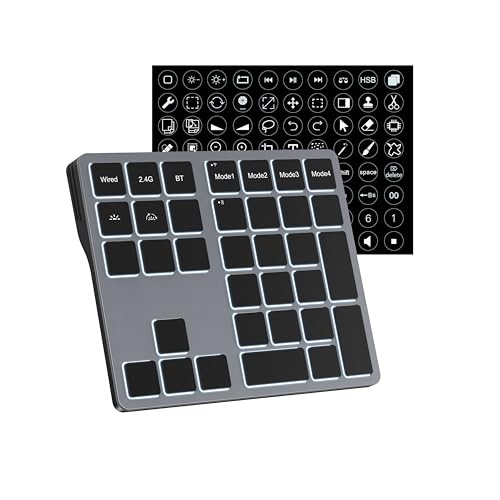
- 25 programmable keys for editing shortcuts and macros
- Bluetooth, 2.4GHz, and USB-C connectivity
- 4-layer mapping with backlit keys
Best For: Windows users who want a compact macro keypad for editing
Premium Multi-Platform Pick
Bluetooth Creator Console for Editing

- Supports iPadOS, Android, macOS, and Windows
- Bluetooth and USB-C connectivity
- On-screen HUD shows live key mappings
Best For: Creators who want one controller across desktop and tablet workflows
Macro Shortcut Deck
VSDINSIDE 18-Key Visual Macro Pad

- 18 programmable keys with visual LCD labels
- One-tap macros for editing, OBS, and media control
- USB-C support for Windows 11+ and macOS 11+
Best For: Creators who want a compact macro deck for fast editing shortcuts
Wireless Dial Shortcut Remote

- Bluetooth 5.0, dongle, or USB connection options
- 10 keys with up to 40 customizable shortcuts
- Dial adds precise control for zoom and adjustments
Best For: Portable shortcut control for editing and creative apps
Speed-First Editing Console – Blackmagic DaVinci Resolve Speed Editor Bundle
If you want a keyboard for video editing that is tightly focused on DaVinci Resolve, this Speed Editor bundle is built around fast navigation and trim work. Its small footprint, built-in battery, Bluetooth or USB-C connection, and search dial make it a strong fit for editors who want fewer distractions and quicker access to common edit functions.
Best For: DaVinci Resolve editors who want a compact, portable shortcut device for faster timeline work.
Pros:
- Built-in search dial supports quick browsing and timeline control
- Compact and portable with a built-in battery
- Bluetooth or USB connectivity for flexible setup
- Includes DaVinci Resolve Studio activation card
Cons:
- Only 17 keys, so it is more specialized than a full keyboard
- Designed around DaVinci Resolve workflows rather than broad app use
- Not a general-purpose editing keyboard for every software platform
This is a workflow-first tool rather than a traditional keyboard, and that is exactly the appeal for Resolve users. If your editing benefits from dedicated controls and a portable layout, this bundle delivers a focused setup with useful extras.
Custom Shortcut Pad – XENCELABS Quick Keys OLED Remote
For creators shopping for a keyboard for video editing, the XENCELABS Quick Keys stands out as a customizable shortcut pad with an OLED display and a control dial. It is designed to streamline creative workflows across video, photo, and audio tasks, and it works as a standalone accessory whether you are on a desktop, laptop, or tablet-connected setup.
Best For: Editors and creators who want a programmable shortcut remote with clear visual labels and dial control.
Pros:
- OLED display makes shortcut sets easy to identify
- 40 programmable commands across 5 sets for flexible workflows
- Rotary mini keydial supports zoom, rotation, brush size, and timeline navigation
- Bluetooth 5.0 plus USB wired connectivity
Cons:
- Not a full-size keyboard replacement
- Does not support macro commands or automation features
- Not compatible with iOS or Android devices
This is a practical choice if you want a compact shortcut controller instead of a conventional keyboard. Its display, dial, and app-friendly shortcuts make it useful for editors who move between Premiere Pro, DaVinci Resolve, and other creative tools.
App-Control Console – Logitech MX Creative Console
If you are looking for a keyboard for video editing that adds app-specific control, the Logitech MX Creative Console is aimed at fast creative workflows. It combines customizable LCD keys with a tactile control dial and roller, and it supports DaVinci Resolve along with Adobe and other creative apps.
Best For: Editors who want customizable app shortcuts and precise dial-based control in a compact console.
Pros:
- 9 customizable LCD keys with support for multiple keypad pages
- Control dial and roller offer precise adjustments
- Works with DaVinci Resolve, Final Cut Pro, Adobe apps, Figma, Spotify, and Zoom
- Bluetooth and USB-C connectivity with included cable and batteries
Cons:
- Requires Logi Options+ for the full customization experience
- Not a full-size keyboard, so it complements rather than replaces one
- Windows-focused minimum OS requirement listed in the details
This console is best viewed as a workflow enhancer for editors who want quick access to tools without hunting through menus. Its customizable display keys and app profiles make it especially useful if you edit in more than one creative app.
Shortcut Keyboard for Avid – KB Covers Media Composer Backlit
For editors who want a keyboard for video editing built around Avid Media Composer, this KB Covers model is a specialized shortcut board with printed commands and color-coded keys. The backlit aluminum design and wired USB-A connection make it a straightforward option for post-production rooms, broadcast workflows, and dedicated editing stations.
Best For: Avid Media Composer users who want a durable, backlit shortcut keyboard for Windows PCs.
Pros:
- Shortcut labels are printed directly on the keys for faster use
- Color-coded layout helps group common editing commands visually
- Backlit aluminum body improves visibility in low-light environments
- USB-A wired plug-and-play setup requires no drivers
Cons:
- Designed specifically for Avid Media Composer rather than general editing
- Wired connection limits placement flexibility
- Windows-focused compatibility only
This keyboard makes sense if your editing work is centered on Avid and you want commands visible at a glance. It is not a broad-purpose keyboard, but it is a practical workflow tool for users who value speed, clarity, and a studio-ready build.
Editor’s Pick – Wired Precision Controller for Mac/PC
If you want a keyboard for video editing alternative that makes timeline work feel faster and more controlled, the TourBox NEO is built for that kind of desktop workflow. Its wired USB connection keeps the input stable and zero-latency, while the dial, knobs, and scroll wheel are designed for precise editing and color-grading control in supported creative apps.
Best For: Editors on Mac or Windows who want a stable, hands-on controller for video editing and color grading.
Pros:
- Wired USB design means no charging and no wireless dropouts.
- Designed for intuitive timeline control in video editing and color grading.
- Works with major software including Premiere Pro, Final Cut Pro, and DaVinci Resolve.
- Supports deep customization with over 150 actions and hundreds of commands in one preset.
Cons:
- Not compatible with Linux.
- Not compatible with mobile devices like iPad or Android tablets.
- Best suited to desktop workflows rather than a portable setup.
The TourBox NEO is a practical choice if you want a more tactile way to speed through editing tasks without relying only on standard keyboard shortcuts. It is especially appealing for creators who work at a desk and want reliable, one-hand control for timeline and color adjustments.
Budget Shortcut Pad – Tri-Mode Programmable Keyboard for Windows
For anyone looking for a keyboard for video editing with programmable shortcut access, this Doohoeek tri-mode pad focuses on fast key mapping and simple workflow switching. It works only with Windows devices, but it offers Bluetooth, 2.4GHz wireless, and USB-C wired modes, plus onboard saved settings once you program it in wired mode.
Best For: Windows editors who want a compact macro keypad for shortcuts, timeline commands, and multitasking.
Pros:
- 25 programmable keys for macros, shortcuts, or text strings.
- Tri-mode connectivity with Bluetooth, 2.4GHz, and USB-C wired.
- 4-layer key mapping lets you switch layouts for different tasks.
- Backlit keys help visibility in dim workspaces.
Cons:
- ONLY compatible with Windows devices.
- All key customization must be done in wired mode.
- Not a full-size keyboard; it is a dedicated shortcut keypad.
This model makes sense if you want an affordable way to speed up repeated editing commands without replacing your main keyboard. Its layered layouts and onboard memory are especially useful for editors who switch between apps or workflows often.
Premium Multi-Platform Pick – Bluetooth Creator Console for Editing
If you want a keyboard for video editing that works more like a unified creative console, the TourBox Elite Plus is designed to bring the same control logic across multiple devices and apps. It supports Bluetooth and USB-C, works with iPadOS, Android, macOS, and Windows, and adds on-screen guidance so you can keep track of live key mappings while editing.
Best For: Creators who switch between desktop and tablet platforms and want one controller for editing, grading, and illustration.
Pros:
- Works with iPadOS, Android, macOS, and Windows.
- Bluetooth and USB-C connectivity for flexible setups.
- On-screen HUD and interactive D-Pad help with live key mapping guidance.
- Built for photo editing, video editing, color grading, and illustration.
Cons:
- More specialized than a standard keyboard.
- Only 14 keys, so it is not designed for general typing.
- Premium feature set may be more than casual editors need.
The Elite Plus is a strong fit if you want a creator-focused controller that can move with you across different platforms. Its stable Bluetooth, updated haptic feedback, and cross-app approach make it a versatile option for serious editing workflows.
Macro Shortcut Deck – VSDINSIDE 18-Key Visual Macro Pad
If you want a keyboard for video editing that focuses on speed rather than typing, this VSDINSIDE macro keypad is built around programmable one-tap actions. The 18-key layout can trigger shortcuts, app launches, media controls, and multi-step sequences, making it a practical desk companion for editing, streaming, and general production work.
Best For: Editors and creators who want a compact shortcut deck for one-touch actions, OBS control, and everyday productivity.
Pros:
- 18 programmable keys with 15 LCD visual keys plus 3 physical buttons
- Supports single taps, text input, web pages, media playback, and OBS scene switching
- Works with Windows 11+ and macOS 11+ over USB-C
- Includes built-in plugins like clock, stopwatch, weather, and calendar
Cons:
- No native Linux plug-and-play support
- Smaller control surface than a full editing keyboard
- Advanced use may require setup and firmware customization
This is less of a traditional keyboard and more of a compact command center for repetitive editing tasks. If your workflow benefits from quick macros and visual key labels, it offers a flexible way to speed up common actions without crowding your main keyboard.
Wireless Dial Shortcut Remote – XPPen Mini Keydial ACK05
For buyers comparing a keyboard for video editing with a more compact controller, the XPPen Mini Keydial ACK05 stands out for its dial and programmable keys. It connects wirelessly through Bluetooth 5.0, a dongle, or USB, and its shortcut sets can be customized for creative apps, making it useful when you want fast access to repeated editing commands.
Best For: Editors, illustrators, and multitaskers who want a portable shortcut remote with a dial for precise on-screen adjustments.
Pros:
- Three connection options: Bluetooth 5.0, dongle, or USB cable
- 10 keys can be expanded into 40 shortcuts through four profiles
- Dial control is useful for zoom, brush size, and other precision adjustments
- Lightweight design with a 1000 mAh battery rated for about 300 hours
Cons:
- Customization requires installing the driver
- iPad and iOS use requires the Shortcut Remote app
- It is a shortcut pad, not a full keyboard
This is a strong fit if your editing workflow relies on a few high-frequency commands and dial-based control. Its portability and multiple connection methods make it easy to move between devices, though the setup process matters if you want full programmability.
Bluetooth Editing Controller – ULANZI D100H 7-in-1 Macro Keypad
If you need a keyboard for video editing that feels more like a hands-on control surface, the ULANZI D100H is built around a tactile knob and seven customizable buttons. It supports popular editing software like CapCut, DaVinci Resolve, Final Cut Pro, and Adobe Lightroom Classic, so it fits creators who want quick access to timeline, color, and media controls.
Best For: Video editors and photo creators who want a Bluetooth shortcut controller with a precise dial and one-hand operation.
Pros:
- Premium aluminum knob with anti-slip texture and vibration feedback
- Supports offline mode and online customization through Ulanzi Studio
- Works with CapCut, DaVinci Resolve, Final Cut Pro, and Adobe Photoshop/Lightroom Classic
- Bluetooth 5.1 can switch between up to 3 devices
Cons:
- Battery life is limited to about 2.5 hours of continuous use per charge
- Only 7 customizable buttons plus the knob
- Windows 10+ and Mac compatibility may not suit every setup
The D100H is best if you want a compact editing controller that prioritizes tactile control over lots of keys. Its knob feedback and broad app support make it especially appealing for quick adjustments in editing and retouching workflows.
How We Picked the Best Keyboard for Video Editing
We focused on devices that improve real editing speed, not just general typing. Priority went to layouts with useful shortcut access, reliable connectivity, strong customization, and controls that fit common editing tasks like trimming, playback, marking, color adjustments, and navigation.
We also considered whether each Keyboard for Video Editing is better for a specific app, a broader creative workflow, or a hybrid setup that can move between editing, grading, streaming, and general productivity.
Quick Comparison
Dedicated editing keyboards tend to be the fastest if you live inside one program and want labeled, always-ready shortcuts. Macro pads and control surfaces are more flexible when you switch between apps or want custom actions. Compact Bluetooth and USB-C models are ideal for portable setups, while wired or tri-mode options may suit a permanent desk rig.
Key Buying Factors for Keyboard for Video Editing
Shortcut Layout and App Support
Look for a layout that matches your main software. If you use one editor heavily, app-specific shortcut labeling can reduce mistakes. If you move across tools, programmable keys are usually the better long-term choice.
Controls Beyond Keys
Dials, jog wheels, and tactile knobs can make scrubbing and timeline movement feel more precise than keys alone. These are especially useful for trimming, adjusting parameters, and making frame-level changes.
Customization and Profiles
Strong software support matters. The best Keyboard for Video Editing should let you create profiles for different apps, assign macros, and switch workflows quickly without rebuilding your setup every time.
Connectivity and Desk Fit
USB-C, Bluetooth, and tri-mode connectivity each have a place. Wired models are usually simpler and more stable, while wireless options help keep a clean desk or travel kit. Also consider size, key spacing, and whether the device can sit comfortably beside a full keyboard.
Who Should Buy What
Choose a dedicated shortcut keyboard if you want the fastest path to a specific editing workflow. Pick a programmable macro keypad or creative console if you need flexibility across multiple apps. Choose a compact wireless controller if you edit on the go or have limited desk space. If your work is heavily tied to one platform, a purpose-built keyboard can be the easiest way to boost speed and consistency.
In short, the best choice depends on how often you edit, which software you use, and whether you value labeled shortcuts, deep customization, or compact portability most.