
A Thunderbolt KVM switch can make a two-computer desk much simpler: one set of displays and peripherals, with a way to move between work and personal machines. But the labels can be misleading. Thunderbolt compatibility, 40Gbps bandwidth, and support for three monitors do not all mean the same thing.
These seven options span compact switches and multi-monitor docking stations. The right pick depends on your computers, display setup, and whether you need a true Thunderbolt connection or a USB-C dock that uses DisplayLink.
Best 7 Thunderbolt Kvm Switch Picks for 2026
Best Native Thunderbolt 4 Hub
SABRENT Thunderbolt 4 KVM Switch
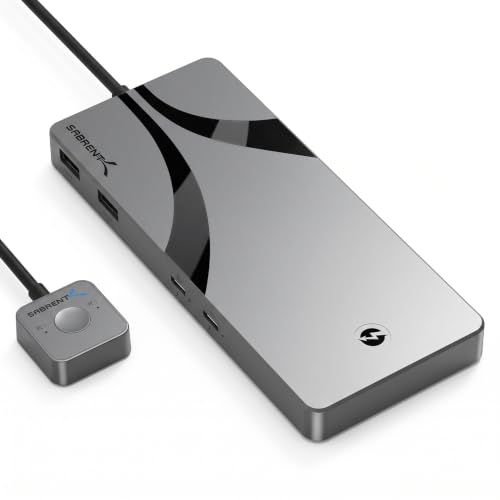
- Three 40Gbps Thunderbolt 4 device ports
- Four USB-A ports up to 10Gbps
- Up to 60W laptop charging
Best For: Sharing Thunderbolt devices and USB peripherals across two computers
Best for Sharing a Detachable-Cable Dock
Cable Matters 40Gbps USB-C KVM

- Up to 40Gbps connection bandwidth
- Shares compatible detachable-cable docks
- Up to 140W PD to the active laptop
Best For: Two laptops sharing an existing compatible USB-C or Thunderbolt dock
Best for Triple Displays on Apple Silicon
DisplayLink 3-Monitor KVM Dock

- Three displays up to 4K at 60Hz each
- Extended displays on supported M-series Macs
- 50W charging and Gigabit Ethernet to both laptops
Best For: Triple-monitor setups where DisplayLink driver installation is acceptable
Best for Three Computers
Dual-Monitor DisplayLink KVM Dock

- Three computers, two shared monitors
- Dual 4K at 60Hz via HDMI or DisplayPort
- Requires DisplayLink; no PD charging
Best For: Three-computer Mac and PC desks with two monitors
Best HDMI-Only Setup

- Three HDMI monitors shared by two computers
- USB, Ethernet, and audio connections
- Driver required; no PD charging
Best For: Two-computer desks with three HDMI monitors
Best Native Thunderbolt 4 Hub – SABRENT Thunderbolt 4 KVM Switch
If you want a thunderbolt kvm switch that shares peripherals directly between two computers, the SABRENT SB-TB4K offers three Thunderbolt 4 device ports and four USB-A ports. Its aluminum housing and source-status LEDs suit a permanent desk setup.
Best For: Two-computer desks that need shared Thunderbolt devices, USB peripherals, and high-resolution display output.
Pros:
- Three Thunderbolt 4 device connections support up to 40Gbps.
- Four USB-A ports support up to 10Gbps; all seven device ports support BC1.2 charging.
- Supports up to 8K at 60Hz with DSC or dual 4K displays at 60Hz, subject to the display setup.
Cons:
- Host Power Delivery tops out at 60W, which may be insufficient for some laptops.
- 8K at 60Hz requires DSC; without it, the stated 8K limit is 30Hz.
This is the most direct fit here for sharing Thunderbolt peripherals rather than simply switching a dock connection. Check your laptop’s charging needs and display capabilities before buying.
Best Compact Remote-Controlled Switch – Alxum 20Gbps USB-C Switch
The Alxum is a compact alternative to a full thunderbolt kvm switch when you need to move one compatible USB-C monitor or dock between two computers. It switches by onboard button or wireless remote, with no software installation specified.
Best For: Portable two-computer setups using a compatible USB-C monitor or short-pigtail dock.
Pros:
- Supports up to 20Gbps data transfer and 140W charging pass-through.
- Offers button and wireless-remote switching.
- Supports up to 8K at 30Hz or 4K at 144Hz with compatible equipment.
Cons:
- All three connected USB-C devices must support DisplayPort Alt Mode.
- Power supply is not included; Dell docks are not supported, and dock pigtails must be no longer than 50cm.
- Thunderbolt 3 device connections are limited to one display at up to 4K at 60Hz.
Its small footprint and remote are appealing, but dock and cable compatibility deserve particular attention. Use the included USB4 20Gbps cables and confirm your intended display configuration before ordering.
Best for Sharing a Detachable-Cable Dock – Cable Matters 40Gbps USB-C KVM
The Cable Matters 40Gbps USB-C switch is a practical thunderbolt kvm switch option if you already own a compatible monitor or dock with a detachable host cable. Its built-in cables connect two laptops to the shared display or dock, while an RF remote or onboard button selects the active laptop.
Best For: Sharing an existing compatible USB-C, USB4, or Thunderbolt dock between two laptops.
Pros:
- Provides up to 40Gbps connection bandwidth.
- Passes through up to 140W Power Delivery to the selected laptop when the connected dock or monitor supplies it.
- Supports high-resolution video up to 8K at 60Hz or 4K at 240Hz with compatible equipment and DSC where required.
- RF remote works without direct line of sight.
Cons:
- Docks with built-in, non-detachable host cables are not supported, even with a USB-C coupler.
- An 80Gbps dock is limited to 40Gbps through the switch; USB-C extension cables should not be used.
This is a strong choice for switching an established dock-based workspace, not for adding standalone peripheral ports. Verify the dock’s host cable is detachable and that its power source meets your laptop’s needs.
Best for Triple Displays on Apple Silicon – DisplayLink 3-Monitor KVM Dock
This three-monitor dock takes a different approach to a thunderbolt kvm switch: DisplayLink enables extended displays on supported Apple Silicon Macs as well as compatible Windows laptops. It switches three displays and shared peripherals between two laptops, with up to 4K at 60Hz output on each monitor.
Best For: Two-laptop workspaces that prioritize three extended displays, including supported M-series Macs.
Pros:
- Supports three simultaneous displays at up to 4K at 60Hz with the required DisplayLink setup.
- Shares USB peripherals and SD/TF card readers, with Gigabit Ethernet and 50W charging provided to both laptops.
- Includes two Thunderbolt 4 cables and a wired switching remote.
Cons:
- Requires DisplayLink driver installation for full functionality.
- Despite Thunderbolt-compatible host connections, it does not provide Thunderbolt 40Gbps bandwidth, daisy-chaining, or PCIe passthrough.
- Hotkey switching is unavailable; 50W charging may be insufficient for power-hungry laptops.
Choose it for multi-screen productivity rather than native Thunderbolt performance. Confirm your operating-system compatibility and willingness to install DisplayLink before committing.
Best for Three Computers – Dual-Monitor DisplayLink KVM Dock
If you need a thunderbolt kvm switch to share two monitors across three computers, this USB-C DisplayLink dock is worth considering. It supports dual 4K at 60Hz output and lets you choose HDMI or DisplayPort for each monitor connection.
Best For: Mac and PC desks that need three-computer switching and two extended displays.
Pros:
- Connects three computers to two monitors and shared USB peripherals.
- Supports extended or mirrored dual displays on compatible M1–M4 Macs through DisplayLink.
- Works with supported macOS, Windows, Chrome OS, Linux, and Android devices with USB 3.0 or higher.
Cons:
- Requires DisplayLink driver installation.
- Does not provide Power Delivery charging.
- Dual 4K at 60Hz requires suitable DP 1.2 or HDMI 2.0 cables.
Choose this one for its unusual three-computer capacity, but plan for a separate laptop charger and a driver-based display setup.
Best Charging Option – Triple-Monitor DisplayLink KVM
This thunderbolt kvm switch option combines two-laptop switching with three 4K-at-60Hz monitor outputs, shared USB ports, card readers, and Ethernet. Its DisplayLink-based design also enables extended displays on supported M1–M5 Macs.
Best For: Two-laptop workstations that need three displays and charging through the dock.
Pros:
- Supports three simultaneous monitors at up to 4K at 60Hz.
- Provides USB-C and USB-A peripherals, SD/TF readers, and Gigabit Ethernet.
- Lists simultaneous 50W PD charging for each laptop and includes a wired switching remote.
Cons:
- Requires a DisplayLink driver; the manufacturer recommends at least a Core i7 and 16GB of RAM.
- Despite Thunderbolt compatibility, it does not provide Thunderbolt PCIe passthrough, daisy-chaining, or full 40Gbps functionality.
- Does not support keyboard hotkey switching.
The charging and triple-display setup make this a capable desk hub, provided you want DisplayLink output rather than a full-featured Thunderbolt dock.
Best HDMI-Only Setup – Triple-Display KVM Dock
For a thunderbolt kvm switch search focused on three HDMI monitors, this dock lets two computers share triple displays, a keyboard, and a mouse. It lists extended 4K-at-60Hz output for supported Macs and Windows PCs, with a driver required before use.
Best For: Two-computer workstations with three HDMI monitors and separate laptop chargers.
Pros:
- Supports three HDMI displays at up to 4K at 60Hz, including extended output on listed M1–M4 Macs.
- Offers front-panel buttons and an external controller for switching.
- Includes a 10Gbps USB-C port, three USB-A ports, Gigabit Ethernet, and audio connections.
Cons:
- Does not support Power Delivery charging.
- Requires driver installation; the manufacturer recommends a Core i7-class CPU and at least 16GB of memory.
- Uses HDMI monitor connections rather than DisplayPort outputs.
It is a practical fit when all three displays use HDMI, but account for the driver and separate charging in your desk setup.
How We Picked These Thunderbolt Kvm Switches
We focused on switches that address common two-laptop setups, plus docking-style options for buyers who need more displays or a third computer. The selection covers a specified Thunderbolt 4 model, USB-C switches advertised as Thunderbolt-compatible, and multi-monitor models that mention DisplayLink. We treated those descriptions as different connection types, not interchangeable promises. Before buying, verify the exact model’s supported hosts, display modes, charging, and cables against the seller’s current specifications.
Quick Comparison: Which Setup Fits?
- One high-resolution or high-refresh display: Start with the SABRENT Thunderbolt 4 KVM Switch, then check that your laptop, cable, and monitor support your intended resolution and refresh rate.
- Two laptops sharing a USB-C or Thunderbolt dock: The Cable Matters 40Gbps switch is worth comparing with the Alxum 20Gbps switch. Check the bandwidth required by the connected dock and displays.
- Two laptops and three monitors: Consider the three-monitor docking-style models, but confirm how each produces three independent displays on your specific computers.
- Three computers and two monitors: The listed three-computer USB-C KVM is the relevant configuration; check its host inputs and DisplayLink requirements.
Key Buying Factors for a Thunderbolt Kvm Switch
Connection Type and Bandwidth
“USB-C” describes the connector, not the protocol. A Thunderbolt-compatible USB-C switch may pass a connection to a dock without providing every feature of a certified Thunderbolt KVM. Likewise, a 40Gbps rating does not guarantee every display mode once dock overhead, cables, and host capabilities are involved. Match the switch to what you actually connect, and verify whether the required cables are included.
Displays, Macs, and DisplayLink
Count the independent displays you need, not just the video outputs on a product page. Resolution and refresh-rate claims can depend on the host, monitor, dock, and whether displays are mirrored or extended. This matters especially with Macs: native external-display limits vary by chip and configuration. Some multi-monitor docks use DisplayLink software to add screens; check operating-system support and any workplace restrictions before relying on it. DisplayLink is also a different path from native video for latency-sensitive work.
Power and Everyday Peripherals
Check charging wattage for each laptop, whether power delivery needs an external adapter, and what happens when you switch computers. Confirm the ports you need for a keyboard, mouse, storage, webcam, and Ethernet. If uninterrupted network or peripheral access matters, check which devices remain connected to the inactive computer.
Who Should Buy Which Thunderbolt Kvm Switch?
Choose a clearly specified Thunderbolt 4 KVM if your priority is a Thunderbolt-based, single-display desk and your hardware meets its video requirements. Pick a USB-C switch for an existing dock only after confirming protocol, bandwidth, and charging compatibility across both laptops. Choose a multi-monitor docking model when consolidating cables matters more than maintaining a native Thunderbolt video path; verify DisplayLink and Mac behavior first. If you need three hosts, narrow the search to a model explicitly built for three computers rather than assuming a two-host switch can expand later.