
If you switch between a work laptop and a personal PC, a good KVM switch can clean up your desk fast. It lets you share one set of peripherals across multiple computers without constant unplugging.
In this roundup, we focus on practical options for remote work, dual-monitor setups, high-refresh displays, and USB device sharing so you can pick the right fit with confidence.
Best 10 Kvm Switches for Work from Home PC Picks for 2026
4-PC Shared Workstation Pick
4 Computers, 1 Monitor, USB 3.0

- Shares one monitor across 4 computers
- Includes 4 USB 3.0 device ports
- Remote and button switching only
Best For: A tidy one-monitor setup with multiple PCs
Simple USB Peripheral Splitter

- Shares four USB devices between two PCs
- USB 3.0 speeds up to 5Gbps
- No monitor switching included
Best For: People who only need peripheral sharing
Dual-Monitor Laptop Dock Pick

- Supports two computers and two monitors
- Adds USB-C and PD laptop charging
- Button or wired-controller switching
Best For: Laptop-and-desktop users with dual monitors
Triple-Display Power User Pick

- Shares 3 displays across 4 computers
- Uses HDMI plus DisplayPort connections
- Includes USB 3.0 peripheral sharing
Best For: Power users building a triple-monitor desk
Space-Saving Clamp Pick

- Clamp mount keeps the switch off the desk.
- Shares 1 monitor and 4 USB 3.0 devices.
- Supports up to 8K@60Hz with HDMI 2.1.
Best For: Compact home office desks that need a tidy 2-PC HDMI KVM.
Dual-Monitor Productivity Pick
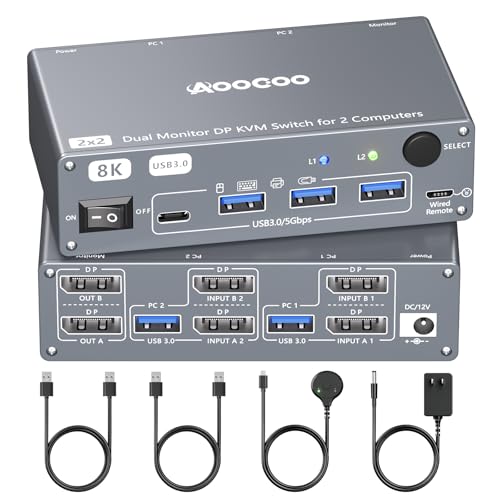
- Shares 2 monitors between 2 computers.
- Includes 4 USB 3.0 ports and wired control.
- Supports extend or copy display modes.
Best For: Dual-monitor WFH setups that need shared control of two PCs.
Simple USB-C Sharing Pick
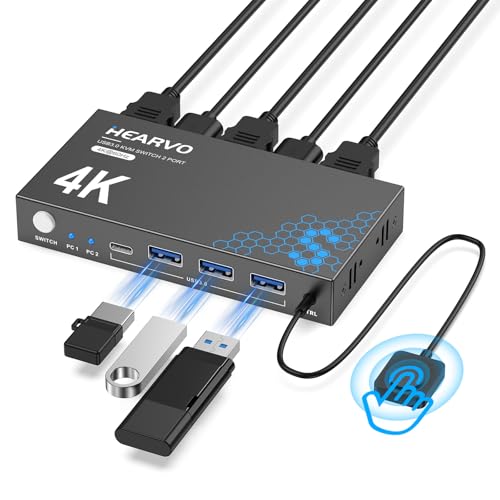
- Shares 1 monitor between 2 computers.
- Adds 4 USB 3.0 ports, including USB-C.
- Supports 4K@60Hz with wired remote switching.
Best For: Simple home office setups that want USB-C and 4K sharing.
Four-PC HDMI Switch
USB3.0 KVM Switch HDMI 4K@60Hz for 4 Computers

- Shares one HDMI monitor across 4 computers
- 4K@60Hz support with adaptive EDID
- 3 USB 3.0 ports plus 1 USB-C port
Best For: People who want a four-computer home office switch
DisplayPort Dual-Computer Switch
UGREEN 8K@60Hz Displayport KVM Switch

- Shares one DisplayPort monitor between 2 computers
- Up to 8K@60Hz with 4 USB 3.0 ports
- Button and desktop-controller switching
Best For: DisplayPort-based two-PC home offices
Budget Dual-PC HDMI Switch
HDMI KVM Switch 1 Monitor 2 Computers 4K@60Hz

- Shares one HDMI monitor across 2 computers
- Supports up to 4K@60Hz video
- Includes a wired desktop controller
Best For: Simple two-PC HDMI setups without extra features
4-PC Shared Workstation Pick – 4 Computers, 1 Monitor, USB 3.0
If you want kvm switches for work from home pc setups that can handle several desktops from one desk, this 4-port HDMI model is built for exactly that. It lets four computers share one monitor and four USB 3.0 devices, so you can keep your workspace organized while switching by remote control or front-panel buttons.
Best For: Home office users who need one monitor and shared peripherals for up to four computers.
Pros:
- Supports 4 computers on 1 monitor with 4 shared USB 3.0 device ports
- Up to 4K@60Hz resolution for sharper video when your cables and source support it
- Remote control and pushbutton switching help keep the unit off the desk
- Driver-free compatibility with Windows, Mac OS, Linux, and Unix
Cons:
- Hotkey switching is not supported
- To get 4K@60Hz, all connected gear must support that standard
- Designed for a single monitor, so it is not a dual- or triple-display solution
For a straightforward multi-PC home office, this is a practical way to reduce cable clutter and move between systems without installing software. Its mix of 4K output, USB 3.0 sharing, and remote control switching makes it a strong fit for tidy, centralized workstations.
Simple USB Peripheral Splitter – 2 PCs, 4 USB Ports
For kvm switches for work from home pc use cases where you only need to share peripherals, this USB switch keeps things simple. It lets two computers share four USB devices, making it a good fit for moving a keyboard, mouse, printer, scanner, or camera between a work machine and a personal PC.
Best For: Users who only need to share USB accessories between two computers.
Pros:
- Shares 4 USB devices between 2 computers
- USB 3.0 ports support up to 5Gbps transfer speeds
- Driver-free and compatible with Windows, Mac, Linux, and Chrome OS
- LED indicator and button switching make status easy to see
Cons:
- Does not include video switching for a monitor
- High-power devices may need the extra USB-C power input for stable performance
- Requires the BENFEI USB A-to-A cable for proper operation
This is best if your monitor setup stays separate and your main need is fast peripheral swapping. It offers a clean, plug-and-play way to share everyday USB gear between two computers without extra software.
Dual-Monitor Laptop Dock Pick – 2 PCs, 2 Monitors, 100W PD
If you are comparing kvm switches for work from home pc setups with a laptop and desktop, this dual-monitor model gives you a lot in one box. It connects two computers to two monitors, adds shared USB 3.0 and USB-C ports, and includes PD charging so your laptop can stay powered while you work.
Best For: Dual-monitor users who want to switch between a laptop and desktop at one workstation.
Pros:
- Supports 2 computers and 2 monitors in one setup
- Includes 3 USB 3.0 ports, 1 USB-C port, and 1 PD charging port
- Up to 100W PD input with typical laptop charging between 73W and 85W
- Plug-and-play switching by front button or desktop controller
Cons:
- Hotkeys are not supported
- USB-C laptop port must support video transmission and USB control protocols
- macOS is limited to mirrored output rather than extension mode
For a home office built around a laptop-plus-desktop workflow, this is a very practical docking-style KVM. The combination of dual displays, shared peripherals, and power delivery makes it especially useful if you want fewer cables and faster transitions between work and personal machines.
Triple-Display Power User Pick – 3 Monitors, 4 PCs, 8K
For advanced kvm switches for work from home pc setups, this model is aimed at users who need three displays and multiple computers on one desk. It supports two HDMI and one DisplayPort connection per computer, shares USB 3.0 peripherals, and is designed for office, programmer, and work-from-home environments.
Best For: Power users who want a three-monitor KVM for four computers.
Pros:
- Supports 4 computers sharing 3 monitors
- Hybrid HDMI + DisplayPort layout for flexible device connections
- USB 3.0 ports support sharing keyboards, mice, printers, and scanners
- Button and wired-control switching help keep the desk clear
Cons:
- Maximum resolution claims depend on 8K-capable monitors, cables, and computers
- Hardware is more complex than single-monitor KVMs
- Best fit for users who actually need triple displays
This is the most capable option in the group for a demanding workstation. If you need a multi-PC, triple-monitor setup and want USB 3.0 sharing in the same box, it offers the most headroom for a serious home office or programming desk.
Space-Saving Clamp Pick – BENFEI 2-PC HDMI KVM
If you want kvm switches for work from home pc setups that keep the desk clear, this BENFEI model is built around a clamp-on design and a simple 2-computer, 1-monitor workflow. It also adds 4 USB 3.0 ports, so you can share a keyboard, mouse, storage, and other peripherals while switching between two hosts.
Best For: Home office users who want a space-saving HDMI KVM with high-resolution support and shared USB peripherals.
Pros:
- Clamp mount helps it attach to a monitor edge or desk edge without taking up much space.
- Shares one monitor plus 4 USB 3.0 devices between two computers.
- Supports up to 8K@60Hz and is backward compatible with lower resolutions.
- Includes HDMI 2.1, HDCP, HDR, and 18-month warranty coverage.
Cons:
- Only works with two computers and one monitor.
- Requires the right display and cable setup to use the highest resolutions.
- Not a dual-monitor solution for multi-display desks.
This is a practical pick if your priority is reducing clutter while keeping strong video support and shared USB access. The clamp design makes it especially appealing for compact workstations where every inch of desk space matters.
Dual-Monitor Productivity Pick – 2 PCs 2 Monitors DP KVM
For kvm switches for work from home pc setups that need two screens, this DisplayPort model is designed to let two computers share two monitors in either extend or copy mode. It also includes 4 USB 3.0 ports and comes with USB cables, a wired controller, and a power adapter for a more complete setup.
Best For: Dual-monitor home office users who want one keyboard and mouse to control two PCs.
Pros:
- Supports 2 PCs sharing 2 monitors in extend or copy display mode.
- Offers very high resolution support up to 8K@60Hz/4K@240Hz.
- Includes 4 USB 3.0 ports for peripherals like keyboard, mouse, printer, and scanner.
- Comes with a button on the unit and a wired controller for switching.
Cons:
- Dual-monitor use requires HDMI + DP connections per computer.
- Your computers must support multi-screen output.
- Cable quality and length matter for stable high-resolution performance.
This is the strongest fit in the group if your work-from-home setup depends on two displays and frequent switching between machines. It is more demanding on system compatibility than a single-monitor model, but it offers the most flexibility for a multi-screen desk.
Simple USB-C Sharing Pick – Hearvo 4K HDMI KVM
If you are comparing kvm switches for work from home pc use, this Hearvo option is a straightforward choice for sharing one monitor, keyboard, and mouse between two computers. It keeps the setup simple while adding 4 USB 3.0 ports, including a USB-C port, and it supports 4K@60Hz for clear everyday office use.
Best For: Users who want a simple 2-computer, 1-monitor KVM with USB-C peripheral support.
Pros:
- Shares one monitor and peripherals between two computers.
- Includes 4 USB 3.0 ports, with 3 USB-A ports and 1 USB-C port.
- Supports 4K@60Hz and HDCP 2.2.
- Offers button switching plus a wired remote for flexible placement.
Cons:
- Only supports one monitor, not a dual-display setup.
- Does not include a power supply in the notes provided.
- Higher-resolution use still depends on compatible cabling and devices.
Overall, this is a practical desk-friendly option for users who want reliable switching without extra complexity. The USB-C port makes it a little more versatile than basic 4-port models for modern home office peripherals.
Four-PC HDMI Switch – USB3.0 KVM Switch HDMI 4K@60Hz for 4 Computers
If you need kvm switches for work from home pc setups with more than one tower or laptop, this 4-port HDMI model is built for sharing one monitor, keyboard, and mouse across four systems. It supports 4K@60Hz video, includes three USB 3.0 ports plus one USB-C port for peripherals, and offers simple button or wired-remote switching for a tidy desk.
Best For: Home office users who want to control up to four PCs from one monitor and USB setup.
Pros:
- Supports 4 computers on a single monitor with HDMI input
- 4K@60Hz output with adaptive EDID support
- 3 USB 3.0 ports plus 1 USB-C port for shared devices
- Two switching options: front buttons or wired remote keypad
Cons:
- Hotkey switching is not supported
- Requires compatible HDMI setup for each computer
- Best suited to users who are fine with manual switching
As a workstation hub, this model makes the most sense when you need more than two computers under one desk. Its main strengths are the four-machine layout, the USB expansion, and the included switching hardware that keeps everyday use straightforward.
DisplayPort Dual-Computer Switch – UGREEN 8K@60Hz Displayport KVM Switch
For kvm switches for work from home pc setups that rely on DisplayPort, this UGREEN model is aimed at two computers sharing one monitor and four USB 3.0 devices. It supports very high resolutions up to 8K@60Hz, uses a simple one-button or desktop-controller switch, and is designed for straightforward plug-and-play use with Windows, Mac, and Linux.
Best For: Dual-computer desks centered on a DisplayPort monitor and fast USB device sharing.
Pros:
- Supports 2 computers on 1 monitor with DisplayPort input
- Up to 8K@60Hz resolution, backward compatible with lower modes
- 4 USB 3.0 ports, including 3 USB-A and 1 USB-C
- Two switching methods: button and desktop controller
Cons:
- Not an HDMI switch and only supports one monitor
- DP cables and USB-C power adapter are not included
- Does not support EDID emulation or hotkeys
This is a strong fit if your home office is already built around DisplayPort and you want a clean two-PC workflow. Just plan on supplying the missing cables and power accessories, and avoid sleep-mode switching expectations.
Budget Dual-PC HDMI Switch – HDMI KVM Switch 1 Monitor 2 Computers 4K@60Hz
If you want a straightforward kvm switch for work from home pc use, this HDMI model keeps things simple: two computers, one monitor, and one shared keyboard and mouse. It supports 4K@60Hz, works without external power, and includes a wired desktop controller for easy switching when you want the unit out of sight.
Best For: Users who want an inexpensive, no-fuss two-PC HDMI switch for a clean home desk.
Pros:
- Shares one HDMI monitor and USB peripherals between 2 PCs
- Supports up to 4K@60Hz video
- Includes a desktop controller for convenient switching
- Plug-and-play design with no external power supply required
Cons:
- Does not support hotkey switching
- Uses 2 USB 2.0 ports rather than faster USB 3.0
- Not recommended for Mac devices by the manufacturer
This is the most minimal option in the group, which can be a plus if you only need a basic two-machine setup. It’s best for users who value simplicity, compact size, and a low-maintenance switch over extra ports or advanced features.
How We Picked the Best Kvm Switches for Work from Home PCs
We prioritized the features that matter most in a home office: reliable input switching, display resolution and refresh rate support, USB peripheral compatibility, and the number of computers or monitors a switch can handle. We also looked for models that fit common work setups, from a simple single-monitor desk to more demanding dual- and triple-screen workflows.
For Kvm Switches for Work from Home PC, ease of use matters just as much as specs. Button switching, EDID support, and broad device compatibility help reduce interruptions and keep your keyboard, mouse, webcam, printer, or headset ready when you need them.
Quick Comparison
If you want the simplest setup, choose a 2-port single-monitor model. If you run two displays, look for a dual-monitor KVM with the right video standard for your gear, such as HDMI or DisplayPort. Power users with gaming monitors or creative workloads should pay close attention to bandwidth, since 4K at 60Hz is very different from 4K at 144Hz or 8K support.
USB port count also matters. More USB ports usually means easier sharing for docks, storage, and office peripherals, while USB-C or power-delivery features can be helpful for laptop-based desks.
Key Buying Factors for Kvm Switches for Work from Home PCs
Display Type and Resolution
Match the switch to your monitor connection first. HDMI is common and easy to use, while DisplayPort is often a better fit for higher refresh rates and more demanding multi-monitor rigs. Check both the maximum resolution and refresh rate so the switch does not limit your display.
Number of Computers and Monitors
Pick a layout that matches your actual workflow. A 2-computer, 1-monitor switch works well for most home offices. Dual-monitor and multi-monitor versions are best if you need more screen space for spreadsheets, editing, or coding.
USB Sharing and Peripheral Support
Look for enough USB ports for your keyboard, mouse, webcam, microphone, printer, or external drive. If you use a USB hub or docking station, confirm that the switch supports those devices reliably.
Switching Method and Stability
Physical buttons are often the most dependable. Some users prefer hotkey switching, but the most important thing is stable behavior with no dropped connections or display handshakes that slow down your day.
Who Should Buy Which Kvm Switches for Work from Home PC?
Choose a simple 2-port HDMI or USB KVM if you only need to move between a work PC and a personal computer on one monitor. Choose a dual-monitor KVM if your home office depends on multitasking and screen space. Select a higher-end DisplayPort or multi-monitor model if you need faster refresh rates, color-sensitive work, or a more advanced desk setup.
For most buyers shopping Kvm Switches for Work from Home PC, the best choice is the one that matches your monitor inputs, number of machines, and USB peripherals without overbuying features you will not use.