
Finding the right drawing tablet for photo editing can make retouching faster, more precise, and far less tiring. The best options give you accurate pen control, comfortable sizing, and shortcuts that streamline everyday edits.
In this roundup, we focus on tablets that suit real photo workflows, from simple non-screen models to premium pen displays for detailed masking, dodging, and color work.
Best 10 Drawing Tablet for Photo Editing Picks for 2026
Premium Shortcut Pen Tablet
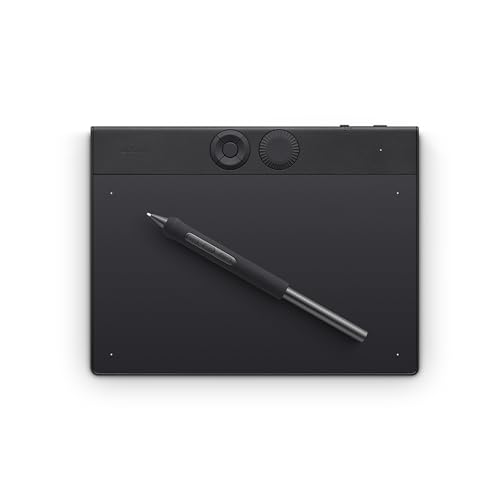
- Pro Pen 3 with 8192 pressure levels and tilt support
- 5 ExpressKeys plus a mechanical dial for faster edits
- Bluetooth or USB connectivity in a compact 16:9 size
Best For: Photo editors who want precise pen control and shortcut-driven workflow
Budget Large-Workspace Tablet

- 10 x 6.25-inch active area for comfortable editing
- Battery-free stylus with 60° tilt support
- 12 press keys plus 16 soft keys for shortcuts
Best For: Budget users who want a roomy pen tablet with lots of shortcut controls
Portable Color-Accurate Display

- OLED touchscreen with 10-bit color and strong contrast
- Hardware presets for Adobe RGB, sRGB, DCI-P3, and more
- Less than 1 lb. and built for portable editing
Best For: Mobile creatives who need a lightweight color-accurate pen display
High-Precision Screen Tablet

- 16K pressure stylus with ultra-low activation force
- 15.4-inch laminated display with anti-glare glass
- Dual scroll wheels and 8 hotkeys for faster workflow
Best For: Photo editors who want a precise pen display with strong color coverage
Compact Control for Fast Edits

- PenTech 3.0 aims for precise, lag-free control.
- Scroll wheel and 8 keys speed up editing shortcuts.
- Works with Mac, Windows, Linux, Android, and ChromeOS.
Best For: Editors who want shortcut-heavy control in a non-screen tablet
Portable Pen Tablet for Everyday Retouching

- Battery-free EMR pen feels pen-on-paper.
- Bluetooth and USB-A support flexible setup options.
- Includes software and training after registration.
Best For: Portable, reliable editing for students and creators
Color-Accurate Screen Tablet for Photo Work
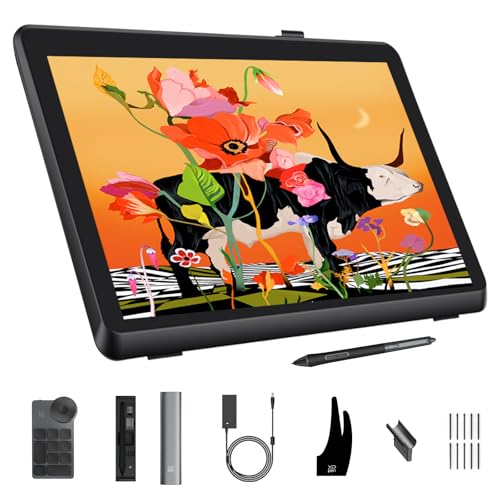
- Calman Verified with Delta E<1 for color precision.
- 21.5-inch 2.5K display offers a roomy editing view.
- 99% Adobe RGB and 99% sRGB support accurate color work.
Best For: Photographers and designers needing a large calibrated pen display
Compact Shortcut Pad
HUION H950P 8x5 Drawing Tablet

- 8192 pressure stylus for precise edits
- 8 programmable keys for faster workflow
- Compact, slim build for easy portability
Best For: Beginners and editors who want a portable pen tablet for photo editing
Screen-Based Editing Canvas
Wacom One HD Creative Pen Display

- 13.3-inch screen for direct on-screen editing
- Works with photo and video editing software
- Customizable pen button for quick shortcuts
Best For: Creators who want a pen display for photo editing and creative work
Precision Color Display

- 16K pressure stylus for very fine control
- Wide color gamut supports accurate photo work
- Red dial and 8 keys speed up workflow
Best For: Photo editors and designers who want a compact pen display with strong color
Premium Shortcut Pen Tablet – Wacom Intuos Pro Small
If you want a drawing tablet for photo editing that feels fast, precise, and desktop-friendly, the Wacom Intuos Pro Small is built around workflow efficiency. Its Pro Pen 3, customizable ExpressKeys, and top-mounted mechanical dial make it easy to refine images, brush masks, and move through edits without constantly reaching for the mouse.
Best For: Photo editors and creatives who want a compact pen tablet with pro-level pen control and shortcut access.
Pros:
- Pro Pen 3 offers 8192 pressure levels, tilt support, and lag-free tracking.
- 5 customizable ExpressKeys plus a mechanical dial help speed up repetitive edits.
- Small footprint with a 16:9 active area that suits modern wide displays.
- Can be used wired over USB or wirelessly via Bluetooth.
Cons:
- Small size may feel limited if you prefer a larger working area.
- It is a pen tablet, so you edit by looking at your monitor rather than on the tablet surface.
Overall, this is a strong choice if your editing style values shortcuts, accuracy, and a compact desk setup over a built-in screen. It is especially appealing for users who already work comfortably across one or more monitors.
Budget Large-Workspace Tablet – HUION Inspiroy H1060P
For shoppers looking for a drawing tablet for photo editing with lots of workspace and plenty of shortcuts, the HUION Inspiroy H1060P is a practical value pick. Its 10 x 6.25-inch active area, battery-free stylus, and 12 programmable press keys plus 16 soft keys give you room to make detailed adjustments without a steep learning curve.
Best For: Budget-minded users who want a roomy pen tablet with lots of customizable controls.
Pros:
- Large 10 x 6.25-inch working area feels comfortable for detailed edits.
- Battery-free pen means no charging interruptions.
- 60° tilt support helps with natural pen control.
- 12 press keys and 16 soft keys offer extensive shortcut customization.
Cons:
- It uses USB connection only, so there is no wireless option.
- Mac users need a USB adapter to connect.
- It is a tablet-only design, so you must work from your monitor for feedback.
This model makes sense if you want a larger active area and a lot of shortcut options without moving into display-tablet pricing. It is a flexible, straightforward choice for editing, drawing, and general creative work.
Portable Color-Accurate Display – Wacom Movink 13
If you want a drawing tablet for photo editing that lets you see your changes directly on screen, the Wacom Movink 13 is aimed at portable, color-conscious workflows. Its OLED touchscreen, 10-bit color, and hardware presets for Adobe RGB, sRGB, DCI-P3, and more make it a strong fit for editing where color accuracy and mobility matter.
Best For: Mobile photo editors and illustrators who need a lightweight pen display with strong color options.
Pros:
- OLED display with 10-bit color and a 100,000:1 contrast ratio.
- Hardware presets cover Adobe RGB, sRGB, DCI-P3, Rec. 709, and more.
- Very thin and lightweight, weighing less than 1 lb.
- Touchscreen, ExpressKeys, and customizable shortcuts support faster navigation.
Cons:
- 13.3-inch screen is compact compared with larger studio display tablets.
- Only 2 ExpressKeys are built in, so shortcut control is more limited than on some rivals.
- It requires USB-C / Thunderbolt or DisplayPort Alt Mode compatible devices.
This is a compelling travel-friendly display tablet if you want direct visual editing without giving up professional color features. Its portability and panel quality make it a good companion for work on campus, at home, or in the studio.
High-Precision Screen Tablet – XPPen Artist 16 3rd
For users who want a drawing tablet for photo editing with a larger on-screen workspace, the XPPen Artist 16 3rd combines a laminated display, high-pressure stylus, and strong shortcut hardware. The 15.4-inch screen, anti-glare etched glass, and dual scroll wheels make it especially practical when you spend a lot of time refining images and moving around large canvases.
Best For: Editors and illustrators who want a pen display with high precision, good color coverage, and lots of workflow controls.
Pros:
- 16K pressure stylus with very low initial activation force for fine control.
- Fully laminated display with anti-glare etched glass and near-zero parallax.
- Strong color coverage: 99% sRGB, 98% Adobe RGB, and 97% Display P3.
- 8 hotkeys, 2 scroll wheels, and an included stand improve efficiency and ergonomics.
Cons:
- It is a larger pen display, so it takes up more desk space than a tablet-only model.
- Best results depend on having compatible USB-C or 3-in-1 cable setup.
Overall, this is a well-equipped display tablet for people who want screen-based editing with serious precision and shortcut convenience. The color specs and navigation controls make it a strong fit for photo work as well as illustration.
Compact Control for Fast Edits – HUION Inspiroy 2 Medium
If you want a drawing tablet for photo editing that keeps retouching efficient, the HUION Inspiroy 2 Medium focuses on shortcut access and precise cursor control. The scroll wheel and 8 programmable keys can be mapped per app, which is useful for zooming, brush changes, and other editing tasks.
Best For: Editors who want a pen tablet with customizable controls and broad device compatibility.
Pros:
- PenTech 3.0 is designed for precise line control with no noticeable lag or wobble.
- Scroll wheel plus 8 customizable press keys can be tailored for different apps.
- Works with Mac, Windows, Linux, Android, and ChromeOS.
- Includes a slimmer stylus with a soft silicone grip for added comfort.
Cons:
- Not a standalone tablet and must stay connected to another device.
- No built-in display for direct on-screen editing.
For photo editing workflows that rely on repeated shortcuts and controlled brush work, this tablet offers a practical balance of precision and speed. Its medium size and mobile-friendly support make it flexible, though it is still a non-screen tablet.
Portable Pen Tablet for Everyday Retouching – Wacom Intuos Small Bluetooth
The Wacom Intuos Small Bluetooth is a practical drawing tablet for photo editing if you want a portable, dependable pen surface for retouching, masking, and document markup. Its battery-free EMR pen technology is meant to feel like pen on paper, and Bluetooth support makes it easy to move between workspaces.
Best For: Students, teachers, and creators who want a compact wireless tablet for editing on the go.
Pros:
- Battery-free EMR pen technology delivers controlled, pen-on-paper-style input.
- Bluetooth and USB-A options add flexibility for desk or wireless use.
- Compatible with Chromebook, Mac, Android, and Windows.
- Includes software and training access after registration.
Cons:
- Small size may feel tight for larger editing workflows.
- Has only 4 customizable ExpressKeys, fewer than some larger tablets.
This model makes sense when portability matters more than a large work area. For basic to moderate photo editing, it delivers trusted pen input and easy connectivity without adding extra complexity.
Color-Accurate Screen Tablet for Photo Work – XPPen Artist Pro 22 Gen 2
If you need a drawing tablet for photo editing with a built-in display, the XPPen Artist Pro 22 Gen 2 is built around color accuracy and workspace clarity. Its Calman Verified panel, 99% Adobe RGB coverage, and 2560 x 1440 resolution are aimed at photographers and designers who need dependable visual detail while retouching.
Best For: Photographers and designers who want a large, color-accurate pen display for detailed editing.
Pros:
- Calman Verified display with Delta E<1 is designed for color precision.
- 99% Adobe RGB, 99% sRGB, and 94% Display P3 coverage support vibrant editing.
- 21.5-inch 2.5K screen gives a roomy view with less need to scroll.
- AG Nano Etched Glass and DC dimming help reduce glare and eye strain.
Cons:
- Large display takes up more desk space than compact tablets.
- More advanced setup than a basic non-screen pen tablet.
- Premium feature set may be more than casual editors need.
For color-sensitive photo editing, this is the most specialized option in the group. The combination of a large screen, high resolution, and calibrated color makes it well suited to serious visual work.
Compact Shortcut Pad – HUION H950P 8×5 Drawing Tablet
If you want a drawing tablet for photo editing that stays simple and portable, the HUION Inspiroy H950P is a practical choice. Its 8×5-inch active area, 8192 levels of pressure sensitivity, and battery-free stylus make it easy to make precise selections, mask details, and retouch with control rather than a mouse.
Best For: Beginners, students, and editors who want an affordable, compact pen tablet for photo editing and everyday creative work.
Pros:
- 8192-level pressure stylus offers responsive, accurate control for detailed editing.
- 8 customizable express keys help speed up common shortcuts in creative apps.
- Compact, slim design is easy to carry and fits smaller desks well.
- Works with Mac, Windows, Linux, and Android for flexible setup options.
Cons:
- No built-in screen, so you’ll be working on a separate monitor.
- Smaller 8×5-inch size may feel limited for users who prefer more drawing space.
The H950P is a solid no-frills pick if you mainly need accuracy, shortcut control, and portability. It is especially appealing for users who want a pen tablet that can also handle note-taking, signing, and general image-editing tasks without taking up much room.
Screen-Based Editing Canvas – Wacom One HD Creative Pen Display
If you want a drawing tablet for photo editing with an on-screen workspace, the Wacom One HD Creative Pen Display is built for that hands-on workflow. The 13.3-inch display lets you edit directly on the screen, which can make brushing, masking, and fine adjustments feel more natural than using a standard tablet.
Best For: Creators who want a pen display for photo/video editing, digital art, and everyday creative use.
Pros:
- 13.3-inch high-definition screen gives you a direct on-canvas editing experience.
- Works with all software programs, including tools for photo and video editing.
- Customizable pen button helps speed up common shortcuts like undo or copy/paste.
- Compatible with Mac, PC, and Chromebook for broad system support.
Cons:
- Requires connection to a computer or laptop; it is not a standalone device.
- Older 2019-generation model may lack the newer features found on recent displays.
The Wacom One is a straightforward way to move into screen-based editing without overcomplicating the setup. It suits users who want a familiar drawing surface, broad software compatibility, and a well-known brand for creative work.
Precision Color Display – XPPen Artist 13.3 Pro V2
For a drawing tablet for photo editing that focuses on detail and color, the XPPen Artist 13.3 Pro V2 brings a laminated 13.3-inch screen, strong color coverage, and a responsive stylus. The full HD display and wide viewing angle make it a strong fit when you need to judge tones, retouch images, and work with visual accuracy.
Best For: Photo editors, designers, and artists who want a compact pen display with strong color performance and shortcut control.
Pros:
- 16K pressure levels and X3 Pro stylus support precise, smooth strokes.
- 125% sRGB, 107% Adobe RGB, and 95% Display P3 help with color-critical work.
- Full-laminated 13.3-inch screen reduces parallax and glare for a paper-like feel.
- Red dial and 8 keys make zooming, navigation, and brush control faster.
Cons:
- Must be used with a computer or laptop; it is not a standalone tablet.
- Best feature set depends on compatible drivers and supported operating systems.
This is the most feature-rich option in the group for users who care about display quality as much as pen response. It is a smart pick if you want a compact screen tablet that can handle photo editing, illustration, and other detail-heavy creative tasks.
How We Picked the Best Drawing Tablet for Photo Editing
We prioritized models that fit photo editing tasks rather than general illustration alone. That means dependable pen pressure, low-latency input, useful shortcut controls, and sizes that support both detail work and broad gestures. For screen tablets, we also looked at display quality, working area, and anti-glare features that matter during long editing sessions.
Quick Comparison
Non-screen tablets are usually the best value and can be more comfortable if you already edit on a calibrated monitor. Screen tablets cost more, but they can feel more direct for retouching and local adjustments. Portable models suit travel and small desks, while larger pen displays are better when you want a roomy workspace for frequent, high-detail editing.
Key Buying Factors for a Drawing Tablet for Photo Editing
Pen Precision
For photo work, look for smooth pressure response and stable cursor tracking. A precise pen helps with mask refinement, skin retouching, compositing, and brush-based cleanup.
Size and Workspace
Smaller tablets are easier to carry, but a medium or large active area can improve control if you do lots of detailed edits. If you use a high-resolution monitor, make sure the tablet mapping feels comfortable across your screen setup.
Shortcut Controls
Express keys, dials, and scroll wheels can speed up zooming, undoing, switching brushes, and adjusting canvas view. These controls are especially useful if you edit for long periods.
Display Quality on Pen Displays
If you want a screen tablet, pay attention to resolution, glare reduction, and color performance. A good display makes it easier to judge tonal adjustments and fine edge work while editing.
Connectivity and Compatibility
Check support for your computer and software before buying. A Drawing Tablet for Photo Editing should work smoothly with the apps you already use and connect in a way that fits your desk or mobile setup.
Who Should Buy Which Drawing Tablet for Photo Editing?
Choose a compact non-screen tablet if you want affordability, portability, and strong core performance. Pick a medium model if you want a better balance of comfort and desk space. Go for a pen display if you prefer working directly on the image, need more visual precision, or spend a lot of time on retouching and compositing. For creators who split time between editing, note-taking, and travel, lightweight Bluetooth models can be the most practical option.