
Choosing the right capture card depends on how you record, stream, and connect your gear. Some buyers need a simple webcam-style external option, while others need PCIe stability, SDI inputs, or multi-channel workflows.
This roundup focuses on the best Blackmagic Design 4K capture card options alongside a few strong alternatives, so you can match performance, compatibility, and connection type to your setup.
Best 10 Blackmagic Design 4K Capture Card Picks for 2026
Best for PCIe Desktop Installations
Blackmagic Design Intensity Pro 4K

- 4K Ultra HD capture and playback up to 30fps
- 1080p capture at 60fps for smoother full-HD video
- Mac, PC, and Linux compatibility with Media Express
Best For: Desktop users who want a PCIe capture card for editing, streaming, and presentations.
Best for Easy Webcam Conversion
Elgato Cam Link 4K Capture Card

- Plug-and-play HDMI-to-USB capture for cameras
- Supports 1080p60 and compatible 4K capture
- Low-latency performance for streaming and calls
Best For: Creators who want a fast, reliable way to use a camera as a webcam.
Best for High-End PC Streaming

- 8K60 passthrough with 4K60 HDR capture
- HDMI 2.1, VRR, and 10-bit HDR support
- Great for OBS, dual-PC, and console streaming
Best For: High-end streamers and dual-PC builders who want low-latency 4K capture with next-gen passthrough.
Best Multi-Channel SDI
DeckLink Duo 2 4-Channel Capture Card

- Four independent 3G-SDI channels
- Low-latency PCIe Gen 2 x4 design
- Reference input for genlock workflows
Best For: Multi-camera and broadcast setups that need flexible SDI capture and playback.
Best for HDMI 2.1 Passthrough
AVerMedia Live Gamer Ultra 2.1

- Captures at 4K60 with 4K144 HDR/VRR passthrough
- Low-latency design for synced gameplay and audio
- Works with PS5, Xbox, Switch, OBS, Streamlabs, and Twitch
Best For: Streamers and console gamers who want high-refresh passthrough and clean 4K capture.
Best for Multi-Camera SDI Workflows
Blackmagic Design DeckLink Quad 2

- Eight bidirectional 3G-SDI ports for capture and playback
- PCIe Gen 2 design with broad OS support
- Genlock reference input for synchronized multi-camera rigs
Best For: Studios and editors needing multiple SDI inputs and outputs in one PCIe card.
Best for Multi-Camera HDMI
DeckLink Quad HDMI Capture Card
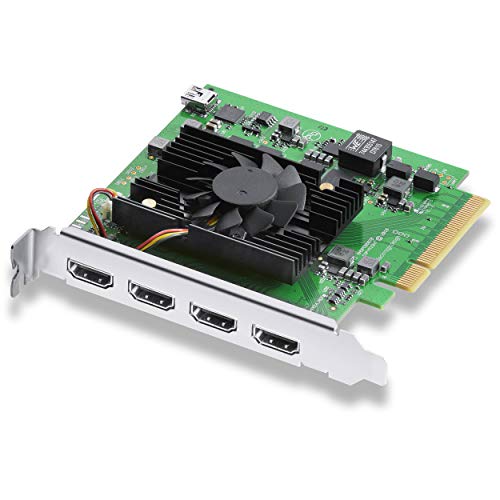
- Four HDMI 2.0b inputs for simultaneous capture
- Up to 4K60 support with broad video format compatibility
- Great fit for OBS, vMix, Wirecast, and broadcast workflows
Best For: Multi-camera and multi-source HDMI capture in a single PCIe slot.
Best for High-Frame-Rate Capture

- 4K/60 capture with 4K/60 passthrough
- Up to 1080p/240FPS or 1440p/144FPS input
- Plug-and-play on major desktop and mobile platforms
Best For: Streamers and gamers who want smooth high-refresh capture with easy setup.
Best for Multi-Channel 8K Workflows

- Quad 12G-SDI bi-directional I/O for capture and playback
- HDMI 2.1 plus support for SD through 8K formats
- Works with major pro editing software on Mac, Windows, and Linux
Best For: Professional studios and editors needing flexible multi-channel capture, playback, and sync support.
Best for PCIe Desktop Installations – Blackmagic Design Intensity Pro 4K
If you need a dependable blackmagic design 4k capture card for a desktop editing or streaming rig, the Intensity Pro 4K is built for straightforward PCIe use and broad compatibility. It captures and plays back up to 4K Ultra HD at 30fps, supports 1080p/60fps, and works with Mac, PC, and Linux systems.
Best For: Editors, streamers, and presenters who want a PCIe capture card for 4K playback and 1080p60 capture on a desktop workstation.
Pros:
- Captures and plays back 4K Ultra HD up to 30fps
- Supports 1080p at 60fps for smoother full-HD capture
- Works with Mac, PC, and Linux via compatible NLEs
- Includes Media Express software for basic capture workflows
Cons:
- PCIe card limits use to desktop systems
- 4K capture is capped at 30fps, not 60fps
- Not the simplest choice if you want a portable USB setup
Overall, this blackmagic design 4k capture card makes the most sense for users who prioritize reliable desktop integration over portability. It is a solid pick for editing, conferencing, and streaming setups that need flexible input and output support.
Best for Easy Webcam Conversion – Elgato Cam Link 4K Capture Card
If you want a simple blackmagic design 4k capture card alternative for turning a DSLR, mirrorless camera, camcorder, or action cam into a webcam, the Elgato Cam Link 4K is a strong plug-and-play option. It works over HDMI to USB 3.0 on PC, Mac, and even iPadOS, making it easy to use for streaming, meetings, and recording without a complicated setup.
Best For: Creators who want a fast, reliable way to use a camera as a webcam for OBS, Zoom, Discord, or live streaming.
Pros:
- Simple HDMI-to-USB setup with broad app compatibility
- Supports sharp 1080p60 and up to 4K60 with compatible cameras
- Very low latency helps keep audio and video in sync
- Works with DSLR, mirrorless, camcorders, action cams, and iPhone
Cons:
- Requires a compatible camera and USB 3.x port for best results
- 4K60 support is limited to compatible cameras and MJPG mode
- HDMI input must be unencrypted
For buyers comparing a blackmagic design 4k capture card, this Elgato model stands out more for ease of use and webcam-style workflows than for pro studio capture features. If your priority is a clean, dependable way to get a camera feed into streaming software fast, it’s an easy pick.
Best for High-End PC Streaming – Elgato 4K Pro Capture Card
If you want a blackmagic design 4k capture card alternative for a modern streaming rig, the Elgato 4K Pro is built for high-end PC, PS5, and Xbox setups that need strong passthrough and clean capture. It focuses on smooth gameplay, ultra-low latency, and broad app compatibility rather than simple plug-and-play basics.
Best For: Streamers and dual-PC users who want 4K60 HDR capture, 8K60 passthrough, and HDMI 2.1 support.
Pros:
- 8K60 passthrough with 4K60 capture keeps gameplay sharp while recording.
- HDMI 2.1 support enables VRR, true 10-bit HDR, and high-frame-rate output.
- Works with OBS, Streamlabs, Zoom, Teams, and other popular streaming apps.
- Ultra-low latency helps keep broadcast and gameplay in sync.
Cons:
- Overkill if you only need basic 1080p capture.
- Internal card installation makes it less convenient than USB options.
For creators building a serious gaming or dual-PC streaming setup, this card delivers a lot of next-gen headroom. If you’re comparing a blackmagic design 4k capture card against a more gaming-focused internal option, the 4K Pro stands out for passthrough flexibility and low-latency performance.
Best Multi-Channel SDI – DeckLink Duo 2 4-Channel Capture Card
If you need a blackmagic design 4k capture card alternative focused on robust SDI workflows, the DeckLink Duo 2 is built for multi-camera ingest, live production, and monitoring rather than single-stream consumer capture. It handles up to four independent 3G-SDI channels at 1080p60, making it a practical fit for studios that value flexibility and low-latency PCIe performance.
Best For: Multi-camera creators, broadcast operators, and production teams that need four independent SDI channels in one card.
Pros:
- Four independent 3G-SDI connections support simultaneous capture and playback.
- PCIe Gen 2 x4 design helps deliver reliable, low-latency performance.
- Wide SD/HD/3G-SDI format support fits a range of production setups.
- Reference input helps keep multi-camera timing locked with genlock.
Cons:
- Limited to 1080p60, so it is not a true 4K capture solution.
- Requires a compatible PCIe slot and a more technical setup.
Overall, this card makes sense when your priority is dependable multi-channel SDI capture rather than simple plug-and-play recording. If your workflow is built around SDI sources, the DeckLink Duo 2 is a serious contender in the blackmagic design 4k capture card category even though its real strength is 1080p production.
Best for HDMI 2.1 Passthrough – AVerMedia Live Gamer Ultra 2.1
If you’re shopping for a blackmagic design 4k capture card alternative that can keep up with modern consoles and high-refresh displays, the AVerMedia Live Gamer Ultra 2.1 is built for exactly that. It captures at 4K60 while passing through up to 4K144 with HDR/VRR support, making it a strong fit for streaming and recording without giving up smooth gameplay.
Best For: Streamers and console players who want HDMI 2.1 passthrough, low-latency capture, and broad OBS compatibility on Mac or PC.
Pros:
- 4K60 capture with 4K144 HDR/VRR passthrough for next-gen consoles and PCs
- Low-latency performance helps keep gameplay, audio, and video in sync
- Supports PS5, Xbox, Switch, OBS Studio, Streamlabs, Twitch, and YouTube
- Built-in party chat support and customizable RGB lighting add convenience
Cons:
- Overkill if you only need basic 1080p capture
- Premium HDMI 2.1 features may be more than some setups require
- RGB and extra controls won’t matter to every buyer
As a blackmagic design 4k capture card alternative, this model stands out most for passthrough flexibility rather than simple plug-and-play basics. If you care about preserving high-refresh gameplay while still capturing clean 4K footage, it’s one of the more capable choices in this class.
Best for Multi-Camera SDI Workflows – Blackmagic Design DeckLink Quad 2
If you need a blackmagic design 4k capture card for live production, post-work, or multi-source ingest, the DeckLink Quad 2 is built for serious SDI workflows rather than consumer HDMI use. It offers eight bidirectional 3G-SDI connections, low-latency PCIe performance, and wide format support for compatible editing and streaming setups.
Best For: Studios, streamers, and editors who need multiple SDI inputs and outputs in a single PCIe card.
Pros:
- Eight independent bidirectional 3G-SDI connections for flexible capture and playback
- Reliable PCIe 8-lane Gen 2 design with support for Mac, Windows, and Linux
- Works with a wide range of SD, HD, and 1080p workflows, plus major pro software
- Reference input supports genlock for tighter timing in multi-camera setups
Cons:
- Max resolution is 1080p60, so it is not a true 4K capture solution
- Requires a compatible PCIe slot and a desktop workstation
- Best suited to SDI environments, not HDMI-based consumer setups
For buyers comparing a blackmagic design 4k capture card, this model stands out more for channel count and pro connectivity than raw resolution. It makes the most sense when your priority is reliable multi-camera SDI capture and playback in a professional rig.
Best for Budget 4K Loop-Out – XIIXMASK 4K HDMI Capture Card
If you want a practical blackmagic design 4k capture card alternative without paying for pro-level gear, this XIIXMASK model is built around the basics streamers actually use: 4K HDMI pass-through, 1080p60 capture, and broad device support. It’s a straightforward pick for console gameplay, camera input, or live streaming setups that need USB 3.0 reliability.
Best For: Budget-conscious streamers, console players, and creators who need 4K loop-out with simple USB capture.
Pros:
- 4K 60Hz HDMI input and loop-out with 1080p60/2K30 capture
- Mic-in support for adding voice commentary during streams
- Wide compatibility with PS5, Switch, PCs, cameras, OBS, and more
- Aluminum-alloy housing helps with heat dissipation and stability
Cons:
- Not a true 4K capture device; recording tops out at 1080p60
- Audio setup may require restarting OBS after configuration
- No support for party chat recording
Overall, this is a sensible pick if you’re comparing options against a blackmagic design 4k capture card and mainly need dependable pass-through plus easy streaming capture. It won’t match higher-end capture workflows, but it covers the essentials at a much friendlier price.
Best for Multi-Camera HDMI – DeckLink Quad HDMI Capture Card
If you need a blackmagic design 4k capture card that can handle several HDMI sources at once, the DeckLink Quad HDMI card is built for exactly that workflow. With four HDMI 2.0b inputs, PCIe Gen 3 bandwidth, and broad support for SD, HD, and 4K formats, it’s a strong fit for live production and multi-source recording setups.
Best For: Streamers, broadcasters, and production teams that want to capture multiple HDMI inputs from cameras, PCs, or consoles in one PCIe slot.
Pros:
- Four HDMI 2.0b inputs let you capture multiple sources simultaneously
- Supports up to 4K60 workflows with wide SD/HD/4K format compatibility
- Works with popular apps like OBS, vMix, Wirecast, and Blackmagic Media Express
- Single-slot PCIe design suits rackmount and workstation builds
Cons:
- Requires a PCIe Gen 3 x8 slot, so it is not ideal for lighter systems
- HDMI inputs cannot capture protected content
- Overkill if you only need a single-input capture card
For buyers comparing a blackmagic design 4k capture card, this model stands out for multi-input flexibility more than simple plug-and-play convenience. It makes the most sense when you need reliable, low-latency capture across several HDMI sources in one system.
Best for High-Frame-Rate Capture – XIIXMASK 4K HDMI Capture Card
If you want a more affordable alternative to a blackmagic design 4k capture card for gaming, streaming, or basic video ingest, the XIIXMASK USB 3.0 capture card delivers strong specs for the price. It supports 4K/60 capture, 4K/60 passthrough, and very high refresh-rate input, making it a practical pick for players who want smooth monitoring without a complicated setup.
Best For: Streamers, console gamers, and creators who need 4K capture with high refresh-rate passthrough and simple plug-and-play operation.
Pros:
- 4K@60FPS capture plus 4K@60Hz HDMI passthrough
- Supports 1080p@240FPS and 1440p@144FPS input
- Plug-and-play with Windows, macOS, Linux, Android, and iPadOS
- Includes 3.5mm audio in and mic out for commentary
Cons:
- Not a pro-grade brand-name option for demanding production workflows
- Performance will depend on host software and USB 3.0 stability
For buyers comparing a blackmagic design 4k capture card against cheaper USB options, this model stands out more for convenience and refresh-rate support than studio-level features. It’s a sensible choice if you want fast setup and solid gaming capture without paying for a premium broadcast workflow.
Best for Multi-Channel 8K Workflows – Blackmagic DeckLink 8K Pro G2
If you need a serious blackmagic design 4k capture card for advanced editing, live ingest, or multi-camera production, the DeckLink 8K Pro G2 is built for heavy-duty workflows. It combines quad 12G-SDI I/O, HDMI 2.1 support, and broad format compatibility from SD through 8K, making it a strong fit for studios that need flexibility and low-latency performance.
Best For: Editors, colorists, and production teams that need multi-channel capture and playback with SDI and HDMI connectivity.
Pros:
- Four bi-directional 12G-SDI connections handle quad-link and multi-stream workflows.
- Supports SD, HD, Ultra HD, 4K, and 8K formats, plus up to 120 fps in HD/4K.
- Works with major software on Mac, Windows, and Linux, including DaVinci Resolve and Premiere Pro.
- Reference input helps keep multi-camera setups tightly synchronized.
Cons:
- Requires a PCIe Gen 3 x8 slot, so it’s not ideal for basic desktops.
- Overkill if you only need a simple single-input 4K capture solution.
As a blackmagic design 4k capture card, this model stands out when workflow depth matters more than simplicity. If your setup needs professional I/O, genlock support, and room to grow into 8K, it offers more headroom than typical creator-focused capture devices.
How We Picked These Blackmagic Design 4K Capture Cards
We focused on input type, maximum supported resolution and frame rate, passthrough quality, latency, and whether the card fits a creator, gaming, or studio workflow. For the Blackmagic Design 4K Capture Card category, driver and software support matter just as much as raw specs, especially if you use Adobe, OBS, DaVinci Resolve, or multi-camera production tools.
Quick Comparison
External USB cards are the easiest to set up and are ideal for laptop users or casual streaming. PCIe cards generally offer better reliability, lower latency, and more flexible multi-input support. HDMI-based cards suit gaming and camera workflows, while SDI cards are usually the better choice for professional video chains, longer cable runs, and studio environments.
Key Buying Factors for a Blackmagic Design 4K Capture Card
Connection Type
Choose USB if you want portability and simplicity. Choose PCIe if you want the most stable desktop installation and better long-term performance. If you work with pro cameras or switchers, SDI may be the better fit than HDMI.
Resolution, Frame Rate, and Passthrough
Make sure the card supports the source you actually use. 4K capture is not always the same as 4K passthrough, and many cards can pass a higher signal than they can record. If you game at high refresh rates, check whether the card supports 4K60, 4K120, or 4K144 passthrough.
Inputs and Workflow Needs
Single-input cards work well for one camera or one console. Multi-input cards are better for podcasting, live switching, security, or studio production. If you need several feeds, the right Blackmagic Design card can simplify your whole setup.
Software and Compatibility
Confirm operating system support, driver availability, and whether your recording software recognizes the device cleanly. The best card on paper is not useful if it does not fit your editing or live-production workflow.
Who Should Buy Which Blackmagic Design 4K Capture Card?
Streamers and content creators should lean toward easy-to-use external USB models or single-input HDMI PCIe cards. Console gamers who want low latency and strong passthrough should prioritize cards built for modern HDMI 2.1 sources. Studio users, multicam creators, and production teams will usually get more value from SDI or multi-channel PCIe options. If you are building a dependable Blackmagic Design 4K Capture Card setup for serious production, prioritize compatibility and workflow first, then choose the highest specs that your system can actually use.