
Need one DisplayPort output to run two HDMI monitors? A good DisplayPort to dual HDMI adapter can simplify your desk, reduce cable clutter, and make dual-screen work far easier.
Below, we focus on practical buying factors so you can choose the right model for your PC, monitor setup, and resolution needs without guesswork.
Best 10 DisplayPort to Dual HDMI Adapter Picks for 2026
Powered Office Option
USB-C Powered DP to Dual HDMI Hub

- USB-C powered 1-in-2-out design
- Supports extended and clone modes
- Compact build with integrated cable
Best For: Desktop and graphics-card users wanting a powered dual-monitor splitter
Dual-4K Windows MST Pick
DisplayPort to Dual HDMI Adapter, 4K@60Hz
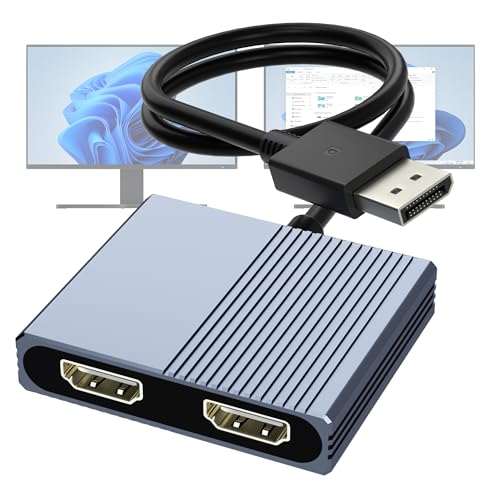
- Dual HDMI outputs with mirror or extended modes
- 4K@60Hz support with DP 1.4 systems
- USB-powered, plug-and-play setup
Best For: Windows desktop users with a compatible DP source and dual HDMI monitors
Easy-Setup Dual HDMI Choice
DisplayPort to Dual HDMI Adapter 1 in 2 Out

- Windows support for AAA/ABB/ABC modes
- USB-powered for more stable output
- 4K@60Hz on one screen or 4K@30Hz on two
Best For: Windows users who want a simple one-way DP-to-dual-HDMI adapter
Mixed-Output Dual Monitor Pick
DisplayPort to HDMI and DisplayPort Adapter

- One HDMI output plus one DisplayPort output
- Mirror or extend two displays from one DP source
- Aluminum housing with rugged DP1.4 cable
Best For: Users who need one HDMI monitor and one DisplayPort monitor from a DP source
High-Output Dual 4K Adapter

- Dual 4K@60Hz output support
- Windows extended and mirror modes
- Aluminum housing with gold-plated ports
Best For: DP1.4 desktop and GPU owners targeting dual 4K monitors
Versatile Dual-Monitor Adapter

- Mirror or extend two HDMI displays
- Dual 4K@60Hz on DP1.4 systems
- USB-powered chipset with shielding
Best For: Shoppers who want a balanced dual-monitor adapter with flexible modes
Dual-Monitor MST Pick – UANTIN DP to Dual HDMI 4K60 Adapter
If you need a DisplayPort to dual HDMI adapter for a Windows desktop or graphics-card setup, this UANTIN model is built for straightforward dual-monitor expansion. It supports both mirror and extended modes, but it is best suited to systems with the right DP/DP++ port and enough bandwidth to handle the display configuration you want.
Best For: Windows PC users with a compatible DP source who want a plug-and-play dual HDMI setup for productivity or presentations.
Pros:
- Supports one DP source to two HDMI displays with mirror and extended modes
- Single display output can reach 4K@60Hz, with dual output up to 4K@30Hz
- Plug-and-play design with included power cable for operation
- Reinforced build with aluminum alloy housing, gold-plated plugs, and shielding
Cons:
- Cannot be used with hubs, docks, or KVM switches
- Integrated GPU systems may only mirror or extend one monitor
- Needs the included 5V/1A power connection and compatible HDMI extension cables
Overall, this is a practical display adapter if your computer already has the right DisplayPort output and you want a simple two-monitor HDMI solution. It is especially relevant for users who value stable wired connectivity and do not need broader dock compatibility.
Powered Office Option – USB-C Powered DP to Dual HDMI Hub
This DisplayPort to dual HDMI adapter is aimed at desktop and graphics-card users who want a compact way to drive two HDMI monitors from one DP output. It supports both clone and extended modes, and the USB-C power input is a key requirement because DisplayPort itself does not supply power.
Best For: Desktop PC owners who want a small, powered splitter for dual-monitor work, trading, or presentations.
Pros:
- Outputs to two HDMI monitors from one DisplayPort source
- Supports 4K@60Hz on a single monitor and dual 4K@60Hz with DP 1.4 plus DSC
- Extended and clone modes are both supported on Windows 11/10
- Compact palm-sized body with integrated cable helps reduce port strain
Cons:
- Requires USB-C power at 5V/2A to operate
- macOS only supports clone mode, not MST extended mode
- Integrated graphics may have limited functionality
For users who can supply external power, this is a flexible option for a tidy dual-monitor setup. Its strongest appeal is the combination of compact design, MST support, and broad desktop compatibility when the source hardware supports it.
Durable Plug-and-Play Choice – SWITCHFLUX DP to Dual HDMI Adapter
If you want a DisplayPort to dual HDMI adapter with a straightforward setup and a more rugged cable-and-housing design, this SWITCHFLUX model is built around that use case. It is designed for one DP source to two HDMI displays, supports mirror or extended display modes, and relies on a Micro USB connection for optimal performance.
Best For: Users who want a simple dual-HDMI adapter with durable construction for Windows-based desktop or laptop setups.
Pros:
- Supports one DP source to two HDMI displays with mirror or extended modes
- Single HDMI output can reach 4K@60Hz; dual output can reach 4K@30Hz
- Plug-and-play operation with no driver installation required
- Aluminum alloy housing, nylon braided cable, and gold-plated connectors for durability
Cons:
- Micro USB cable must be connected for optimal display
- Does not support Apple devices or game consoles
- Not for use with docking stations, hubs, or KVMs
As a practical buying choice, this adapter focuses on stable dual-monitor output and durability rather than extra features. It is a sensible pick if you have a compatible DP source and want a no-drivers solution for two HDMI displays.
Mac-Friendly Mirror Mode Pick – DP 1.4 to Dual HDMI Splitter
This DisplayPort to dual HDMI adapter is built for one-way output from a DP source to two HDMI displays, making it a straightforward choice for Windows dual-monitor setups. It supports both extended and mirrored displays on compatible systems, and it also clearly notes Mac OS mirror-only behavior.
Best For: PC users who want a 1-in-2-out HDMI splitter with clear compatibility guidance for Windows and Mac.
Pros:
- Splits one DisplayPort signal to two HDMI displays
- Supports extended and mirror modes on Windows with MST
- Up to 4K@60Hz with DP 1.4; dual 4K@30Hz with DP 1.2
- Includes USB-C power cable and plug-and-play setup
Cons:
- Requires USB-C power to operate
- Mac OS is limited to mirror mode only
- Does not work as a general docking or USB-C converter solution
This adapter makes sense if you want simple dual HDMI output and prefer a model that spells out its platform limits. It is especially useful when you need mirror mode for Mac or extended mode for a Windows workstation, provided the rest of the chain supports the required resolution.
Dual-4K Windows MST Pick – DisplayPort to Dual HDMI Adapter, 4K@60Hz
If you need a DisplayPort to dual HDMI adapter for a desktop or laptop with the right DP output, this model is built for mirrored or extended dual-monitor use. It supports 4K HDMI output, plug-and-play setup, and both SST and MST modes, but it is specifically aimed at compatible DisplayPort sources rather than docks or KVMs.
Best For: Windows desktop users with a compatible DisplayPort source who want dual HDMI monitors and can provide external power.
Pros:
- Dual HDMI outputs for mirror or extended display
- Supports 4K@60Hz with DP 1.4 systems
- No driver installation required
- Includes USB power cable for the built-in chipset
Cons:
- Not compatible with docking stations, USB hubs, or KVM switches
- DP 1.2 systems are limited to lower dual-display output
- Requires a compatible DP source and supporting cables/monitors
This is a practical choice if your main priority is running two HDMI monitors from one DisplayPort source with minimal setup. Just make sure your hardware matches the adapter’s bandwidth and compatibility requirements before buying.
Easy-Setup Dual HDMI Choice – DisplayPort to Dual HDMI Adapter 1 in 2 Out
This DisplayPort to dual HDMI adapter is aimed at simple two-monitor setups from a single DisplayPort source. It supports Windows extended-display modes, can run with external USB power for stability, and keeps installation straightforward with a plug-and-play design.
Best For: Windows PC users who want a straightforward DP-to-dual-HDMI splitter for mirrored or extended displays.
Pros:
- Supports ABC/ABB/AAA display modes on Windows
- 4K@60Hz on one display, or 4K@30Hz across two screens
- USB power helps reduce flicker and improve stability
- Non-locking connector is designed to protect the GPU during unplugging
Cons:
- Mac OS is mirror mode only
- Not compatible with docks, hubs, or KVM switches
- One-way DP to HDMI only, not bi-directional
Compared with more specialized models, this one focuses on ease of use and dependable day-to-day dual HDMI output. It makes the most sense if you want a simple adapter for a compatible Windows system and do not need advanced cross-platform flexibility.
Mixed-Output Dual Monitor Pick – DisplayPort to HDMI and DisplayPort Adapter
If you want a DisplayPort to dual HDMI adapter alternative that also gives you a DisplayPort output, this splitter is built for one DP monitor and one HDMI monitor at the same time. It supports mirror or extended use, includes USB power for the chipset, and is designed for compatible desktops and graphics cards rather than docks or hubs.
Best For: Users who need one HDMI display and one DisplayPort display from a single native DisplayPort source.
Pros:
- Outputs to one HDMI monitor and one DisplayPort monitor
- Supports mirror or extended display modes
- 4K@60Hz support with DP 1.4 systems
- One-piece aluminum housing and rugged cable for durability
Cons:
- Not compatible with docking stations, USB hubs, or KVM switches
- Requires a native DisplayPort source from a supported device
- DP 1.2 systems are limited to lower dual-display output
This is the most flexible option in the group if your monitor setup is mixed rather than HDMI-only. It is especially useful when you need to connect different monitor types without adding extra software or drivers.
Budget-Friendly 4K MST Splitter – 4K@60Hz Single, 4K@30Hz Dual
If you need a DisplayPort to dual HDMI adapter for a straightforward dual-monitor setup, this model focuses on practical plug-and-play expansion. It delivers 4K@60Hz on one screen or 4K@30Hz across two displays, and it powers via the included USB-C cable for more stable operation.
Best For: Desktop users and GPU owners who want an easy DP-to-dual-HDMI adapter for basic dual-monitor productivity.
Pros:
- Supports 4K@60Hz on a single display and 4K@30Hz on two displays.
- Plug-and-play setup with no driver installation required.
- Includes USB-C power cable for stable standalone use.
- Non-locking connector design helps reduce strain on the graphics card.
Cons:
- Only works from a DisplayPort source to HDMI displays.
- Not intended for KVMs, hubs, or docking stations.
- Extended dual-display performance depends on compatible GPU bandwidth and updated drivers.
This is a solid choice if you want a simple adapter that prioritizes ease of setup and dependable single-source dual-screen output. It is best suited to users who understand the DP source and power requirements and want a compact solution for home or office use.
High-Output Dual 4K Adapter – Dual 4K@60Hz MST Hub
This DisplayPort to dual HDMI adapter is built for users who want higher-end dual-monitor output, including dual 4K@60Hz when the source system meets the requirements. It supports extended and mirror modes on Windows, includes USB power, and uses an aluminum alloy housing for better durability and heat dissipation.
Best For: Users with DP1.4-compatible desktops or graphics cards who want dual 4K@60Hz HDMI monitors.
Pros:
- Can output dual 4K@60Hz when the computer supports DP1.4 and sufficient bandwidth.
- Supports extended and mirrored display modes on Windows.
- Rugged aluminum alloy housing with gold-plated ports.
- Plug-and-play operation with no driver installation required.
Cons:
- Not compatible with hubs, docking stations, or KVM devices.
- Requires a DP1.4 source and compatible HDMI 2.0 cabling for best results.
- Integrated graphics may only support mirror mode or may not output properly.
If you are building a higher-performance dual-monitor workspace, this adapter is the most feature-forward option in the group. Its strongest appeal is dual 4K capability, but it also comes with the strictest compatibility expectations, so source-device matching matters.
Versatile Dual-Monitor Adapter – 4K MST Hub with USB Power
For shoppers comparing a DisplayPort to dual HDMI adapter, this model stands out for its balanced feature set and clear setup instructions. It supports mirror or extended use, handles 4K@60Hz on compatible systems, and includes a USB-C power cable that must be connected before use.
Best For: Users who want a dual-HDMI MST adapter with strong resolution support and flexible display modes.
Pros:
- Supports mirror and extended modes with two HDMI outputs.
- 4K@60Hz capability on compatible DP1.4 systems, with backward compatibility.
- USB-C powered built-in chipset for stable operation.
- Non-locking connector and multi-layer shielding for durability and signal stability.
Cons:
- Requires a true DisplayPort source and is not for docking stations or USB hubs.
- Dual 4K@60Hz depends on DP1.4; DP1.2 limits output to lower dual-display modes.
- Integrated graphics may only support mirror mode or no output at all.
This is a practical middle-ground pick if you want a DisplayPort splitter that can do more than basic mirroring but still keeps setup simple. Just be sure your host device, cable length, and monitor support match the adapter’s bandwidth needs.
How We Picked the Best DisplayPort to Dual HDMI Adapter Options
We prioritized adapters and MST hubs that support reliable dual-monitor output, clear resolution claims, and broadly useful compatibility. The strongest picks also balance power requirements, build quality, and realistic Windows support.
Because not every DisplayPort to Dual HDMI Adapter works the same way, we also looked at whether each option is designed for extended desktop use, how it handles 4K at 60Hz, and whether it needs USB power for stable operation.
Quick Comparison
In simple terms, your main decision is between basic compatibility and maximum flexibility. If you want the easiest setup for office work, choose a model with proven Windows MST support and USB-powered stability. If you care most about sharper output, focus on 4K@60Hz support across both displays, not just one.
Key Buying Factors for a DisplayPort to Dual HDMI Adapter
Resolution and Refresh Rate
Check whether the adapter supports dual 1080p, dual 1440p, or 4K output, and whether that support is at 30Hz or 60Hz. Many listings advertise 4K, but the real-world experience depends on how that bandwidth is divided across two screens.
MST Support and Operating System Compatibility
Most dual-monitor DisplayPort adapters rely on MST for extended displays. That usually means best results on Windows PCs with a compatible graphics card or laptop port. If you need Mac support, verify it carefully before buying, since many dual-output MST adapters have limitations.
Power and Stability
USB-C powered models can be more dependable, especially when driving two monitors at once. Extra power can help prevent flicker, signal drops, or detection issues, which are common pain points with passive splitters.
Ports, Cable Layout, and Desk Fit
Look at the adapter’s shape and cable direction if your desk is tight or your monitors are wall-mounted. A compact enclosure can be easier to manage than a bulky hub, but a larger body may run cooler and feel more robust.
Who Should Buy Which DisplayPort to Dual HDMI Adapter?
If you want a straightforward productivity setup on Windows, choose a DisplayPort to Dual HDMI Adapter with MST support and 4K@60Hz capability. If your monitors are for spreadsheets, email, coding, or browser work, stable extended display support matters more than flashy specs.
If you already know your system is sensitive to power or display handshake issues, prioritize a USB-powered model. If you are pairing older monitors or only need basic dual-screen output, a more affordable option may be enough as long as it matches your resolution and system requirements.
For shoppers who need the safest choice, start with compatibility first, then move to resolution, then to cable length and power. That order usually leads to the least frustrating purchase.