
If you’re looking to enhance your workspace or gaming setup, choosing the right DisplayLink dock with HDMI can make a significant difference. These docking stations offer the flexibility to connect multiple monitors, boosting your productivity and overall experience. With various options available, knowing which one suits your needs best is essential. Let’s explore some top contenders that promise seamless performance and impressive features for your multi-monitor ambitions.
Plugable Dual DisplayPort & HDMI Docking Station for Laptops

If you’re a professional seeking to enhance your productivity with a multi-monitor setup, the Plugable Dual DisplayPort & HDMI Docking Station is an excellent choice. This dock supports dual 4K monitors at 60Hz, making it perfect for multitasking or office applications. You’ll enjoy seamless connectivity with its six USB 3.0 ports, Gigabit Ethernet, and audio jack. Compatible with Windows, macOS, and ChromeOS, it offers plug-and-play functionality for most systems. Just keep in mind that it doesn’t charge your laptop and isn’t suitable for gaming or protected content. With its sleek design, it also helps maintain a tidy workspace.
Best For: Professionals seeking a reliable docking solution to enhance productivity with dual 4K monitor support.
Pros:
- Supports dual 4K monitors at 60Hz for efficient multitasking.
- Offers multiple connectivity options including six USB 3.0 ports and Gigabit Ethernet.
- Sleek vertical design promotes clean cable management and saves desk space.
Cons:
- Not compatible with Linux operating systems.
- Requires manual driver installation for macOS users.
- Does not charge the host laptop, limiting portability.
Plugable USB-C Triple Monitor Docking Station (UD-ULTCDL)

The Plugable USB-C Triple Monitor Docking Station (UD-ULTCDL) is ideal for professionals seeking an efficient multi-monitor setup. With 13 ports, you can connect three monitors easily, achieving up to 4K @ 30Hz on the main display. It also delivers fast 100W charging, ensuring your devices stay powered throughout the day. This dock supports multiple operating systems, including Windows and macOS, requiring DisplayLink drivers for macOS users. Plus, with features like a Gigabit Ethernet port for stable internet and separate audio ports, you’ll enjoy a thorough connectivity experience. Join the 1,500+ satisfied customers who rated it 4.4 out of 5 stars!
Best For: Professionals seeking an efficient and versatile multi-monitor setup for enhanced productivity.
Pros:
- Powerful Expansion: Offers 13 ports, allowing multiple device connections and triple monitor support.
- Fast Charging: Provides 100W power delivery, ensuring devices remain charged throughout the day.
- Enhanced Compatibility: Compatible with various operating systems, including Windows, macOS, and Chrome.
Cons:
- Driver Requirement for macOS: Requires DisplayLink drivers for macOS users, which may add complexity.
- Limited 4K Support: Main display supports 4K @ 30Hz, which may not meet the needs of all advanced users.
- Weight and Size: At 14.1 ounces and its dimensions, it may be less portable for users needing a lightweight solution.
Minisopuru Displaylink Triple Display Docking Station for MacBook and Windows

Minisopuru’s Displaylink Triple Display Docking Station is an ideal choice for MacBook and Windows users seeking to enhance their multi-monitor setup. With support for MacBook M1/M2/M3/M4 and Windows, you’ll enjoy seamless functionality by installing the DisplayLink driver. This dock boasts 12 ports, including dual 4K HDMI and DisplayPort outputs, allowing you to connect three displays at 4K@60Hz. Data transfer is swift with USB-A 3.2 and USB-C ports, while the USB-C PD port can charge your laptop up to 100W. Just remember to use the 36W power adapter for peak performance!
Best For: Users of MacBook M1/M2/M3/M4 and Windows seeking an efficient solution for multi-monitor setups with high-resolution displays.
Pros:
- Supports triple display output at 4K@60Hz for enhanced productivity.
- Includes multiple ports for versatile connectivity and high-speed data transfer.
- Capable of charging laptops with a maximum of 100W via USB-C PD.
Cons:
- Requires installation of DisplayLink driver for proper functionality.
- Limited to dual displays for laptops with USB-A ports, restricting some users.
- HDMI and DP ports for display 3 cannot be used simultaneously, limiting display options.
WAVLINK DisplayLink Docking Station for Triple Monitors

For professionals and gamers seeking an immersive multi-monitor experience, the WAVLINK DisplayLink Docking Station is a top choice, supporting triple monitors at stunning 4K@60Hz. It features three HDMI ports and two DisplayPorts, giving you plenty of options for connectivity. With a powerful 160W adapter, it provides up to 100W charging for your laptop, ensuring uninterrupted performance. Plus, the 1Gbps Ethernet and audio port enhance your setup for seamless data transfer and sound. Compatible with various operating systems, this dock is designed for users with USB 3.1 or Thunderbolt connections, making it a versatile addition to your workspace.
Best For: Professionals and gamers looking for a high-performance docking station to support triple monitors and enhance their visual experience.
Pros:
- Supports triple monitors at 4K@60Hz for immersive visuals.
- Provides up to 100W charging for laptops, ensuring continuous operation.
- Multiple connectivity options including 3 HDMI ports and 2 DisplayPorts for versatile setups.
Cons:
- Requires the latest DisplayLink drivers for optimal performance.
- Not compatible with Unix systems, Linux, or iPad OS.
- Limited to laptops with USB 3.1 full-function type-C or Thunderbolt 3/4 ports.
Plugable USB 3.0 and USB-C Universal Laptop Docking Station

Looking to enhance your workspace with a reliable docking solution? The Plugable USB 3.0 and USB-C Universal Laptop Docking Station is an excellent choice. With two HDMI ports, you can easily connect dual monitors, supporting resolutions up to 1920×1200. It includes a Gigabit Ethernet port and multiple USB ports for all your peripherals. Weighing just 11.7 ounces and measuring 5.31 x 2.76 x 7.48 inches, it’s portable yet powerful. Compatible with various operating systems, it offers plug-and-play functionality for Windows and requires a manual driver installation for macOS. Enjoy a seamless multi-monitor setup with this dependable dock!
Best For: Those seeking a versatile docking station for enhancing productivity with dual monitor setups in home or office environments.
Pros:
- Dual HDMI outputs allow for easy connection of two monitors, enhancing multitasking capabilities.
- Multiple USB ports (2 USB 3.0 and 4 USB 2.0) and a Gigabit Ethernet port provide extensive connectivity options for peripherals and stable internet access.
- Lightweight and compact design makes it portable, suitable for users who travel or work in multiple locations.
Cons:
- Not suitable for gaming or playback of encrypted content, limiting its use for high-performance applications.
- Driver installation required for macOS, which may be a drawback for users seeking a seamless plug-and-play experience.
- DisplayPort connections not supported, potentially restricting compatibility with certain monitors or setups.
Plugable Thunderbolt 4 Dock with 100W Charging

The Plugable Thunderbolt 4 Dock with 100W Charging stands out as an ideal choice for professionals who demand high-performance connectivity and power. With 40Gbps Thunderbolt 4 speed, it supports dual 4K 60Hz HDMI displays or a single 8K monitor, guaranteeing stunning visuals. You’ll appreciate its 13-port design, featuring multiple USB ports, audio, and Gigabit Ethernet, all while delivering 100W power to your laptop. Compatible with Thunderbolt 4, 5, and USB4 systems, it assures seamless operation. Plus, Plugable’s rigorous testing guarantees long-term reliability, making this dock a top pick for anyone looking to enhance their multi-monitor setup effortlessly.
Best For: Professionals seeking high-performance connectivity for dual displays and efficient power delivery.
Pros:
- Supports dual 4K 60Hz displays or a single 8K monitor, providing stunning visuals for multitasking.
- Comprehensive 13-port design offers versatile connectivity options, including multiple USB ports and Gigabit Ethernet.
- 100W power delivery ensures your laptop stays charged while using the dock.
Cons:
- Compatibility limitations with non-Thunderbolt USB-C ports, restricting external display options.
- Base M1 and M2 Macs only support a single external display, limiting functionality for those systems.
- Higher price point compared to standard USB docks may not be justified for casual users.
UGREEN USB C Docking Station, DisplayLink 9-in-1

Designed for professionals who need to enhance their multi-monitor setup, the UGREEN USB C Docking Station, DisplayLink 9-in-1, offers impressive capabilities with support for dual 4K displays at 60Hz. With two HDMI and two DisplayPort connections, you can easily extend or mirror your displays. This 9-in-1 dock includes high-speed USB-A and USB-C ports for fast data transfers up to 10Gbps and a 100W power delivery port to charge your devices. Weighing just 1.12 pounds, it’s portable and perfect for any workspace. Enjoy seamless connectivity and elevate your productivity with this versatile docking station.
Best For: Professionals seeking a reliable docking station to enhance their multi-monitor setup with dual 4K displays.
Pros:
- Supports dual 4K@60Hz displays for an improved visual experience.
- High-speed data transfer capabilities of up to 10Gbps through multiple USB ports.
- Portable design weighing only 1.12 pounds, making it easy to carry and set up in various workspaces.
Cons:
- Requires driver installation for extended or mirrored display modes.
- Power adapter not included, which may be an additional expense.
- Customer rating of 4.0 out of 5 stars may indicate mixed feedback from users.
Anker Prime Docking Station (DL7400) – 14-Port Triple Display

For those seeking a powerful docking solution for an extensive multi-monitor setup, the Anker Prime Docking Station (DL7400) stands out with its remarkable 14-port configuration. You’ll enjoy seamless multitasking with its triple display capabilities, including support for an 8K resolution monitor. With a robust 140W power delivery and various USB-C and HDMI ports, you can connect multiple devices effortlessly. The smart display keeps you informed about charging and performance, while the built-in fan guarantees peak cooling. Plus, it’s compatible with both macOS and Windows, making it a versatile choice for any workspace.
Best For: Professionals and multitaskers who require a powerful docking station for extensive multi-monitor setups and high-resolution displays.
Pros:
- Supports triple display setup, including one monitor at 8K resolution for enhanced multitasking.
- Offers a wide range of connectivity options with 14 ports, including USB-C, HDMI, and Ethernet for versatile device connections.
- Features a smart display for real-time updates on charging power and performance, along with a built-in fan for effective cooling.
Cons:
- Requires installation of the latest DisplayLink driver for optimal performance.
- The front USB-C ports do not support media display, limiting their functionality to charging and data transfer.
- While compatible with macOS and Windows, some users may experience compatibility issues depending on specific operating system versions or updates.
TobenONE DisplayLink Docking Station for 4 Monitors
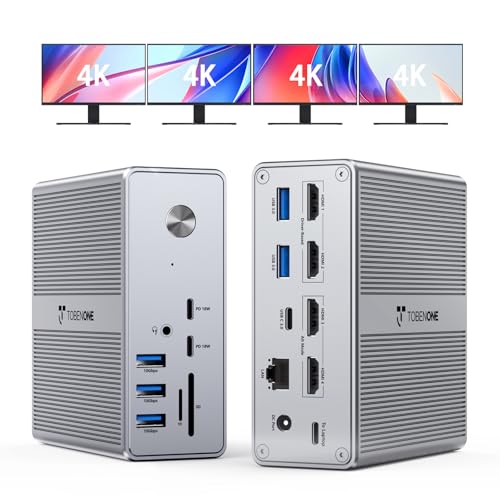
If you’re looking to elevate your multitasking game with a robust multi-monitor setup, the TobenONE DisplayLink Docking Station is an excellent choice. It supports up to four HDMI displays, delivering stunning 4K@60Hz resolution. With 18-in-1 connectivity, including USB 3.2, Ethernet, and card slots, it meets all your accessory needs. Plus, its 120W power adapter provides up to 100W charging for your Windows laptops or MacBooks. Designed for convenience, its compact build is travel-friendly, keeping your workspace tidy. With a solid 4.5-star rating, you can trust TobenONE to enhance your productivity effortlessly.
Best For: Users seeking a powerful docking station for enhancing productivity with a multi-monitor setup and extensive connectivity options.
Pros:
- Supports up to four HDMI displays with stunning 4K@60Hz resolution for immersive visuals.
- Offers 18-in-1 connectivity, including multiple USB ports, Ethernet, and card slots, catering to various accessory needs.
- Compact and travel-friendly design, making it easy to maintain a tidy workspace on the go.
Cons:
- Limited compatibility with MacBook, only allowing three external displays instead of four.
- Not compatible with Linux/Unix operating systems, which may limit usage for some users.
- Higher price point compared to simpler docking stations without multi-display support.
WAVLINK Pro Docking Station for Quad 4K Displays

The WAVLINK Pro Docking Station stands out as an exceptional choice for professionals needing to manage multiple tasks seamlessly, thanks to its ability to support four 4K HDMI displays at 60Hz. With 15 ports, including USB 3.2 and dual USB-C PD, it maximizes productivity without clutter. You can connect to a 2.5G Ethernet for fast internet and enjoy ultra-fast file transfers at 10Gbps. Plus, its 160W power adapter charges your laptop and mobile devices simultaneously. Compatible with macOS and Windows, the premium aluminum build guarantees durability and effective heat dissipation, making it perfect for any workspace.
Best For: Professionals who require a powerful docking station for multitasking with multiple 4K displays, such as traders, designers, and video editors.
Pros:
- Supports quadruple 4K displays at 60Hz, enhancing multitasking capabilities.
- 15 ports for extensive connectivity, including USB 3.2 and dual USB-C PD, reducing desk clutter.
- 160W power adapter allows simultaneous charging of laptops and mobile devices, eliminating the need for multiple chargers.
Cons:
- May be overkill for casual users who only need basic connectivity.
- Dependence on DisplayLink drivers could lead to compatibility issues with some systems.
- Higher price point compared to simpler docking stations, which may not be suitable for budget-conscious buyers.
Factors to Consider When Choosing a Displaylink Dock With HDMI
When choosing a Displaylink dock with HDMI, you need to evaluate several key factors. Monitor support capabilities, port selection, and compatibility with your operating system are essential for ensuring a seamless connection. Additionally, look at power delivery features and the dock’s ability to handle high video resolutions for best performance.
Monitor Support Capabilities
Choosing the right DisplayLink dock for your multi-monitor setup involves understanding its monitor support capabilities. First, consider the number of monitor outputs; docks can support anywhere from dual to quadruple 4K displays. Make sure the dock can handle your desired resolution and refresh rates—many support 4K at 60Hz for peak quality. It’s also helpful to look for a mix of HDMI and DisplayPort outputs, enhancing compatibility with various monitors. Don’t forget to verify driver compatibility with your operating system, as specific installations may be required for full functionality. Finally, consider the power delivery capabilities; some docks can charge your laptop while supporting multiple displays, adding convenience to your work setup.
Port Selection and Variety
Understanding monitor support is just the start; port selection and variety play a significant role in enhancing your multi-monitor experience with a DisplayLink dock. When choosing a dock, consider the number and types of HDMI ports available. Some docks support multiple HDMI outputs, perfect for dual or triple monitor setups. Evaluate the USB ports’ data transfer speeds, as higher speeds like 10Gbps boost productivity when moving files. Look for additional options like USB-C, USB-A, Ethernet, and audio jacks to cover all your peripheral needs without extra adapters. Confirm the dock supports your desired resolution and refresh rate, ideally up to 4K at 60Hz, and check if it offers power delivery for charging connected devices.
Compatibility With Operating Systems
Compatibility with your operating system is essential for a seamless experience with a DisplayLink dock featuring HDMI. Verify the dock you choose supports your OS, as some models require specific drivers for macOS and may not work with Linux or Unix systems. Many docks are compatible with Windows 10 and later, macOS 10.14 and above, and Chrome OS, but check individual models for specifics. While plug-and-play functionality is common for Windows and Chrome OS, macOS often needs manual driver installation for full performance. Also, confirm the dock supports the latest OS updates, as these can impact compatibility and functionality. Keep in mind that some docks may offer limited features or lower resolutions on certain operating systems.
Power Delivery Features
When evaluating DisplayLink docks with HDMI, it is crucial to take into account their power delivery features, as these can greatly enhance your setup. Look for docks that support up to 100W charging for laptops, ensuring they stay powered during use. Many docks also offer extra charging ports, allowing you to charge multiple devices at once, which cuts down on cable clutter. Make sure to check the wattage capabilities, since some docks might only support lower wattage for specific ports. Fast charging is another benefit; some docks deliver up to 96W through USB-C. Finally, consider how power delivery impacts performance, as a high output helps maintain stability when connecting multiple peripherals or displays.
Video Resolution and Quality
Choosing the right DisplayLink dock with HDMI is essential for achieving high-quality video resolution and quality in your multi-monitor setup. First, check the maximum supported video resolution; many docks handle dual 4K displays at 60Hz, providing enhanced clarity. Make sure the HDMI ports support the latest standards to benefit from higher refresh rates and improved color depth, especially for graphics-intensive tasks. Consider whether the dock can mirror or extend displays, as extended modes offer more screen real estate for productivity. Compatibility with various operating systems and potential driver requirements can also impact performance. Finally, evaluate the dock’s bandwidth capabilities; higher bandwidth means smoother video playback and reduced latency when using multiple displays simultaneously.
Design and Build Quality
A well-designed DisplayLink dock with HDMI plays an essential role in both functionality and aesthetics of your multi-monitor setup. Look for a sleek, compact design to enhance your workspace while minimizing cable clutter. Robust build quality is vital; durable materials help with heat dissipation, preventing overheating during extended use. Consider the weight and dimensions, especially if you frequently relocate your setup, as portability matters. Ergonomic features, like adjustable angles or vertical orientation, improve accessibility, making it easier to connect devices. Additionally, adequate ventilation and a fan system can markedly enhance performance by maintaining ideal operating temperatures during heavy usage. Prioritize these aspects to guarantee your dock not only looks great but lasts long.
Price and Warranty Options
Understanding the price and warranty options for a DisplayLink dock with HDMI is essential for making an informed decision. Prices typically range from around $100 to $300 or more, depending on the features you need. Consider what you require regarding HDMI ports, USB connections, and power delivery capabilities; these can influence the overall cost. It’s wise to read customer reviews and ratings to gauge reliability, which may justify a higher price tag. Additionally, many docks come with warranties ranging from one to three years, giving you peace of mind against defects. Some manufacturers even offer extended warranties or customer support options, adding value and security to your investment. Choose wisely to guarantee your dock meets your needs.