
If you’re looking to optimize your workspace with an ultrawide monitor, you might want to take into account the benefits of a DisplayLink dock. These docks can greatly enhance your productivity by supporting high resolutions and multiple displays. With various options available, choosing the right one can be essential for your setup. Let’s explore the top contenders that could transform your work environment and maximize your monitor’s potential.
Kensington SD5700T Thunderbolt 4 Docking Station

If you’re using a Thunderbolt 4 Windows laptop or a Thunderbolt 3/4 MacBook, the Kensington SD5700T Thunderbolt 4 Docking Station is an excellent choice for enhancing your ultrawide monitor experience. With support for single 8K or dual 4K displays at 60 Hz, you’ll enjoy stunning visuals. It connects effortlessly via Thunderbolt 4, allowing you to daisy-chain up to five additional devices. Plus, the 180 Watt power supply guarantees your laptop gets a full 90W charge, even with peripherals connected. With robust security features and a three-year warranty, this dock provides both performance and peace of mind for your setup.
Best For: Users with Thunderbolt 4 Windows laptops or Thunderbolt 3/4 MacBooks seeking to enhance their display capabilities and connectivity options.
Pros:
- Supports high-resolution video output, including single 8K or dual 4K displays at 60 Hz.
- Features multiple Thunderbolt 4 ports for easy daisy-chaining of devices and robust connectivity.
- Comes with a three-year warranty and lifetime technical support for added peace of mind.
Cons:
- Not compatible with Thunderbolt 3 Windows laptops, limiting its usability for some users.
- Macs with M1, M2, or M3 chipsets are restricted to a single monitor setup.
- Adapters and cables for connecting displays are not included, which may incur additional costs.
Kensington USB-C Quad 4K Displaylink Docking Station

For professionals who rely on multitasking and need expansive screen real estate, the Kensington USB-C Quad 4K Displaylink Docking Station is an ideal choice. This dock supports up to four external monitors for Windows or Chrome laptops, and three for MacBooks, all while delivering stunning Quad 4K @ 60Hz resolution. With six video ports and six USB ports, including two USB-C, you’ll enjoy fast data transfer speeds up to 10Gbps. Plus, the dock provides up to 100W power delivery for charging your devices. Its durable design includes eco-friendly materials, ensuring sustainability. Experience seamless productivity with this versatile docking solution.
Best For: Professionals who need to connect multiple monitors and devices for enhanced multitasking and productivity.
Pros:
- Supports up to four external monitors for Windows and Chrome laptops, enhancing workspace flexibility.
- Fast data transfer speeds of up to 10Gbps with multiple USB ports for connecting various devices.
- Up to 100W power delivery allows for efficient charging of laptops and accessories.
Cons:
- Limited compatibility with MacBooks, supporting only three external monitors.
- Requires Displaylink technology, which may necessitate additional software installation.
- The dock’s reliance on USB-C may not suit users with older USB-A only devices without adapters.
Anker Prime Docking Station (DL7400) – 14-Port Triple Display

The Anker Prime Docking Station (DL7400) stands out as an exceptional choice for professionals and multitaskers who rely on a triple display setup. With 14 powerful ports, you can connect multiple devices seamlessly. It supports one monitor at up to 8K resolution, making multitasking effortless. You’ll enjoy up to 140W power delivery, ensuring your devices stay charged while you work. The smart display offers real-time updates on performance, while the built-in fan keeps everything cool. Compatible with both macOS and Windows, it’s a versatile solution for enhancing your workspace. Get ready to elevate your productivity with this impressive docking station!
Best For: The Anker Prime Docking Station (DL7400) is best for professionals and multitaskers who require a robust triple display setup for enhanced productivity.
Pros:
- Supports one monitor at up to 8K resolution for exceptional visual clarity.
- Offers 14 ports, providing extensive connectivity options for multiple devices.
- Smart display with real-time updates and built-in fan for efficient cooling.
Cons:
- Requires installation of the latest DisplayLink driver for optimal performance.
- High power delivery may not be necessary for all users, leading to potential over-specification.
- The size and complexity of connections may be overwhelming for casual users.
Plugable USB-C Triple Monitor Docking Station (UD-ULTCDL)

With its impressive capability to support three monitors, the Plugable USB-C Triple Monitor Docking Station (UD-ULTCDL) stands out as the ideal choice for professionals needing a powerful expansion solution. This 13-in-1 dock offers 100W charging and connects seamlessly to various devices, including Windows, macOS, and Chrome. You’ll appreciate the ability to achieve up to 4K resolution on your main display and 1920×1200 on additional screens. With four USB 3.0 ports, an SD card reader, and a Gigabit Ethernet port, your workspace will be fully equipped for productivity. Plus, it’s lightweight and stylish in space grey!
Best For: Professionals and multitaskers who require a powerful docking solution to connect multiple monitors and devices seamlessly.
Pros:
- Versatile Connectivity: Offers 13 ports, including support for three monitors and multiple USB devices, enhancing workspace productivity.
- High Resolution Support: Capable of delivering up to 4K resolution on the main display and 1920×1200 on secondary displays for an immersive visual experience.
- Fast Charging: Provides 100W power delivery, ensuring your devices remain charged while in use.
Cons:
- Driver Requirement for macOS: Requires DisplayLink drivers for macOS users, which may be an inconvenience for some.
- Limited 4K Support: Only supports 4K resolution at 30Hz, which may not be sufficient for demanding graphic tasks.
- Weight: At 14.1 ounces, it may be less portable compared to lighter docking stations, making it less ideal for frequent travelers.
Minisopuru Displaylink Triple Display Docking Station for MacBook and Windows

Designed for professionals who rely on multiple displays, the Minisopuru Displaylink Triple Display Docking Station seamlessly connects your MacBook or Windows laptop to three different screens. With support for 4K@60Hz resolution, this dock features 12 ports, including two 4K HDMI and two DisplayPort outputs. You’ll enjoy rapid data transfer with multiple USB ports, while the 100W USB-C PD port guarantees your laptop stays charged. Just remember to install the DisplayLink driver and connect the necessary 36W power adapter for peak performance. This docking station is compatible with various operating systems, making it a versatile addition to your workspace.
Best For: Professionals who require multiple displays for enhanced productivity and connectivity.
Pros:
- Supports up to three 4K displays at 60Hz for a high-resolution visual experience.
- Equipped with 12 ports for versatile connectivity, including multiple USB options and Gigabit Ethernet.
- Capable of fast data transfer and charging with a 100W USB-C PD port.
Cons:
- Requires installation of the DisplayLink driver for proper functionality.
- Limited to one HDMI or DisplayPort for the third display when using USB-A connection.
- Not compatible with Linux/Unix operating systems.
TobenONE DisplayLink Docking Station Triple Monitor for MacBook Pro/Air

For MacBook Pro and Air users looking to enhance their workstation with a triple monitor setup, the TobenONE DisplayLink Docking Station is an excellent choice. This dock supports triple 4K displays and connects easily via a single USB-C cable after installing the latest DisplayLink driver. With 18 ports, you can connect multiple peripherals, including 3x HDMI and 3x DP outputs. Plus, it provides up to 100W charging for your laptop and fast data transfer speeds up to 10Gbps. Compatible with various operating systems, it’s the perfect solution for maximizing your productivity and workspace efficiency.
Best For: MacBook Pro and Air users who need a robust docking solution for a triple monitor setup to enhance productivity.
Pros:
- Supports triple 4K displays for an expansive workspace.
- Offers 18 ports, allowing for simultaneous connection of multiple peripherals.
- Fast data transfer speeds up to 10Gbps for efficient file management.
Cons:
- Requires installation of the latest DisplayLink driver for full functionality.
- Not compatible with Linux/Unix systems, limiting usage for some users.
- HDMI 3 and DP 3 cannot be used simultaneously for macOS setups, restricting display options.
Minisopuru Upgrade DisplayLink Docking Station Triple Monitor

If you’re looking to maximize your productivity with multiple displays, the Minisopuru Upgrade DisplayLink Docking Station is an excellent choice. It supports triple monitors through its robust 140W power adapter, perfect for MacBooks and Windows systems. With 15 ports, including 3x 4K HDMI and 2x 4K DisplayPort, you can easily set up your workspace. Fast charging capabilities deliver up to 85W for laptops and 45W for your devices. Plus, its data transfer speeds reach up to 10Gbps. Lightweight and compact, this docking station enhances your setup while ensuring compatibility with various systems. Experience seamless multitasking today!
Best For: Users seeking to enhance their productivity with multiple monitors and fast charging capabilities for both laptops and devices.
Pros:
- Supports triple monitor setups with 3x 4K HDMI and 2x 4K DisplayPort.
- Fast charging with up to 85W for laptops and 45W for phones/iPads.
- High data transfer speeds of up to 10Gbps through multiple USB ports.
Cons:
- USB A laptops may face limitations regarding dual monitor support and charging.
- Requires installation of the DisplayLink driver for multiple display configurations.
- May not fully utilize the power of the latest M1/M2/M3/M4 chips without proper setup.
WAVLINK DisplayLink Docking Station Triple Monitor 4K@60Hz

The WAVLINK DisplayLink Docking Station is perfect for professionals or gamers who demand crisp visuals across multiple screens, thanks to its support for triple monitors at 4K@60Hz. With three HDMI ports and two DisplayPorts, you can easily connect multiple devices. Plus, its 160W power adapter provides up to 100W charging for your laptop, ensuring uninterrupted work. Enjoy high-speed data transfer with 1Gbps Ethernet and connect audio devices seamlessly. Compatible with various operating systems, it’s versatile for any setup. Weighing just 1.12 pounds, it’s a lightweight powerhouse that enhances your workspace effortlessly. Experience the difference today!
Best For: Professionals and gamers who require high-quality visuals across multiple screens for enhanced productivity and immersive gaming experiences.
Pros:
- Supports triple monitors at 4K@60Hz for an impressive visual experience.
- Includes a powerful 160W adapter providing up to 100W charging for laptops, ensuring uninterrupted operation.
- Compatible with multiple operating systems including Windows, Mac, Chrome OS, and more, making it versatile for various setups.
Cons:
- Requires the latest DisplayLink drivers for optimal performance, which may be an additional setup step for users.
- Not compatible with Unix systems, Linux, or iPad OS, limiting its use for some users.
- Weight of 1.12 pounds may be considered heavy for those looking for a more portable solution.
TobenONE DisplayLink Docking Station for Quad 4K Monitors

Designed for professionals who need to maximize their multitasking capabilities, the TobenONE DisplayLink Docking Station supports up to four 4K monitors at 60Hz. With 20 ports, including 4 HDMI, 4 DisplayPort, and multiple USB options, you’ll connect all your devices effortlessly. It even includes SD/micro SD slots and an Ethernet port for added convenience. The 150W adapter not only powers your laptop with 100W but also charges your phone at 18W. Compatible with various systems, including Windows and macOS, this dock guarantees a tidy workspace. Plus, you’ll enjoy peace of mind with a 2-year defect coverage and dedicated support.
Best For: Professionals seeking to enhance their multitasking capabilities with multiple 4K monitor connections and extensive port options.
Pros:
- Supports up to four 4K monitors at 60Hz, ideal for high-resolution tasks.
- Features 20 ports for versatile connectivity, accommodating various devices and peripherals.
- Includes a 2-year defect coverage and dedicated technical support for peace of mind.
Cons:
- M1 chip MacBooks limited to extending to 3 monitors, which may not suit all users.
- Requires installation of DisplayLink driver, which could be an inconvenience for some.
- HDCP not supported, limiting certain streaming capabilities.
TobenONE DisplayLink Docking Station for 4 Monitors
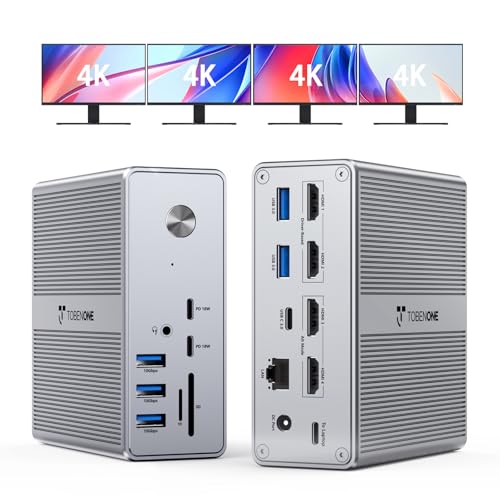
For professionals needing to connect up to four monitors simultaneously, the TobenONE DisplayLink Docking Station stands out as an ideal choice. With support for Quad/Triple 4K@60Hz displays, you’ll enjoy stunning visuals while multitasking effortlessly across multiple screens. The 18-in-1 connectivity includes four HDMI ports, multiple USB options, and an SD/micro SD slot, ensuring compatibility with various devices. Plus, the 120W power adapter offers fast charging for your Windows laptops or MacBooks. Its compact design makes it travel-friendly, minimizing workspace clutter. With a solid 4.5-star rating and dedicated customer support, it’s a reliable option for enhancing your productivity.
Best For: Professionals who need to connect multiple monitors for enhanced productivity in remote work or office settings.
Pros:
- Supports up to 4 HDMI displays with stunning 4K@60Hz resolution.
- Offers extensive connectivity options with 18-in-1 features, including multiple USB ports and card slots.
- Compact and travel-friendly design, making it easy to minimize workspace clutter.
Cons:
- Not compatible with Linux/Unix operating systems.
- Limited to 3 external displays for MacBook users.
- May require additional setup for optimal performance with certain devices.
Factors to Consider When Choosing a Displaylink Dock for Ultrawide Monitor
When you’re choosing a DisplayLink dock for your ultrawide monitor, several key factors come into play. You’ll want to evaluate monitor resolution support, port compatibility, and power delivery capacity to guarantee a smooth experience. Additionally, think about installation ease and whether the dock can handle multiple monitors if that’s part of your setup.
Monitor Resolution Support
Choosing the right DisplayLink dock for your ultrawide monitor requires careful consideration of monitor resolution support. First, ascertain the dock supports your monitor’s native resolution, as many only accommodate standard resolutions like 1080p and 4K, which might not work well with ultrawide aspect ratios. Next, check if it can handle the refresh rate necessary for your usage, especially for gaming or video playback, since some docks may only support lower rates. Additionally, verify how many external displays the dock can support, as configurations can be limited. Look for docks using DisplayLink technology for better compatibility with high-resolution ultrawide monitors and confirm they provide enough bandwidth for 3440×1440 or higher resolutions.
Port Compatibility Options
Understanding monitor resolution support is just the beginning; port compatibility is equally important in selecting a DisplayLink dock for your ultrawide monitor. Confirm the dock has sufficient video output capabilities, ideally supporting resolutions like 3440×1440 or 5120×1440 at your desired refresh rate. Look for multiple HDMI or DisplayPort outputs since ultrawide monitors often need specific connections for peak performance. It’s also essential to verify that the dock supports the latest DisplayLink drivers, enabling proper functionality. High bandwidth USB-C or Thunderbolt connections can manage the data throughput required for high-resolution displays. Finally, check compatibility with your operating system, as some docks may have limitations with certain versions of macOS or Windows.
Power Delivery Capacity
Power delivery capacity is an important factor to take into account for anyone using a DisplayLink dock with an ultrawide monitor. You’ll want a dock that delivers at least 100W of power to efficiently charge your laptop while powering any connected peripherals. Look for docks with higher total wattage; they can charge multiple devices without compromising performance. It’s also essential to check if the dock maintains full power delivery when all USB ports are used, as this is crucial for multitasking. Finally, verify the dock’s power output aligns with your ultrawide monitor’s resolution and refresh rate, since some docks might limit power when displaying high-quality visuals. Making the right choice enhances your overall workspace experience.
Installation and Setup
When setting up a DisplayLink dock for your ultrawide monitor, it’s crucial to confirm compatibility with your laptop’s operating system and monitor resolution. Make sure to download and install the latest DisplayLink drivers on your laptop; this enables functionality and guarantees a seamless connection. Use a high-quality USB-C or Thunderbolt cable to connect the dock to your laptop, as this impacts video output quality and data transfer speeds. Follow the manufacturer’s instructions for connecting the ultrawide monitor, which may require adjusting display settings in your operating system for ideal resolution and aspect ratio. Finally, test the setup to confirm that the ultrawide monitor displays correctly and that all connected peripherals are functioning as intended.
Multi-Monitor Configuration Capability
Choosing the right DisplayLink dock for your ultrawide monitor means considering its multi-monitor configuration capability. Look for docks that support multiple external displays; some can connect three or four monitors, while others may only handle two. Verify the dock meets your ultrawide monitor’s resolution needs—many support up to 4K at 60Hz, delivering exceptional clarity. Compatibility with your operating system is essential too, as certain docks might require specific drivers for peak performance. Evaluate the number and types of ports available; having multiple HDMI, DisplayPort, or USB-C options simplifies connecting various devices. Finally, consider the dock’s power delivery capabilities, especially if you want to charge your laptop while using multiple monitors simultaneously.