
If you’re looking to boost your MacBook’s functionality, a DisplayLink dock could be the solution. These devices expand your connectivity options, allowing for multiple displays and a variety of ports. Whether you’re a creative professional or just need more screen real estate, there’s a dock out there for you. Let’s explore the top 10 DisplayLink docks that can transform your workspace into a more efficient hub.
Minisopuru Displaylink Triple Display Docking Station for MacBook and Windows

If you’re a MacBook user looking to maximize your workspace with multiple displays, the Minisopuru Displaylink Triple Display Docking Station is an ideal choice. This dock supports MacBook M1 through M4 and Windows, enhancing your setup with 12 ports. You can connect up to three displays at 4K@60Hz using HDMI and DisplayPort. With fast data transfer through USB-A and USB-C ports, you’ll move files in seconds. Just install the DisplayLink driver and connect the 36W power adapter for peak performance. Enjoy seamless multitasking, whether you’re working or streaming, all from one versatile docking station.
Best For: MacBook users seeking to enhance their workspace with multiple high-resolution displays and fast data transfer capabilities.
Pros:
- Supports up to three 4K displays at 60Hz for an expansive visual workspace.
- Equipped with multiple USB ports for fast data transfer and device charging.
- Compatible with various operating systems including MacBook M1/M2/M3/M4 and Windows.
Cons:
- Requires installation of DisplayLink driver for functionality.
- HDMI and USB-C PD ports cannot operate simultaneously with USB-A connection.
- Limited to 36W power adapter, which may not support all high-powered devices.
TobenONE DisplayLink Docking Station Triple Monitor for MacBook Pro/Air

The TobenONE DisplayLink Docking Station is perfect for professionals and creatives who need a powerful triple monitor setup for their MacBook Pro or Air. With support for triple 4K displays, it connects seamlessly through a single USB-C cable after installing the latest DisplayLink driver. You’ll enjoy 18 ports—including 3x HDMI, 3x DP, and 4x USB 3.2—allowing multiple peripherals and gigabit ethernet connections. Plus, the 120W power adapter charges your laptop efficiently. Compatible with macOS 11+ and various USB-C devices, this dock enhances your productivity by expanding your workspace with ease and speed.
Best For: Professionals and creatives who require a powerful triple monitor setup for enhanced productivity.
Pros:
- Supports triple 4K displays for an expansive visual workspace.
- Offers 18 ports for versatile connectivity with multiple peripherals.
- Includes a 120W power adapter for efficient laptop charging.
Cons:
- Requires installation of the latest DisplayLink drivers for functionality.
- Limited support for simultaneous monitor use on macOS (only 3 monitors).
- Not compatible with Linux/Unix systems.
Anker Prime Docking Station (DL7400) – 14-Port Triple Display

Designed for professionals and multitaskers, the Anker Prime Docking Station (DL7400) offers an impressive 14-port setup that transforms your MacBook into a powerful workstation. With support for triple displays, including an 8K monitor, you can multitask like never before. It features various connectivity options, including USB-C, HDMI, and Ethernet, ensuring all your devices connect seamlessly. Thanks to 140W power delivery, your MacBook charges quickly while you work. The smart display keeps you informed about charging power and performance, while ActiveShield 3.0 provides cooling. Install the latest DisplayLink driver for peak performance and enjoy a more efficient workspace.
Best For: Professionals and multitaskers who need an efficient and powerful workstation for multiple displays and devices.
Pros:
- Supports triple display setup, including an 8K monitor, enhancing multitasking capabilities.
- Offers a wide range of connectivity options with 14 ports, accommodating various devices.
- Features smart display for real-time monitoring and ActiveShield 3.0 for effective cooling.
Cons:
- Requires installation of the latest DisplayLink driver for optimal performance, which may be an additional step for users.
- Limited to macOS (13.5 or later) and Windows (10/11), excluding other operating systems.
- The maximum charging power distribution may limit the use of certain ports when multiple devices are connected.
UGREEN 9-in-1 USB C Docking Station with Dual 4K Monitors

Looking for a reliable solution to connect multiple displays to your MacBook? The UGREEN 9-in-1 USB C Docking Station is perfect for you. It supports dual 4K monitors at 60Hz, featuring 2 HDMI and 2 DisplayPort connections. With nine ports, including USB-A, USB-C, and Gigabit Ethernet, you’ll enjoy versatile connectivity. Plus, it offers fast data transfer speeds of up to 10Gbps and a 100W power delivery port, charging your MacBook Pro in just 1.5 hours. Weighing only 1.12 pounds, it’s easy to take anywhere. Enhance your workspace with this powerful docking station!
Best For: Professionals and creatives who need to connect multiple displays to their MacBook for enhanced productivity.
Pros:
- Dual 4K@60Hz support for an immersive multi-display experience.
- Fast data transfer speeds of up to 10Gbps for efficient file management.
- Compact and lightweight design makes it portable and easy to transport.
Cons:
- Requires driver installation for full functionality of display modes.
- Power adapter not included, which may be an additional cost.
- Customer rating of 4.0 stars indicates mixed feedback from users.
JCYMELE Thunderbolt Docking Station for MacBook Pro/Air
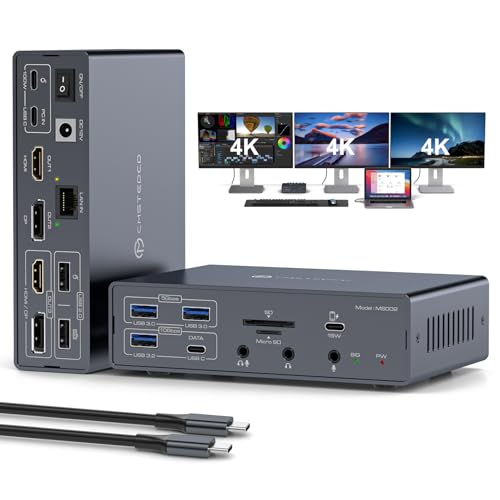
For MacBook Pro and Air users seeking a versatile docking solution, the JCYMELE Thunderbolt Docking Station stands out with its impressive 19-in-1 functionality. You can connect multiple devices effortlessly, featuring two HDMI and two DisplayPort outputs for triple 4K displays. With high-speed data ports, including USB-C and USB-A options, your productivity will soar. Enjoy lightning-fast Gigabit LAN and audio connectivity without hassle. Plus, its 100W Power Delivery keeps your laptop charged while eliminating extra adapters. With plug-and-play compatibility for macOS and Windows, this dock simplifies your workspace, making it a must-have accessory for any MacBook user.
Best For: MacBook Pro and Air users looking for a comprehensive docking solution to enhance productivity with multiple display and connectivity options.
Pros:
- Supports triple 4K displays with multiple video output options for enhanced multitasking.
- High-speed data transfer capabilities with various USB ports for efficient device connectivity.
- 100W Power Delivery eliminates the need for extra power adapters, keeping your laptop charged while in use.
Cons:
- Requires a separate PD charger to power both the laptop and the dock simultaneously, which is not included.
- May need specific drivers for optimal performance in MST and SST display modes.
- Limited compatibility with non-Mac systems, mainly designed for M1, M2, M3, and M4 MacBook models.
Kensington SD4700P Displaylink Docking Station for MacBook and Windows

The Kensington SD4700P Displaylink Docking Station is an excellent choice for MacBook users seeking seamless connectivity and dual display capabilities. It supports MacBook M1 through M4 and Windows PCs, allowing for dual 2K displays at 60Hz via HDMI and DisplayPort. With 5 SuperSpeed USB 3.0 ports and a Gigabit Ethernet port, you’ll enjoy fast data transfers and reliable internet. The dock also delivers 60W of power to your laptop and includes a USB-C cable for easy setup. Weighing just 2.51 pounds, it’s portable yet powerful—perfect for enhancing your workspace wherever you are.
Best For: Users looking for a versatile docking station that supports both MacBook and Windows devices with dual display capabilities.
Pros:
- Supports dual 2K displays at 60Hz for enhanced multitasking.
- Multiple USB ports and Gigabit Ethernet ensure fast data transfer and reliable internet connectivity.
- Portable design weighing only 2.51 pounds, making it easy to carry for on-the-go use.
Cons:
- Driver installation required for Mac users, which may be an extra step for some.
- Limited USB-C power delivery of 60W may not meet the needs of power-hungry laptops.
- Adapters may be needed for connection to older display types like DVI or VGA.
WAVLINK DisplayLink Docking Station for Triple Monitor 4K@60Hz

Designed for professionals and creatives who demand high-quality visuals, the WAVLINK DisplayLink Docking Station offers the ability to connect up to three monitors at 4K resolution and 60Hz. With three HDMI ports and two DisplayPorts, you’ll easily expand your workspace. Plus, it features six USB Gen2 ports for rapid data transfer. The 160W power adapter guarantees your laptop charges with up to 100W via USB-C, eliminating low battery worries. You’ll also enjoy fast data transfer with 1Gbps Ethernet and audio support for headphones or speakers. Compatible with various operating systems, it’s a versatile addition to your setup.
Best For: Professionals and creatives who require high-quality visuals and multiple monitor setups for enhanced productivity.
Pros:
- Supports triple monitors at 4K resolution and 60Hz for an immersive viewing experience.
- Includes a powerful 160W adapter providing up to 100W charging for laptops, ensuring uninterrupted usage.
- Features multiple connectivity options, including 1Gbps Ethernet and six USB Gen2 ports for efficient data transfer.
Cons:
- Requires the latest DisplayLink drivers for optimal performance, which may be a hassle for some users.
- Not compatible with Unix systems, Linux, or iPad OS, limiting its usage for certain users.
- Customer ratings are mixed, with an average of 4.0 out of 5 stars, indicating some potential quality concerns.
WAVLINK Docking Station for Triple Monitors

If you’re a creative professional or multitasker needing to maximize your screen real estate, the WAVLINK Docking Station is an excellent choice. It supports triple 4K@60Hz displays, perfect for video editing and multitasking. With three HDMI ports and two DisplayPorts, you can easily connect your monitors. The docking station also features fast USB-C and USB-A ports for quick file transfers, along with gigabit ethernet for stable internet connectivity. Plus, the 130W power adapter provides up to 100W charging for your laptop. Compatible with both Mac and Windows systems, it’s a robust addition to your workspace.
Best For: Creative professionals and multitaskers who need to maximize screen real estate with triple 4K displays.
Pros:
- Supports triple 4K@60Hz displays, ideal for video editing and multitasking.
- Fast USB-C and USB-A ports for quick file transfers and external device connectivity.
- Equipped with a powerful 130W adapter providing up to 100W charging for laptops.
Cons:
- Requires DisplayLink driver for proper functionality, which may be an additional setup step.
- Not compatible with Unix systems, Linux, iOS, and iPad.
- Weighs 3.34 pounds, which may be less portable compared to lighter docking options.
iVANKY 20-in-1 DisplayLink Docking Station for Windows and MacBook Pro/Air

For MacBook Pro and Air users seeking expansive connectivity, the iVANKY 20-in-1 DisplayLink Docking Station stands out with its impressive triple 4K@60Hz display capability. This dock supports M1 to M5 MacBooks, providing a seamless connection experience. You’ll appreciate the 180W power adapter and the 2.5GbE Ethernet port for stable internet access. With a variety of ports—including 10Gbps USB-C and USB-A options—you can connect multiple devices effortlessly. Just remember to install the DisplayLink driver for peak performance. Plus, the 24-month warranty and responsive customer support guarantee your investment is protected. Enjoy an upgraded workspace with this versatile dock!
Best For: MacBook Pro and Air users looking for a versatile docking station with extensive connectivity options and triple 4K display support.
Pros:
- Supports triple 4K@60Hz display capability for enhanced multitasking.
- Includes a 180W power adapter for efficient charging and stable internet access with a 2.5GbE Ethernet port.
- Offers a wide range of ports, including high-speed USB-C and USB-A options, catering to various device connections.
Cons:
- Requires installation of the DisplayLink driver for optimal performance, which may be an extra step for some users.
- HDMI/DP ports only function correctly with the appropriate driver, potentially confusing for non-technical users.
- Weighs 4.24 pounds, which may be less portable compared to lighter docking solutions.
StarTech.com 7-in-1 USB C DisplayLink Dual Monitor Docking Station

The StarTech.com 7-in-1 USB C DisplayLink Dual Monitor Docking Station stands out as an ideal choice for MacBook users seeking enhanced productivity. With dual 4K 60Hz HDMI outputs, you can easily extend your workspace across monitors. It also features a 2-port USB 10Gbps hub, an SD 4.0 card reader, and Gigabit Ethernet, all in a compact design for portability. Plus, it supports 100W Power Delivery, ensuring your MacBook stays charged while you work. Compatibility spans MacBook Air/Pro models and various operating systems, making it a versatile addition to any setup. Enjoy a reliable, performance-driven experience backed by a 3-year warranty.
Best For: Users of MacBook Air/Pro models looking for a reliable and efficient docking solution to enhance their productivity with dual monitor support.
Pros:
- Dual 4K 60Hz HDMI outputs for an extended workspace across multiple monitors.
- Compact and portable design makes it easy to carry for on-the-go professionals.
- 100W Power Delivery ensures your laptop remains charged while using multiple peripherals.
Cons:
- Requires a DisplayLink driver installation for full functionality, which may be an extra step for some users.
- Limited USB ports (only 2) may not be sufficient for users with multiple peripherals.
- Potential compatibility issues with older USB-C devices that do not support full features.
Factors to Consider When Choosing a Displaylink Dock for Macbook
When choosing a Displaylink dock for your MacBook, you’ll want to take into account factors like port availability, display resolution support, and power delivery capacity. Compatibility with your devices and installation requirements also play an essential role. Evaluating these aspects will help you find the perfect dock to enhance your setup.
Port Availability and Types
Choosing the right DisplayLink dock for your MacBook hinges on port availability and types. You’ll want to take into account the number of ports, including HDMI, DisplayPort, USB-A, and USB-C, to guarantee compatibility with your monitors and peripherals. Look for docks that offer multiple display outputs, like dual or triple 4K options, to enhance your workspace. High-speed USB ports (3.2 Gen1 or Gen2) are essential for fast data transfers, with speeds reaching up to 10Gbps. Additionally, check for power delivery (PD) capabilities to charge your laptop while connecting to other devices, ideally around 100W. Don’t forget to take into account extra features like Ethernet ports, SD/TF card slots, and audio jacks for added functionality.
Display Resolution Support
To guarantee your DisplayLink dock meets your display needs, it’s crucial to verify support for multiple 4K displays, as many docks can simultaneously handle up to three 4K@60Hz outputs. Check the dock’s HDMI and DisplayPort outputs to confirm compatibility with your desired display configurations; some docks may only support dual outputs or have limitations on simultaneous connections. Opt for docks that utilize DisplayLink technology, as they enable high-resolution displays in both extended and mirrored modes. Additionally, verify the maximum resolution supported by the dock; while many models can handle dual 2K displays at 60Hz or triple 4K displays, compatibility may vary with different MacBook models. Don’t forget to install the latest DisplayLink drivers for peak performance.
Power Delivery Capacity
Power delivery capacity plays an essential role in ensuring your MacBook operates efficiently while connected to a DisplayLink dock. This capacity refers to the maximum wattage a docking station can provide, which directly impacts how well your laptop charges during use. Most docks range from 60W to 140W, and higher capacities allow for faster charging and support additional peripherals. If you own a power-hungry device like a MacBook Pro, it’s vital to choose a dock that provides at least 100W for ideal performance. Always check that the dock’s power delivery output meets your laptop’s requirements to avoid performance issues or slow charging. Ensuring compatibility with your laptop’s input specifications is key to maximizing efficiency.
Compatibility With Devices
When selecting a DisplayLink dock for your MacBook, compatibility with your device is essential. First, verify the dock supports your specific MacBook model, especially if you have M1, M2, M3, or M4 chips, as compatibility can vary. You’ll also want to check if the dock requires a specific DisplayLink driver for peak performance. Make certain the dock’s ports align with your MacBook’s connection capabilities, like USB-C or Thunderbolt. Additionally, evaluate the dock’s compatibility with your macOS version, as some may only work with macOS 11 or later. Finally, consider whether the docking station supports your desired display configurations, such as dual or triple monitor setups, to match your workflow needs.
Installation and Driver Requirements
Installing a DisplayLink dock for your MacBook requires careful attention to driver compatibility and installation procedures. Most docks need the latest DisplayLink driver to function properly and display media on connected monitors. While Windows often installs this driver automatically, you may need to download it manually on macOS. If you skip this step, you’ll face limited or no display capabilities since the dock relies on the driver for video output. Additionally, some docks might require software updates or settings adjustments after installation to enhance performance and guarantee compatibility. Always check that the DisplayLink driver matches your specific MacBook model and macOS version to avoid any connectivity issues down the line.