
If you’re looking to upgrade your home office in 2026, choosing the right DisplayLink dock can greatly enhance your productivity. With options offering dual 4K monitor support and a variety of connectivity choices, these docks are essential for any modern workspace. But how do you decide which one fits your needs? Let’s explore the top contenders that could transform your setup.
WAVLINK Pro Dual 4K Universal Docking Station

If you’re looking to enhance your home office setup with a versatile docking station, the WAVLINK Pro Dual 4K Universal Docking Station is an excellent choice. This USB 3.0/USB-C dock connects effortlessly to your laptop, whether it has USB-A or USB-C ports. Enjoy dual monitor support with 4K resolutions at 60Hz through HDMI or DisplayPort. It also features Gigabit Ethernet, six USB-A ports, and a 3.5mm audio jack for all your connectivity needs. Just remember to install the required DisplayLink drivers for peak performance. While it’s perfect for productivity, it’s not meant for gaming or HDCP content.
Best For: Professionals seeking to enhance their multi-screen productivity in a home office setup with a versatile docking solution.
Pros:
- Supports dual 4K monitors at 60Hz, providing high-resolution display options for enhanced productivity.
- Multiple connectivity options, including Gigabit Ethernet and six USB-A ports, cater to various peripheral needs.
- Compatible with a wide range of operating systems, including Windows, macOS, and ChromeOS, ensuring versatility across devices.
Cons:
- Does not charge laptops, which may require additional power solutions for some users.
- Not suitable for gaming or video playback, limiting its use for entertainment purposes.
- Requires manual installation of DisplayLink drivers for display functionality, which may be inconvenient for some users.
TobenONE DisplayLink Docking Station for Triple Monitors

For professionals balancing multiple tasks, the TobenONE DisplayLink Docking Station for Triple Monitors stands out as an essential tool, thanks to its ability to support three displays simultaneously. With 14 ports, including three HDMI, it seamlessly expands your workspace. You’ll enjoy 4K output at 30Hz on the main display and 1920×1200 @ 60Hz on additional monitors, enhancing your productivity for tasks like video editing and data analysis. Plus, its 120W power supply offers rapid 100W charging, keeping your devices powered. Its sleek design makes it a perfect gift for anyone in need of a stylish, efficient home office solution.
Best For: Professionals, tech enthusiasts, and students who require efficient multitasking and seamless connectivity across multiple displays.
Pros:
- Supports triple monitor setup with 4K output and enhanced multitasking capabilities.
- Fast 100W charging keeps devices powered throughout the day, ideal for busy work environments.
- Versatile connectivity options with 14 ports, including USB and Ethernet, reducing cable clutter.
Cons:
- Limited 4K output at 30Hz may not meet the needs of users requiring higher refresh rates for gaming.
- May require additional setup or drivers for certain operating systems, which could be inconvenient for some users.
- Sleek design may not offer extensive physical durability for frequent travelers.
Plugable USB C Docking Station for 5 Monitors (UD-7400PD)

The Plugable USB C Docking Station UD-7400PD stands out for professionals who need to connect multiple high-resolution displays in their home office. With support for up to five monitors—either three 8K or one 8K plus four 4K—you can multitask like never before. It features 140W laptop charging, 30W device charging, and 2.5Gbps Ethernet for seamless connectivity. The docking station includes various ports, like HDMI and USB-C, ensuring compatibility with your USB-C or Thunderbolt devices running Windows or macOS. Plus, backed by lifetime support, it’s a reliable choice for any IT professional’s setup.
Best For: Professionals and IT experts who require high-resolution multi-monitor setups for enhanced productivity and multitasking capabilities.
Pros:
- Supports up to 5 high-resolution displays, allowing for extensive multitasking.
- Features robust charging capabilities with 140W for laptops and 30W for devices.
- Backed by lifetime support from a team of North American connectivity experts.
Cons:
- Installation of DisplayLink software is required for certain outputs on Windows and macOS.
- HDCP video content (e.g., from Netflix or Hulu) is not supported.
- Compatibility is limited to video-enabled USB-C or Thunderbolt devices running specific operating systems.
Anker Prime Docking Station (DL7400) – 14-Port Triple Display

Designed for professionals who need extensive connectivity options, the Anker Prime Docking Station (DL7400) stands out with its impressive 14 ports, making it ideal for a home office setup. You can effortlessly connect multiple devices, thanks to its USB-C, HDMI, and Ethernet ports. With support for triple display setups, you can multitask like a pro, even outputting one monitor at 8K resolution. The 140W max power delivery guarantees your devices stay charged. Plus, the built-in fan and smart display keep everything cool and monitored. It’s a powerful solution that streamlines your workspace efficiently.
Best For: Professionals who require extensive connectivity and multitasking capabilities in their home office setup.
Pros:
- 14 ports provide ample connectivity options for multiple devices.
- Supports triple display setups with one monitor capable of 8K resolution for enhanced productivity.
- Smart display and built-in fan ensure efficient cooling and real-time monitoring of performance.
Cons:
- Requires installation of the latest DisplayLink driver for optimal display capabilities.
- Front USB-C ports provide charging only, lacking media display support.
- May be considered overkill for users with minimal connectivity needs.
Plugable USB-C Triple Monitor Docking Station (UD-ULTCDL)

If you’re looking to boost your productivity with multiple screens, the Plugable USB-C Triple Monitor Docking Station (UD-ULTCDL) is an excellent choice. This 13-in-1 dock supports up to three monitors, delivering stunning visuals with 4K @ 30Hz on the main display. You’ll appreciate the fast 100W power delivery, ensuring your devices stay charged while you work. With four USB 3.0 ports, an SD card reader, and a Gigabit Ethernet port, connectivity is a breeze. Weighing just 14.1 ounces and designed in sleek space grey, it’s a compact yet powerful addition to your home office setup.
Best For: Users looking to enhance their productivity with multiple monitors and fast charging capabilities in a compact design.
Pros:
- Powerful Expansion: Offers 13 ports for versatile connectivity, including support for three monitors.
- High-Resolution Support: Capable of delivering up to 4K @ 30Hz on the main display, providing crisp visuals.
- Fast Charging: Provides fast 100W power delivery, keeping your devices charged while you work.
Cons:
- Driver Requirement for Mac: Requires DisplayLink drivers for macOS compatibility, which may complicate setup for some users.
- Limited 4K Support: Main display supports only 4K @ 30Hz, which may not meet the needs of users requiring higher refresh rates.
- Weight: At 14.1 ounces, it may not be as portable as other docking stations for users looking for ultra-lightweight options.
Plugable Dual DisplayPort & HDMI Docking Station (UD-6950Z)

For professionals who need seamless multitasking, the Plugable Dual DisplayPort & HDMI Docking Station (UD-6950Z) offers exceptional dual 4K monitor support, allowing you to enhance productivity effortlessly. With support for dual HDMI and DisplayPort outputs, you can connect your favorite devices easily. It features six USB 3.0 ports, a Gigabit Ethernet connection, and an audio jack, ensuring you have everything you need at your fingertips. Compatible with Windows, macOS, and ChromeOS, it provides plug-and-play convenience for most systems. Its sleek design helps maintain a tidy workspace, making it a reliable choice for your home office setup.
Best For: Professionals seeking reliable dual monitor support for multitasking and productivity in their home office setup.
Pros:
- Supports dual 4K monitors at 60Hz, ideal for enhanced productivity.
- Multiple connectivity options with six USB 3.0 ports, Gigabit Ethernet, and audio jack.
- Sleek vertical design aids in cable management and maintaining a tidy workspace.
Cons:
- Not optimized for gaming or protected content playback (HDCP).
- Requires manual driver installation for macOS users.
- Does not charge the host computer, limiting its functionality for some users.
Plugable USB 3.0 and USB-C Universal Laptop Docking Station

With its dual HDMI outputs, the Plugable USB 3.0 and USB-C Universal Laptop Docking Station is an excellent choice for professionals needing to connect multiple monitors for enhanced productivity. You’ll appreciate the versatility of its two HDMI ports, allowing you to run dual displays at resolutions up to 1920×1200. The dock also features Gigabit Ethernet, an audio jack, and multiple USB ports—two USB 3.0 and four USB 2.0—ensuring you have all the connectivity you need. With compatibility across various operating systems and a 2-year warranty, this dock is a reliable addition to your home office setup.
Best For: Professionals and remote workers seeking to enhance their productivity with multiple monitors and a variety of connectivity options.
Pros:
- Dual HDMI outputs allow for connecting two monitors, improving multitasking capabilities.
- Multiple USB ports and Gigabit Ethernet provide versatile connectivity options for various devices.
- Compatible with major operating systems, ensuring broad usability.
Cons:
- Not recommended for gaming or playback of encrypted content, limiting its use for entertainment purposes.
- Manual driver installation required for macOS, which may be inconvenient for some users.
- Linux is not supported, restricting compatibility for Linux users.
Minisopuru DisplayLink Triple Display Docking Station for MacBook and Windows

The Minisopuru DisplayLink Triple Display Docking Station stands out as an excellent choice for professionals using MacBooks and Windows laptops, particularly those needing multiple high-resolution displays. With support for up to three 4K displays at 60Hz, it boosts your productivity considerably. This dock features 12 ports, including HDMI, DisplayPort, USB-A, and USB-C for versatile connectivity. You’ll need to install the DisplayLink driver and connect the 36W power adapter for peak performance. Enjoy fast data transfer with USB 3.2 ports and charge your laptop with the 100W USB-C PD. It’s a powerhouse for your home office setup!
Best For: Professionals using MacBooks and Windows laptops who require multiple high-resolution displays for enhanced productivity.
Pros:
- Supports up to three 4K displays at 60Hz, ideal for multitasking and high-quality visuals.
- Versatile port options with 12 different connections, accommodating various devices and peripherals.
- Fast data transfer speeds with USB 3.2 ports, allowing for quick file transfers.
Cons:
- Requires installation of DisplayLink driver for functionality, which can be an additional step for users.
- Limited to 36W power adapter, which may not be sufficient for all laptop models when charging.
- HDMI and DisplayPort ports for display 3 cannot operate simultaneously, restricting display configuration options.
TobenONE DisplayLink Docking Station for 4 Monitors
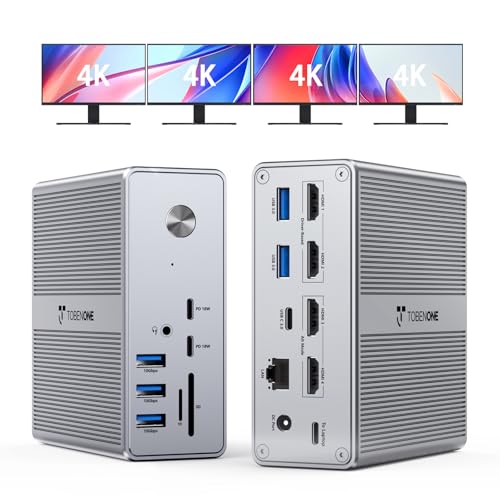
Elevate your home office setup with the TobenONE DisplayLink Docking Station, designed for professionals who thrive on multitasking. This docking station supports up to four HDMI displays, allowing you to work seamlessly across multiple screens. With its 18-in-1 connectivity, including USB 3.2, USB-C, and Ethernet ports, you can connect all your essential devices effortlessly. Experience stunning visuals with Quad/Triple 4K@60Hz resolution, perfect for immersive work. Plus, the 120W power adapter guarantees your laptop charges quickly while you work. Compact and travel-friendly, the TobenONE is your ultimate solution for enhanced productivity and convenience.
Best For: Professionals and remote workers who need to enhance their productivity with multiple displays and robust connectivity options.
Pros:
- Supports up to four HDMI displays with stunning 4K@60Hz resolution for immersive multitasking.
- 18-in-1 connectivity options provide flexible connections for various devices, including USB 3.2 and USB-C.
- Compact and travel-friendly design makes it easy to set up in any workspace or take on the go.
Cons:
- Limited compatibility with MacBook, only supporting three external displays instead of four.
- Not compatible with Linux/Unix operating systems, which may limit use for some users.
- Performance may vary based on the specifications of the connected laptop or device.
UD22 Dell Docking Station Dual Monitor Bundle

For professionals juggling multiple tasks, the UD22 Dell Docking Station Dual Monitor Bundle stands out as a versatile solution. This USB-C/USB-A dock lets you connect up to four 4K monitors, maximizing your productivity across multiple displays. It includes a 130W adapter, HDMI, DisplayPort, and USB-C cables, guaranteeing you’re well-equipped. Compatible with Windows, macOS, and more, just verify your notebook supports USB-C or Thunderbolt. With various ports, including three USB 3.2 Gen 2 and an RJ-45 network port, it’s designed for seamless connectivity. With a solid customer rating of 4.6 stars, it’s a reliable choice for your home office.
Best For: Professionals who require seamless connectivity and multitasking capabilities with multiple high-resolution displays.
Pros:
- Supports connection of up to four 4K monitors for enhanced productivity.
- Compatible with a wide range of operating systems including Windows, macOS, Ubuntu-OS, and ChromeOS.
- Includes a comprehensive set of ports for various connectivity options, including USB-C, HDMI, and DisplayPort.
Cons:
- Requires verification of USB-C or Thunderbolt compatibility before purchase, which may complicate the buying process for some users.
- Firmware updates may be necessary if issues arise, adding an extra step for setup.
- Heavier than some competing docking stations, which may affect portability.
Factors to Consider When Choosing a Displaylink Dock for Home Office
When choosing a DisplayLink dock for your home office, you should consider several key factors. Monitor support capability, power delivery options, and port variety play essential roles in ensuring compatibility with your devices. Additionally, pay attention to display resolution and quality to enhance your overall work experience.
Monitor Support Capability
Choosing the right DisplayLink dock for your home office hinges on its monitor support capability, as this can greatly impact your productivity. First, consider how many external monitors you’ll need; some docks support dual displays, while others can handle four or more. High-resolution capabilities are essential, so look for docks that support up to 4K at 60Hz for sharp visuals across multiple screens. Make certain the dock is compatible with your laptop’s USB-C or Thunderbolt ports to guarantee peak performance. Also, check the maximum refresh rate, especially if you’re into video editing or gaming, as lower rates can hinder your experience. Finally, verify the dock offers flexible output options like HDMI or DisplayPort to fit your setup.
Power Delivery Options
While working from home, you’ll want to guarantee your devices stay powered throughout the day, making power delivery options a crucial factor in selecting a DisplayLink dock. Different docks offer varying charging capabilities, with some providing up to 100W for your laptop. If you have a power-hungry device, consider docks with 120W or 140W options for faster charging while managing multiple peripherals. Look for docks that include dedicated charging ports for smartphones and smaller gadgets, often providing around 18W. Always check compatibility between the dock’s power delivery and your laptop’s requirements to avoid undercharging. Finally, make sure you have a dedicated power adapter for seamless operation without draining your host device’s battery.
Port Variety and Types
To optimize your home office setup, the variety and types of ports on a DisplayLink dock play an important role in ensuring seamless connectivity. Look for docks with multiple HDMI, DisplayPort, and USB connections to accommodate different devices and monitor configurations. Having both USB-C and USB-A ports gives you flexibility, supporting both modern and older laptops. An Ethernet port is also essential for a stable internet connection, critical for productivity. Consider docks with USB-C Power Delivery (PD) features, allowing you to charge your laptop while using the dock, which reduces cable clutter. Additional features like SD card slots and audio jacks can enhance functionality, catering to your diverse workspace needs.
Compatibility With Devices
When selecting a DisplayLink dock for your home office, compatibility with your devices is essential. First, confirm the dock works with your operating system, as many require specific drivers, especially for macOS. Check that it supports various connection types like USB-A, USB-C, Thunderbolt 3, 4, or USB4 to guarantee a seamless integration with your laptop or PC. Consider how many external displays you’ll need; some docks may limit monitor support based on the connection type. Don’t forget to review the power delivery capabilities, particularly if you want rapid charging for your laptop. Finally, verify that the dock can handle the display resolutions you need, as not all models support higher resolutions or refresh rates on multiple monitors.
Display Resolution and Quality
Choosing the right DisplayLink dock hinges on understanding the display resolution and quality it offers. Look for docks that support dual 4K capabilities at 3840×2160 @ 60Hz for stunning visual clarity. Make certain the dock’s video outputs match your monitor setup, as some may provide different combinations of HDMI and DisplayPort connections. It’s crucial to check if the dock requires driver installation for peak performance, especially on certain operating systems. Pay attention to the refresh rate, since some docks may only support 30Hz at higher resolutions, impacting smoothness. Finally, consider HDCP compliance, as many docks won’t play encrypted content, limiting your media viewing options. Selecting wisely guarantees a premium display experience in your home office.
Installation and Setup Ease
While setting up a DisplayLink dock, ease of installation plays an essential role in your overall experience. If you’re a macOS user, you’ll likely need to manually install DisplayLink drivers, which can slow down your setup. However, if you’re using Windows or ChromeOS, you can enjoy plug-and-play functionality, making the process much quicker. The complexity of installation may also depend on how many displays you want to connect and the specific ports available on the dock. To avoid potential issues, check that your operating system is compatible with DisplayLink technology. Some docks come with helpful setup instructions or QR codes that lead to support resources, further simplifying your installation experience.
