
If you’re juggling multiple computers at your workstation, a KVM switch can streamline your setup and boost your efficiency. These devices allow you to control several systems with just one monitor, keyboard, and mouse, saving you space and time. With various options available, from dual-monitor support to 4K resolution, finding the right KVM switch can seem challenging. Let’s explore the top choices that might just transform your workflow.
USB 3.0 HDMI KVM Switch for 2 Computers
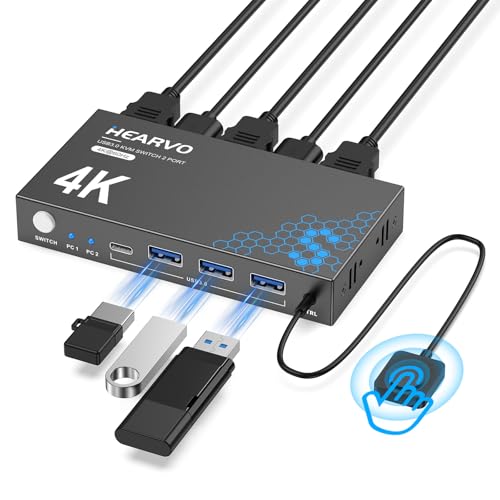
If you’re looking to streamline your workspace with a single monitor setup shared between two computers, the USB 3.0 HDMI KVM Switch is an excellent choice. This device supports various systems like Windows, Linux, and Mac, enabling you to connect PCs, laptops, or even a PS4. With three USB 3.0 ports, you can easily share peripherals and enjoy data transfer speeds up to 5Gbps. Plus, it supports stunning 4K resolution at 60Hz, ensuring your visuals are crisp. Switching between computers is seamless with both a KVM button and a wired remote, making your workflow efficient and clutter-free.
Best For: Users who need to manage multiple computers with a single monitor, keyboard, and mouse setup for enhanced productivity.
Pros:
- Supports a wide range of operating systems and devices, including PCs, laptops, and gaming consoles.
- High data transfer speeds of up to 5Gbps with three USB 3.0 ports for seamless peripheral sharing.
- Easy installation with Plug and Play design, requiring no additional power supply or drivers.
Cons:
- Limited to one monitor, which may not be suitable for users needing a multi-monitor setup.
- The need for manual switching may be cumbersome for users who frequently switch between computers during tasks.
- May require additional HDMI cables that are not included in the package for full setup.
USB3.0 KVM Switch for 4 Computers with HDMI 4K Support

For professionals managing multiple computers, the USB3.0 KVM Switch with HDMI 4K support is an ideal solution, allowing you to seamlessly share a single monitor, keyboard, and mouse across four devices. With its stunning resolution of 3840×2160@60Hz, your visuals remain crisp and clear. You’ll appreciate the three USB 3.0 ports for sharing peripherals like flash drives and cameras. Switching between computers is quick and easy with a dedicated button, although hotkey switching isn’t available. The package includes all necessary cables, and reliable after-sales support is just a message away. Enhance your workspace efficiency today!
Best For: Professionals and multitaskers looking to efficiently manage multiple computers using a single monitor, keyboard, and mouse setup.
Pros:
- Supports stunning video quality of up to 3840×2160@60Hz for crystal-clear visuals.
- Three USB 3.0 ports allow easy sharing of peripherals, enhancing convenience.
- Simple button switch mechanism enables quick transitions between computers.
Cons:
- Hotkey switching is not supported, which may slow down workflow for some users.
- Limited to only one monitor output, which might not suit those needing multiple displays.
- Requires manual switching, which can be less efficient for frequent users compared to automated options.
USB3.0 KVM Switch 2 Port HDMI for 2 PCs with 1 Monitor
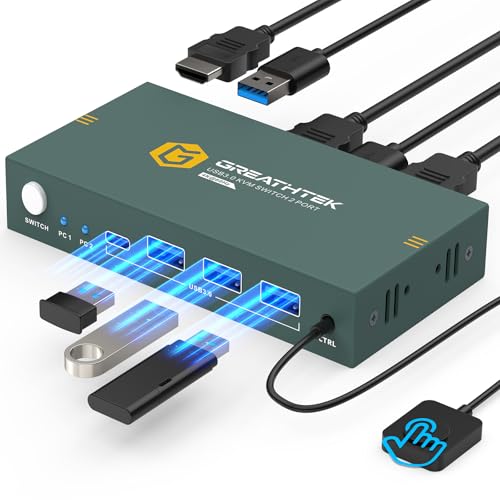
The USB 3.0 KVM Switch 2 Port HDMI is an ideal solution for professionals managing multiple PCs while using a single monitor and set of USB peripherals. You can effortlessly switch between two PCs with a wired remote or button, allowing seamless control. With three USB 3.0 ports, sharing devices like keyboards, mice, and printers is a breeze. It supports impressive resolutions up to 3840*2160@60Hz, ensuring stunning visuals. Plus, the plug-and-play installation means no hassle with drivers or power sources. With included cables and a lifetime warranty, this KVM switch is a smart choice to enhance your productivity.
Best For: Professionals and users who need to control multiple PCs using a single monitor and set of USB peripherals efficiently.
Pros:
- Supports high video resolution up to 3840*2160@60Hz, providing excellent visual quality.
- Easy installation with plug-and-play functionality, requiring no additional drivers or power sources.
- Lifetime warranty service ensures long-term support and peace of mind for users.
Cons:
- No hotkey switching option may limit convenience for some users.
- Requires three HDMI cables for complete setup, which may not be included.
- Limited to two PCs, which may not meet the needs of users with more extensive setups.
Unitek HDMI KVM Switch for Dual Monitors and Computers

Designed specifically for desktop users, the Unitek HDMI KVM Switch seamlessly connects two computers to dual monitors while supporting multiple USB devices. With support for resolutions up to 4K@60Hz, you’ll enjoy crystal-clear visuals and vibrant colors. The switch features four USB ports for fast data transfer, making it perfect for your keyboard, mouse, and other peripherals. You can easily toggle between computers using a one-button switch or a wired remote, keeping your workspace tidy. Plus, plug-and-play installation means you won’t need any complicated driver software. Enhance your productivity today with this efficient KVM solution.
Best For: Desktop users looking to connect two computers to dual monitors with efficient USB device management.
Pros:
- Supports high resolutions up to 4K@60Hz for stunning visuals.
- Easy switching between computers with one-button or wired remote options.
- Plug-and-play installation with no driver software needed.
Cons:
- Not compatible with laptops, limited to desktop systems only.
- Requires a power adapter, which may limit placement options.
- May not support certain video sources beyond HDMI, like DisplayPort or VGA.
UGREEN HDMI KVM Switch for 2 Computers and 2 Monitors

If you need to control two computers with a single keyboard and mouse while maximizing your workspace, the UGREEN HDMI KVM Switch is an excellent choice. It supports dual monitors in extend or mirror mode, delivering stunning visuals up to 4K@60Hz. With four USB 3.0 ports, you can easily share devices like printers and hard drives. Switching is a breeze with its desktop controller, keeping your setup tidy. Just remember, each computer needs dual-screen output, and you’ll need two HDMI cables and one USB-A cable per computer. Simplify your workflow and enhance productivity with this versatile KVM switch!
Best For: Users who need to efficiently manage and control two computers with one keyboard and mouse while utilizing dual monitors for increased productivity.
Pros:
- Supports dual monitors in extend or mirror mode with impressive 4K@60Hz resolution.
- Four USB 3.0 ports allow for easy sharing of peripherals like printers and external drives.
- Desktop controller provides convenient switching and keeps the workspace organized.
Cons:
- Requires dual-screen output from each computer, limiting compatibility with some setups.
- Each computer needs two HDMI cables and one USB-A cable, which may not be included.
- No keyboard shortcut toggles for switching, which could be less convenient for some users.
UGREEN USB 3.0 Switch for Sharing USB Devices Between Two Computers

For users needing to share multiple USB devices between two computers, the UGREEN USB 3.0 Switch is an excellent choice. It allows you to connect up to four USB devices, like keyboards and printers, using one USB-C and three USB-A ports. With data transfer speeds reaching 5Gbps, it’s perfect for quick file transfers. Plus, it’s plug-and-play compatible with various operating systems. For peak performance, consider using the optional power supply when connecting high-power devices. You can easily switch between devices using either the controller or a button, making it a practical addition to your workspace setup.
Best For: Users who need to efficiently share multiple USB devices between two computers without the need for video transmission.
Pros:
- Supports up to 4 USB devices simultaneously, enhancing productivity in a dual-computer setup.
- High data transfer speeds of up to 5Gbps, ensuring quick file transfers and efficient usage.
- Plug-and-play functionality compatible with various operating systems, making it easy to set up and use.
Cons:
- Not a KVM switch, so it does not support video transmission.
- Requires optional power supply for optimal performance with high-power devices, which may be an additional cost.
- Limited to USB data transfer, meaning it cannot charge devices through the USB ports.
Anker USB 3.0 HDMI KVM Switch with 4K Support
The Anker USB 3.0 HDMI KVM Switch with 4K Support is an ideal choice for professionals who need to manage multiple devices effortlessly. With support for 4K@60Hz resolution, you’ll enjoy crystal-clear visuals during presentations or video calls. It features five USB 3.0 ports and a magnetic remote button, making it easy to switch between your laptop and desktop. Plus, the 100W Power Delivery allows you to charge your devices while working. The ultra-fast data transfer speeds of 5Gbps guarantee seamless performance, enhancing your productivity. Included cables and an 18-month warranty provide added value and peace of mind.
Best For: Professionals and tech enthusiasts who need a reliable solution for managing multiple devices with high-quality visuals and seamless switching.
Pros:
- Supports 4K@60Hz resolution for crystal-clear visuals.
- Includes five USB 3.0 ports for versatile connectivity.
- Features 100W Power Delivery for charging devices while in use.
Cons:
- Not compatible with two USB C laptops, limiting device options.
- Requires USB C port to support DP alt mode for optimal performance.
- May be overkill for users with simpler device management needs.
MT-VIKI 2 Port USB VGA KVM Switch

Need a reliable way to manage multiple computers without clutter? The MT-VIKI 2 Port USB VGA KVM Switch lets you easily share one monitor, keyboard, mouse, printer, and even a USB device between two computers. It supports a resolution of up to 1920 x 1440, ensuring clear visuals. Powered via USB, it’s simple to set up—just plug in the USB and VGA cables. While it’s compatible with various operating systems like Windows, Mac, and Linux, it doesn’t support mechanical keyboards or docking stations. Included in the package are two KVM cables and a user manual to guide you through the setup.
Best For: Individuals or small offices looking to efficiently manage and switch between two computers using a single set of peripherals.
Pros:
- Easy Setup: Simple plug-and-play installation with USB and VGA cables.
- Multiple Device Support: Allows sharing of a monitor, keyboard, mouse, printer, and a USB device.
- High Resolution: Supports video resolutions up to 1920 x 1440 for clear visuals.
Cons:
- Limited Compatibility: Not compatible with mechanical keyboards and docking stations.
- Power Dependency: Requires a USB power connection to function.
- Cable Length Restrictions: Comes with 1.2m KVM cables; longer lengths must be purchased separately.
AV Access KVM Switch Dock for Dual Monitors and Laptops

Designed for professionals juggling multiple laptops and monitors, the AV Access KVM Switch Dock streamlines your workspace with its dual HDMI outputs and 12-in-1 connectivity options. You can easily connect two laptops and two monitors while enjoying resolutions up to 4K@60Hz. With 60W Power Delivery for each laptop, you’ll stay charged and productive. Fast switching with EDID emulation allows seamless shifts between devices in just a few seconds. Plus, its gaming capabilities enhance your experience with high refresh rates. This dock is perfect for both home office tasks and gaming sessions, making multitasking a breeze.
Best For: Professionals managing multiple laptops and monitors who require high-resolution displays and seamless switching.
Pros:
- Supports dual HDMI outputs with resolutions up to 4K@60Hz and high refresh rates for gaming.
- Features 60W Power Delivery for charging two laptops simultaneously, enhancing productivity.
- Fast switching capability with EDID emulation allows for quick transitions between devices.
Cons:
- Not compatible with 5K monitors and limited support for ultrawide monitors (max resolution 3840×1080).
- Mac OS does not support extended dual screens, which may limit functionality for Mac users.
- Incompatible with FreeSync, G-Sync, or Dell Display Manager, which could affect gaming performance.
UGREEN HDMI KVM Switch for 1 Monitor and 2 Computers

For professionals juggling multiple computers, the UGREEN HDMI KVM Switch is an ideal solution, allowing seamless control of two computers with a single monitor. It supports impressive resolutions up to 4K@60Hz, ensuring vibrant image quality. With four USB ports, you can easily share a keyboard, mouse, and printer. Switching between devices is a breeze using the one-button switch or desktop controller. Plus, it’s driver-free and compatible with a range of operating systems, including Windows and Mac. Just remember, for best 4K performance, keep your HDMI cable under 16 feet. This KVM switch enhances productivity in any workspace!
Best For: Professionals and multi-computer users seeking a seamless way to control two computers with one monitor while enhancing productivity.
Pros:
- Supports high resolutions up to 4K@60Hz for vibrant image quality.
- Easy switching between devices using a one-button switch or desktop controller.
- Driver-free operation makes it compatible with various operating systems, including Windows and Mac.
Cons:
- Does not support EDID emulation or hotkey switching, which may limit advanced users.
- HDMI cable length must not exceed 16 feet for optimal performance at 4K resolution.
- Not compatible with docking stations and may have limitations with wireless peripherals.
Factors to Consider When Choosing a KVM Switch for Workstations
When picking a KVM switch for your workstation, you’ll want to contemplate several key factors. Video resolution support and USB port availability can greatly impact your setup, while the switching mechanisms and compatibility with your devices will determine how smoothly you can operate. Finally, don’t overlook the ease of installation and setup, as this can save you time and frustration.
Video Resolution Support
Choosing the right KVM switch requires careful consideration of video resolution support to guarantee it meets your workstation’s needs. Make sure the switch supports the maximum resolution your monitors can display, ideally up to 4K@60Hz for stunning visuals. It’s also wise to check compatibility with various resolutions, including 3840×2160@30Hz and 1080P, to cater to different display setups. Ascertain the KVM adheres to HDMI standards, like HDMI 2.0 and HDCP 2.2, for peak video quality and protected content handling. Look for features such as Adaptive EDID that enhance stability by optimizing display settings. Finally, confirm that the KVM can handle refresh rates of at least 60Hz for smooth performance during dynamic tasks like gaming or video editing.
USB Port Availability
Video resolution support is just one aspect of a KVM switch‘s functionality; USB port availability is equally important for maximizing your workstation’s efficiency. When choosing a KVM switch, consider the number and types of USB ports it offers. More ports allow you to share additional peripherals like printers and external drives. Opt for USB 3.0 ports for faster data transfer speeds of up to 5Gbps, ensuring smooth operation without lag. Look for multiple port types, such as USB-A and USB-C, to accommodate various devices and future-proof your setup. Some switches even provide dedicated USB ports for specific functions, enhancing usability. Finally, make sure the switch can seamlessly detect and switch between connected USB devices to keep you productive.
Switching Mechanisms Offered
Several switching mechanisms are available for KVM switches, each offering unique advantages that can enhance your workstation setup. Direct button switches allow for quick changes between computers, while wired remote switches help maintain an organized workspace away from your main setup. If you prefer keyboard shortcuts, some models support hotkey switching, boosting your workflow efficiency. Desktop controllers offer a neat solution, letting you switch seamlessly without cluttering your immediate area. When choosing a switching mechanism, consider responsiveness and ease of use, as some methods may need extra setup or lack features like EDID emulation. Ultimately, the right mechanism can greatly improve your user experience and access to multiple computers.
Compatibility With Devices
When selecting a KVM switch for your workstation, it is vital to guarantee compatibility with your devices. First, confirm the switch supports the operating systems of your computers, like Windows, macOS, and Linux, to prevent compatibility issues. Next, check the number and type of ports available, such as HDMI, USB, and VGA, to match your devices’ output options. It’s also important to verify that the KVM switch can handle the maximum resolution and refresh rate required for your monitors, especially if you need 4K support. Additionally, consider whether the switch is designed for desktops or laptops, as compatibility can vary. Finally, look for features like USB 3.0 support for faster data transfer and extra USB ports for peripherals.
Installation and Setup Ease
Choosing a KVM switch that’s easy to install can save you time and frustration, especially if you want to get your workstation up and running quickly. Look for models with a plug-and-play design that don’t require extra power supplies or driver installations. This simplifies the setup process considerably. Opt for switches that support Adaptive EDID technology for stable image transmission and optimized display settings, ensuring a smoother installation experience. Check if the KVM switch comes with necessary accessories, like USB and HDMI cables, to cut down on additional purchases. Finally, consider switches with various switching methods, such as button switches or wired remote controls, for added convenience. Always confirm compatibility with your operating systems and devices to avoid complications.