
If you’re juggling multiple devices, finding the right USB-C KVM switch can make all the difference in your workflow. In 2026, the market offers impressive options that simplify control and enhance productivity. From seamless dual monitor support to robust power delivery, these switches cater to various needs. Curious about which models stand out and how they can transform your workspace? Let’s explore the top contenders that promise effortless connectivity and efficiency.
Cable Matters 20Gbps USB C Switch for 2 Computers

If you’re managing multiple computers and need a seamless way to share peripherals, the Cable Matters 20Gbps USB C Switch is an excellent choice for you. This switch supports ultra-fast 20 Gbps data transfer, making it perfect for large file transfers and high-resolution video streaming. You can enjoy 8K video at 30Hz or 4K at 144Hz on Windows, ensuring stunning visuals. Plus, with power delivery pass-through up to 140W, your devices stay charged while you work. The included RF remote control simplifies switching between computers, helping maintain an organized workspace without extra cables cluttering your setup.
Best For: Users managing multiple computers who need a reliable and efficient way to share peripherals and maintain high-resolution video output.
Pros:
- Ultra-fast 20 Gbps data transfer speeds for large file transfers and high-resolution video streaming.
- Supports 8K video output at 30Hz and 4K at 144Hz on Windows, providing stunning visuals.
- Includes an RF remote control for easy switching between computers, minimizing cable clutter.
Cons:
- Compatibility issues with Thunderbolt 3/4/5 cables may limit usage.
- 20 Gbps bandwidth may restrict display resolutions on certain setups.
- Not suitable for USB-C docks with built-in pigtail cables, which can lead to performance problems.
Lemorele USB C KVM Switch for 2 Computers with 4K HDMI Monitor

The Lemorele USB C KVM Switch is an excellent choice for professionals and tech enthusiasts who need to manage multiple devices seamlessly. You can easily connect two USB-C output devices to one 4K HDMI monitor, enjoying stunning visuals at 60Hz. It works with Windows, Mac, and Linux, making it incredibly versatile. Switching between devices is a breeze with a simple button press. Plus, it supports fast charging, providing up to 60W to your laptops. Its compact design allows for easy transport, perfect for home offices or on-the-go setups. With a one-year warranty and responsive customer service, you’re covered.
Best For: Professionals and tech enthusiasts who require seamless management of multiple USB-C devices and a 4K HDMI monitor.
Pros:
- Supports stunning 4K@60Hz resolution for high-quality visuals.
- One-click switching allows for easy transitions between devices.
- Compact design makes it portable and ideal for various setups.
Cons:
- Requires HDMI 2.0-compatible cables for optimal 4K output.
- USB-C ports must support video output for compatibility.
- Fast charging is only available for the currently displayed device.
USB C KVM Switch for Dual Monitors and USB Devices
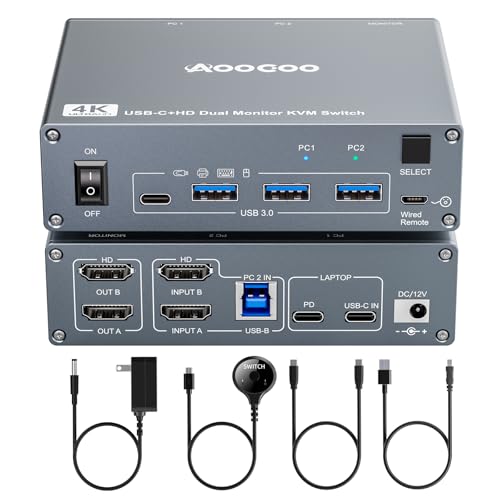
Designed for professionals and multitaskers, the USB-C KVM Switch for dual monitors and USB devices enhances your workspace efficiency by supporting a seamless 4K@60Hz setup. You can connect one laptop and one desktop to two monitors using a single USB-C (MST) connection and dual HDMI inputs. With its 7-in-1 functionality, you’ll enjoy multiple shared peripheral ports, including three USB 3.0 and one USB-C. The PD charging port delivers 100W fast charging, ensuring your devices stay powered. Plus, switching between devices is effortless with the included wired remote control, keeping your workspace tidy and organized.
Best For: Professionals and multitaskers seeking to enhance workspace efficiency with a dual monitor setup.
Pros:
- Supports 4K@60Hz dual monitor setup for an immersive viewing experience.
- Includes multiple USB ports for connecting various peripherals, enhancing productivity.
- Easy plug and play installation with no drivers required, making it user-friendly.
Cons:
- Keyboard shortcuts for switching between devices are not supported, which may limit convenience.
- Actual charging power may be lower than the advertised 100W due to power consumption and protection mechanisms.
- Mirrored output is only available on macOS, which can restrict functionality for Windows users.
KCEVE USB C KVM Switch 2 Computers 1 Monitor
For tech-savvy professionals who need to connect multiple devices seamlessly, the KCEVE USB C KVM Switch is an ideal solution. It allows you to switch between two USB-C computers effortlessly, outputting to one monitor while supporting impressive resolutions like 8K@60Hz and 4K@120Hz. With a data transfer rate of 20Gbps and PD 100W charging capabilities, this switch guarantees your devices stay powered. You can easily switch using the panel button or a wired remote. Just remember, some docking stations might lead to flickering, so test compatibility beforehand. Overall, it’s a reliable and efficient choice for managing your workspace.
Best For: Tech-savvy professionals looking to connect multiple USB-C devices to a single monitor while maintaining high video quality and fast data transfer.
Pros:
- Supports high resolutions of up to 8K@60Hz and 4K@120Hz for a crystal-clear display.
- Offers fast data transfer rates of 20Gbps and efficient PD 100W charging for connected devices.
- Easy switching between devices with a panel button or wired remote for user convenience.
Cons:
- Some docking stations may cause screen flicker or blackouts, requiring careful compatibility testing.
- Limited compatibility with Dell docking stations may restrict options for some users.
- Not compatible with HDMI, DisplayPort, VGA, or DVI to USB C adapters, limiting connection flexibility.
UGREEN USB-C+HDMI KVM Switch for 2 Computers
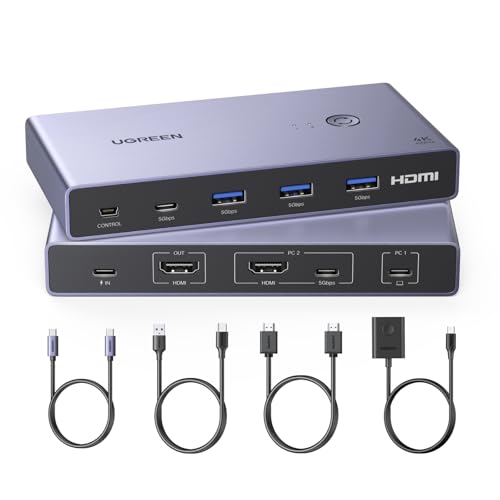
If you’re looking to streamline your workspace, the UGREEN USB-C+HDMI KVM Switch is an excellent choice for users with two computers—a laptop and a desktop. It connects one monitor to both devices and supports resolutions up to 4K@60Hz. You can share up to four USB devices, like your keyboard and mouse, with ease. Switching between computers is simple with a one-button switch or desktop controller. Just make sure to connect your second PC via HDMI and USB-A to C cable. This switch is compatible with various operating systems, enhancing your productivity without hassle.
Best For: Users looking to efficiently manage two computers with a single monitor and shared USB devices.
Pros:
- Seamless switching between devices with a one-button switch or desktop controller.
- Supports high resolutions up to 4K@60Hz for clear and vibrant display.
- Compatible with a variety of operating systems and devices, enhancing versatility.
Cons:
- Does not support automatic or hotkey switching, requiring manual operation.
- Limited to one monitor with an HDMI interface, restricting multi-monitor setups.
- Power supply is recommended for high-power USB device usage, but not included.
Anker USB 3.0 HDMI KVM Switch with 5 USB Ports

The Anker USB 3.0 HDMI KVM Switch with 5 USB Ports stands out as an ideal choice for professionals seeking seamless control over multiple devices. With support for 4K@60Hz resolution, you’ll enjoy crystal-clear visuals. It features five USB 3.0 ports and a magnetic remote button, allowing effortless switching between your laptop and desktop. You can charge your devices with 100W Power Delivery while enjoying ultra-fast data transfer speeds of 5Gbps. The package includes all necessary cables and an 18-month warranty, ensuring you have support when needed. This KVM switch is perfect for streamlining your workspace and enhancing productivity.
Best For: Professionals who require seamless control over multiple devices and high-quality visuals for their work.
Pros:
- Supports 4K@60Hz resolution for crystal-clear video quality.
- Five USB 3.0 ports and a magnetic remote button for easy device switching.
- 100W Power Delivery allows charging while using the hub functions.
Cons:
- Not compatible with two USB C laptops, limiting flexibility for some users.
- Requires USB C ports to support DP alt mode and Power Delivery for optimal performance.
- Some users may find the setup process complex if unfamiliar with KVM switches.
USB C KVM Switch for Dual Monitors and 4 USB Devices

Designed for professionals and multitaskers, the USB-C KVM Switch for dual monitors and four USB devices elevates productivity by seamlessly connecting two computers—one laptop and one desktop. You can enjoy dual monitor functionality with multiple peripheral ports, including three USB 3.0, one USB-C, and one PD charging port. This setup maximizes your work-from-home efficiency. The KVM supports both extension and copy modes for Windows, while macOS only provides mirrored output. Installation is a breeze with plug-and-play convenience, and you can switch devices easily using the button on the KVM or a desktop extension button.
Best For: Professionals and multitaskers looking to enhance productivity with dual monitor setups and easy device switching.
Pros:
- Supports dual monitor functionality, allowing for increased screen space and multitasking capabilities.
- Plug-and-play installation with no drivers required, making it user-friendly and quick to set up.
- Includes multiple USB ports for connecting various peripherals, enhancing convenience in a work-from-home environment.
Cons:
- Limited compatibility with macOS, as it only supports mirrored output instead of extension mode.
- Power delivery output may vary between 73W to 85W, which might not fully charge all laptops.
- Requires a DC power adapter, which may add extra clutter to your workspace.
Cable Matters 20Gbps USB C Switch, 3-in-1-Out for USB-C/Thunderbolt 4 Monitors

For tech-savvy professionals needing seamless multitasking, the Cable Matters 20Gbps USB C Switch stands out with its impressive capability to support three computers through a single docking station. It delivers stunning video resolutions of up to 8K@30Hz on Windows and 4K@60Hz on macOS. With 20 Gbps data transfer speeds, you can efficiently manage large files and stream high-quality video. The included RF remote control makes switching between laptops effortless, promoting a tidy workspace. Plus, it supports up to 140W Power Delivery, ensuring your devices charge quickly while you work. Just remember to use the provided USB4 cables for peak performance.
Best For: Tech-savvy professionals who require seamless multitasking and high-quality video output across multiple computers.
Pros:
- Supports high video resolutions up to 8K@30Hz on Windows and 4K@60Hz on macOS, ideal for demanding visual tasks.
- Features 20 Gbps data transfer speeds, making it efficient for large file transfers and video streaming.
- Easy switching between three laptops using an included RF remote control, promoting a clean and organized workspace.
Cons:
- Limited to one external display on macOS, which may not meet the needs of users requiring multiple monitors.
- Requires the use of specific USB4 20 Gbps cables, limiting compatibility with other types of cables.
- Only the active computer receives power during charging, which could be inconvenient for users needing to charge multiple devices simultaneously.
USB C KVM Switch for Dual Monitor and Multiple Devices

If you’re juggling multiple devices and need a seamless dual monitor setup, the USB-C KVM Switch of 2026 is your best bet. It supports 4K60Hz resolution, connecting one laptop and two desktops to share two monitors and four USB3.0 devices. With a simple plug-and-play installation, you won’t need any drivers. The switch includes a convenient selection button for easy device switching. Plus, it features a PD charging port that delivers fast charging up to 85W for your laptop. Enjoy ideal resolution with its EDID emulator, ensuring a smooth experience without window disruptions during changes.
Best For: Professionals who need to manage multiple devices seamlessly on a dual monitor setup.
Pros:
- Supports 4K60Hz resolution for high-quality display.
- Plug-and-play installation with no drivers required, simplifying setup.
- Fast charging capability with up to 85W power delivery for laptops.
Cons:
- USB C MST function is not supported, limiting dual display functionality to specific connections.
- Mirrored output only available for macOS, which may not suit all users.
- Keyboard shortcuts for switching devices are not supported, potentially making switching less efficient.
AV Access KVM Switch Dock for 2 Monitors and 2 Laptops

The AV Access KVM Switch Dock is perfect for tech-savvy professionals who need to manage multiple devices effortlessly. With dual HDMI outputs and two USB-C MST ports, you can easily connect two laptops and monitors. It supports high resolutions up to 4K@60Hz, making it ideal for both home offices and gaming. The dock features a variety of ports, including USB 3.0, Ethernet, and a headset jack, ensuring seamless connectivity. Fast switching and EDID emulation enhance your experience, allowing you to switch between devices in just 2-3 seconds. Plus, you can charge both laptops simultaneously with 60W each.
Best For: The AV Access KVM Switch Dock is best for tech-savvy professionals and gamers who need to manage multiple laptops and monitors efficiently.
Pros:
- Supports high resolutions up to 4K@60Hz and 2K@144Hz, ideal for both work and gaming.
- Fast switching with EDID emulation allows seamless transitions between devices in just 2-3 seconds.
- Charges two laptops simultaneously with up to 60W each, enhancing productivity.
Cons:
- Not compatible with Mac OS for extended dual screens, limiting functionality for Apple users.
- Maximum resolution for ultrawide monitors is only 3840×1080, which may be insufficient for some users.
- Does not support FreeSync, G-Sync, or Dell Display Manager, which could be a drawback for gamers seeking advanced features.
Factors to Consider When Choosing a USB C KVM Switch
When you’re choosing a USB-C KVM switch, it’s essential to take into account compatibility with your devices and the video resolution it supports. You also want to reflect on power delivery capabilities and how you’ll switch between devices. Don’t forget to check the design and portability to guarantee it fits your setup.
Compatibility With Devices
Choosing a USB-C KVM switch involves ensuring compatibility with your devices to avoid frustrating connectivity issues. First, check that the switch’s USB-C ports support data transfer, video output, and power delivery. You’ll want a model that works with your devices’ operating systems, whether they’re Windows, macOS, or Linux. Additionally, confirm the switch can handle the specific video resolutions and refresh rates your monitors require for peak performance. Consider whether it can manage multiple devices at once, including peripherals like keyboards and mice, to boost your workspace efficiency. Finally, assess the compatibility with docking stations or adapters, as some KVM switches may have restrictions that hinder connectivity with certain brands or configurations.
Video Resolution Support
Many users overlook video resolution support when selecting a USB-C KVM switch, but it’s essential for achieving ideal display quality. You should consider the maximum resolution the switch supports, which can range from 1080P to 8K. Many models offer 4K at 60Hz, perfect for vibrant visuals in professional and gaming setups. Make sure the KVM switch is compatible with your display technologies, like HDMI 2.0 or DisplayPort, to reach those desired resolutions and refresh rates. If you’re looking to enhance productivity, consider switches that support multiple video outputs for dual monitor setups. Keep in mind that video output capability may vary with the operating system, particularly with macOS, which can limit output options.
Power Delivery Capability
While evaluating a USB-C KVM switch, it’s important to take into account its Power Delivery (PD) capability, as this determines how much power it can supply to your connected devices. Common outputs range from 60W to 140W, which is vital for charging laptops and peripherals efficiently. A switch with higher PD capability allows for faster charging while maintaining data transfer, enhancing your workspace efficiency. Make sure the PD output meets the power requirements of your devices; insufficient power can lead to performance issues or charging failures. Additionally, some switches only deliver power to the active device, so understanding power management is key. Finally, use proper USB-C cables that support PD for peak performance.
Switching Methods Available
When selecting a USB-C KVM switch, you’ll want to contemplate the various switching methods available, as they can greatly impact your workflow. Many KVM switches offer physical buttons for manual control, giving you direct access to switch between devices. If you prefer convenience, look for models with remote control options, allowing you to change devices from a distance. Hotkey switching via keyboard shortcuts can also speed up changes, making your work more efficient. Additionally, one-click switching mechanisms provide quick changes with minimal effort. Some switches come with LED indicators, giving you visual feedback on which device is active, enhancing your overall user experience. Consider these options to find the best fit for your needs.
Design and Portability
Choosing a USB-C KVM switch means considering its design and portability, especially if you’re frequently on the move. Look for a compact design that makes transport and storage hassle-free. This is essential for users who need to set up in different locations. Plug-and-play functionality is also key, as it saves time by eliminating the need for extra drivers. A lightweight construction will seamlessly fit into various workspaces without adding bulk. Additionally, check for a wired remote control for easy switching, giving you flexibility in device placement. Finally, opt for models with a sleek design to keep your workspace organized, minimizing cable clutter and enhancing your overall aesthetic.