
In 2026, the way you connect your PC is about to get a serious upgrade. With the rise of Thunderbolt add-in cards, your options for high-speed connectivity and enhanced performance have never been better. These cards not only support multiple displays but also offer impressive power delivery. Curious about which ones stand out in the market? Let’s explore the top contenders that could transform your setup.
ASUS ThunderboltEX 4 Expansion Card
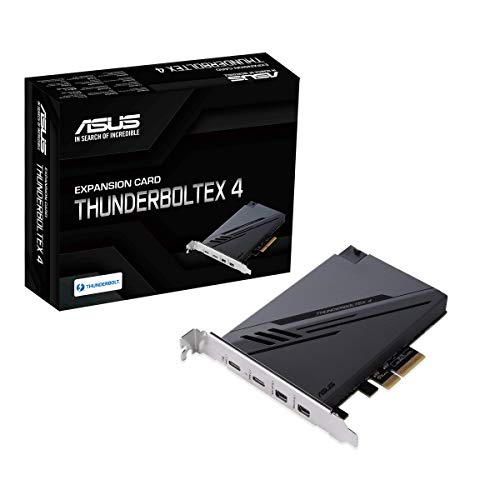
The ASUS ThunderboltEX 4 Expansion Card is an ideal choice for power users and content creators who need lightning-fast data transfer speeds and high-resolution displays. With Intel’s Thunderbolt 4 JHL 8540 controller, you’ll enjoy bi-directional bandwidth of up to 40Gb/s per port. You can easily connect up to five Thunderbolt-enabled devices in a daisy-chain configuration. Plus, its DisplayPort 1.4 support allows for stunning 8K resolution monitors. The card also offers USB 4 support and a quick charge solution, delivering up to 100W for your devices. This expansion card enhances connectivity options and elevates your overall computing experience.
Best For: Power users and content creators seeking high-speed data transfer and support for 8K displays.
Pros:
- High-speed connectivity: Offers up to 40Gb/s bi-directional bandwidth per port for fast data transfers.
- Multiple device support: Connects up to five Thunderbolt-enabled devices in a daisy-chain configuration.
- Power delivery: Provides up to 100W quick charge for compatible devices.
Cons:
- Limited compatibility: Requires a motherboard with a Thunderbolt header for installation.
- Cost: Higher price point compared to standard USB expansion cards.
- Specific use case: Mainly beneficial for users with Thunderbolt-compatible devices, which may not be necessary for all users.
ASUS ThunderboltEX 5 Expansion Card

Looking for a powerful upgrade for your Intel 800 Series motherboard? The ASUS ThunderboltEX 5 Expansion Card might be just what you need. With dual Thunderbolt™ 5 USB-C ports and PCIe 4.0 x4 connectivity, it offers up to 120 Gbps bandwidth, allowing for superfast data transfers. You can daisy-chain up to five Thunderbolt devices and support three 8K 60 Hz displays through DisplayPort™ 2.1. Plus, it delivers a whopping 130 watts of total charging capacity, with 96W fast charging for a single device. Compatible with USB4®, this card enhances your connectivity options like never before.
Best For: Users looking to significantly enhance their Intel 800 Series motherboard’s connectivity and performance with advanced Thunderbolt technology.
Pros:
- Superfast data transfer speeds of up to 120 Gbps for efficient file handling.
- Supports multiple high-resolution displays with the ability to connect three 8K 60 Hz monitors.
- High power delivery of up to 130 watts, enabling fast charging for devices.
Cons:
- Limited compatibility as it is only designed for Intel 800 Series motherboards.
- Requires a PCIe slot, which may not be available on all motherboards.
- Potentially higher cost compared to standard USB expansion cards.
StarTech.com 2-Port USB 3.2 Gen 2 PCIe Card

For users needing high-speed data transfer capabilities, the StarTech.com 2-Port USB 3.2 Gen 2 PCIe Card stands out with its dual USB-C ports offering speeds of up to 10Gbps. This PCI Express 3.0 x4 adapter utilizes the ASMedia ASM3142 host controller, ensuring peak performance for your NVMe drives and SSDs. It installs easily in full or low-profile PCIe slots and supports a wide range of operating systems, including Windows, macOS, and Linux. While it doesn’t support video output or USB Power Delivery, its data transfer efficiency makes it an excellent choice for enhancing your connectivity options.
Best For: Users seeking high-speed data transfer solutions for NVMe drives and SSDs through USB-C connectivity.
Pros:
- High-speed performance: Offers data transfer speeds of up to 10Gbps using USB 3.2 Gen 2 technology.
- Wide compatibility: Works with various operating systems including Windows, macOS, and Linux.
- Easy installation: Can be installed in both full and low-profile PCIe slots with auto-install drivers for Windows 8 and above.
Cons:
- Data transfer only: Does not support video output or DisplayPort Alt Mode.
- Limited power delivery: Provides only up to 5V 3A (15W) via USB-C ports.
- Not suitable for Thunderbolt devices: Lacks compatibility with Thunderbolt technology.
PCIe to USB 3.2 Gen 2 Expansion Card for Desktop PC

Designed specifically for desktop users, the PCIe to USB 3.2 Gen 2 Expansion Card offers a remarkable 20 Gbps bandwidth, making it ideal for anyone who needs to connect multiple high-speed devices. With seven USB ports—four Type-A and three Type-C—you can easily hook up keyboards, mice, external hard drives, and webcams. Each port delivers up to 10 Gbps when used independently. Installation is a breeze; just insert it into a PCI Express slot, and you’re good to go. Plus, it’s compatible with multiple Windows and Mac OS versions, ensuring broad usability for your desktop setup.
Best For: Users who require high-speed connectivity for multiple USB devices on their desktop PCs.
Pros:
- High Bandwidth: Offers a total bandwidth of up to 20 Gbps, allowing for fast data transfer when using multiple devices.
- Versatile Compatibility: Compatible with a wide range of operating systems including Windows and Mac OS, making it suitable for various setups.
- Easy Installation: Simple plug-and-play installation via PCI Express slot without the need for an external power adapter.
Cons:
- No Fast Charging or Video Transfer: Does not support PD fast charging or video signal transfer, limiting its functionality for certain devices.
- Driver Requirement for Older Systems: Older versions of Windows (XP/Vista/7 and Server) require driver installation, which may complicate use for some users.
- Limited Bandwidth Sharing: The USB Type-A and Type-C ports share bandwidth, reducing speed when multiple ports are used simultaneously.
StarTech.com 5-Port USB PCIe Card

The StarTech.com 5-Port USB PCIe Card stands out with its impressive USB 3.2 10Gbps connectivity, making it the ideal choice for IT professionals who need to transfer large files or edit high-resolution media efficiently. Featuring four external USB Type-C ports and one internal USB Type-A port, this card connects via a single PCI Express x4 slot. With the ASM3142 controller, you can enjoy rapid transfer speeds, while the SATA power supply option guarantees your devices get the power they need. Compatible with various operating systems, this card offers reliable performance backed by a 2-year warranty and 24/5 technical support.
Best For: IT professionals who require high-speed USB connectivity for transferring large files and editing high-resolution media.
Pros:
- High-speed performance with USB 3.2 10Gbps transfer rates for efficient data handling.
- Multiple connectivity options with four USB Type-C ports and one USB Type-A port for versatile device support.
- SATA power supply option ensures adequate power delivery for devices, preventing power shortages.
Cons:
- No support for DP-Alt Mode or USB Power Delivery, limiting certain functionalities.
- Requires PCI Express x4 slot, which may not be available on all motherboards.
- Potential driver issues on older operating systems, despite auto-install capabilities.
USB PCIE Card 5-Port PCI Express Expansion Card for Desktop PC

If you need to expand your desktop PC’s connectivity, the USB PCIE Card 5-Port is an excellent solution. Featuring three USB-C and two Type A ports, it easily fits into any PCIe x1 slot without requiring additional power. This card allows you to connect multiple devices, such as keyboards, printers, and external hard drives, enhancing your setup. With data transfer speeds up to 5Gbps, it’s ten times faster than USB 2.0. Plus, its plug-and-play installation makes setup a breeze on Windows 10 and Mac OS 10.8.2 and above, ensuring you can get connected quickly and efficiently.
Best For: Users looking to expand their desktop PC’s USB connectivity with multiple ports for various devices.
Pros:
- Supports high-speed data transfer rates of up to 5Gbps, significantly faster than USB 2.0.
- Easy installation with plug-and-play functionality on modern operating systems.
- Provides multiple USB-C and Type A ports, accommodating a wide range of devices.
Cons:
- USB-C ports are not compatible with Thunderbolt protocol, limiting some connectivity options.
- Driver installation is required for Windows 7/XP, which may complicate setup for older systems.
- May not support all devices due to varying compatibility with specific hardware.
USB-C PCI Express Expansion Card for Desktop PCs

For users seeking to enhance their desktop PCs with modern connectivity, the FS-U302C-Pro USB-C PCI Express Expansion Card stands out with its dual 5Gbps USB-C ports. This card is compatible with various Windows versions and most Linux kernels, making installation a breeze. You won’t need an additional power supply thanks to its built-in self-powered technology. Supporting a wide range of devices—from gaming pads to industrial cameras—it offers impressive versatility. With a solid customer rating of 4.3 stars and full height and low-profile brackets included, it’s an excellent choice for boosting your desktop’s USB capabilities.
Best For: Users looking to upgrade their desktop PCs with additional USB-C ports for enhanced connectivity and device support.
Pros:
- Dual 5Gbps USB-C ports provide high-speed data transfer for multiple devices.
- Plug and Play installation for most Windows versions simplifies setup without needing additional power.
- Compatible with a wide range of devices, including gaming pads, printers, and industrial cameras, enhancing versatility.
Cons:
- Not compatible with MAC OS X, limiting usability for Mac users.
- Driver installation required for older Windows versions, which may add complexity for some users.
- Does not support fast charging, which could be a drawback for users needing high-power charging for devices.
Sinefine USB PCIe Card with 4 USB Type-C Ports

Looking to expand your PC’s connectivity? The Sinefine USB PCIe Card offers four USB Type-C ports, providing a fast 10 Gbps transfer rate thanks to its USB 3.1 (3.2 Gen 2) standard. With two ports capable of delivering up to 45W and two at 30W, you can efficiently charge multiple devices. This card supports various operating systems, including Windows and Mac OS, and requires minimal setup. Each interface features independent insurance for safety, protecting against over-current and short-circuits. Plus, enjoy peace of mind with a 360-day warranty and responsive customer support for any queries.
Best For: Users looking to enhance their desktop PC’s connectivity with high-speed USB Type-C ports for charging and data transfer.
Pros:
- High-speed transfer rates of up to 10 Gbps for efficient data handling.
- Multiple power delivery options with ports supporting up to 45W and 30W charging.
- Wide compatibility with various operating systems and PCI Express slots for easy installation.
Cons:
- Requires driver installation for Windows 7, which may be inconvenient for some users.
- Optimal performance depends on connecting an external 6PIN power supply.
- Limited to desktop PCs, making it unsuitable for laptops or other devices.
PCIe USB 3.2/3.1 Gen 2 Card 8 Ports Type-A USB C PCIe Card

The PCIe USB 3.2/3.1 Gen 2 Card with 8 ports is an excellent choice for anyone needing to connect multiple USB devices simultaneously. With 4 USB Type-A and 4 USB Type-C ports, you can enjoy fast 10Gbps transfer speeds, making it perfect for external hard drives, video editing, and data recovery. It’s compatible with various operating systems, including Windows, Mac Pro, and Linux distributions. Installation is straightforward—just insert the card into a PCI-E slot and secure it. Plus, you get 24/7 technical support and a two-year product care guarantee, ensuring you stay connected hassle-free.
Best For: Users who require multiple USB connections for peripherals such as external hard drives, cameras, and other devices simultaneously.
Pros:
- High transfer speed: Offers 10Gbps data transfer rates for efficient file transfers.
- Multiple ports: Equipped with 4 USB Type-A and 4 USB Type-C ports for versatile connectivity.
- Wide compatibility: Works with various operating systems, including Windows, Mac, and Linux.
Cons:
- Driver installation required for some OS: May need drivers for older Windows versions, complicating setup for users on those systems.
- Limited to data signals only: Does not support video or Thunderbolt connections, which may limit use cases for some users.
- Physical installation required: Users must open their PC case and install the card themselves, which may be challenging for those unfamiliar with computer hardware.
Sonnet Allegro USB-C 4-Port PCIe Card

Elevate your PC’s connectivity with the Sonnet Allegro USB-C 4-Port PCIe Card, designed for users who crave high-speed data transfer and versatile USB options. This internal card features four USB 3.2 Gen 2 ports, delivering data speeds up to 10Gbps—twice as fast as USB 3 Gen 1. It’s compatible with Mac, Windows 11+, and Linux systems, ensuring broad usability. Each port supports bus-powered devices with independent power regulation, minimizing glitches. Weighing just 2.4 ounces, it fits snugly in your PC. With a solid customer rating of 4.3 stars, it’s a reliable choice for expanding your USB capabilities.
Best For: Users seeking to enhance their PC’s USB connectivity with high-speed data transfer capabilities.
Pros:
- High-Speed Performance: Offers data transfer speeds up to 10Gbps, making it ideal for fast data access and transfers.
- Wide Compatibility: Works seamlessly with Mac, Windows 11+, and Linux systems, catering to a diverse range of users.
- Independent Power Regulation: Each port features independent power delivery, reducing the risk of power glitches for connected devices.
Cons:
- Not Thunderbolt Compatible: The card does not support Thunderbolt, limiting certain high-performance device connections.
- Internal Installation Required: Installation requires opening the PC case, which may be challenging for novice users.
- Limited to USB-C Devices: Only compatible with USB-C devices, potentially excluding older USB-A peripherals without adapters.
Factors to Consider When Choosing a PC Thunderbolt Add-in Card
When you’re choosing a Thunderbolt add-in card for your PC, you’ll want to take into account several key factors. Compatibility with your motherboard, bandwidth and speed ratings, and the number of available ports can all impact your experience. Don’t forget to check power delivery specifications and display output support to guarantee it meets your needs.
Compatibility With Motherboards
Choosing the right Thunderbolt add-in card for your PC hinges on guaranteeing compatibility with your motherboard. First, check if the card works with your motherboard’s chipset—many, like the ASUS ThunderboltEX 5, are tailored for Intel 800 Series motherboards. Next, confirm the PCIe slot requirements; some cards need a PCIe 4.0 x4 slot for peak performance, while others may function with PCIe 3.0 or lower. Also, verify that your motherboard supports the necessary Thunderbolt version; Thunderbolt 4 cards, for example, require specific support. Don’t overlook power delivery capabilities, as some cards might need additional connections. Finally, review the operating system compatibility to guarantee the necessary drivers are available for your version of Windows, macOS, or Linux.
Bandwidth and Speed Ratings
Understanding bandwidth and speed ratings is essential for selecting the right Thunderbolt add-in card for your PC. Look for Thunderbolt 4 cards that offer up to 40Gb/s bi-directional bandwidth per port, while Thunderbolt 5 can reach an impressive 120Gb/s. If you consider USB 4 support, you’ll find similar performance levels that enable fast data transfers and efficient connectivity. Pay attention to the display capabilities; higher bandwidth cards can support multiple high-resolution displays, like three 8K monitors at 60 Hz using DisplayPort 2.1. Additionally, guarantee the card provides sufficient power delivery, with some offering up to 130W, which is great for fast charging your devices. Prioritizing these factors will enhance your overall connectivity experience.
Number of Ports Available
The number of ports on a Thunderbolt add-in card greatly influences your ability to connect multiple devices at once. Some cards offer as few as two ports, while others provide four or more. If you frequently use several peripherals, a card with multiple ports is essential for enhancing your workflow efficiency. Many of these cards support daisy-chaining, allowing you to connect several Thunderbolt devices in one chain, maximizing your port usage. It’s also vital to take into account the types of ports available, like USB Type-C or Thunderbolt, as they may differ in capabilities and compatibility. With increased port availability, you can keep your workspace organized and connected, streamlining your tasks effectively.
Power Delivery Specifications
When selecting a Thunderbolt add-in card, considering power delivery specifications is just as important as the number of ports. The Power Delivery (PD) ratings indicate how much wattage you can deliver, ranging from 15W to over 130W. If you’re powering laptops or high-performance peripherals, look for cards that support fast charging capabilities, ideally at 100W or 130W. Keep in mind that the number of USB Type-C ports often affects the total power output; multiple ports may share wattage unless independently powered. Advanced protocols like PD3.0 allow dynamic power allocation, enhancing compatibility and efficiency. Finally, verify the card doesn’t solely rely on the PCIe slot for power, as some configurations need external power for peak performance.
Display Output Support
Choosing a Thunderbolt add-in card requires careful consideration of display output support, especially if you’re aiming for high-resolution setups. First, check for DisplayPort support, as it dictates the types of displays you can connect and the maximum resolution achievable. Opt for cards with higher DisplayPort versions like 2.1 to enable multi-display setups with impressive resolutions and refresh rates. Be aware of how many displays the card can handle simultaneously; some support up to three 8K displays, while others might only manage one or two. Verify the card meets your desired resolution and refresh rate, as some may only support lower resolutions at higher refresh rates. Finally, look for daisy-chaining capabilities to maximize your workspace efficiently.
Installation Process and Requirements
Installing a Thunderbolt add-in card requires a few key steps to guarantee everything runs smoothly. First, make sure your motherboard has an available PCIe slot and is compatible with the card, often needing a specific chipset or BIOS version. Before installation, power off your PC and unplug it to prevent electrical damage. Once you’ve inserted the card securely, check if it requires additional power connections from your power supply, especially for models with multiple ports. After securing everything, boot up your system. Most modern operating systems will auto-install the necessary drivers, but if you’re using an older version, you may need to install them manually. Following these steps secures a hassle-free installation.
Price and Warranty Options
While evaluating Thunderbolt add-in cards for your PC, it’s crucial to take into account both price and warranty options. Prices can vary widely based on features like bandwidth, port count, and power delivery capabilities. Confirm the card you choose aligns with your performance needs and existing hardware to get the best value. A longer warranty often reflects the manufacturer’s confidence in their product’s durability, so look for those options. Some cards also come with additional customer support, which can be beneficial for troubleshooting and installation. Finally, check the return policies, as they provide a safety net if the card doesn’t meet your expectations. Balancing these factors will help you make an informed decision.