
When you’re on the go, having the right portable DisplayLink dock can make all the difference in your connectivity options. Whether you need to connect multiple monitors for presentations or enhance your workspace while traveling, choosing the right dock is essential. With so many options available, it can be challenging to find the best fit for your needs. Let’s explore some top contenders that promise to elevate your mobile setup.
Plugable USB-C Triple Monitor Docking Station (UD-ULTCDL)

If you’re a professional needing to connect multiple displays for enhanced productivity, the Plugable USB-C Triple Monitor Docking Station (UD-ULTCDL) is the perfect choice. This 13-in-1 docking station supports up to three monitors, delivering up to 4K at 30Hz on your main display and 1920×1200 at 60Hz on the others. With powerful 100W charging, you can keep your devices powered while enjoying fast data transfer through four USB 3.0 ports. Its compact design and lightweight build make it easy to carry, ensuring seamless connectivity wherever you go. Plus, it’s compatible with Windows, macOS, and Chrome devices.
Best For: Professionals who require multiple displays for enhanced productivity and efficient multitasking.
Pros:
- Supports triple monitor setup with high resolutions for improved workflow.
- Offers 100W power delivery for charging devices while in use.
- Lightweight and compact design makes it portable for on-the-go professionals.
Cons:
- Requires DisplayLink drivers for macOS compatibility, which may be a hassle for some users.
- Limited to 30Hz for 4K resolution on the main display, which may not satisfy gamers or video editors.
- Some users may experience performance issues with certain device combinations or configurations.
Plugable Dual DisplayPort & HDMI Docking Station (UD-6950Z)

The Plugable Dual DisplayPort & HDMI Docking Station (UD-6950Z) is an excellent choice for professionals who need to boost their productivity with dual 4K monitor setups. With support for dual 4K displays at 60Hz, you can multitask effortlessly across various applications. It offers six USB 3.0 ports, Gigabit Ethernet, and an audio jack, ensuring extensive connectivity. Compatible with Windows, macOS (with driver), and ChromeOS, it’s plug-and-play for most systems. The sleek design enhances your workspace, while its vertical orientation promotes clean cable management. Weighing just 12.3 ounces, it’s portable enough for on-the-go professionals.
Best For: Professionals seeking to enhance productivity with dual 4K monitor setups and extensive connectivity options.
Pros:
- Supports dual 4K displays at 60Hz for seamless multitasking.
- Includes six USB 3.0 ports, Gigabit Ethernet, and an audio jack for versatile connectivity.
- Sleek, vertical design promotes clean cable management and is portable for on-the-go use.
Cons:
- Not optimized for gaming or protected content playback (HDCP).
- Manual driver installation required for macOS, which may be inconvenient for some users.
- Does not charge the host computer, limiting some functionality.
Minisopuru Displaylink Triple Display Docking Station for MacBook and Windows
For professionals and creatives who rely on multi-display setups, the Minisopuru Displaylink Triple Display Docking Station stands out as an excellent choice. It’s compatible with MacBook M1/M2/M3/M4 and Windows, supporting up to three displays at 4K@60Hz. With 12 ports, including dual 4K HDMI and DisplayPort outputs, you’ll enjoy extensive connectivity options. Fast data transfer is enabled through USB-A and USB-C ports, while the 100W USB-C PD port charges your laptop efficiently. Just remember to install the DisplayLink driver and connect the 36W power adapter for peak performance. This dock truly enhances your mobile workspace experience.
Best For: Professionals and creatives seeking a versatile docking station to enhance their multi-display setups with high-resolution support.
Pros:
- Supports multiple displays with up to 4K@60Hz resolution, enhancing productivity and workspace efficiency.
- Extensive connectivity options with 12 ports, allowing for versatile device connections and data transfer.
- Fast charging capabilities with a 100W USB-C PD port, ensuring laptops remain powered during intensive tasks.
Cons:
- Requires installation of the DisplayLink driver for full functionality, which may be an extra step for some users.
- HDMI and DP ports for display 3 cannot operate simultaneously, limiting display configuration options.
- Not supported on Linux/Unix, which may exclude certain users from utilizing the docking station.
StarTech.com USB 3.0 Mini Dock – Dual Monitor USB-A Docking Station

Compact and versatile, the StarTech.com USB 3.0 Mini Dock is an ideal choice for professionals who need a dual monitor setup on the go. This dual monitor USB-A docking station supports 4K video at 60Hz through DisplayPort, ensuring stunning visuals. With a Gigabit Ethernet port, you’ll enjoy a reliable wired connection, boosting your productivity and security. Its compact design and 1ft cable make it easy to carry and set up anywhere, reducing strain on your devices. Compatible with various USB-A laptops, it automatically installs drivers, making it a hassle-free solution for your connectivity needs.
Best For: Professionals who require a portable dual monitor setup for enhanced productivity while on the move.
Pros:
- Supports 4K video at 60Hz for high-quality visuals across two monitors.
- Compact and lightweight design makes it easy to transport and set up in various locations.
- Automatic driver installation simplifies connectivity with a wide range of USB-A laptops.
Cons:
- Limited to USB-A connections, which may not be compatible with newer USB-C devices without an adapter.
- Only supports DisplayPort outputs, potentially limiting compatibility with HDMI monitors.
- No additional USB ports for connecting peripherals like keyboards or mice.
Kensington SD5910T Thunderbolt 4 Docking Station

If you’re a professional using the latest MacBook Pro or Air models with M1, M2, M3, or M4 chipsets, the Kensington SD5910T Thunderbolt 4 Docking Station is an excellent choice. This 16-in-1 dock supports Quad 4K @ 60Hz, ensuring stunning visuals. With various connectivity options—two Thunderbolt 4 ports, USB-C, USB-A, and multiple video outputs—it seamlessly fits into any tech environment. Plus, it delivers 100W charging, keeping your devices powered. The dock’s eco-friendly design and security features add extra value, making it a reliable and sustainable investment for your mobile workspace. Enjoy ultimate connectivity wherever you go!
Best For: Professionals using the latest MacBook Pro or Air models with M1, M2, M3, or M4 chipsets who need a versatile and powerful docking solution.
Pros:
- Supports Quad 4K @ 60Hz for stunning visuals and enhanced productivity.
- Offers a wide range of connectivity options, including multiple Thunderbolt 4 and USB ports.
- Provides 100W charging to keep laptops and accessories powered while in use.
Cons:
- May be overkill for users with less demanding hardware needs.
- Requires a compatible Thunderbolt 4 or USB-C device for full functionality.
- The compact design might limit port accessibility for larger cables or connectors.
Kensington 11-in-1 USB-C Docking Station (K33622NA)

The Kensington 11-in-1 USB-C Docking Station (K33622NA) is an ideal choice for professionals who need to connect multiple displays effortlessly. With support for up to three external monitors, you can enjoy one 4K display at 30Hz and two 1080p displays at 60Hz. It’s universally compatible with various laptop models, including MacBook M1 to M4. Plus, it delivers up to 100W of power to charge your laptop while connecting accessories. The 11 ports, including HDMI, USB-A, and Ethernet, guarantee you’re equipped for any task. With free DockWorks software and a 3-year warranty, it’s a reliable productivity companion.
Best For: Professionals looking for a versatile docking station that supports multiple displays and offers extensive connectivity options.
Pros:
- Supports up to three external monitors, including one 4K display.
- Universally compatible with various laptop models, including the latest MacBook M series.
- Provides up to 100W power delivery for laptop charging while connecting accessories.
Cons:
- DisplayLink technology may require additional software installation for optimal performance.
- The zero-footprint mounting option requires a separate purchase for the mounting bracket.
- Limited to Windows for the installation of DockWorks software, which may exclude some users.
Plugable 7-in-1 USB-C DisplayLink Dock
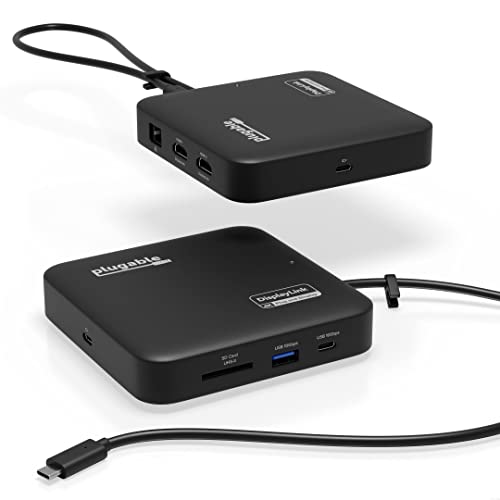
For professionals seeking seamless dual-monitor setups, the Plugable 7-in-1 USB-C DisplayLink Dock stands out with its ability to deliver dual 4K 60Hz HDMI outputs. You’ll enjoy enhanced connectivity with USB-C, USB-A (10Gbps), an SD card slot, and Gigabit Ethernet. With 100W power delivery, it charges your laptop while you work. Compatible with Windows and macOS, this compact dock utilizes DisplayLink technology to enable extended displays, although a driver installation is necessary for macOS. Weighing just 8.8 ounces, it’s portable and backed by a 2-year warranty and lifetime support, making it a solid choice for on-the-go professionals.
Best For: Professionals seeking seamless dual-monitor setups and enhanced connectivity in a portable docking solution.
Pros:
- Dual 4K 60Hz HDMI outputs allow for extended display functionality, enhancing productivity.
- Compact and lightweight design (8.8 ounces) makes it easy to transport for on-the-go professionals.
- 100W power delivery provides efficient charging to connected laptops while in use.
Cons:
- Requires DisplayLink driver installation on macOS, which may be inconvenient for some users.
- Not compatible with HDCP protected video playback, limiting its use for certain media applications.
- Not suitable for USB-C-only portable displays, which could limit compatibility with some devices.
StarTech.com 7-in-1 USB C Dual Monitor Docking Station

Designed for professionals who need to maximize their workspace, the StarTech.com 7-in-1 USB C Dual Monitor Docking Station excels with its dual 4K 60Hz HDMI video output. You’ll enjoy seamless connectivity with a 2-Port USB 10Gbps hub, an SD 4.0 card reader, and Gigabit Ethernet. It’s compatible with MacBook Air/Pro and various USB-C, Thunderbolt, and Windows devices. Plus, the compact design makes it easy to carry. With 100W Power Delivery, you can charge your laptop while preventing video flickering. Backed by a 3-year warranty and 24/5 technical support, this dock guarantees reliable performance wherever you go.
Best For: Professionals who need a versatile and portable docking solution for dual monitor setups and fast data transfer.
Pros:
- Dual 4K 60Hz HDMI outputs provide exceptional video quality for multi-monitor setups.
- Compact and portable design makes it easy to transport between workspaces.
- 100W Power Delivery ensures your laptop stays charged while using multiple peripherals.
Cons:
- Limited to USB-C compatible devices, which may exclude some older laptops or desktops.
- Requires DisplayLink drivers for optimal performance, which may not be pre-installed on all systems.
- 18W reserved for the adapter might limit charging speed for power-hungry laptops.
TobenONE DisplayLink Docking Station for 4 Monitors

Professionals juggling multiple tasks will find the TobenONE DisplayLink Docking Station an invaluable tool, as it supports an impressive four external monitors with a stunning 4K@60Hz resolution. With 20 ports, including 4 HDMI, 4 DisplayPort, and multiple USB options, you’ll enjoy seamless connectivity. Its 150W power adapter provides 100W charging for your laptop and 18W for your phone, keeping your workspace tidy. Compatible with various systems like Windows and Mac, it guarantees versatility for any user. Plus, with a 2-year defect coverage and dedicated support, you can make this investment confidently.
Best For: Professionals who require extensive multitasking capabilities with multiple monitors and robust connectivity options.
Pros:
- Supports up to 4 external monitors with 4K@60Hz resolution for enhanced productivity.
- Offers a wide range of ports (20 in total) for versatile connectivity, including multiple HDMI and USB options.
- Includes a powerful 150W adapter providing 100W charging for laptops, ensuring devices stay powered throughout the workday.
Cons:
- M1 chip MacBooks are limited to extending to only 3 monitors, reducing functionality for some users.
- Requires installation of DisplayLink driver, which may be an extra step for some users.
- HDCP support is not available, potentially limiting access to certain protected content.
TobenONE DisplayLink Docking Station Triple Monitor for MacBook Pro/Air
The TobenONE DisplayLink Docking Station is an ideal choice for MacBook Pro and Air users who crave a powerful triple monitor setup. With support for triple 4K displays, it connects seamlessly via Thunderbolt or USB-C. You’ll enjoy 18 ports, including 3x HDMI and 3x DP, allowing multiple peripherals and gigabit ethernet to connect effortlessly. The 120W power adapter charges your laptop while providing fast data transfer speeds up to 10Gbps. Compatible with macOS 11+, Windows 10+, and more, this dock guarantees you can work efficiently on the go without sacrificing connectivity or performance.
Best For: Users of MacBook Pro and Air who need a robust triple monitor setup for enhanced productivity and connectivity.
Pros:
- Supports up to triple 4K displays, providing an expansive workspace.
- Offers 18 ports, allowing for multiple peripheral connections and gigabit ethernet.
- Includes a 120W power adapter, enabling fast charging and efficient data transfer speeds up to 10Gbps.
Cons:
- Requires installation of the latest DisplayLink drivers for optimal performance.
- Not compatible with Linux/Unix systems.
- For macOS users, HDMI 3 and DP 3 cannot be used simultaneously, limiting display options.
Factors to Consider When Choosing a Portable Displaylink Dock
When choosing a portable DisplayLink dock, you need to take into account several key factors. Monitor support capabilities and the variety of ports available can notably impact your setup. Additionally, check power delivery specifications, device compatibility, and overall design for portability to guarantee the dock meets your needs.
Monitor Support Capabilities
Choosing a portable DisplayLink dock involves careful consideration of its monitor support capabilities, especially if you plan to enhance your workspace with multiple displays. Look for docks that support multiple external monitors, ranging from dual to quad setups, depending on your needs. High resolution is essential too; aim for docks offering dual 4K@60Hz or even triple 4K@60Hz output for improved clarity while multitasking.
Also, check if the dock uses DisplayLink technology, which enables additional monitors on devices lacking native dual video support. Verify compatibility with your laptop’s USB-C or Thunderbolt standards, and confirm whether it requires additional drivers for peak performance, as many DisplayLink docks do. This way, you’ll maximize your productivity on the go.
Port Variety and Count
A wide variety of ports is vital for maximizing the functionality of your portable DisplayLink dock. When choosing one, consider the total number of ports available—options range from 7 to over 20, accommodating multiple devices and peripherals. Look for a mix of USB-A and USB-C ports to guarantee compatibility with both older laptops and modern devices. It’s essential to have video output ports like HDMI and DisplayPort, especially if you need support for dual 4K displays. High-speed data transfer ports, such as USB 3.2 Gen 2, can greatly speed up file transfers. Finally, don’t overlook network connectivity; a Gigabit Ethernet port provides reliable wired internet access, enhancing your overall experience compared to wireless options.
Power Delivery Specifications
Power delivery specifications are essential for ensuring your portable DisplayLink dock meets your device’s charging needs. Look for docks that offer power delivery ranging from 45W to 100W. A higher wattage, like 100W, enables faster charging of your laptop while still powering other accessories. Keep in mind that some docking stations reserve around 18W for stable video performance, preventing issues like flickering. It’s vital that the dock’s power delivery matches or exceeds your laptop’s requirements for peak performance. Additionally, check for extra charging ports with varying wattages, such as 18W for phones, to give you versatile charging options for multiple devices. This way, you can keep all your gadgets powered up on the go.
Compatibility With Devices
How can you guarantee that your portable DisplayLink dock will work seamlessly with your devices? First, check if the dock supports your operating system, whether it’s Windows 10+, macOS 11+, or Chrome OS 100+. Compatibility varies widely among models, so this is essential. Don’t forget to look for specific requirements like DisplayLink drivers, especially for macOS users, to secure full functionality. Next, verify that the dock matches your laptop’s port type, whether it’s USB-C, Thunderbolt 3/4, or USB4, as this impacts connectivity. If you plan to use multiple monitors, confirm the dock’s capability for dual or triple setups. Finally, assess compatibility with other devices like tablets or smartphones for broader usability.
Design and Portability
When selecting a portable DisplayLink dock, you’ll want to prioritize design and portability to guarantee it fits seamlessly into your mobile lifestyle. Look for a compact design that weighs less than 1 pound and measures around 5 inches or less in height and width for easy transport. An attached cable length of at least 1 foot is ideal, as it reduces strain on your laptop ports and allows for flexible setups. Choose lightweight yet durable materials, like aluminum or high-quality plastic, to withstand travel while looking good. A bus-powered design eliminates the need for an external power supply, simplifying connections. Finally, consider docks with zero-footprint mounting options for versatile setups, especially in tight spaces.
Installation and Driver Requirements
While the convenience of a portable DisplayLink dock is appealing, understanding installation and driver requirements is crucial for best performance. Most docks need you to install DisplayLink drivers, especially on macOS, where manual installation is necessary. Windows users usually benefit from plug-and-play functionality, allowing automatic driver installation without any hassle. However, be cautious, as some docks may not work with specific operating systems or might require certain driver versions, particularly for MacBook models. To enjoy features like multiple external monitor support, verify you have the latest DisplayLink driver installed. Finally, check that your device’s USB-C or USB-A ports support DisplayLink technology for seamless operation of your docking station.