
As you navigate the demands of modern workspaces, the right DisplayLink dock can greatly enhance your productivity. With options supporting multiple 4K monitors and a variety of connectivity features, choosing the best dock can feel overwhelming. It’s crucial to evaluate your specific needs and how each model can streamline your setup. Let’s explore the top contenders that could transform your workspace in 2026.
Plugable Dual DisplayPort & HDMI Docking Station (UD-6950Z)

If you’re a professional juggling multiple tasks, the Plugable Dual DisplayPort & HDMI Docking Station (UD-6950Z) is your perfect ally. It supports dual 4K monitors, enabling you to multitask efficiently with crisp visuals. With six USB 3.0 ports, a Gigabit Ethernet connection, and audio jack, you’re set for seamless connectivity. This sleek dock is compatible with Windows, macOS, and ChromeOS, making it versatile for various setups. While it doesn’t charge your laptop, its plug-and-play functionality for Windows and ChromeOS guarantees a hassle-free experience. Enhance your workspace and productivity with the reliable performance of the UD-6950Z.
Best For: Professionals seeking to enhance their multitasking capabilities with dual 4K monitor support and robust connectivity options.
Pros:
- Supports dual 4K monitors at 60Hz for improved productivity.
- Six USB 3.0 ports allow for extensive peripheral connectivity.
- Compatible with multiple operating systems, including Windows, macOS, and ChromeOS.
Cons:
- Does not provide charging for the host computer.
- Requires manual driver installation for macOS users.
- Not optimized for gaming or protected content playback (HDCP).
Plugable USB-C Triple Monitor Docking Station (UD-ULTCDL)

The Plugable USB-C Triple Monitor Docking Station (UD-ULTCDL) is a powerhouse for professionals who need extensive multitasking capabilities. With 13 ports, you can connect three monitors, delivering up to 4K resolution on your main display. It offers 100W fast charging, ensuring your devices stay powered throughout the day. Compatibility spans Windows, macOS, and Chrome, though macOS requires DisplayLink drivers. You’ll appreciate the Gigabit Ethernet for stable internet and multiple USB 3.0 ports for quick data transfer. Weighing just 14.1 ounces, this sleek space grey dock is perfect for any workspace, enhancing your productivity effortlessly.
Best For: Professionals who require extensive multitasking capabilities with multiple monitor setups and fast charging options.
Pros:
- Powerful Expansion: Offers 13 ports, allowing connections for three monitors and other devices.
- High Resolution Support: Capable of delivering up to 4K @ 30Hz on the main display for enhanced visual clarity.
- Fast Charging: Provides 100W power delivery to keep laptops and devices charged throughout the day.
Cons:
- Driver Requirement for macOS: Requires DisplayLink drivers for full functionality on macOS, which may be an inconvenience for some users.
- Weight and Size: Although portable, it may be bulkier compared to other simpler docking solutions.
- Limited Display Resolution on Secondary Monitors: Secondary displays are limited to 1920×1200 @ 60Hz, which might not meet the needs of all users.
Plugable 13-in-1 USB C Docking Station
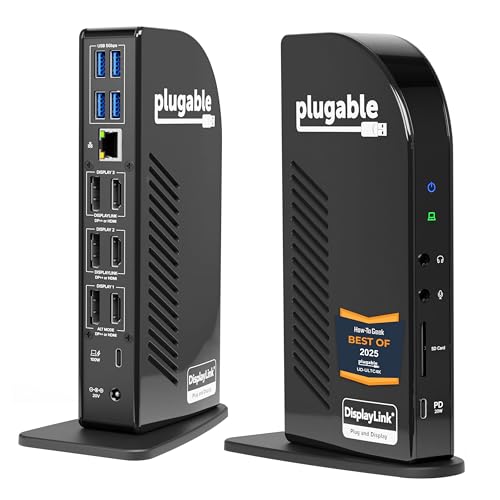
Designed for professionals who demand high productivity, the Plugable 13-in-1 USB C Docking Station offers unparalleled versatility with its ability to support triple 4K monitors. Featuring three HDMI and DisplayPort outputs, it guarantees your workspace is visually enhanced. With 13 ports, including a 100W USB-C charging port and fast 10Gbps data transfer, you’re equipped for any task. It’s compatible with major operating systems and requires DisplayLink drivers for peak performance. Weighing just 1.07 pounds and compactly designed, it fits seamlessly into your office setup. With a solid customer rating of 4.2 stars, it’s a reliable choice for boosting your productivity.
Best For: Professionals and creatives seeking to enhance their productivity with triple 4K monitor support and versatile connectivity options.
Pros:
- Supports triple 4K monitors for an expansive and efficient workspace.
- 13 versatile ports allow for extensive connectivity, including USB-C charging and fast data transfer.
- Lightweight and compact design makes it easy to integrate into any office setup.
Cons:
- Requires DisplayLink drivers for operation, which may complicate setup for some users.
- Limited compatibility with older operating systems, restricting use for some devices.
- May generate heat during prolonged use, which could be a concern in tightly enclosed spaces.
Plugable Universal Laptop Docking Station (UD-3900)

For professionals seeking enhanced productivity with multiple displays, the Plugable Universal Laptop Docking Station (UD-3900) is an excellent choice. It supports dual HDMI monitors, making it perfect for multitasking. You’ll appreciate the hybrid 2-in-1 USB cable, two HDMI outputs, and a wired Gigabit Ethernet port. With additional USB ports and audio jacks, it covers all your connectivity needs. While it doesn’t support 4K, you can still enjoy high-resolution displays up to 2560×1440. Compatible with various Windows versions and macOS, it’s easy to set up. Plus, you’ll benefit from lifetime support for any questions that arise.
Best For: Professionals seeking enhanced productivity with multiple displays and connectivity options.
Pros:
- Supports dual HDMI monitors for efficient multitasking.
- Includes a variety of ports, including USB 3.0, USB 2.0, and audio jacks for versatile connectivity.
- Lifetime support from a North American-based team ensures assistance whenever needed.
Cons:
- Does not support 4K resolution, limiting high-definition display options.
- Requires driver installation for certain operating systems, which may add setup time.
- Not compatible with Linux/Unix systems, restricting use for some users.
Minisopuru DisplayLink Triple Display Docking Station for MacBook and Windows
If you’re a professional using a MacBook or Windows laptop, the Minisopuru DisplayLink Triple Display Docking Station is an excellent choice to enhance your productivity. With support for up to three 4K displays, it’s perfect for multitasking. You’ll appreciate the 12 ports, including USB-A, USB-C, HDMI, and Gigabit Ethernet, providing extensive connectivity options. For fast data transfer, the USB-A 3.2 Gen1 ports allow you to move files in seconds. Just remember to install the DisplayLink driver and connect the 36W power adapter for peak performance. This docking station truly transforms your workspace into a productivity powerhouse.
Best For: Professionals using MacBook or Windows laptops who need enhanced connectivity and support for multiple displays.
Pros:
- Supports up to three 4K displays, enhancing multitasking capabilities.
- Extensive port selection with 12 ports, including USB-A, USB-C, HDMI, and Gigabit Ethernet for versatile connectivity.
- Fast data transfer speeds with USB-A 3.2 Gen1 ports, enabling quick file movements.
Cons:
- Requires installation of DisplayLink driver for proper functionality.
- Cannot operate HDMI and USB-C PD simultaneously with a USB-A connection, limiting some setup options.
- Dependent on a 36W power adapter for operation, which may add to workspace clutter.
Kensington SD5910T Thunderbolt 4 Docking Station

The Kensington SD5910T Thunderbolt 4 Docking Station stands out as the ideal choice for professionals using MacBook Pro and Air models equipped with M1, M2, M3, or M4 chipsets, thanks to its ability to support Quad 4K displays at 60Hz. This versatile dock features a 16-in-1 design, offering multiple connectivity options, including Thunderbolt 4, USB-C, and HDMI/DisplayPort outputs. With 100W charging capability and security features like cable lock slots, it guarantees your devices stay powered and secure. Plus, its eco-friendly construction demonstrates a commitment to sustainability, making it a smart choice for any workspace.
Best For: Professionals using MacBook Pro and Air models with M1, M2, M3, or M4 chipsets who require high-resolution display support and versatile connectivity options.
Pros:
- Supports Quad 4K displays at 60Hz for enhanced visual clarity.
- Offers a wide range of connectivity options with its 16-in-1 design, accommodating various devices.
- Provides 100W charging to keep laptops and accessories powered while in use.
Cons:
- May be overkill for users with lower resolution display needs or simpler setups.
- Higher price point compared to basic docking stations.
- Limited compatibility with older USB standards, potentially requiring adapters for some devices.
TobenONE DisplayLink Docking Station Triple Monitor
Designed for professionals who need to maximize their workspace, the TobenONE DisplayLink Docking Station allows you to effortlessly set up a triple monitor configuration. With support for triple 4K displays, it connects to your MacBook Pro/Air or Windows devices through a single USB-C cable after installing the latest DisplayLink driver. You get 18 ports, including 3x HDMI, 3x DP, and several USB options, letting you connect multiple peripherals. Its 120W power adapter charges your laptop while providing fast data transfer speeds up to 10Gbps. Compatible with various operating systems, it enhances your productivity without any hassle.
Best For: Professionals who require a versatile and efficient setup for multiple displays and peripherals.
Pros:
- Supports triple 4K displays, enhancing productivity for multitasking and detailed work.
- 18 ports available, allowing connection of various devices and peripherals through a single USB-C cable.
- Includes a 120W power adapter, providing sufficient power to charge laptops while enabling fast data transfer speeds.
Cons:
- Requires installation of the latest DisplayLink drivers, which may be a hassle for some users.
- Limited monitor support on macOS, as HDMI 3 and DP 3 cannot be used simultaneously.
- Not supported on Linux/Unix systems, restricting use for users on those platforms.
Plugable 7-in-1 USB-C DisplayLink Dock
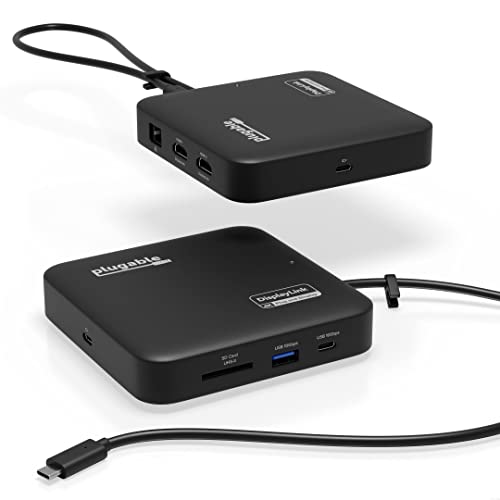
For professionals who need to maximize their workspace efficiency, the Plugable 7-in-1 USB-C DisplayLink Dock stands out with its dual 4K 60Hz HDMI output capability. This compact dock enhances your connectivity with USB-C, USB-A, an SD card slot, and Gigabit Ethernet. You’ll appreciate the 100W power delivery charging, ensuring your laptop stays powered throughout the day. Compatible with Windows and macOS, it supports dual extended displays via DisplayLink technology—just install the driver if you’re on macOS. Plus, with a 2-year warranty and lifetime support, you can trust Plugable to have your back.
Best For: Professionals seeking a versatile docking solution to enhance workspace connectivity and support dual monitor setups.
Pros:
- Supports dual 4K 60Hz HDMI displays, maximizing productivity with extended screens.
- Offers multiple connectivity options, including USB-C, USB-A, SD card slot, and Gigabit Ethernet.
- Provides 100W power delivery charging, ensuring laptops remain powered throughout the workday.
Cons:
- Requires a DisplayLink driver installation for dual display functionality on macOS.
- Not compatible with HDCP protected video playback, limiting use for streaming and gaming.
- May not support USB-C-only portable displays, restricting some users’ options.
TobenONE DisplayLink Docking Station for 4 Monitors

If you’re a professional multitasker who juggles multiple projects at once, the TobenONE DisplayLink Docking Station is your perfect ally. With the ability to connect up to four monitors at 4K@60Hz, it greatly enhances your workspace. Featuring 20 ports—including 4 HDMI, 4 DisplayPort, and various USB options—this dock meets all your connectivity needs. The 150W power adapter guarantees your laptop gets 100W charging while keeping your workspace tidy. Compatible with a range of operating systems, you’ll enjoy seamless multitasking. Plus, with two years of defect coverage and dedicated support, you can invest worry-free.
Best For: Professionals who require efficient multitasking with multiple monitors for enhanced productivity.
Pros:
- Supports up to four 4K monitors at 60Hz for superior display quality.
- Includes 20 versatile ports, accommodating various connectivity needs.
- Provides 100W charging for laptops, helping to keep the workspace organized.
Cons:
- M1 chip MacBooks are limited to connecting only three monitors.
- Requires installation of the DisplayLink driver for full functionality.
- HDCP is not supported, which may limit some media playback options.
Kensington 11-in-1 USB-C Docking Station

The Kensington 11-in-1 USB-C Docking Station shines for professionals juggling multiple tasks across various screens. With its ability to support up to three external monitors—one 4K at 30Hz and two 1080p at 60Hz—your productivity will soar. It’s universally compatible with Thunderbolt 5, USB4, and various USB-C laptops, ensuring seamless connectivity. You’ll appreciate the 100W power delivery for charging your laptop while powering accessories. Plus, the diverse connectivity options, including multiple HDMI and USB-A ports, cater to all your needs. Enhance your work setup with Kensington’s DockWorks software and enjoy peace of mind with its 3-year warranty.
Best For: Professionals who require multiple displays and high-speed connectivity for enhanced productivity.
Pros:
- Supports up to three external monitors for improved multitasking capabilities.
- Universally compatible with various laptops, ensuring versatile use.
- Provides 100W power delivery to charge laptops while connecting peripherals.
Cons:
- The 4K display support is limited to 30Hz, which may not be ideal for all users.
- Requires additional purchase for zero-footprint mounting option.
- DockWorks software is only available for Windows users, limiting functionality for Mac and Chrome OS users.
Factors to Consider When Choosing a Displaylink Dock for Productivity
When choosing a DisplayLink dock for productivity, you need to take into account several key factors. Think about compatibility with your devices, the number of monitors you want to support, and the display resolution capabilities. Also, take into account the power delivery features and the number of ports available to guarantee it meets your needs.
Compatibility With Devices
Choosing the right DisplayLink dock is essential for maximizing your productivity, and compatibility is a key element to evaluate. First, confirm the dock works with your device’s operating system, whether it’s Windows, macOS, or ChromeOS, as some require specific drivers. Next, check if it supports USB-C or USB-A connections based on your laptop’s ports. If you use an M1 or M2 chip, look for docks that explicitly state compatibility with those models, since some have limitations. Additionally, verify the dock’s display capabilities, including maximum resolution and refresh rates, to meet your needs. Finally, make certain it can handle multiple external displays if you plan to set up a dual or triple monitor configuration.
Number of Monitors Supported
For ideal productivity, considering how many monitors a DisplayLink dock can support is essential. Options vary widely, from dual display setups to docks that can handle up to four monitors. If you’re aiming for a triple or quad monitor configuration, you’ll likely enjoy higher resolutions, like 4K@60Hz, which can greatly enhance your workspace. Make sure the dock’s specifications align with your workflow; some may provide higher refresh rates on primary displays while limiting secondary ones. Keep in mind that compatibility with your operating system can also affect monitor support, especially with certain MacBook models. Finally, check the available connections, like HDMI or DisplayPort, as they can determine the maximum number of monitors you can effectively use.
Display Resolution Capabilities
Display resolution capabilities are vital aspects to take into account in a DisplayLink dock, especially if you’re looking to optimize your productivity. When selecting a dock, consider its maximum supported display resolution. Many docks can handle dual 4K displays at 60Hz, enhancing your multitasking capabilities. Some even support triple monitors, with the primary display reaching 4K while secondary displays may offer lower resolutions like 1920×1200 at 60Hz. It’s important to check if the dock can run multiple monitors simultaneously, as some may limit displays based on connection types. Remember, resolution capabilities vary by connection type—like HDMI versus DisplayPort—so verify compatibility with your monitors for the best results. DisplayLink technology can help extend displays on systems lacking dual video support.
Power Delivery Features
When optimizing your workspace with a DisplayLink dock, power delivery features play a key role in enhancing productivity. These docks can charge your laptop while powering your connected peripherals, cutting down on cable clutter. Most models support power delivery levels between 96W and 100W, allowing for fast charging of compatible devices without sacrificing data transfer speeds. You’ll appreciate the convenience of charging your laptop directly through the dock, eliminating the need for an extra power adapter. Plus, some docks offer additional power output through separate USB-C ports, perfect for charging smartphones or tablets simultaneously. With varying power delivery capabilities, you can choose a dock that suits your complex workstation setup, ensuring all your devices stay powered throughout the day.
Number of Ports
Choosing the right DisplayLink dock hinges on the number of ports it offers, which can range from 7 to over 20, depending on the model. The variety of ports directly impacts versatility. Look for multiple USB-A and USB-C connections, HDMI and DisplayPort outputs for monitors, Ethernet for network access, and audio jacks to cover all your needs. If you’re planning to connect three or four external monitors, verify the dock has enough video output ports. Charging capabilities are also essential, so opt for docks with dedicated power delivery USB-C ports. Including card readers and extra USB ports can help you connect storage devices and accessories simultaneously, boosting your overall productivity.
Data Transfer Speeds
Data transfer speeds play a pivotal role in enhancing your productivity, especially in today’s fast-paced work environment. When choosing a DisplayLink dock, consider ports like USB 3.0, which offer up to 5 Gbps, and USB 3.1 or USB-C that can deliver speeds up to 10 Gbps. For large file transfers or high-resolution media, opting for faster ports dramatically reduces wait times, boosting your workflow efficiency. Multi-port docks with a mix of USB-A and USB-C ports allow you to connect multiple devices without sacrificing speed. If your tasks demand even more bandwidth, look for Thunderbolt 3 or 4 docks, which can reach speeds of up to 40 Gbps, ensuring quick access to external drives and peripherals.
Design and Form Factor
Productivity isn’t just about speed; the design and form factor of your DisplayLink dock can make a significant difference in how efficiently you work. A compact or vertical design can enhance your workspace organization, keeping your desk tidy. If you’re frequently on the move, consider a lightweight model for easy portability. A sleek dock not only looks good but can also help with cable management, reducing clutter that can distract you. Additionally, docks with zero-footprint mounting options save valuable desk space while allowing flexible placement. Look for models that include multiple video outputs in a compact form factor, enabling you to connect multiple monitors without sacrificing real estate. Choose wisely to maximize your productivity!
Driver Installation Requirements
When considering a DisplayLink dock, one essential factor to keep in mind is the driver installation requirements, especially since these can greatly impact your overall experience. Many docks need specific drivers for full functionality, particularly on macOS systems, where you’ll have to install them manually. If you’re a Windows user, you might enjoy plug-and-play capabilities, making setup seamless without additional drivers. However, be aware that this requirement can vary with your OS version; macOS 10.14 and later typically need drivers for peak operation. Additionally, some docks aren’t compatible with Linux/Unix systems, which may limit your options in mixed-OS environments. Always verify you have the latest DisplayLink drivers for enhanced performance and multi-display support.