
If you’re looking to enhance your workspace efficiency, the right DisplayLink dock can make all the difference. With 140W charging capabilities, these docks not only power your laptop but also support multiple high-resolution displays. Imagine the productivity boost you could gain with seamless multitasking and versatile connectivity options. As you explore your choices, consider which features will best suit your unique setup and needs. The options are compelling, and you’ll want to know more.
Anker Prime Docking Station (DL7400)
If you’re a multitasker in need of a powerful docking solution, the Anker Prime Docking Station (DL7400) is your best choice. With 14 ports, including USB-C, HDMI, and Ethernet, it supports a triple display setup, allowing one monitor to reach stunning 8K resolution. You’ll enjoy up to 140W Max Power Delivery, keeping your devices charged while transferring data seamlessly. The built-in fan with ActiveShield 3.0 guarantees your setup stays cool, and the smart display provides real-time updates on performance. Compatible with macOS and Windows, this dock elevates your workspace, making multitasking effortless and efficient.
Best For: The Anker Prime Docking Station (DL7400) is best for multitaskers and professionals who require a high-performance docking solution for a seamless multi-display setup.
Pros:
- Supports triple display setup with one monitor outputting up to 8K resolution.
- Offers extensive connectivity options with 14 ports, including USB-C, HDMI, and Ethernet.
- Equipped with ActiveShield 3.0 for effective cooling and a smart display for real-time performance monitoring.
Cons:
- Requires installation of the latest DisplayLink driver for optimal display capabilities.
- Front USB-C ports provide charging but do not support media display.
- May be overkill for users with simpler connectivity needs or single display setups.
Plugable USB C Docking Station for 5 Monitors

The Plugable USB C Docking Station UD-7400PD is an ideal choice for professionals who need to maximize productivity across multiple high-resolution displays. You can connect up to five monitors, supporting either three 8K displays or a mix of 8K and 4K. With 140W laptop charging and 30W device charging, your setup stays powered. Enjoy seamless data transfer with 2.5Gbps Ethernet and multiple USB ports. Plus, the DockTag On-Screen Display simplifies management and troubleshooting. Compatible with Windows 10+ and macOS 11+, this dock guarantees reliable performance for home offices or IT deployments, backed by lifetime support from connectivity experts.
Best For: Professionals needing to connect multiple high-resolution displays for enhanced productivity.
Pros:
- Supports up to five high-resolution displays, including options for 8K and 4K resolutions.
- Provides robust power delivery with 140W laptop charging and 30W device charging.
- Includes DockTag On-Screen Display for easy management and troubleshooting.
Cons:
- Requires DisplayLink software installation for HDMI outputs on Windows and macOS.
- HDCP video content (e.g., Netflix, Hulu) is not supported.
- Compatibility limited to video-enabled USB-C or Thunderbolt devices running specific operating systems.
PULWTOP Triple Monitor Docking Station with 140W Power Adapter

For professionals who require an efficient triple monitor setup, the PULWTOP Triple Monitor Docking Station with a 140W power adapter is an ideal solution. With 16 versatile ports, including three 4K HDMI and two 4K DisplayPort, you can easily connect multiple displays. Enjoy stunning visuals at 4K@60Hz after installing the DisplayLink driver. This dock provides up to 85W fast charging for laptops, ensuring you stay powered while working. Its universal compatibility with various systems makes it a great choice for anyone needing seamless connectivity. Plus, fast data transfer speeds of up to 10Gbps let you work efficiently without interruptions.
Best For: Professionals seeking a robust and versatile docking solution for a triple monitor setup.
Pros:
- Supports up to three 4K monitors at 60Hz for an immersive visual experience.
- High power output with up to 85W fast charging for laptops and 45W for other devices.
- Extensive connectivity options with 16 ports including USB-C, HDMI, and DisplayPort for versatile device compatibility.
Cons:
- Requires installation of the DisplayLink driver for full functionality.
- Display3 functionality is limited on USB 3.0 laptops, restricting to dual monitor support.
- Not compatible with Linux/Unix systems, limiting user options for operating systems.
DisplayLink Docking Station for MacBook and USB-C Laptops
Designed specifically for MacBook and USB-C laptop users, the Zmuipng DisplayLink docking station stands out with its ability to support a tri-screen setup, allowing you to expand your workspace effortlessly. With 18 versatile ports, including three HDMI and two DisplayPort outputs, you can connect multiple displays and achieve stunning 4K resolution. The 140W power adapter not only fast charges your MacBook but also powers devices through the dedicated USB-C port. Ideal for gamers, designers, and remote workers, this dock enhances productivity with high-speed data transfer and robust connectivity options, making it an essential addition to your setup.
Best For: The Zmuipng DisplayLink docking station is best for gamers, designers, video editors, and remote workers who need an efficient multitasking solution with multiple display options.
Pros:
- Supports tri-screen setup with three 4K@60Hz displays for enhanced productivity.
- Fast charging capabilities with a 140W power adapter, providing up to 100W for MacBooks.
- High-speed data transfer with multiple USB ports and built-in SD/Micro SD card slots.
Cons:
- Requires installation of DisplayLink software for Mac users to utilize multiple displays.
- The performance may vary based on the laptop’s specifications and compatibility.
- Bulkier design compared to simpler docking solutions, which may not appeal to users with limited desk space.
Plugable USB-C Triple Monitor Docking Station (UD-ULTCDL)

If you’re seeking a versatile docking solution that supports triple monitor setups, the Plugable USB-C Triple Monitor Docking Station (UD-ULTCDL) is an excellent choice. Weighing just 14.1 ounces, this 13-in-1 dock offers 100W charging and connects up to three monitors, with the main display supporting 4K at 30Hz. You’ll find four USB 3.0 ports, an SD card reader, and a Gigabit Ethernet port for stable internet. Compatible with Windows, macOS (DisplayLink driver needed), and more, it enhances your workspace efficiently. Plus, it boasts a solid customer rating of 4.4 out of 5 stars, showcasing its reliability.
Best For: Users who need a reliable and multifunctional docking station for a triple monitor setup, particularly those using Windows or macOS systems.
Pros:
- Versatile Connectivity: Offers 13 ports including USB 3.0, SD card reader, and Gigabit Ethernet for comprehensive connectivity options.
- High Display Capability: Supports up to 4K resolution on the main display and additional monitors at 1920×1200, enhancing productivity.
- Power Delivery: Provides fast 100W charging, making it ideal for users who need to charge their devices while working.
Cons:
- Driver Requirement for macOS: Requires the installation of DisplayLink drivers for compatibility with Mac systems, which may be a hassle for some users.
- Weight and Size: Although portable, it may be slightly bulkier than other docking stations in its category.
- Limited 4K Display Frequency: The main display supports 4K only at 30Hz, which may not be sufficient for high-refresh-rate applications.
Anker Prime TB5 Docking Station (14-in-1 Thunderbolt 5 Dock)

The Anker Prime TB5 Docking Station is perfect for power users who demand high-speed data transfer and robust charging capabilities. With a staggering 120Gbps max transfer speed, you can move a massive 150GB file in just 25 seconds. It supports dual displays up to 8K@60Hz, making it ideal for multitaskers. You’ll appreciate its extensive connectivity options, including two Thunderbolt 5 downstream ports, multiple USB ports, and an Ethernet connection. Plus, the 140W charging guarantees your devices stay powered. With its advanced cooling system, this dock delivers exceptional performance without overheating, making it a solid choice for your setup.
Best For: Power users needing high-speed data transfer and robust charging capabilities for multiple devices.
Pros:
- Supports dual displays up to 8K@60Hz, perfect for multitasking.
- 120Gbps max transfer speed allows for rapid file transfers, moving a 150GB file in just 25 seconds.
- Includes a variety of connectivity options, making it versatile for different setups.
Cons:
- Higher price point compared to standard docking stations.
- May require a compatible Thunderbolt 5 device to utilize all features effectively.
- The advanced cooling system might produce noise under heavy usage.
Plugable Thunderbolt 4 Dock with 100W Charging
For those seeking a high-performance docking solution, the Plugable Thunderbolt 4 Dock (TBT4-UD5) stands out with its impressive 100W charging capability. This dock offers lightning-fast 40Gbps speeds, allowing you to connect two 4K 60Hz HDMI displays or a single 8K monitor effortlessly. With an extensive 13-port design, you’ll find everything you need, from USB ports to Gigabit Ethernet. It’s Intel Evo and Thunderbolt certified, ensuring exceptional reliability and performance. Whether you’re using Windows or macOS, this dock seamlessly integrates with your setup, making it a perfect choice for professionals and enthusiasts alike.
Best For: Professionals and tech enthusiasts who require a high-performance docking solution with extensive connectivity and charging capabilities.
Pros:
- 40Gbps Thunderbolt 4 speed ensures rapid data transfer and seamless multitasking.
- Supports dual 4K 60Hz displays or a single 8K monitor, perfect for enhanced productivity and immersive experiences.
- Comprehensive 13-port design includes various USB ports, HDMI, and Ethernet, catering to diverse connectivity needs.
Cons:
- Single external display limitation for some older systems, including Thunderbolt 3 and non-Thunderbolt USB-C ports.
- Compatibility restrictions on macOS with base M1 and M2 MacBooks, limiting display options.
- Higher price point compared to standard docks, which may not suit all budgets.
USB C Docking Station with 3 Monitors and 140W Charger
Designed for power users and multitaskers, the USB C Docking Station with 3 Monitors and 140W Charger offers unparalleled versatility. It supports up to three monitors with two DisplayPort and one HDMI output, delivering stunning visuals at 4K@60Hz or even 8K@30Hz. You’ll appreciate the 140W PD3.1 power adapter, providing fast charging for your laptop. With a range of connectivity options—like USB-C, USB-A, and Gigabit Ethernet—this dock guarantees you stay connected. Plus, it’s compatible with various operating systems, except macOS. Enjoy plug-and-play functionality with no drivers needed, backed by a 12-month warranty for peace of mind.
Best For: Power users and multitaskers looking for a versatile docking solution with multiple monitor support.
Pros:
- Supports three monitors simultaneously with stunning resolutions up to 8K@30Hz.
- Fast charging capability with a 140W PD3.1 power adapter, ensuring your laptop stays powered.
- Plug-and-play functionality with no driver installation required, making it easy to set up.
Cons:
- Not compatible with macOS, limiting its use for Apple users.
- Some Windows laptops may only support three monitors total, including the host screen, due to graphic card limitations.
- Relatively heavier at 2.99 pounds compared to other docking stations.
WAVLINK DisplayLink Docking Station for Triple Monitors

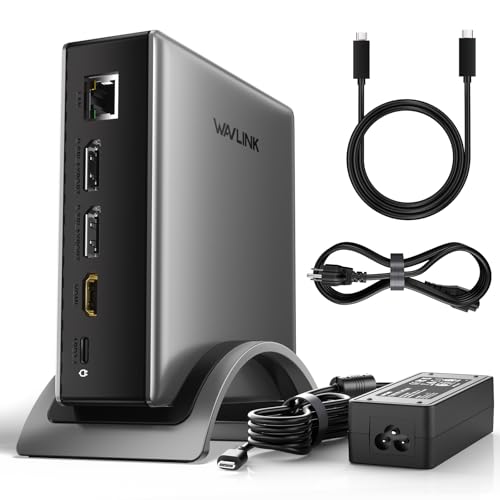
If you’re looking to boost your productivity with multiple screens, the WAVLINK DisplayLink Docking Station is an excellent choice. It supports triple monitors at 4K@60Hz, offering stunning visuals through 3 HDMI and 2 DisplayPort connections. With a robust 160W power adapter, you’ll enjoy up to 100W charging for your laptop via USB-C, ensuring uninterrupted performance. The dock also features 6 USB Gen2 ports for fast device connectivity and a 1Gbps Ethernet port for reliable internet access. Compatible with various operating systems, it’s a versatile addition to your setup, making work and multitasking seamless and efficient.
Best For: Professionals and multitaskers who need to enhance their workspace with multiple high-resolution displays.
Pros:
- Supports triple monitors at 4K@60Hz for an immersive visual experience.
- Provides up to 100W charging for laptops, ensuring uninterrupted power supply.
- Features multiple connectivity options, including 6 USB Gen2 ports and 1Gbps Ethernet for fast data transfer.
Cons:
- Requires the latest DisplayLink drivers for optimal performance, which may be a hassle for some users.
- Not compatible with Unix systems, Linux, or iPad OS, limiting its usability for certain users.
- Physical dimensions may be bulkier than other docking stations, potentially taking up more desk space.
TobenONE DisplayLink Docking Station for Quad 4K Monitors

The TobenONE DisplayLink Docking Station is perfect for professionals who need to maximize their multitasking capabilities with support for up to four 4K monitors. With 20 ports, including 4 HDMI and 4 DisplayPort connections, you can easily set up an expansive workspace. It delivers stunning 4K@60Hz resolution, ensuring sharp visuals. Plus, the 150W power adapter provides 100W charging for your laptop and 18W for your phone, keeping everything powered up. Compatible with a range of devices, it requires a DisplayLink driver for seamless operation. Enjoy peace of mind with a 2-year defect coverage and dedicated tech support.
Best For: Professionals and multitaskers who require seamless connectivity and support for multiple 4K monitors to enhance their productivity.
Pros:
- Supports up to four 4K monitors at 60Hz for impressive visuals.
- Includes 20 ports, providing versatile connectivity options for various devices.
- Comes with a 2-year defect coverage and dedicated technical support for peace of mind.
Cons:
- M1 chip MacBooks can only extend to three monitors, limiting some users.
- Requires installation of a DisplayLink driver for proper functionality.
- HDCP is not supported, which may affect playback of certain protected content.
Factors to Consider When Choosing a Displaylink Dock With 140W Charging
When choosing a Displaylink dock with 140W charging, you’ll want to take into account several key factors. Think about the power delivery capacity, the display support options, and the variety of ports available. Also, verify compatibility with your devices and check the efficiency of the cooling system to avoid overheating.
Power Delivery Capacity
Choosing a Displaylink dock with 140W charging means considering several factors related to power delivery capacity. The maximum wattage a dock can provide impacts how effectively it charges your devices. With 140W, you’ll benefit from faster charging for laptops and peripherals. Many docks can deliver up to 100W specifically for laptops, which is great for power-hungry models that need to maintain battery levels during use. However, remember that actual charging speeds can vary based on device compatibility and power needs, especially if you connect multiple devices at once. So, when selecting your docking station, evaluate the total wattage required for all your devices to guarantee you achieve peak performance and efficiency.
Display Support Options
Considering display support options is essential for maximizing your productivity with a DisplayLink dock that offers 140W charging. First, check the maximum number of monitors the dock can support; some handle up to 5 displays while others may only manage 3 or 4. Look for docks that provide 4K resolution on multiple screens, ideally supporting 4K@60Hz across all connected displays. Ascertain compatibility with your operating system, as specific software might be needed for Windows or macOS to utilize multi-display features fully. Additionally, assess if the dock allows mixed display configurations, such as combining 8K and 4K monitors. Finally, examine the port options; multiple HDMI, DisplayPort, and USB-C outputs enhance your connectivity possibilities.
Port Variety and Count
A DisplayLink dock‘s port variety and count play an essential role in enhancing your setup’s versatility and efficiency. When you’re choosing a dock, consider the number and types of ports available. More ports mean greater connectivity options for your peripherals and displays. Look for a dock with a higher count of USB ports, including both USB-A and USB-C, to connect various devices simultaneously. Multiple video outputs like HDMI and DisplayPort are vital for supporting multiple monitor setups and different resolutions. Don’t forget the Gigabit Ethernet port for stable wired internet, crucial for tasks requiring reliable network access. Additional features like SD and TF card slots can make data transfers with external storage devices hassle-free.
Compatibility With Devices
When selecting a DisplayLink dock with 140W charging, it’s crucial to confirm compatibility with your devices to enhance performance. First, make certain the docking station works with your operating system, as many require specific versions of Windows (10+) or macOS (11+). Next, check if your laptop supports video output through its USB-C or Thunderbolt ports, since not all USB-C connections are video-enabled. Some chipsets, like the MacBook M1, may limit the number of monitors you can extend. Also, verify that your device supports the necessary DisplayLink drivers for peak functionality. Finally, confirm any limitations, like HDCP support, to guarantee compatibility with streaming services and secured content when using the dock.
Cooling System Efficiency
To guarantee your DisplayLink dock with 140W charging performs at its best, it’s essential to evaluate its cooling system efficiency. Look for docks that incorporate built-in fans and smart temperature management technologies to prevent overheating during extended use. Advanced cooling solutions help maintain ideal operating temperatures, especially when multiple monitors are connected. Active cooling methods, like ActiveShield technology, can automatically adjust fan speeds based on real-time temperature readings, ensuring consistent performance without excessive noise. A well-designed cooling system not only enhances your dock’s efficiency but also extends its longevity and reliability, as overheating can lead to component failure. Consider docks with real-time monitoring displays for proactive management of temperature and cooling status.
Installation Requirements
Evaluating the installation requirements for a DisplayLink dock with 140W charging is just as important as understanding its cooling system. First, you’ll need to install the latest DisplayLink driver to guarantee full functionality, especially for multi-monitor setups. Check compatibility, as operating systems like macOS have specific driver needs for both Windows and macOS environments. Additionally, confirm that your USB-C port supports both power delivery and video output, since not all ports can handle this. Some docks may limit external displays based on your laptop’s graphics capabilities, so verify specifications beforehand. Finally, installation usually involves downloading the driver from the manufacturer’s website and following the setup instructions to connect your dock and monitors.
Build Quality and Design
A solid build quality and thoughtful design are essential when choosing a DisplayLink dock with 140W charging. Look for durable materials that can handle regular use and resist wear and tear, ensuring your dock lasts. A compact footprint and effective cable management systems can help you maximize desk space and keep your workstation organized. Additionally, consider thermal management features like built-in fans or ventilation to prevent overheating during long work sessions. An aesthetically pleasing design that matches your existing decor can elevate your workspace’s visual appeal. Finally, pay attention to the placement and accessibility of ports, as this greatly influences your convenience when connecting peripherals and displays.
Warranty and Support Services
When you’re choosing a DisplayLink dock with 140W charging, warranty and support services play a crucial role in your decision-making process. First, check the warranty period; standard coverage usually ranges from 12 to 24 months, protecting you against defects. Look for manufacturers that offer extensive customer support, including lifetime assistance from connectivity experts. This can greatly enhance your overall experience. Make sure that the dock provides clear instructions and resources, like user manuals or QR codes, for easy setup. Additionally, understand the return policy—most brands allow returns if the product is defective or not as described. Remember, warranty coverage can vary, so review the specific terms for repair or replacement processes for faulty devices.