
When it comes to optimizing your workspace, choosing the right DisplayLink dock for a dual 4K setup can greatly enhance your productivity. With a variety of options available in 2026, you’ll want to take into account factors like connectivity, resolution support, and power delivery capabilities. Each model brings its unique strengths to the table, making it essential to find one that meets your specific needs. Let’s explore the top contenders and see which one might be the perfect fit for you.
Plugable Dual DisplayPort & HDMI Docking Station

If you’re a professional seeking seamless multitasking with dual 4K monitors, the Plugable Dual DisplayPort & HDMI Docking Station is the perfect solution. This compact dock supports dual HDMI and DisplayPort outputs, making it ideal for web browsing and office applications. With six USB 3.0 ports and Gigabit Ethernet, you’ll enjoy reliable connectivity. It works with Windows, macOS, and ChromeOS, though you’ll need to install drivers for Mac. The sleek design enhances your workspace while keeping cable management tidy. While it doesn’t charge your host computer, its performance and functionality make it a top choice for enhancing productivity.
Best For: Professionals seeking seamless multitasking with dual 4K monitors for enhanced productivity.
Pros:
- Supports dual 4K monitors (3840×2160 @ 60Hz) for improved multitasking.
- Six USB 3.0 ports and Gigabit Ethernet provide reliable connectivity.
- Sleek vertical design enhances workspace aesthetics and cable management.
Cons:
- Requires manual driver installation for macOS users.
- Not optimized for gaming or playback of protected content (HDCP).
- Does not charge the host computer.
WAVLINK USB C Docking Station with Dual Monitor Support

The WAVLINK USB C Docking Station stands out as an ideal choice for professionals and creatives who need to power dual 4K displays effortlessly. With support for dual 5K or 4K monitors, you’ll experience stunning visuals whether you’re working on detailed projects or enjoying multimedia. Its 13 ports, including USB 3.0 and Gigabit Ethernet, guarantee fast transfers and stable connections. Plus, the 100W Power Delivery keeps your laptop charged during demanding tasks. Compatible with various operating systems, it meets diverse needs. Each purchase includes a power adapter and lifetime technical support, making it a reliable addition to your workspace.
Best For: Professionals and creatives seeking a powerful docking solution for dual 4K displays and extensive connectivity options.
Pros:
- Supports dual 5K or 4K displays for stunning visuals and enhanced multitasking.
- Includes 13 ports, providing versatile connectivity options and fast data transfer.
- Equipped with 100W Power Delivery to keep laptops charged during demanding tasks.
Cons:
- Requires installation of DisplayLink driver for proper media display functionality.
- Incompatible with Unix systems, Linux, iOS, and iPad OS.
- May be overkill for users with basic connectivity needs.
WAVLINK Pro Dual 4K@60Hz Universal Docking Station

For professionals seeking to enhance their multi-screen productivity, the WAVLINK Pro Dual 4K@60Hz Universal Docking Station stands out with its robust dual monitor support. It connects seamlessly to laptops with USB-A or USB-C ports, including Thunderbolt models. You can enjoy stunning dual 4K resolutions up to 3840×2160 at 60Hz through its HDMI and DisplayPort outputs. While it doesn’t charge laptops, it offers a range of connectivity options, including wired Gigabit Ethernet and multiple USB ports. Just remember to install DisplayLink drivers for ideal display functionality, as it’s not suited for gaming or encrypted content playback.
Best For: Professionals looking to enhance their multi-screen productivity with a versatile docking station for laptops.
Pros:
- Supports dual 4K displays at 60Hz for high-resolution multitasking.
- Offers multiple connectivity options including Gigabit Ethernet and USB-A ports.
- Compatible with a wide range of operating systems, making it versatile for various users.
Cons:
- Does not charge laptops, which may be a drawback for some users.
- Requires manual installation of DisplayLink drivers for display functionality.
- Not suitable for gaming or playback of encrypted content.
Plugable Thunderbolt 4 Dock with 100W Charging (TBT4-UD5)
Looking to enhance your workstation with powerful connectivity? The Plugable Thunderbolt 4 Dock (TBT4-UD5) is your go-to solution. With 40Gbps speed and 100W charging, it supports dual 4K 60Hz HDMI displays or a single 8K monitor, ensuring crisp visuals. Its 13-port configuration offers extensive options, including USB-C, USB-A, and Gigabit Ethernet. Thunderbolt 4 compatibility means it works seamlessly with the latest Windows and macOS systems, though some limitations apply for older devices. Plus, Plugable’s quality testing guarantees long-term reliability. Upgrade your setup and experience award-winning performance today with this highly-rated dock.
Best For: Professionals and creatives who require high-speed connectivity and multiple display options for enhanced productivity.
Pros:
- 40Gbps Thunderbolt 4 speed ensures ultra-fast data transfer and minimal latency.
- Supports dual 4K 60Hz HDMI displays or a single 8K monitor for stunning visuals.
- Comprehensive 13-port design provides versatile connectivity options for various devices.
Cons:
- Limited compatibility with older devices, particularly those lacking Thunderbolt support.
- Single external display support for base M1 and M2 MacBooks may restrict users with older systems.
- Might be overkill for casual users who do not need multiple displays or high-speed data transfer.
WAVLINK DisplayLink Docking Station for Triple Monitor 4K@60Hz

If you’re seeking a powerful solution to enhance your productivity with a triple monitor setup, the WAVLINK DisplayLink Docking Station for Triple Monitor 4K@60Hz is an excellent choice. It supports three 4K displays, allowing you to multitask effortlessly. With three HDMI ports, two DisplayPorts, and six USB Gen2 ports, you’ll enjoy ample connectivity options. The 160W power adapter delivers up to 100W charging for your laptop, ensuring uninterrupted performance. Plus, the 1Gbps Ethernet connection guarantees fast data transfers. Compatible with various operating systems, it’s a versatile addition to your workspace that keeps everything running smoothly and efficiently.
Best For: Professionals and creatives seeking a high-performance docking station to enhance productivity with a triple monitor setup.
Pros:
- Supports three 4K monitors at 60Hz, providing an expansive visual workspace.
- Includes a powerful 160W adapter that offers up to 100W charging for laptops, eliminating battery concerns.
- Versatile connectivity options with multiple HDMI and DisplayPort outputs, as well as six USB Gen2 ports for various peripherals.
Cons:
- Requires the latest DisplayLink drivers for optimal performance, which may be an extra step for some users.
- Not compatible with Unix systems, Linux, or iPad OS, limiting its use for certain users.
- Some users may find it bulky due to its dimensions and weight compared to other docking stations.
UGREEN 9-in-1 USB C Docking Station

The UGREEN 9-in-1 USB C Docking Station stands out as an ideal choice for professionals and creatives who need to connect dual 4K monitors seamlessly. With support for macOS and Windows, it features two HDMI and two DisplayPort outputs, allowing for extended or mirrored displays. You’ll appreciate the fast data transfer speeds of up to 10Gbps through its USB-A and USB-C ports. Plus, the 100W Power Delivery port can charge your MacBook Pro in just 1.5 hours. Lightweight and compact, this docking station enhances your workspace without compromising on performance or connectivity.
Best For: Professionals and creatives seeking a versatile docking solution for connecting dual 4K monitors with high-speed data transfer capabilities.
Pros:
- Supports dual 4K displays with both HDMI and DisplayPort options for enhanced productivity.
- Fast data transfer speeds of up to 10Gbps for quick file transfers.
- 100W Power Delivery port allows for charging devices while in use, such as a MacBook Pro.
Cons:
- Driver installation required for full functionality of display modes.
- Power adapter not included, which may require additional purchase for charging.
- Relatively heavy at 1.12 pounds compared to other portable docking stations.
Plugable 7-in-1 USB-C DisplayLink Dock (Dual 4K 60Hz HDMI)
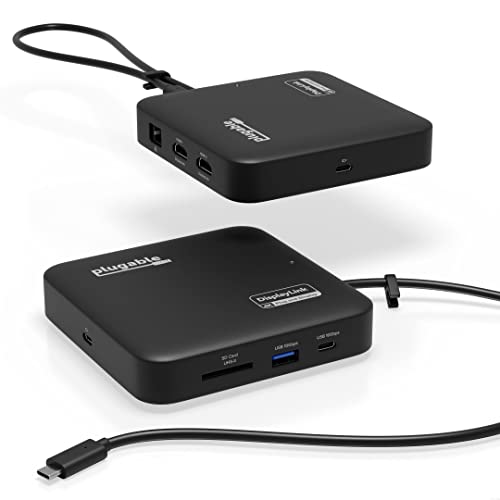
For professionals seeking to enhance their workspace with dual 4K displays, the Plugable 7-in-1 USB-C DisplayLink Dock stands out with its impressive ability to output dual 4K 60Hz HDMI. This compact docking station offers versatile connectivity, featuring USB-C, USB-A ports, an SD card slot, and Gigabit Ethernet. With 100W power delivery charging, you can keep your laptop powered while extending your display. It’s compatible with Windows and macOS systems, though you’ll need to install the DisplayLink driver for dual monitor use. Backed by a 2-year warranty and lifetime support, it’s a reliable choice for your setup.
Best For: Professionals looking to enhance their workspace with dual 4K displays and versatile connectivity options.
Pros:
- Supports dual 4K 60Hz HDMI output, allowing for an expanded workspace with high-resolution displays.
- Versatile connectivity options including USB-C, USB-A, an SD card slot, and Gigabit Ethernet.
- 100W power delivery charging keeps your laptop powered while using the dock.
Cons:
- Requires DisplayLink driver installation for dual monitor functionality, which may be inconvenient for some users.
- Not compatible with HDCP protected video playback, limiting its use for certain media applications.
- Manual driver installation needed on macOS, which could be a hurdle for less tech-savvy users.
Anker Prime Docking Station (DL7400) – 14-Port Triple Display
Designed for professionals who demand high performance and flexibility, the Anker Prime Docking Station (DL7400) stands out with its impressive 14-port configuration and triple display support. You’ll enjoy a seamless multitasking experience, as it allows one monitor to output at 8K resolution. With 140W max power delivery, you can efficiently charge your devices while transferring data. The docking station features multiple USB-C ports, HDMI, DisplayPort, and Ethernet connectivity, ensuring you have everything you need at your fingertips. Plus, the smart display keeps you updated on charging power and performance, making it an essential addition to your workspace.
Best For: Professionals who require high performance and flexibility in a multi-device workspace.
Pros:
- Supports triple display setup with one monitor capable of 8K resolution for enhanced multitasking.
- Offers a wide range of connectivity options with 14 ports, including multiple USB-C, HDMI, and DisplayPort.
- Features a smart display for real-time monitoring of charging power and performance, along with efficient cooling.
Cons:
- Requires installation of the latest DisplayLink driver for optimal display capabilities.
- The 140W charging is only available via the upstream USB-C port, limiting charging power on other ports.
- May be overkill for casual users or those with fewer devices needing connection.
Plugable 4K DisplayPort and HDMI Dual Monitor Adapter

If you’re looking to enhance your workspace with dual 4K monitors, the Plugable 4K DisplayPort and HDMI Dual Monitor Adapter stands out as a top choice. This adapter connects seamlessly to USB 3.0 and USB-C systems, allowing you to run two 4K displays at 60Hz or lower resolutions. With outputs for DisplayPort and dual HDMI, it’s perfect for customizing your setup. Installation is a breeze, thanks to automatic driver installation via Windows Update. While it’s not suited for gaming, its versatility and solid customer ratings make it a reliable option for boosting productivity.
Best For: Professionals looking to enhance their workspace with dual 4K monitors for improved productivity.
Pros:
- Supports dual 4K displays at 60Hz, providing high-resolution visuals for multitasking.
- Easy installation with automatic driver installation via Windows Update, saving time and effort.
- Compatible with both USB 3.0 and USB-C systems, increasing versatility for various setups.
Cons:
- Not suitable for gaming due to lack of HDCP support, limiting use for entertainment purposes.
- May require additional adapters for specific connections depending on the monitor type.
- Maximum display capabilities can be limited when using multiple adapters, depending on the system’s resources.
Minisopuru Displaylink Triple Display Docking Station for MacBook and Windows
The Minisopuru Displaylink Triple Display Docking Station stands out for users who require seamless connectivity and high-resolution displays for their MacBook or Windows devices. With 12 ports, including two 4K HDMI and two 4K DisplayPort, you can easily set up multiple monitors. For laptops with USB-C, enjoy three displays at 4K@60Hz, while USB-A users can connect dual displays. Fast data transfer is possible via USB-A 3.2 and USB-C ports, while the 100W USB-C PD port guarantees your laptop stays charged. Just remember to install the DisplayLink driver and connect the 36W power adapter for peak performance.
Best For: Users who need to connect multiple high-resolution displays and require versatile port options for both MacBook and Windows devices.
Pros:
- Supports up to three 4K displays for laptops with USB-C, enhancing productivity and multitasking capabilities.
- Fast data transfer rates with USB-A 3.2 and USB-C ports, allowing for quick file transfers.
- 100W USB-C PD port ensures laptops stay charged while connected to multiple devices.
Cons:
- Requires installation of the DisplayLink driver for proper functionality, which may be an extra step for users.
- Limited to only dual displays for USB-A connections, which may not meet the needs of all users.
- The HDMI and DP ports for display 3 cannot operate simultaneously, restricting display options.
Factors to Consider When Choosing a Displaylink Dock for Dual 4K
When choosing a DisplayLink dock for your dual 4K setup, you’ll want to take into account several key factors. Make certain to check the display resolution support, port availability, and compatibility with your devices. Additionally, think about the power delivery capacity and the installation process to guarantee a smooth experience.
Display Resolution Support
Choosing a DisplayLink dock for dual 4K setups requires careful consideration of display resolution support to guarantee you get the best visual experience. Confirm the dock supports resolutions up to 3840×2160 at 60Hz for smooth, high-quality visuals. It’s essential that the dock uses DisplayLink technology, allowing you to connect dual 4K monitors even if your system lacks native dual video output support. Take note of the video outputs available, like HDMI or DisplayPort, as these will determine compatibility with your monitors. Additionally, check if the dock requires manual installation of DisplayLink drivers for peak performance. Finally, be aware that some docks may not support HDCP, which can limit playback of protected content on your dual 4K displays.
Port Availability
Finding the right DisplayLink dock for your dual 4K setup means paying close attention to port availability. You’ll want a dock that offers multiple HDMI or DisplayPort connections to support two 4K monitors at 60Hz. Also, check for several USB 3.0 and USB-C ports to guarantee you can connect various peripherals while achieving fast data transfer speeds of up to 10Gbps. Additionally, look for Gigabit Ethernet ports for reliable internet access and audio jacks for external sound devices, enhancing your workspace functionality. Don’t overlook Power Delivery (PD) ports, too; they allow your dock to charge your laptop while you use other devices, typically offering up to 100W for efficient charging.
Compatibility With Devices
Guaranteeing compatibility with your devices is vital for a seamless dual 4K setup with a DisplayLink dock. First, check that the dock works with your operating system, as specific drivers may be needed for Windows, macOS, or Chrome OS. Next, consider your laptop’s USB port type—some docks only support USB-C, while others work with USB-A. It’s also important to verify that the dock supports your device’s USB or Thunderbolt version for peak performance. Additionally, verify the dock can handle your laptop’s display capabilities, as some might only support a single external display. Finally, while we won’t explore power delivery here, it’s wise to assess the dock’s charging support for your high-performance laptop needs.
Power Delivery Capacity
When setting up a dual 4K display with a DisplayLink dock, power delivery capacity plays a significant role in maintaining your laptop’s performance and battery life. Look for docks that offer higher wattage, ideally around 100W, to guarantee your demanding laptop stays charged during intensive tasks. This passthrough charging feature is vital for using multiple high-resolution monitors without draining your battery. Since docks can provide varying power delivery outputs, it’s important to choose one that meets or exceeds your laptop’s power requirements for peak performance. For instance, a dock with 100W power delivery can charge a MacBook Pro in about 1.5 hours, making it a practical choice for users with high energy demands.
Installation Process
Installing a DisplayLink dock for dual 4K setups requires attention to a few key factors to guarantee a smooth experience. First, you’ll need to install DisplayLink drivers, especially on macOS, where manual installation is essential. For Windows users, the setup is easier, as drivers typically auto-install via Windows Update. Verify your operating system is compatible with DisplayLink technology to prevent any installation hiccups. After installing the drivers, connecting the dock should automatically configure your display settings for dual 4K outputs. Finally, always check for the latest updates to the DisplayLink drivers to enhance compatibility and performance with your dual monitor setup. This proactive approach will help you enjoy seamless multitasking.
Heat Management Features
Effective heat management is essential for any DisplayLink dock designed for dual 4K setups. Look for docks with built-in fans and thermal monitoring systems to prevent overheating, especially during intensive tasks. Some models use ActiveShield technology, which dynamically adjusts fan speeds based on temperature levels, ensuring your dock operates efficiently. High-performance docks often incorporate heat-dissipating materials and designs that enhance airflow, contributing to both reliability and a longer lifespan. Additionally, advanced monitoring systems provide real-time updates on temperature and charging power, empowering you to manage performance proactively. With efficient power delivery systems rated at 100W or higher, robust cooling mechanisms become vital to maintain stable performance during demanding workloads. Choose wisely to keep your workspace running smoothly.
Design and Form Factor
The design and form factor of a DisplayLink dock play an essential role in optimizing your workspace. A compact or vertical design can enhance clean cable management, saving valuable desk space. Look for docks with a smaller footprint, typically around 2-3 inches, making them portable and easy to integrate into various setups. A sleek aesthetic not only complements modern laptops but also elevates your office environment. Weighing around 1 to 1.5 pounds, lighter models are easier to transport if you need to move between locations. Additionally, consider the number and arrangement of ports; efficient access to frequently used connections can minimize clutter and enhance usability, ensuring a streamlined experience as you work with dual 4K displays.
Price and Warranty Options
Choosing the right DisplayLink dock involves more than just design and form factor; price and warranty options also play a significant role in your decision. Prices can vary greatly between models, so it’s vital to compare features and capabilities to find the best fit for your budget. Additionally, warranty options typically range from one to two years, providing peace of mind about the dock’s reliability. Some docks even offer lifetime technical support, adding value by ensuring help is readily available if needed. Don’t forget to check customer reviews for insights on longevity and durability, as these can affect your perception of price against warranty duration. Aim for a dock that balances competitive pricing with extended warranty options for best value.